










Free IP Camera Software For Windows, Mac, iPhone & Android Phones

Finding a reliable, free IP camera software shouldn't feel like a compromise between high subscription fees and buggy interfaces. Whether you need to monitor a multi-camera home security setup from a Windows 11 PC, a Mac, or keep an eye on your property remotely via an iOS or Android smartphone, there are powerful free options available that deliver professional-grade surveillance.
This comprehensive guide breaks down the different types of video management software (VMS), exposes the hidden costs of third-party platforms, and explains how to choose the right software to access your network cameras without paying a dime in recurring fees.
- What Types of IP Camera Software Are Available?
- IP Camera Software Solutions Comparison: Which to Choose?
- 5 Key Features to Look for in a Free IP Camera Software
- Best IP Camera Software for Windows, Mac, iOS & Android
- 3 Common Mistakes to Avoid When Choosing Free CCTV Software
- What Real Users Say About IP Camera Software?
- Buyer's Decision Table
- FAQs
- Conclusion
What Types of IP Camera Software Are Available?
IP camera software is a desktop, mobile, or web-based application used to connect, view, record, and manage network security cameras. Depending on the software, users can watch live video, review recordings, receive motion alerts, control PTZ cameras, and manage multiple camera feeds from a Windows PC, Mac, iPhone, or Android device.
Manufacturer-provided software
Proprietary, first-party software developed by the camera manufacturer to offer the most stable, plug-and-play viewing experience with zero hidden costs.
Designed exclusively for a specific brand's hardware, manufacturer-provided software (such as the Reolink App and Client) is the most reliable option for everyday users.
-
Plug-and-Play Setup: Since the software and hardware share a unified ecosystem, configuration is instant—often requiring just a quick QR code scan or local network discovery.
-
Unlocked Smart Features: Advanced onboard AI capabilities—like person/vehicle detection, real-time push notifications, and motorized pan-tilt tracking—are fully supported and updated for free.
-
High Stability: Because the code is optimized for the camera’s exact internal processing chips, users experience minimal latency, fewer application crashes, and streamlined local storage playback.
Third-party video management software
Universal, pay-to-use desktop platforms that let you consolidate and manage mixed-brand security cameras in a single, customized dashboard.
If you own cameras from several different manufacturers, unified third-party platforms (like Blue Iris, Agent DVR, or Milestone) allow you to bypass brand-specific limitations.
-
Universal Compatibility: These systems leverage standard network protocols to ingest video streams from nearly any IP camera on the market.
-
Advanced Automation: Third-party VMS software allows for highly complex surveillance rules, such as triggering a smart sensor on "Brand A" to force a motorized dome camera on "Brand B" to pan toward a gate.
-
Higher Resource & Cost Demands: This software runs on a dedicated, always-on host computer. High-resolution multi-camera setups require substantial CPU/GPU processing power, and unlocking multi-screen layouts or remote viewing often requires paid licensing fees.
Open-source IP camera software
Community-driven, fully free software programs designed for advanced users who want absolute control over their local data, storage networks, and custom integrations.
Open-source surveillance programs (such as ZoneMinder, Frigate, or Shinobi) are highly popular within the DIY, smart-home automation, and tech-enthusiast communities.
-
Privacy-First Architecture: Open-source software operates entirely on your local network (LAN) without any cloud dependencies, giving you complete custody of your private footage.
-
Community Integrations: These platforms integrate deeply with local smart-home hubs (like Home Assistant), enabling you to utilize local hardware accelerators (like Google Coral USB accelerators) to run advanced object-detection models.
-
Steep Learning Curve: Open-source software lacks polished user interfaces and streamlined customer support. Setup typically requires working with terminal commands, manually writing stream URLs, and navigating complex network ports.
Browser-based camera access
Direct local access to an individual camera's settings and live stream using a standard web browser on the same local network, bypassing the need for any installed software.
Most modern IP cameras, network video recorders (NVRs), and smart hubs feature a built-in web server that can be accessed by typing the device's local IP address directly into a web browser.
-
No Installation Required: Using browsers like Google Chrome, Microsoft Edge, Mozilla Firefox, or Safari, you can log directly into your camera on a local computer to tweak advanced network configurations, adjust video stream quality, or view live video.
-
Direct Local Administration: This method is highly favored by IT administrators to open local network ports, assign static IP addresses, or troubleshoot camera connections locally.
-
Mobile Protocol Limitations: Some web browser platforms do not natively support standard local streaming protocols (such as WebRTC, FLV, or RTSP), meaning live previews may fail on certain mobile browsers (like iOS Safari), even though the settings menu remains fully accessible.
IP Camera Software Solutions Comparison: Which to Choose?
5 Key Features to Look for in a Free IP Camera Software
When evaluating free IP camera software, the goal is to find a platform that offers seamless device compatibility, robust recording controls, and secure remote access without locking essential features behind hidden paywalls.
Here are the five critical features you should analyze before choosing your software:
1. Camera Compatibility (ONVIF & RTSP Support)
Your software must natively support the exact communication protocols used by your cameras to ensure a stable connection.
If you are using proprietary software provided by your camera's manufacturer, compatibility is guaranteed. However, if you are opting for third-party or open-source software to manage a mixed-brand setup, look for these universal protocols:
-
ONVIF (Open Network Video Interface Forum): A standardized protocol that allows different brands of IP cameras and software to automatically discover, communicate, and control features like pan-tilt-zoom (PTZ) and audio.
-
RTSP (Real-Time Streaming Protocol): The baseline video streaming protocol. If a free app supports RTSP, it can pull a live video feed from almost any modern network security camera.
2. Live View and Multi-Camera Monitoring
The software should display multiple camera feeds simultaneously on a single screen without causing high CPU lag or dropouts.
A quality surveillance interface should adapt to your screen size and hardware limitations:
-
Customizable Grid Layouts: Look for software that lets you toggle between different grid views (e.g., 2x2, 3x3, or 4x4) to monitor up to 16 or 36 channels on a single dashboard.
-
Dual-Stream Support (Main vs. Sub-Stream): To save computer processing power, the software should display low-resolution "sub-streams" in multi-camera grid views, only loading the bandwidth-heavy, high-definition "main stream" when you double-click to view a single camera full-screen.
3. Recording and Playback Options
Look for flexible recording modes that let you choose where your footage is saved and how easily you can review it.
The best free software gives you complete control over your storage architecture:
-
Multiple Recording Triggers: The software should allow you to choose between continuous 24/7 recording, scheduled recording (e.g., only record during business hours), or motion-triggered recording.
-
Local Storage: Ensure the software allows direct recording to local storage media—such as a microSD card, NVR hard drive, or local computer drive—without forcing you onto a paid cloud plan.
4. Alerts and Smart Detection
Reliable software must process motion signals instantly and offer customizable detection zones to prevent notification fatigue.
An alert system is only useful if it is accurate:
-
Rich Push Notifications: When motion is detected, the software should instantly push a notification to your mobile device or send an email alert.
-
Custom Motion Zones: You should be able to draw zones over the camera's field of view to ignore busy public areas (like a public sidewalk or street) and only trigger alerts for activity on your actual property.
5. Remote Access and Security
Secure remote access allows you to check your live feeds from anywhere in the world without exposing your local network to hackers.
Your surveillance feed contains private data, making security features paramount:
-
P2P Encryption: Top free proprietary apps use secure Peer-to-Peer (P2P) connections, which route your encrypted video feed through secure servers so you can view it remotely without configuring risky router port-forwarding rules.
-
Multi-User Access Control: The software should allow you to set up multiple user accounts with varying permission levels. For example, you can grant family members "view-only" access while reserving administrator settings for yourself.
Best IP Camera Software for Windows, Mac, iOS & Android
Choosing the right IP camera software requires balancing your device operating system with your technical comfort level. Homeowners seeking zero-cost, plug-and-play simplicity are best served by manufacturer-provided apps, while power users wanting multi-brand integration benefit from dedicated third-party or self-hosted open-source VMS platforms.
To help you choose, here is a breakdown of the best software options on the market, categorized by operating system, user scenario, and key pain points.
1. Best for Windows Users with Local NVR Setup
Windows is the most popular host platform for robust, 24/7 video recording and local processing.
Blue Iris (Best Overall for Windows)
Best for: Homeowners or small business owners who want a professional-grade, self-hosted NVR on an always-on PC.
You have a mix of different security camera brands and want high-performance local recording, customized motion rules, and deep smart-home integration.
-
Key Features: Deep per-camera motion zone customization, custom alert scripting, low CPU resource use via sub-streaming, and seamless integration with external AI tools.
-
Limitation: Highly complex setup with a dated, technical interface; requires a paid license after the trial period.
iSpy / Agent DVR (Best Free/Premium Hybrid VMS)
Best for: Tech-savvy users looking for a highly customizable local monitoring program that works out of the box.
-
Key Features: Unlimited camera connection capacity, extensive motion detection filters, and web-based remote control options.
-
Limitation: Remote access outside your home network requires a paid subscription.
2. Best for macOS Users with Efficient Apple Ecosystem Integrations
macOS options are historically more limited than Windows, but native, highly optimized players deliver incredible performance on Apple Silicon.
SecuritySpy (Best Premium VMS for Mac)
Best for: Dedicated Apple users who want a sleek, intuitive Mac-based NVR system.
You want professional surveillance without leaving the Apple environment or dealing with clunky Windows-style interfaces.
-
Key Features: Built-in AI-powered object detection (human and vehicle classification), remote streaming via iOS companion apps, and incredible CPU efficiency on Apple Silicon chips.
-
Limitation: Free to try, but requires a paid plan for permanent use.
IP Camera Viewer 2 (Best Lightweight Mac Viewer)
Best for: Users who want to quickly pull up a few live streams on their MacBook with zero fuss.
-
Key Features: Fully updated for modern macOS and Apple Silicon, supports local recording, and handles standard H.264/H.265 compression protocols seamlessly.
-
Limitation: The free version limits monitoring to 2 cameras with a rolling 24-hour recording window.
3. Best Cross-Platform & Open Source for Smart Home DIY Enthusiasts
For those who prioritize absolute privacy, local control, and the freedom to change client devices, self-hosted open-source software is the gold standard.
Frigate (Best Local-AI VMS for DIY Enthusiasts)
Best for: Tech-enthusiasts running Home Assistant who want fast, local AI tracking.
You do not want your camera feeds or smart alerts routed through third-party cloud servers, and you are tired of generic motion sensors flagging shadows.
-
Key Features: Real-time object tracking utilizing hardware accelerators (like Google Coral), zone-based filtering, and native Home Assistant card integrations.
-
Limitation: Requires server-side Docker knowledge and hardware to host locally.
ZoneMinder (Best Complete Open-Source VMS)
Best for: Running a localized Linux server to handle an extensive array of security cameras.
-
Key Features: Robust multi-camera scaling, highly flexible recording rules, and zero licensing fees.
-
Limitation: A very steep learning curve for non-technical users.
4. Best for iOS & Android with On-The-Go Monitoring
Mobile software is optimized for push notification speed, low data usage, and remote control.
tinyCam Monitor (Best Universal Android Viewer)
Best for: Android power-users who want to monitor mixed-brand cameras, baby monitors, or public webcams on their phone or tablet.
-
Key Features: Built-in digital zoom, background recording support, local AI-based object detection, and task automation integrations.
-
Limitation: Features are limited on the free tier; Android-exclusive (no iOS support).
Proprietary Apps (e.g., Reolink App) — Best Overall Mobile Solution
Best for: Reolink users who want secure remote access, instant push alerts, and zero monthly fees.
-
Key Features: Instant, secure remote access using P2P encryption, customizable detection zones, clear live grids of up to 16 cameras, and effortless setup via QR codes.
-
Limitation: Locks you into the Reolink's specific hardware ecosystem.
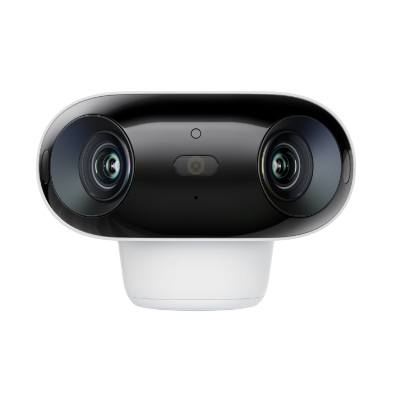
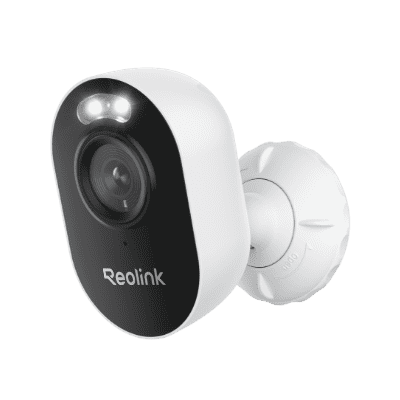
4k 180° Wire-free Color Night Vision Camera
4K UHD 180° Blindspot-free View; Color Vision Day and Night; 30% More Battery Life; Dual-band Wi-Fi 6; Smart detection.
3 Common Mistakes to Avoid When Choosing Free CCTV Software
Free CCTV software can reduce costs, but the wrong option may limit key features, slow down your computer, or create security risks.
1. Choosing a “Free” Trial
Some apps are free to download but charge for remote viewing, multiple cameras, or other useful features.
How to avoid it: Check which features are permanently free before installing the software.
2. Ignoring Computer Requirements
Viewing several 2K or 4K camera feeds can cause lag or high CPU usage, especially on an older computer.
How to avoid it: Review the system requirements and choose software that supports lower-resolution substreams for multi-camera viewing.
3. Overlooking Security and Privacy
Untrusted software may lack encryption, regular security updates, or strong account protection.
How to avoid it: Download software from a reputable provider and look for encrypted connections, strong passwords, and two-factor authentication.
summarize the following reddit post and write the following H2:
What Real Users Say About IP Camera Software?
Reddit users do not agree on one “best” IP camera software. Their choices depend on system size, camera compatibility, ease of setup, mobile access, and hardware requirements.
Milestone XProtect and OpenEye were praised for flexibility, web or mobile access, and professional monitoring features. Avigilon was noted for its capable desktop client, while Exacq appealed to users who value simple setup and long-term stability. Nx Witness was also mentioned for its easy interface, low hardware requirements, and mobile app.
Blue Iris was a popular choice for smaller installations because users found it reliable and feature-rich. However, some warned that its interface feels dated and that managing many high-resolution cameras may require a powerful computer.
Bottom line: prioritize reliability, simple configuration, multi-camera support, remote access, and reasonable hardware demands over flashy features. For a single-brand home system, manufacturer-provided software may be the easiest option, while third-party VMS platforms are more useful for mixed-brand or larger installations.
Buyer's Decision Table
FAQs
Is there a free software to view IP cameras?
Yes. Many IP camera manufacturers offer free desktop clients, mobile apps, or browser access for compatible cameras. These tools usually support live viewing, playback, alerts, and basic device management without a monthly fee.
What apps can I use for an IP camera?
You can use the camera manufacturer’s official app or a compatible third-party IP camera app. For example, Reolink users can view live video, receive alerts, review recordings, and manage supported cameras through the Reolink App on iPhone and Android.
How do I view my IP camera on my computer?
Install a compatible IP camera client on your Windows PC or Mac, then add the camera using its device ID, QR code, IP address, or local network search. Once connected, you can watch live video, review recordings, and manage multiple cameras from the computer.
Conclusion
Whether you are using free IP camera software that come with the system or third party apps for managing video surveillance systems, it’s essential to pay extra attention to the minimum requirement on your computer system or mobile devices such as iPhone 4/5/6/7 information in advance.
Very often than not, home network and computer CPU could have an impact on the general functionality and stability of security camera software, which in return could compromise their performance to some extent.
Updating your free security camera software on a regular basis if there is a latest version can maximize performance and get rid of certain bugs to fix loopholes that keep nagging you.
There is no IP security camera software without experiencing certain glitch here or there on the market, and it’s important to evaluate these surveillance camera apps as a whole rather than tar them with the same brush.
Search
Subscribe for the Latest Updates
Security insights & offers right into your inbox