
Reolink Default Password: Everything You Need to Know
Reolink security gear uses account credentials to protect live video and saved clips. When owners first unpack a new camera or NVR, they often wonder whether the unit ships with a ready-made login. Many search for the Reolink default password online. This guide examines the topic in clear steps for the default Reolink password.
It covers the current policy for cameras and recorders, shows you where to find the first-time username, walks through changing the code, and answers common questions. Follow the steps below and keep every recording safe.
Do Reolink Cameras Have a Default Password?
Network security has advanced quickly in the past decade; yet many surveillance brands once mailed products with open credentials that anyone could find on a forum. Reolink decided to break with that habit. Modern Reolink cameras no longer arrive with a fixed admin password. During the very first boot, the mobile app or desktop client prompts you to create one. Until you finish that step, the camera stays in a restricted local mode and refuses connections from the wider network. This design protects new users who may still be learning best practices.
The system still keeps a default username, normally “admin.” The paired password field stays blank until you enter your own phrase. If you attach the camera directly to a Reolink NVR instead of the app, the recorder passes the prompt through its own monitor so you can set credentials on the spot. This change blocks common hacking scripts that guess shared codes.
What Is Reolink Default Password?
Before you press Login for the first time, learn the rules for your model. Camera units follow one pattern, while a Reolink NVR follows another because its firmware varies slightly.
Reolink camera default password
Every current Wi-Fi or PoE camera from Reolink—including the RLC-820A, Argus line, E1 series, and Duo series - leaves the warehouse with the admin account present yet blank. The mobile app detects that blank field and demands an immediate change. If you skip the wizard and try a third-party tool, use “admin” as the username and leave the password box empty. The software will insist on a new code before it streams video.
A few very old models, such as the C1 Pro, shipped years ago with “123456” or “password,” but later firmware removed that risk. If you still run an archive build, upgrade before you expose the camera to the Internet. Remember that any blank admin password still counts as valid authentication, so anyone on the same network could view the feed until you assign a secure phrase of at least six varied characters.
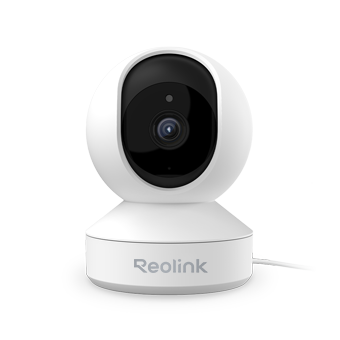
Affordable and Smart Wireless PT Home Camera
Indoor Camera Under $30; 355° Pan and 50° Tilt; 4MP Super HD; Two-Way Audio; Easy Setup with Dual-band WiFi. Crying Detection for Baby Monitoring.
Reolink NVR default password
A Reolink NVR mirrors the behavior of the cameras. The factory configuration defines “admin” as the username and keeps the password field blank. When you power up the recorder, the local monitor shows a setup window that refuses to proceed until you enter a strong password. You can type the new code with an attached mouse or the on-screen keyboard.
Legacy RLN recorders running firmware earlier than version 3.0 once stored “123456”; however, Reolink issued a notice and patch that removed that value. Update the firmware before you connect the recorder to the Internet or forward any ports. Leaving the recorder without a password also disables remote playback and notification features, so there is a strong operational reason to set one during installation.
How to Find the Reolink Default Username and Password?
Suppose the installer forgot to document the credentials, and you now face a login screen. You can still recover or confirm the default username or placeholder password through several checks.
-
Read the device label. Look under the camera base or the back of the NVR. Most units carry a sticker that lists the model number, default username, and a note that the password is blank until initialization. If the sticker shows a printed password, treat it as temporary and replace it soon.
-
Open the Reolink App initialization wizard. Add the device by scanning its QR code. If the camera or NVR has not yet finished setup, the app shows a Create Password page rather than a login box. That cue confirms the password is still blank on first use.
-
Watch the NVR monitor. When you connect the recorder to a display and boot it for the first time, a full-screen prompt appears and lists the default admin name. The space under that name remains empty; type your new password, confirm it, and click Next.
-
Try the reset-button method. Press and hold the reset button (usually found near the microSD slot) until the status LED blinks. The device returns to factory state, which means the username resets to “admin” and the password goes blank. You then run the wizard again.
-
Contact Reolink support. If you purchased the unit second-hand and it already holds an unknown admin password, send the serial number to Reolink support. The team can generate a temporary unlock key after confirming ownership. This key lasts for one session and lets you set a fresh password.
How to Change Reolink Camera Default Password?
Once the first login works, replace the blank or weak code with a strong phrase because default settings cannot secure remote access. The process differs between camera models and NVRs.
For Reolink cameras
- Launch the Reolink App and sign in. Use the admin credentials you created during setup. If the password remains blank, finish the wizard first.
- Open User Management. Tap the gear icon, select Advanced, then choose User Management. The screen lists every account.
- Select the target user. Tap the pencil icon next to the user whose password you want to change; an edit panel opens.
- Enter the old password. Type the current password in the top box to prove control of the account.
- Set and confirm the new password. Enter a fresh string that mixes letters, numbers, and symbols, then repeat it in the confirmation field.
- Save. Tap Save and wait for the success banner. The camera now rejects the previous password.
For Reolink NVRs
- Open the System menu. Click the Settings icon on the NVR’s live-view screen, then choose System > General.
- Enable screen lock. Toggle Require account and password verification so the recorder asks for a password when the screen locks.
- Choose an auto-lock interval. Click the arrow beside Auto-Lock Time and pick a duration, such as five minutes. After that idle period, the recorder hides the live view until someone enters the password.
- Confirm the change. Exit the menu; the NVR saves the new rule. Test by waiting for the chosen interval and moving the mouse. The login dialog should appear.
FAQs
What do I do if I forgot my Reolink password?
Press and hold the reset button on the camera or NVR for ten seconds, then release it when the status LED blinks. Open the Reolink app, tap Add Device, and follow the initialization wizard. The process wipes the old password and lets you create a new one from scratch today.
How do I login to my Reolink camera?
Connect your phone to the same network, launch the Reolink app, tap the plus icon, scan the QR code on the camera, and enter the admin username and password you set during initialization. The camera appears in the device list, and you can tap its thumbnail to view live video.
What is Reolink's default IP?
Reolink installs Automatic Private IP Addressing by default, so the camera receives a dynamic address from your router’s DHCP pool. If no server replies, the device falls back to 192.168.0.99. You can open the Reolink Client, click Device Settings, and read or assign a static address if required at any time.
Conclusion
Reolink keeps the username but leaves the password blank, so that owners must build their own barrier. You now know how to locate that initial state, change it, and manage user roles. Store the new code in a secure place, and review permissions for each account.
With these clear steps, you can stop the guesswork around the Reolink default password, protect every camera, and keep your recordings private. Share your experience below and help other readers stay secure.
Search
Subscribe for the Latest Updates
Security insights & offers right into your inbox