








How to Remove a Device from Google Account? Step-by-Step Guide
Over the years and with the use of Smartphones, tablets, computers, and other Internet-enabled devices, it is not unusual for Google users to have a long list of devices associated with their account.
But for privacy, security, and overall management of the account, it is crucial to clean, or in this case, purge this list of outdated or unused devices. In this guide, we will explain step-by-step instructions on how to remove devices from Google account via web or mobile.
How to Remove a Device from Your Google Account (Desktop & Mobile)
You can remove old or unused devices from your Google Account in just a few minutes, whether you're using a computer or a phone. Follow the step-by-step instructions below to keep your account secure and organized.
Remove a Device on Desktop (Computer)
- Go to your Google Account and open the Security page.
- Scroll to Your devices or Devices you trust.
- Find the device you want to remove.
- Click the three-dot menu next to the device.
- Select Remove.
- Confirm by clicking Remove again.
- Repeat for any other devices you no longer use.
- Refresh or recheck your device list to confirm removal.
Quick tip: Removing a device signs it out and removes its access to your account.
Remove a Device on Mobile (Phone or Tablet)
- Open the Google app and tap your profile icon (top right).
- Tap Manage your Google Account.
- Go to the Security tab.
- Tap Your devices or Devices you trust.
- Find the device you want to remove.
- Tap the three-dot menu next to it.
- Tap Remove or Remove trust.
- Confirm the action when prompted.
- Repeat for additional devices if needed.
Quick tip: This works the same on both Android and iOS devices.
What Happens After You Remove a Device?
- The device is signed out of your Google Account
- It will no longer have access to your data
- You may need to sign in again if you use the device later
Source: Google Account Help
How to Remove a Google Account from a Device (Android & iPhone)
[ga-seo-howto]
You can remove your Google Account from any device—Android or iPhone—in just a few steps. This will sign you out of Google apps and stop data syncing on that device.
Steps to Remove a Google Account from Any Device
- Open Settings on your device.
- Go to Accounts, Passwords & Accounts, or Mail (name may vary by device).
- Find and select your Google account (Gmail).
- Tap Remove account or Delete account.
- Confirm the action when prompted.
- Enter your device password, PIN, or Face ID/Touch ID if required.
- Your Google Account will be removed from the device.
Alternative Method (iPhone Only – via Gmail App)
- Open the Gmail app.
- Tap your profile icon (top right).
- Tap Manage accounts on this device.
- Select the account and tap Remove from this device.
- Confirm to finish.
How to Remove Devices from Google Play?
You can’t fully delete a device from Google Play, but you can hide it from your device list so it no longer appears when installing apps. This helps keep your Google Play account clean and organized.
- Go to Google Play Store in your browser.
- Click your profile icon (top right).
- Select Library & devices (or Settings > Devices, depending on layout).
- Find the device you want to remove.
- Uncheck Show in menus or select Hide.
- Your device will no longer appear in your Google Play device list.
Why You Should Remove Devices from Your Google Account?
Keeping old or unused devices linked to your Google Account can create security and privacy risks. Regularly removing them helps keep your account safe and running smoothly.
- Improve security – Lost or old devices could still access your account if not removed.
- Stop unwanted syncing – Prevent Gmail, Drive, and other data from syncing to unused devices.
- Protect your privacy – Limit how much data is connected across devices.
- Fix sync issues – Too many devices can sometimes cause account or syncing problems.
Quick tip: Review your connected devices regularly and remove anything you no longer use.
Bonus Tips: How to Remove Devices From Google Home
Google Home smart speakers can accumulate quite a list of "linked" devices over time. Here are some quick tips for removing devices from Google Home:
- Open the Google Home app and tap your account icon to access settings.
- Select "Assistant settings" then choose "Devices."
- Tap into any device you want to remove.
- Tap the three-dot menu and select "Remove device."
- Confirm removal by tapping "Remove device."
- The device will be deleted from your Google Home app and no longer linked.
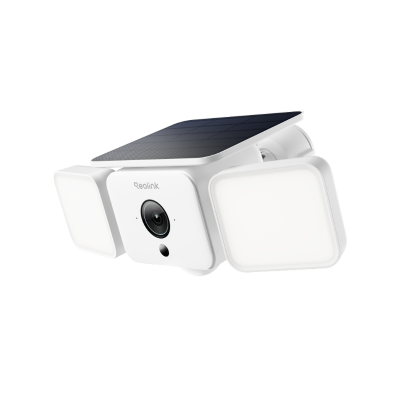
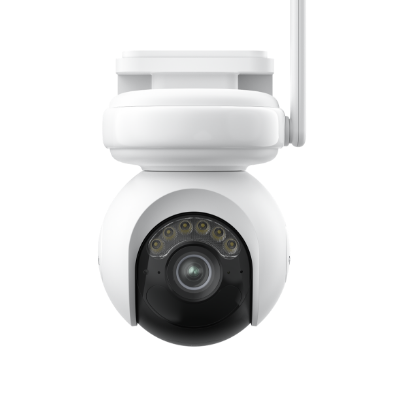
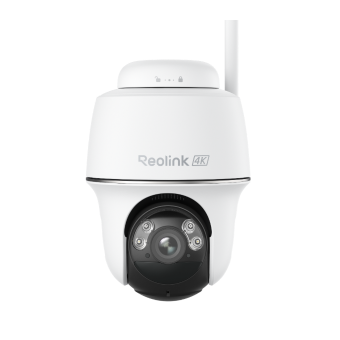
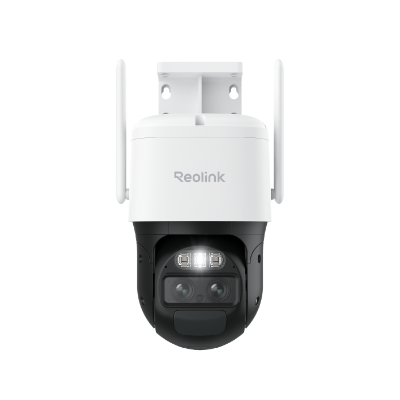
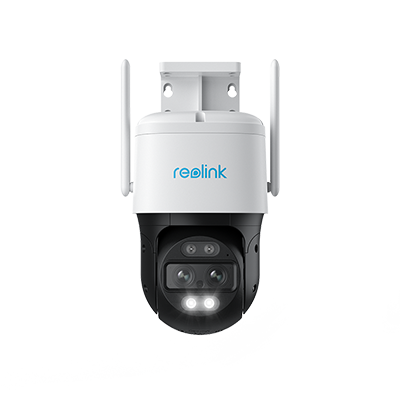
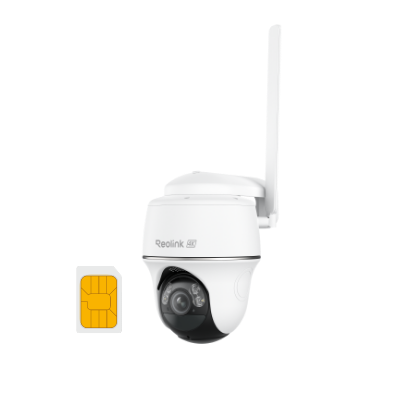
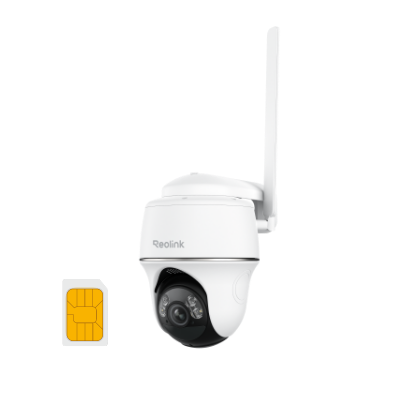
Many smart home devices, including security cameras, are compatible with Google Home Assistant. By connecting cameras to Google Home, you can enjoy hands-free control and view real-time live feeds on your Google tablets. One recommended option is the Argus PT Ultra, a 4K 8MP camera with pan and tilt capability that works with both Google Home and Amazon Alexa.
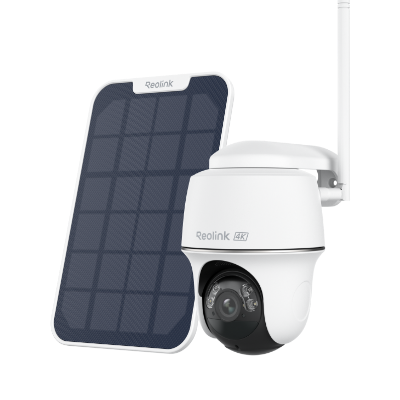
4k 100% Wire-Free PT Camera
4K 8MP Ultra HD; 5GHz/2.4GHz WiFi; Rechargeable Battery & Solar Powered; 355° Pan & 140° Tilt; IP65 Certified Weatherproof; Clear Night Vision; 2-Way Audio; 122° Wide Viewing Angle.
FAQs
How do I remove old devices off my Google Account?
Go to your Google Account → Security → Your devices. Select the device you want to remove, click Sign out or Remove, and confirm. This will disconnect the device from your account.
How do I unlink a Google Account from a device?
Open Settings on the device, go to Accounts, select your Google account, and tap Remove account. Confirm to unlink it from that device.
How can I see what devices are connected to my Google Account?
Go to your Google Account → Security → Your devices and click Manage devices. You’ll see a list of all devices currently signed in or recently used.
Conclusion
In general, managing Google account-associated devices, and removing unused ones from the list is a good practice, which is not given enough attention. This guide has described the steps for how to open the connected devices list and how to remove device from google account.
Spending more time organizing your account reduces the chances of exposing your personal information to the public. But, again, be careful not to delete any device you still have active use for!
Search
Subscribe for the Latest Updates
Security insights & offers right into your inbox