









Why Does My Security Camera Keep Going Offline? Troubleshooting Guide
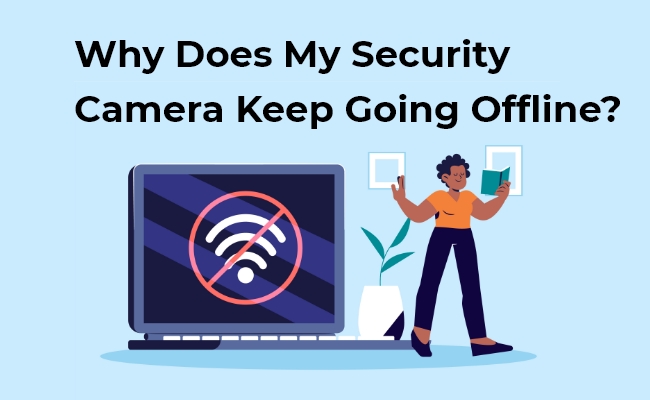
Are you puzzled and asking yourself, "Why does my security camera keep going offline?" If so, you've come to the right place for answers! In this guide, we will explore the why behind your security camera's little breaks from the internet.
What causes your security camera to go into hibernation? It's similar to when your favorite superhero unexpectedly vanishes in the middle of a film; you know there's a good reason, and they'll return once the issue has been resolved. Therefore, don't worry if you wonder, "Why does my security camera keep going offline?" regularly.
🎉 Exclusive Limited-Time Security Deals
- Save on doorbells, systems, and cameras
- Early access offers available for a limited time only
Why Does Your Security Camera Keep Going Offline? 5 Reasons
Power Disruptions & Battery Depletion
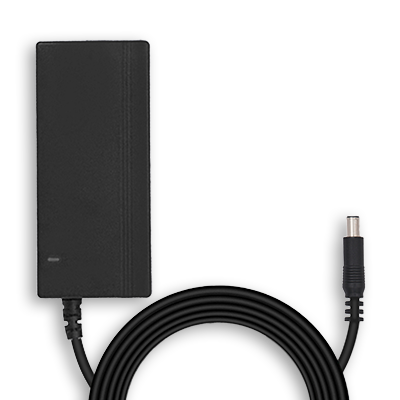
Loose plugs, unstable power supplies, or a completely drained battery will immediately shut down a device. For both standard plug-in and Power over Ethernet (PoE) systems, unexpected power outages or electrical hiccups can force the hardware offline, while physical damage to power cables can completely cut off electricity.
Network Instability & Wi-Fi Traffic Jams
A shaky wireless connection caused by network overload is a primary culprit. When too many smart devices crowd your Wi-Fi, it creates a digital traffic jam that pushes the camera offline. For cellular-based cameras, a weak or dropped 4G/5G network signal will halt video transmission entirely.
Cable and Hardware Component Failures
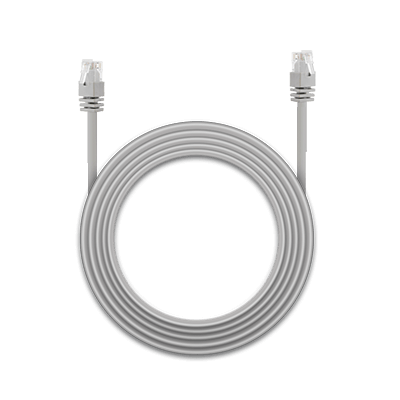
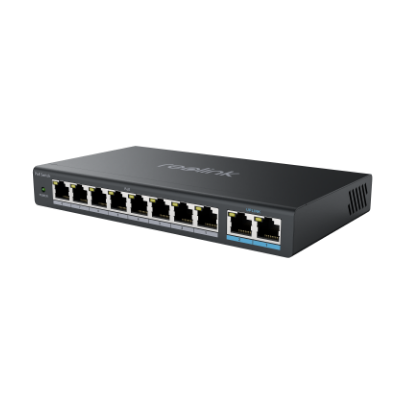
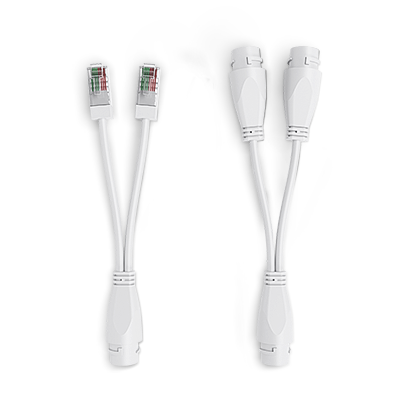
For wired setups, physical wear and tear on Ethernet cables or loose ports will disrupt data and PoE power delivery. Wired IP cameras can also go offline if there is an issue with network infrastructure components, such as a malfunctioning router, a bad network switch, or a faulty PoE injector. Environmental factors like extreme heat or excessive moisture can also degrade the physical hardware.
IP Address Conflicts & NVR Compatibility Issues
Every camera requires a unique identity on your network. Sometimes, two devices accidentally end up assigned with the exact same IP address, causing a conflict that boots your camera offline. Additionally, wired cameras are picky about who they talk to; if a camera experiences a firmware mismatch or compatibility issue with the recording box (NVR), the entire system can lose its connection.
Outdated Software & Cloud Service Outages
Cameras rely on internal programs called firmware to run smoothly. Outdated camera firmware or obsolete versions of your mobile app can lead to communication errors and frequent offline glitches. Furthermore, if your system relies on an online "invisible backpack" to save videos, a backend cloud server outage or service break will temporarily leave your camera disconnected until the server is back online.
How to Get Your Security Camera Back Online? 6 Ways
If your security camera has taken an unplanned break, don't fret! Here are some handy tips for getting your security camera back online and ensuring everything runs smoothly. Whether you're wondering, "How do I get my security camera back online?" or you're a tech whiz, these steps are easy to follow.
Reboot WiFi Router
Sometimes, all your system needs is a fresh start. Please turn off your WiFi router for about 30 seconds and then turn it back on. This simple reboot can clear up minor glitches and restore your camera's connection.
Reconnect the Camera to the Power Source
If there is nothing wrong with the Internet connection, you can check the power source.
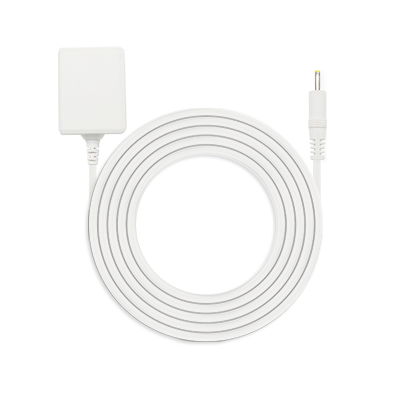
- For Plug-In Cameras: Ensure your plug-in camera is securely connected to a power source. A loose connection might be all that's standing between you and a functional security camera.
- For Battery-Powered Cameras: If you have a battery-powered camera, check if the battery needs recharging or replacing. A tired battery could be the reason your camera is offline.
Upgrade WiFi Version
Is your WiFi struggling to keep up with your tech-savvy home? Consider upgrading your bandwidth or switching to advanced WiFi versions, like WiFi 6. This upgrade can enhance the stability and range of your connection, helping your camera stay online.
Reduce Network Load
Too many devices on the same network can create a digital traffic jam. Try reducing the number of internet-operated devices active at the same time. This reduction can minimize interference and avoid network overload, giving your security camera a clearer line of communication.
Update Software and Firmware
Keep your camera in top shape by updating its software and firmware according to the manufacturer's instructions. These updates often include fixes for common issues causing your camera to go offline.
Change Physical Equipment
Sometimes, the issue lies in the physical connections. Consider changing out older Ethernet cables, PoE injectors, or the WiFi router. These components can wear out over time and may need an upgrade to ensure a stable connection.
You can effectively get your security camera back online by following these steps. If you encounter any challenges, don't hesitate to contact the manufacturer's support for more tailored assistance.
How to Fix Your Reolink Camera When It Goes Offline?
When your Reolink security camera drops its connection, you can systematically diagnose and fix the issue by running through these official troubleshooting phases:
Verify Device Power Status
Go to the camera in a dark environment or cover the lens with your hand. If the infrared (IR) LEDs or spotlights do not illuminate, the camera is not receiving power. Inspect the DC adapter, charge the battery, or test the unit with an alternative, known-working power source.
Isolate Network vs. Device Access Issues
Switch your smartphone's connection from home Wi-Fi to cellular mobile data (or vice versa) to test network routing. Try alternating between "Clear" and "Fluent" stream modes in the live view interface, as a slow internet connection can cause higher resolutions to time out. Lastly, cross-test by switching between the Reolink Mobile App and the PC Client software, ensuring any active VPNs or firewalls on your computer are temporarily disabled.
Perform a Full Hardware Power Cycle
Unplug the power cable from both your Reolink camera and your internet router. Leave them completely disconnected for roughly 60 seconds, then plug the router back in first, followed by the camera. This forces the network to refresh and assigns a clean IP address to the camera hardware.
Inspect All Physical Connections & Cables
Unplug the Ethernet cable and inspect the ports for pin corrosion or loose clipping. Test the setup by replacing the existing Ethernet line with a brand-new, known-good cable. Additionally, try plugging the camera into a completely different LAN port on the back of your router or PoE switch to rule out a dead network port.
Perform a Factory Hard Reset
Locate the physical pigtail reset button on the camera's wiring harness (or inside the battery compartment/SD card slot for wire-free models). Press and hold the reset button down for several seconds until you hear a startup chime or voice prompt. This restores the camera back to factory default settings, allowing you to re-add it to your Reolink App as a brand-new device.
How to Prevent Future Security Camera Offline Issues?
If your security cameras are constantly going offline and you want to prevent such situations in the future, you might find the following tips helpful.
Regular Maintenance of Security Cameras
Just like a car needs regular check-ups, your security camera does. Maintenance, like cleaning the lens and checking the connections, can go a long way in preventing offline issues.
Install Security Cameras Properly
Putting your camera in the right spot matters a lot. Ensure it's within a good range of your WiFi router (for wireless cameras) and not blocked by obstacles. Proper installation ensures a stronger, more reliable connection.
Secure the Network
Your camera's health depends on your WiFi's health. Use strong passwords, update your router's firmware, and consider a separate camera network. A secure network means fewer connection dropouts.
Implement a Backup Strategy
Always have a Plan B! Use local storage options for camera data to have recordings even if the internet is down. And think about a UPS (Uninterruptible Power Supply) for power backup to keep your cameras running during power outages.
Ask for Professional Help
If you keep running into offline problems, feel free to call in the experts. Sometimes, a professional or the manufacturer's customer service can spot and fix issues you have missed.
FAQs
How do I put my security camera back online?
To put your security camera back online, start by checking that it has power and that all cables or batteries are properly connected. Restart the camera to refresh its connection. Make sure the Wi-Fi signal is strong by moving the camera closer to your router if necessary. You can also reboot your router to clear any network issues. If the camera still won’t reconnect, open the app and run the Wi-Fi setup again or install any available firmware updates.
Why does my IP camera keep going offline?
Your IP camera might be like a kid lost at the mall—it can't find its way back to the WiFi. This can happen if there's a problem with the WiFi signal or the power supply or if it needs an update. Sometimes, it just needs a restart or a check to ensure everything's plugged in correctly.
Can wireless security cameras work without WiFi?
Yes and no. Think of wireless cameras like walkie-talkies. They need a signal to send video to your phone or computer. Some cameras have a backup plan and can save video to a memory card without WiFi, but you can't watch live without an internet connection.
How can I tell if a security camera is on or off?
Security cameras are usually good at letting you know they're on. They might have a little light that glows or blinks. Sometimes, you can see their night vision lights, which look like tiny red dots if it's dark. If you need more clarification, you can always check the app or program that came with your camera.
Conclusion
Remember, gadgets are expected to have off days, just like us. With patience and detective work, you can keep your security camera online and watch over your home like a trusty friend. Now, you're ready to keep your camera online! If you ever need to remember what to do, just reread this guide. And if you need more help, the support team for your camera is always there for you. Remember, your camera is essential to keeping your home safe, so take good care of it, and it will take good care of you.
Did your security camera go offline before? How did you handle it? Please share your experience with us in the comment section below!
Search
Subscribe for the Latest Updates
Security insights & offers right into your inbox