







How to Connect Alexa to WiFi?
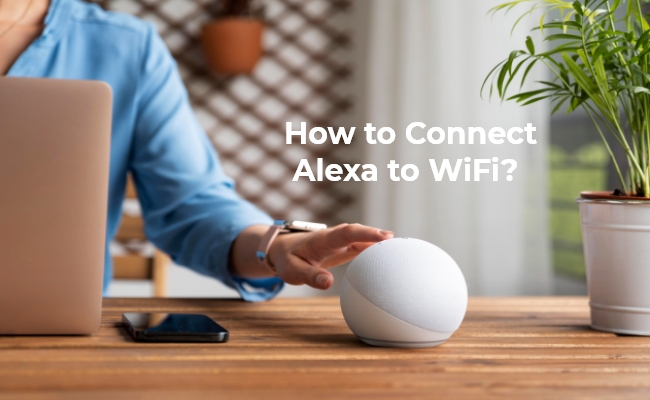
Connecting Alexa to WiFi is essential to unlock its full features, from voice control to smart home integration. That’s why knowing how to connect Alexa to WiFi correctly is important.
If you move your device between locations, you may face situations like connecting to college or shared networks with extra login steps. In this guide, we’ll show you how to connect Alexa to WiFi in different scenarios, including setup, reconnection, and more complex networks.
How to Connect Alexa to WiFi?
To connect Alexa to WiFi, open the Alexa app, select your device, and update the WiFi network through the settings. If needed, put your Echo device into setup mode and follow the on-screen instructions.
- Open the Alexa app on your phone and sign in.
- Tap Devices → Echo & Alexa, then select your device.
- Go to Settings (gear icon) → WiFi Network → Change.
- Put your device in setup mode by holding the action button for about 15 seconds until the light turns orange.
- Follow the prompts to select your WiFi network and enter the password.
Once completed, your Alexa device will connect to the new WiFi network and be ready to use.
How to Connect Alexa to New WiFi?
If you are switching to a new router or internet connection, then the process on how to connect Alexa to a new router will be slightly different. Before starting the steps you must ensure that your Alexa device is powered on and connected.
- Open the Alexa app, navigate to Devices, and select your device.
- Tap the Wi-Fi Network option and then tap on the Change icon to initiate the reconnection process. If required, to enter setup mode use the action button on your device to hold it simultaneously.
- Go through the setup to select your new WiFi network from the list available in the app, input the WiFi password, and complete the process.
- Alexa will let you know as it registers on the new network.
How to Connect Alexa to WiFi Without App?
Although the easiest way to connect Alexa to WiFi is with the application, there is another method as well that does not require the Alexa app. It requires you to have a device that has a web browser on it.
You can use this method with the steps below:
- Open your browser to go to alexa.amazon.com and log in with your amazon account.
- Click “Settings” from left menu and go to “Devices” and select “Set up a new device”.
- Choose your Alexa device and turn it on so that it has an orange ring.
- Connect to the Amazon-XXX network which is a temporary internet connection for Alexa setup process and hit continue in browser.
- Now choose the network you wish to connect with and enter its details to connect.
It will connect your Alexa device directly to your internet without needing the application.
Troubleshooting: What to Do if Alexa Won’t Connect to WiFi
If Alexa won’t connect to WiFi, the issue could be related to the network, the device, or setup errors. Below are common symptoms and corresponding solutions for different scenarios.
Tip: Following these steps resolves most software- or network-related issues and ensures your Alexa device connects to WiFi smoothly.
Can You Use Alexa without WiFi?
Without WiFi, Alexa's capabilities will be hugely reduced. It is only able to do its basic function that is Bluetooth speaker and setting timers. The major problem with not going for WiFi is that most of Alexa’s popular features will not work as intended because they are processed in the cloud, and this includes voice recognition adjustment, app integration, and software updates while operating in the most basic functionality mode.
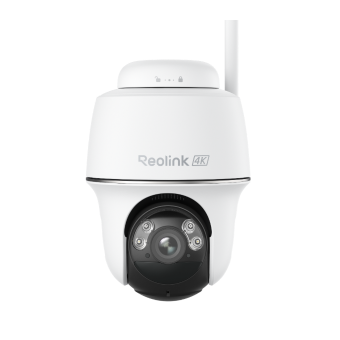
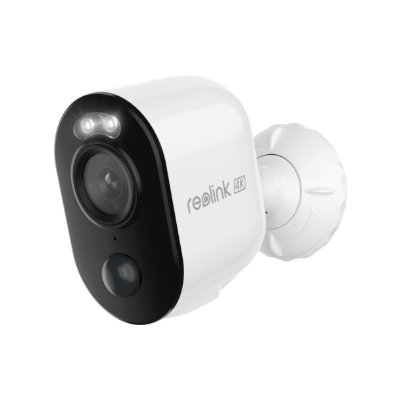
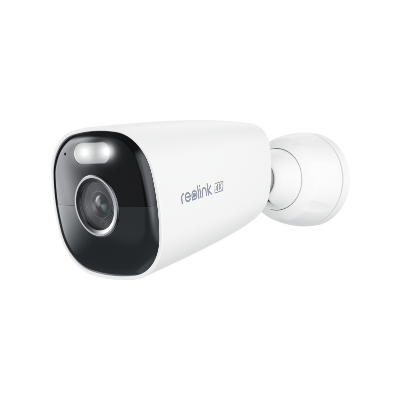
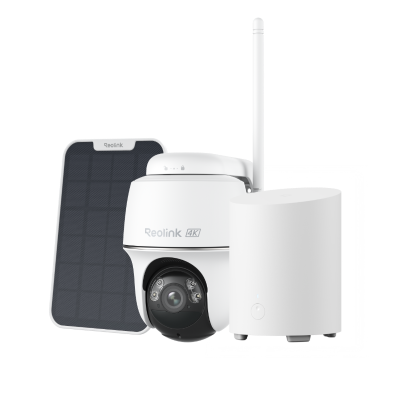
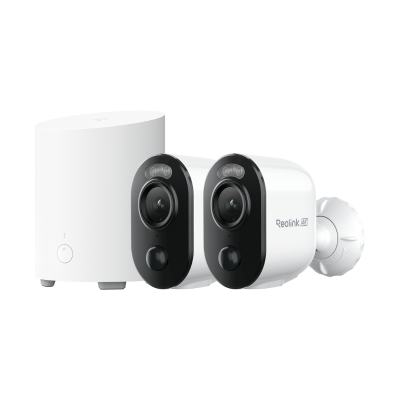
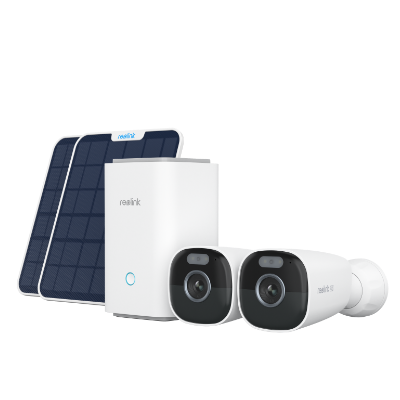
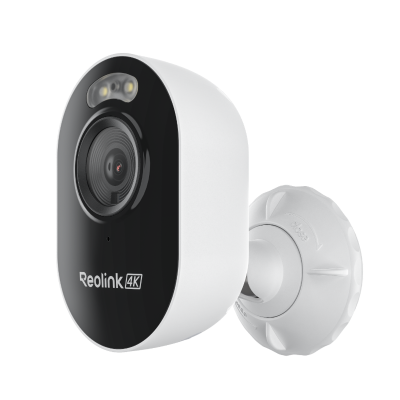
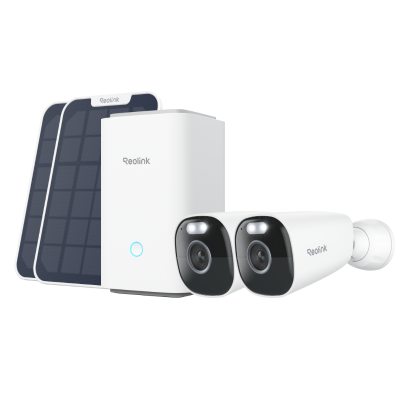
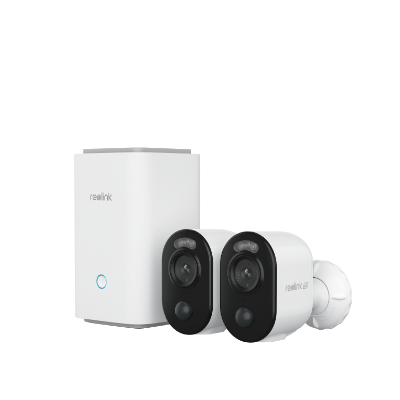
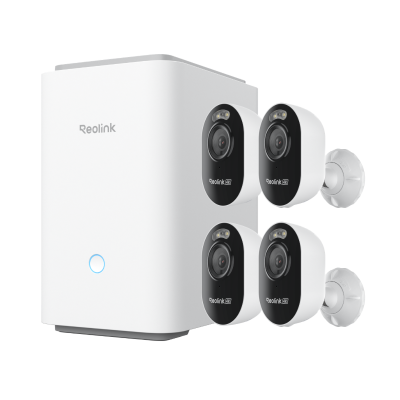
Not just Alexa, but other smart home ecosystems like Google Assistant and Apple HomeKit also operate over the internet, allowing devices such as security cameras to connect via WiFi. The new Reolink Argus 4 Pro and Argus 4 are compatible with Google Assistant and can be easily connected to your Wi-Fi 6 router.
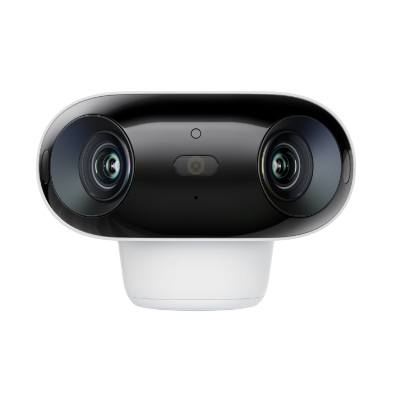
4k 180° Wire-free Color Night Vision Camera
4K UHD 180° Blindspot-free View; Color Vision Day and Night; 30% More Battery Life; Dual-band Wi-Fi 6; Smart detection.
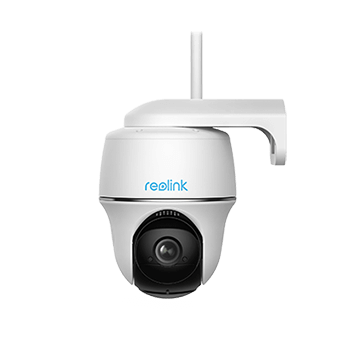
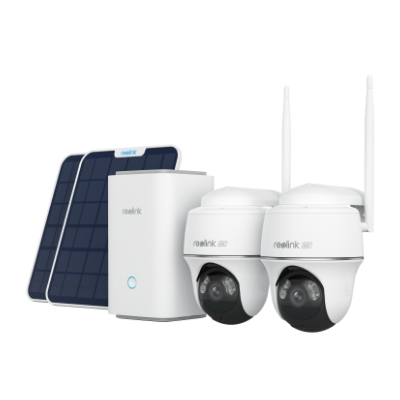
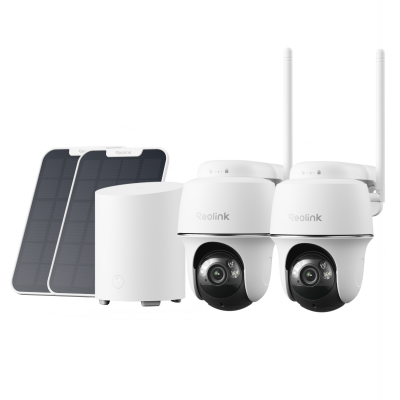
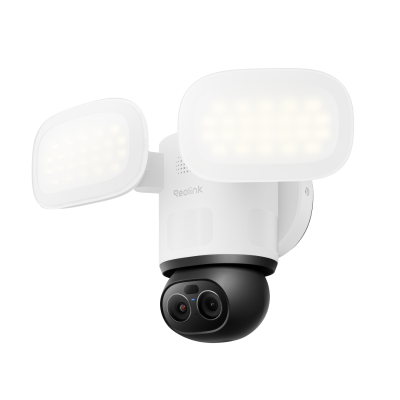
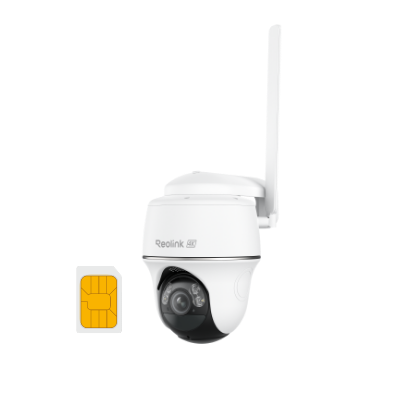
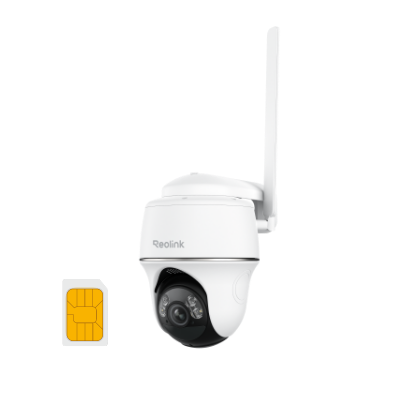
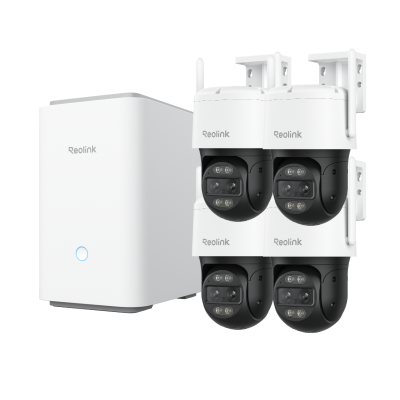
If you need a security camera that is compatible with Alexa, Reolink Argus PT Ultra is an excellent choice.The Reolink Argus PT offers seamless integration with Alexa, allowing for hands-free control and monitoring through voice commands. You can easily check the camera's live feed on your Echo Show or Fire TV by simply asking Alexa.
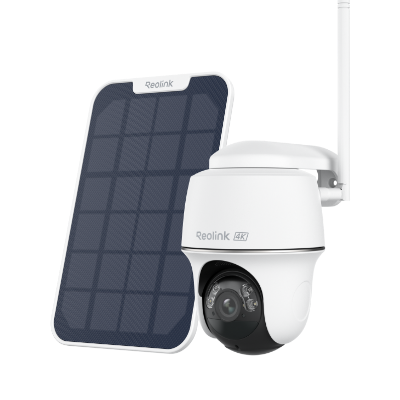
4k 100% Wire-Free PT Camera
4K 8MP Ultra HD; 5GHz/2.4GHz WiFi; Rechargeable Battery & Solar Powered; 355° Pan & 140° Tilt; IP65 Certified Weatherproof; Clear Night Vision; 2-Way Audio; 122° Wide Viewing Angle.
FAQs
How do you connect Alexa to the internet?
First, plug in your Alexa-enabled device and wait for the light ring to turn orange. Next, open the Alexa app and sign in with your Amazon account. Tap on the "Devices" tab, then select the plus (+) icon and choose "Add Device." Then, select your WiFi from the app list and enter the password.
How to connect Alexa to Bluetooth without WiFi?
First, make sure your Alexa device is powered on. Say, "Alexa, enable Bluetooth." If Alexa doesn't pair with your device, then you have to say, "Alexa, forget this device." Check Bluetooth enabled on the device you wish to connect to as well.
After Alexa locates your devices, she will ask you to choose the ones you want her to control from a list of available devices. Go to your Bluetooth settings and pair the device if necessary. This method allows for direct connection to your Bluetooth device to playback songs or fulfill other purposes by cutting out the need for a WiFi connection.
How do I reconnect Alexa to a new internet provider?
If you’ve changed your internet provider, reconnecting Alexa is easy! Open the Alexa app on your phone, go to Devices → Echo & Alexa, select your Echo device, then tap Wi-Fi Network. Follow the prompts to choose your new Wi-Fi network and enter the password. Once connected, your Echo will be ready to use with your new internet.
How do I put an echo dot in pairing mode?
To pair your Echo Dot with a phone, tablet, or Bluetooth speaker, press and hold the Action button (the dot on top) until the light ring turns orange. This means your Echo Dot is in pairing mode. Then, go to your device’s Bluetooth settings and select your Echo Dot to complete the connection.
How do I reset my Alexa Wi-Fi?
If you need to reset Wi-Fi on Alexa, press and hold the Action button on your Echo until the light ring turns orange. This puts the device in setup mode, letting you connect it to a new network through the Alexa app. From there, just follow the instructions to select your Wi-Fi and enter the password.
Conclusion
If you are unable to connect your Alexa to WiFi then you may not be able to enjoy its complete capabilities. This is because Alexa is a powerful home assistant and it requires internet connectivity over WiFi to perform. So, it is very important to learn how to connect Alexa to WiFi, switch between different networks, and connect to Bluetooth without WiFi when needed.
Search
Subscribe for the Latest Updates
Security insights & offers right into your inbox