








Reolink Optical Zoom: How to Zoom In From Your Phone

Adjusting a Reolink camera's optical zoom is a breeze. All you need to know are 5 steps and you'll be able to zoom in on what matters in no time.
In this guide, we'll be going through some of the best Reolink cameras with optical zoom, the 5 steps you'll need to know on operating optical zoom, and some of the most common troubleshooting points that'll help you get back in action with zooming.
Which Reolink Cameras Have Optical Zoom?
Reolink optical zoom works through a motorized lens that changes its focal length on command. A longer focal length gives a tighter view of a distant subject, and the picture keeps its detail. For a full breakdown, read how optical zoom differs from digital zoom.
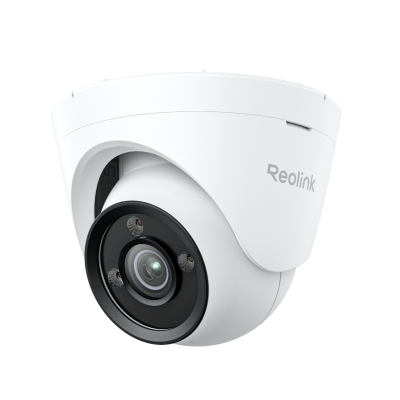
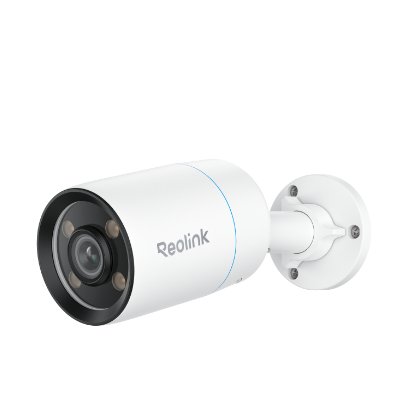
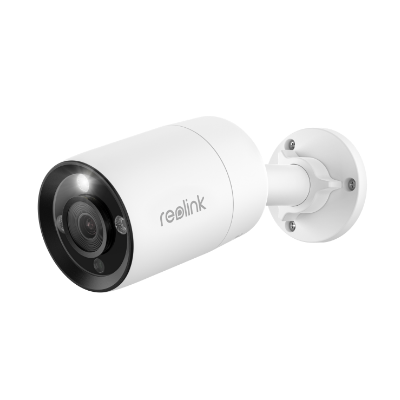
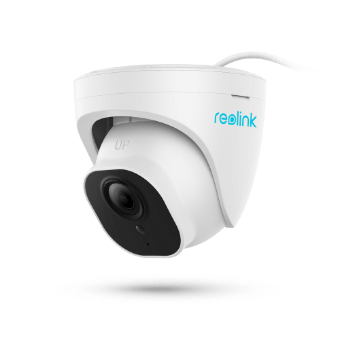
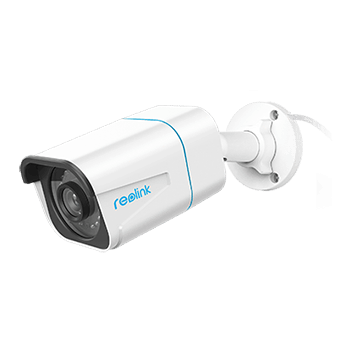
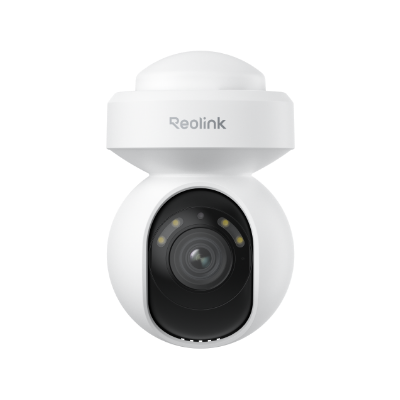
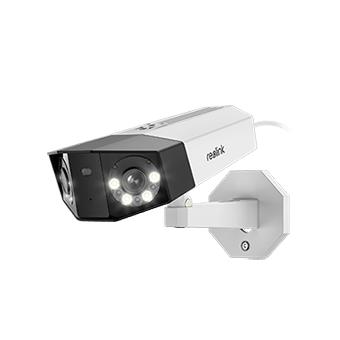
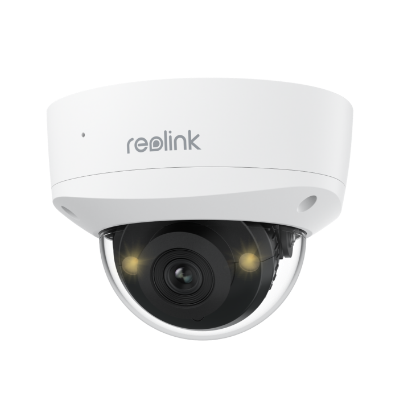
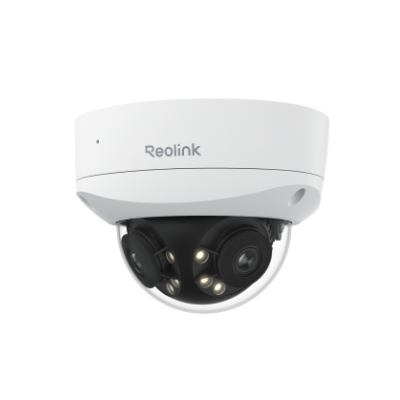
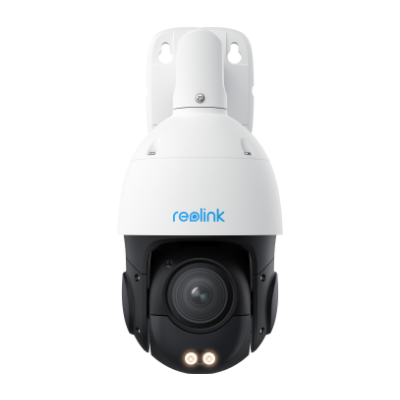
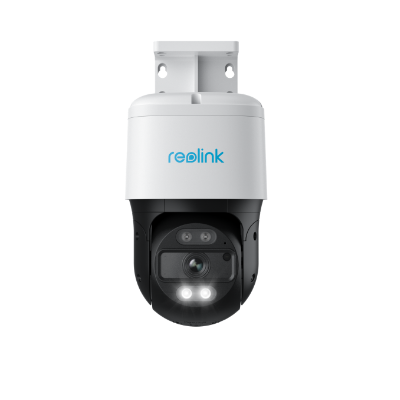
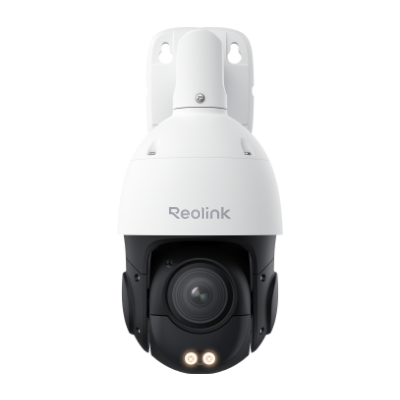
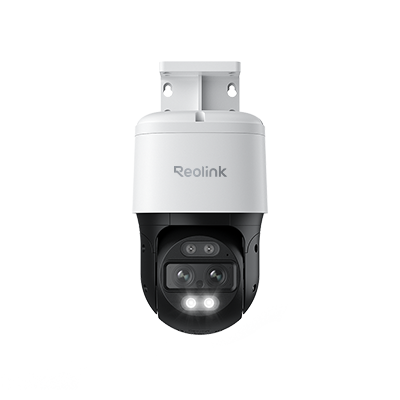
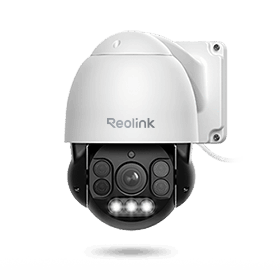
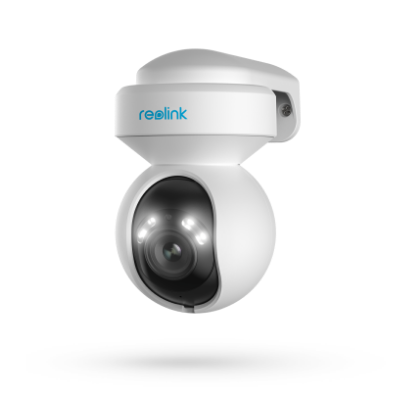
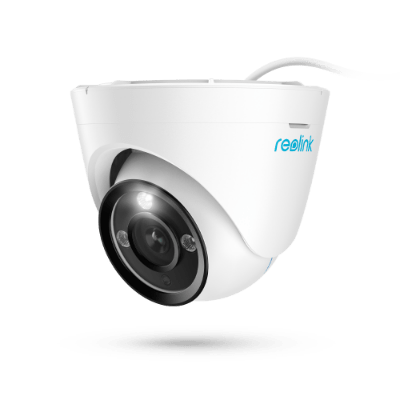
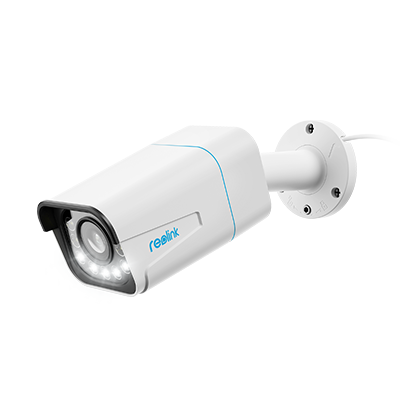
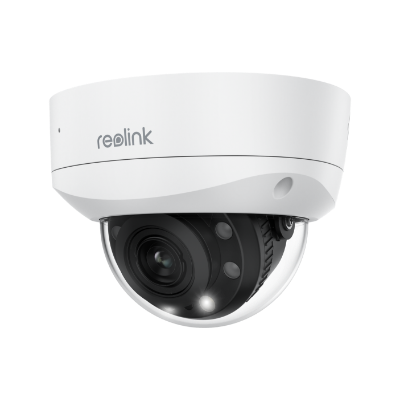
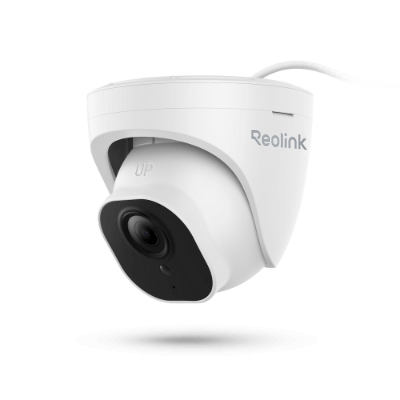
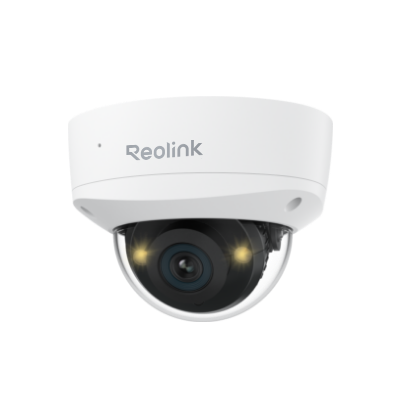
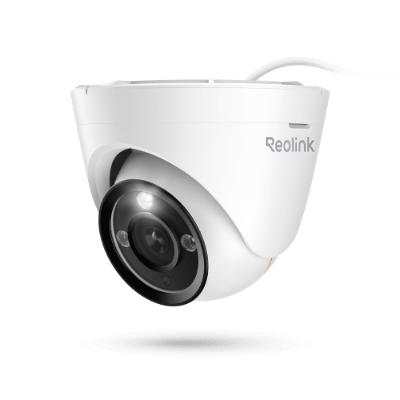
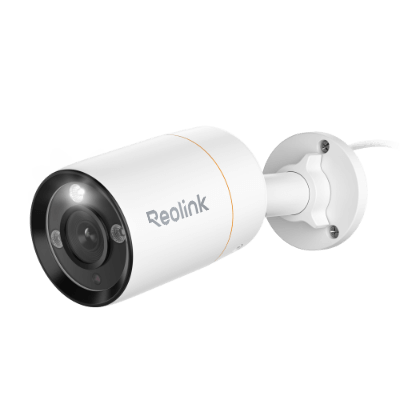
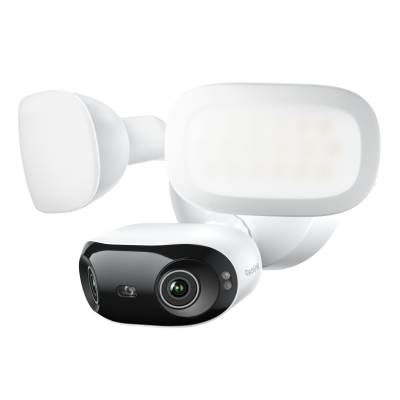
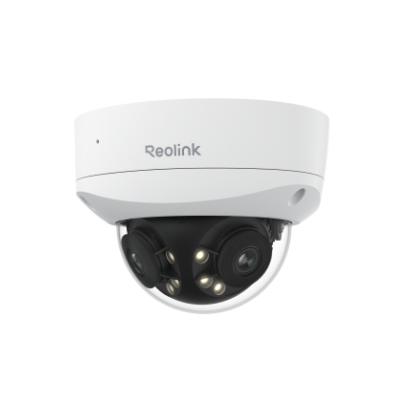
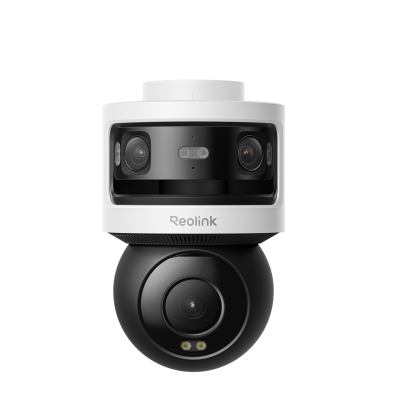
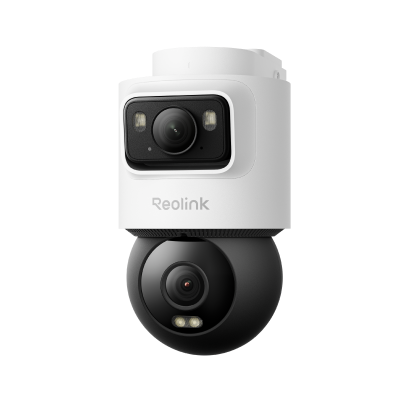
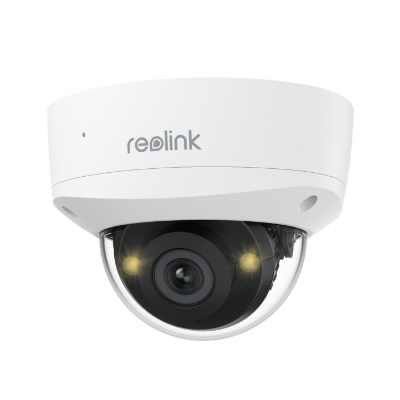
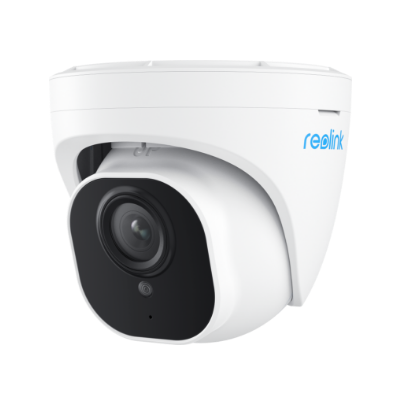
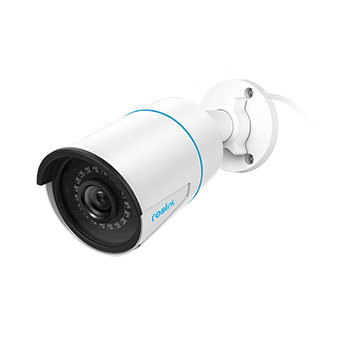
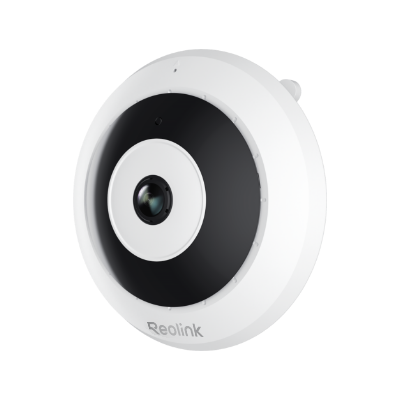
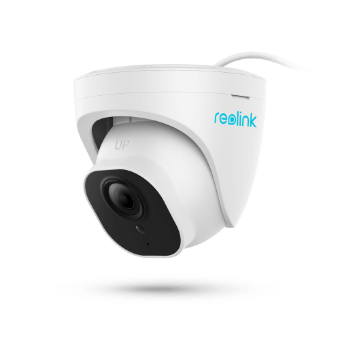
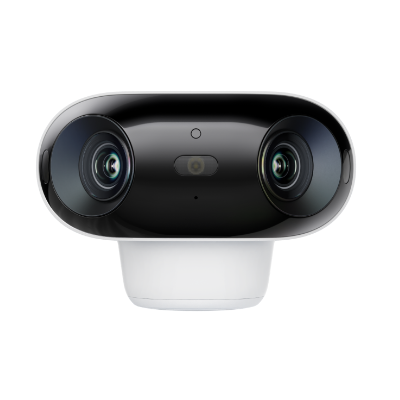
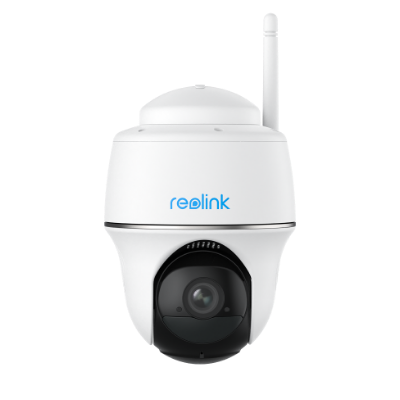
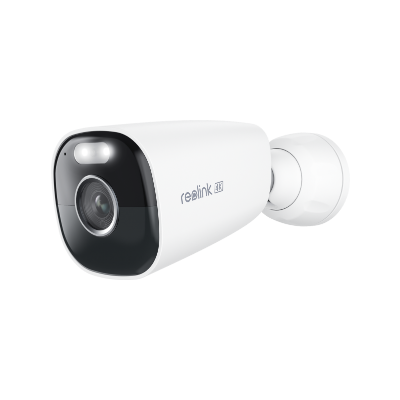
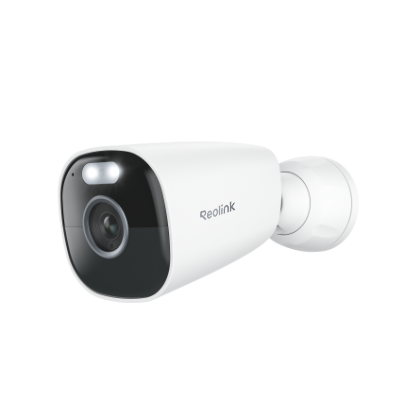
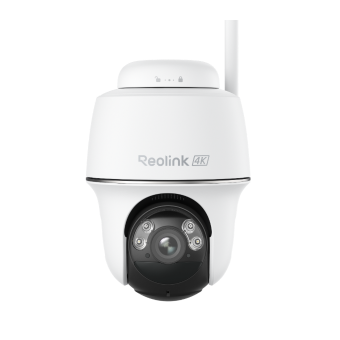
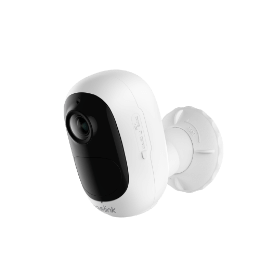
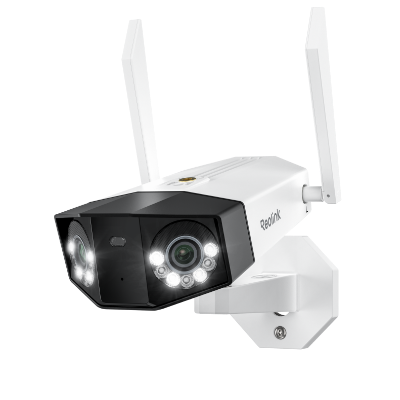
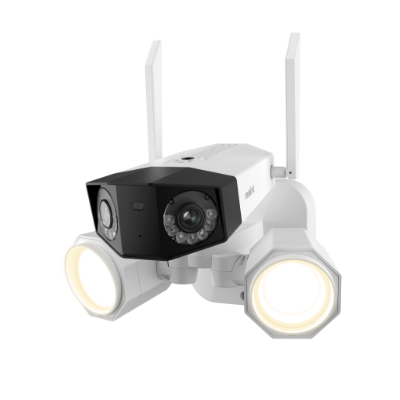
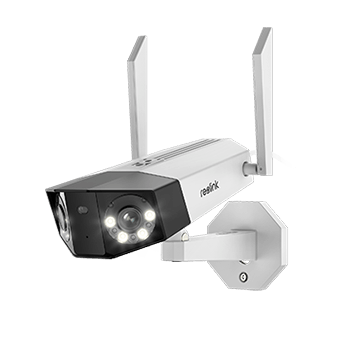
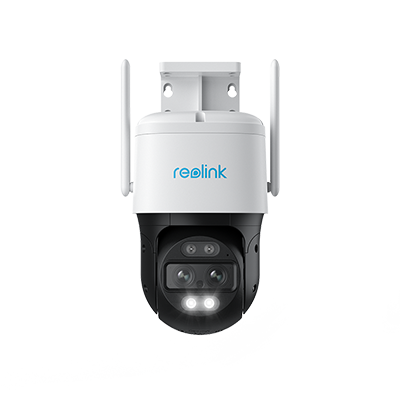
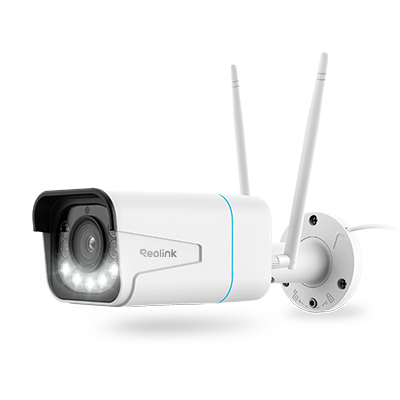
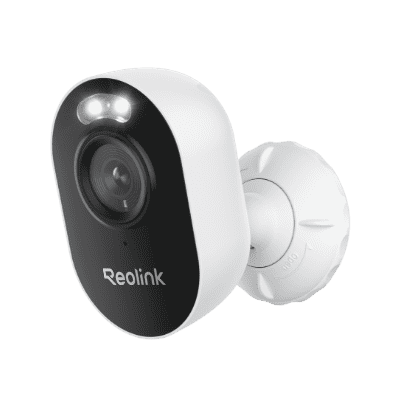
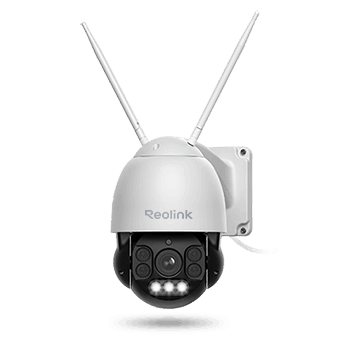
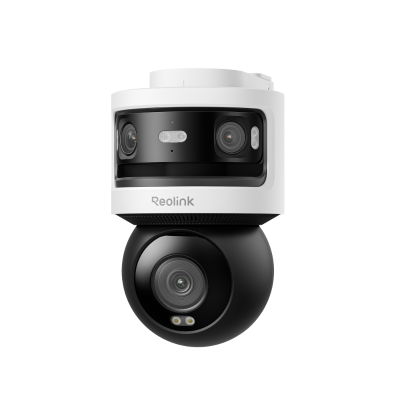
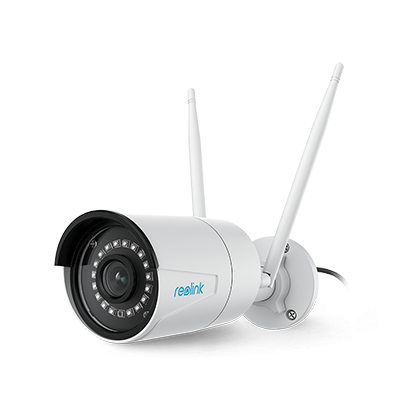
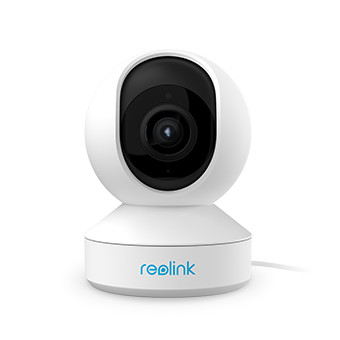
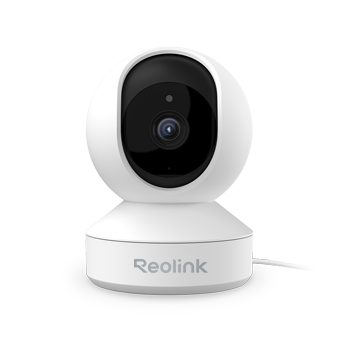
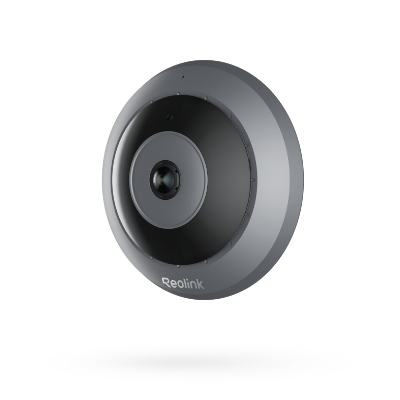
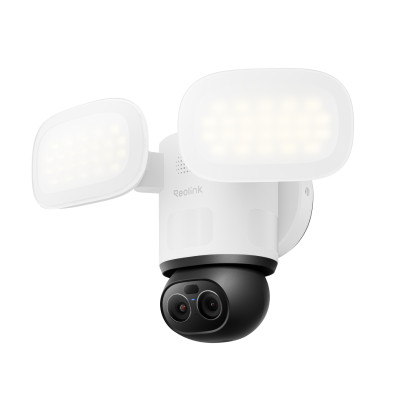
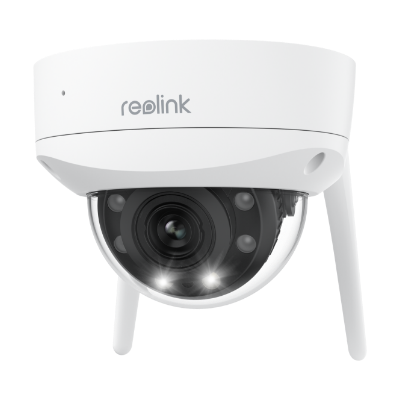
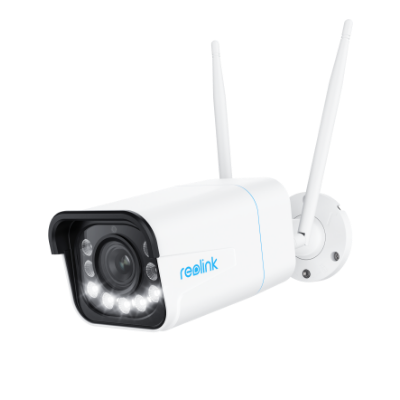
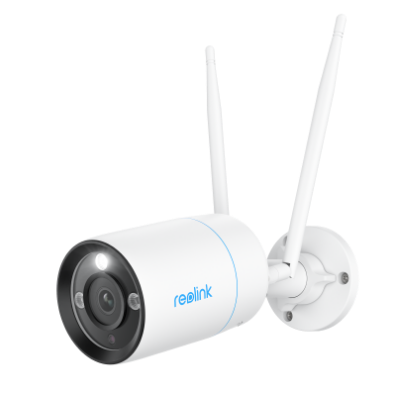
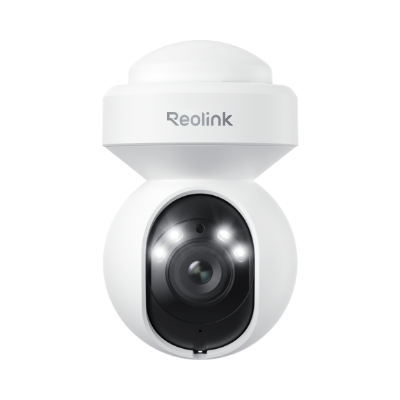
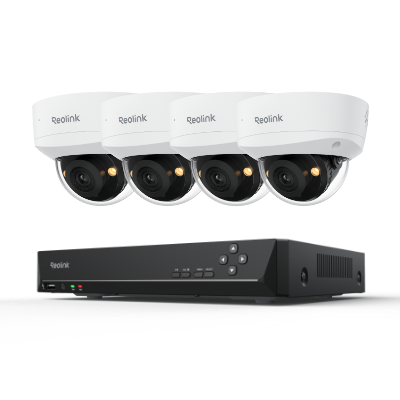
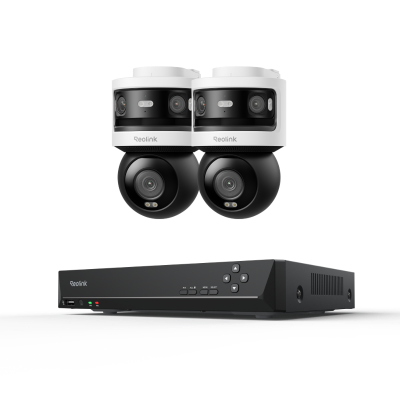
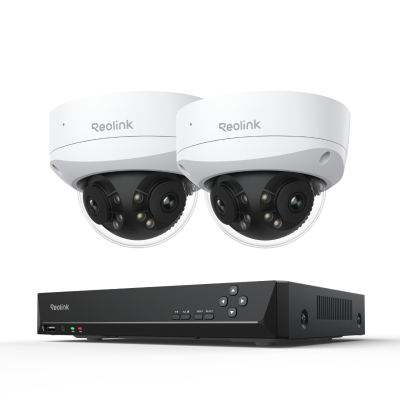
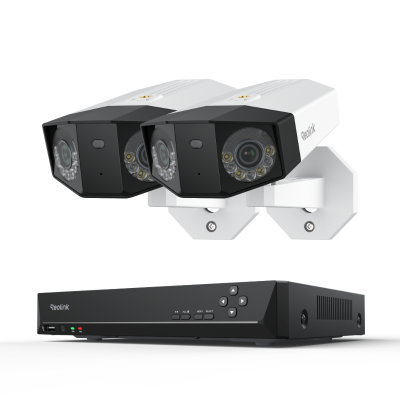
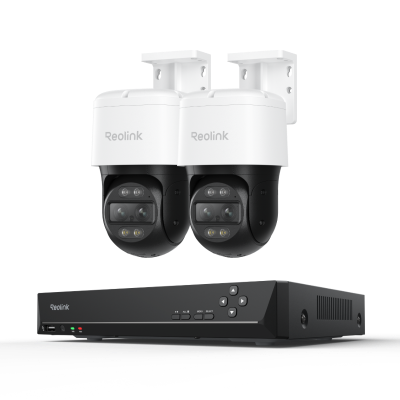
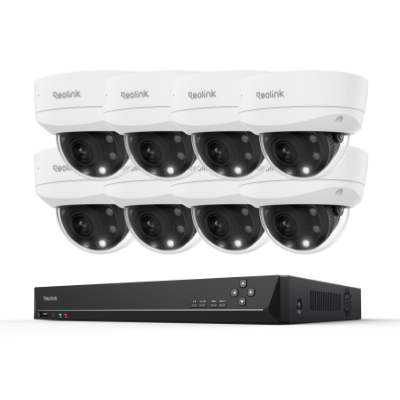
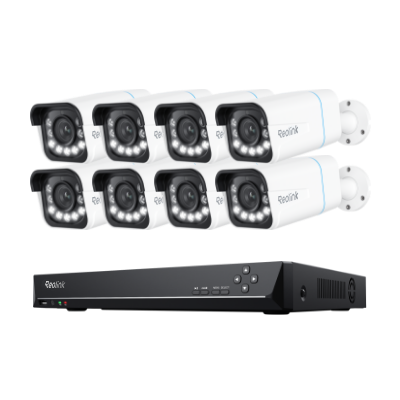
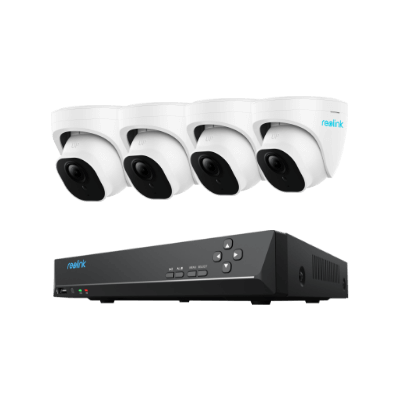
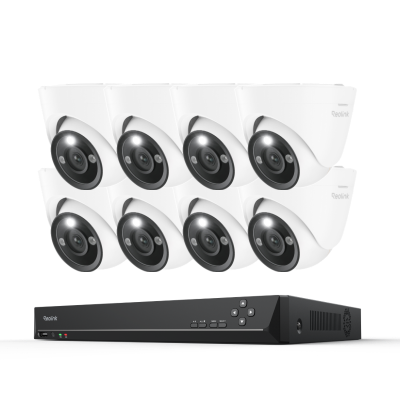
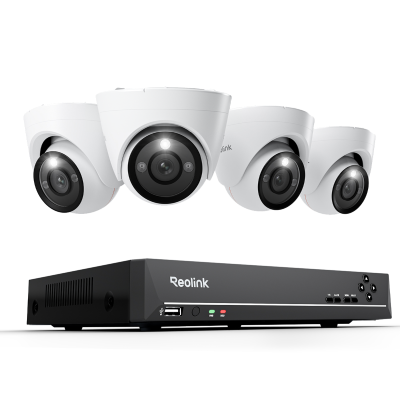
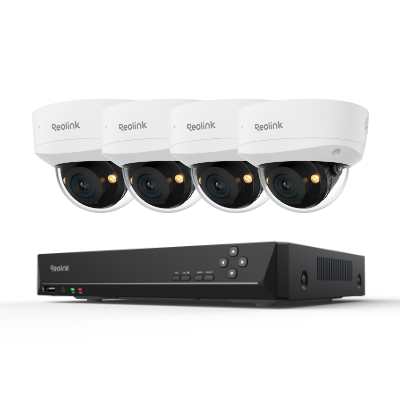
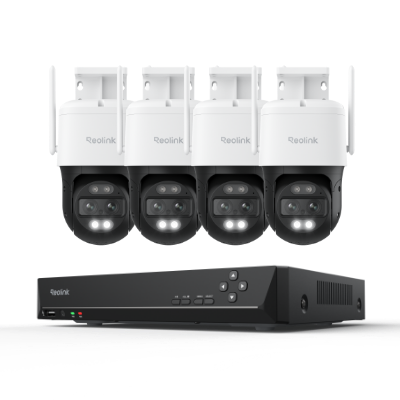
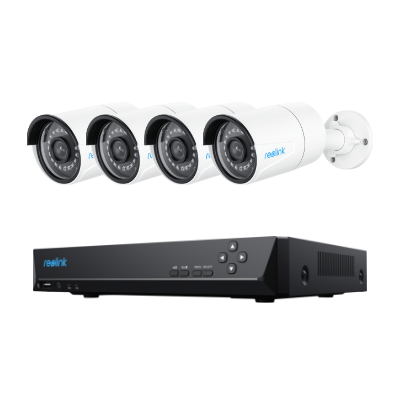
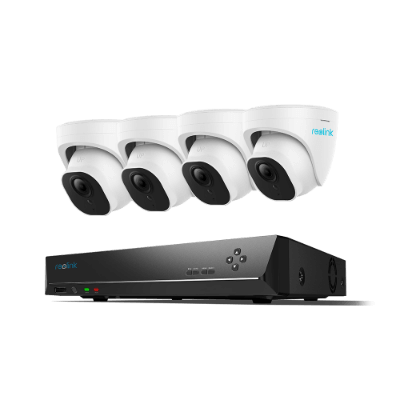
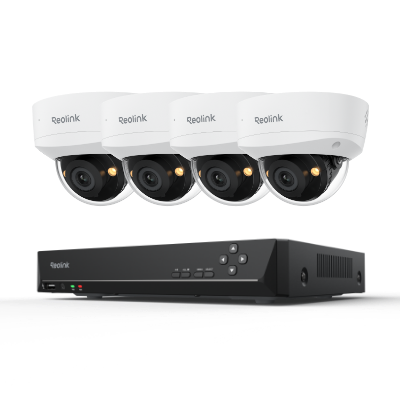
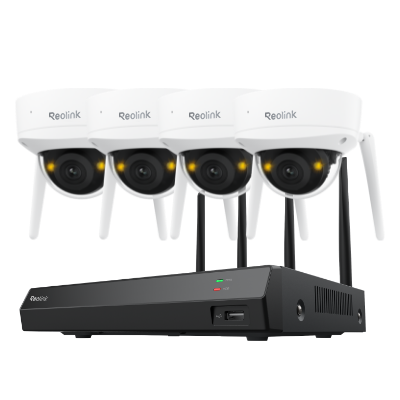
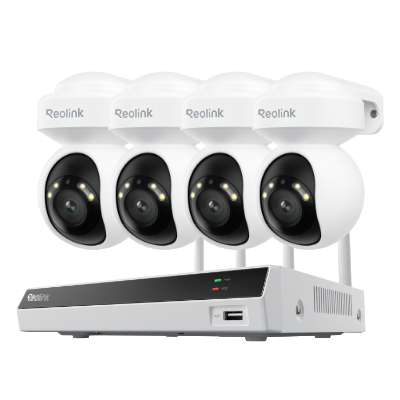
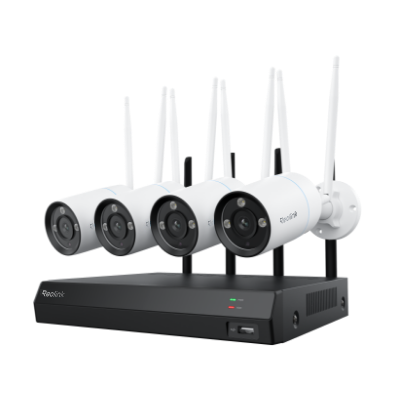
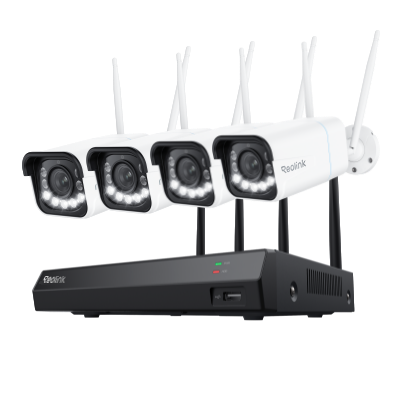
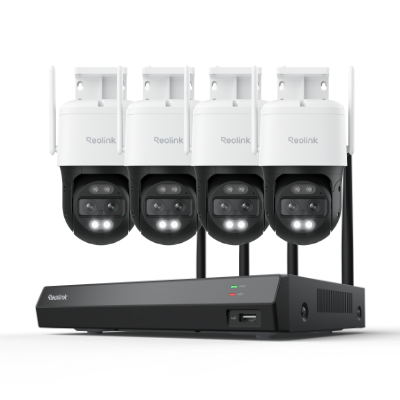
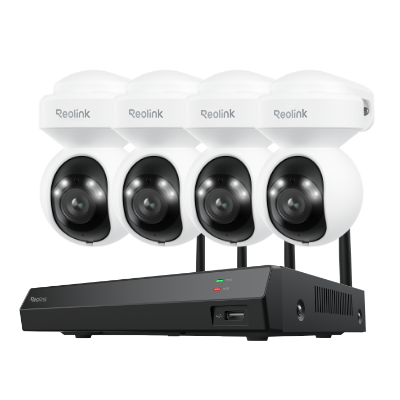
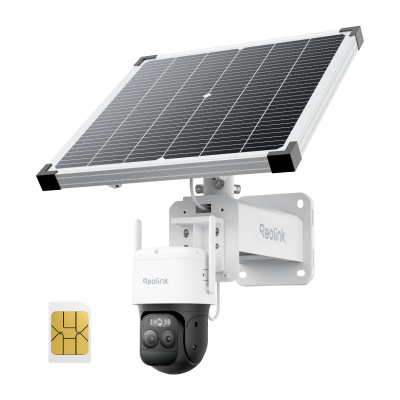
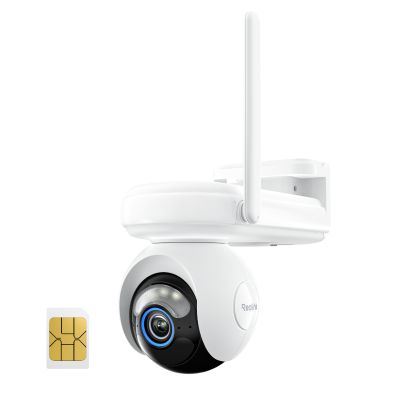
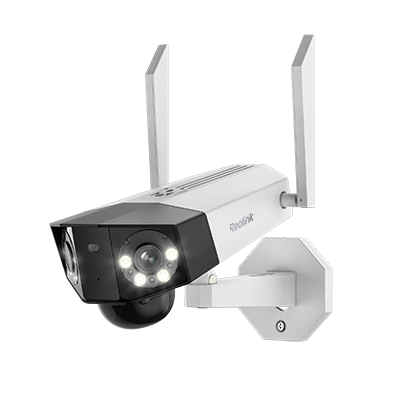
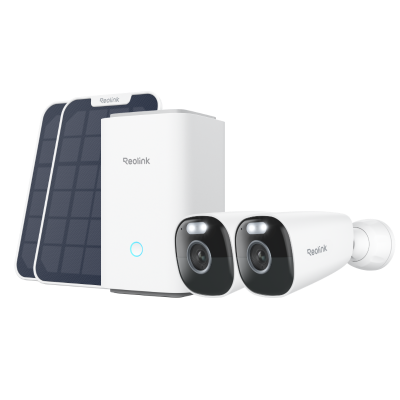
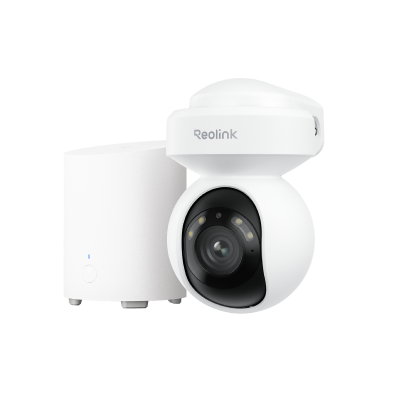
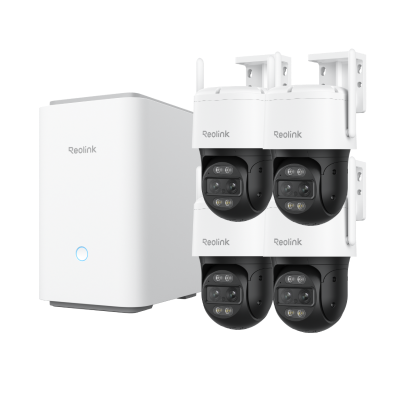
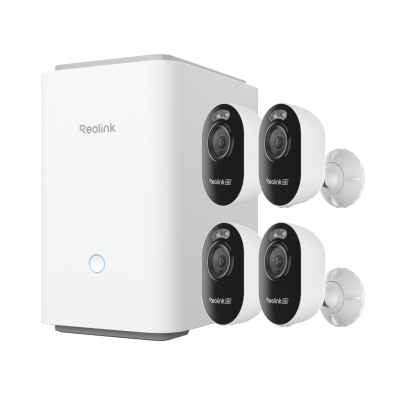
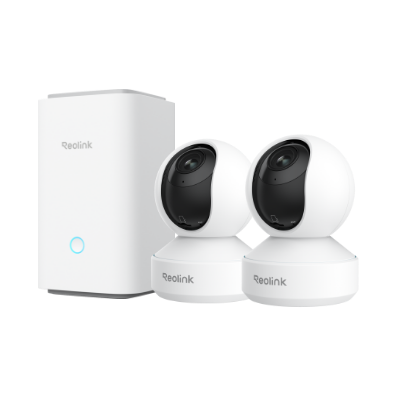
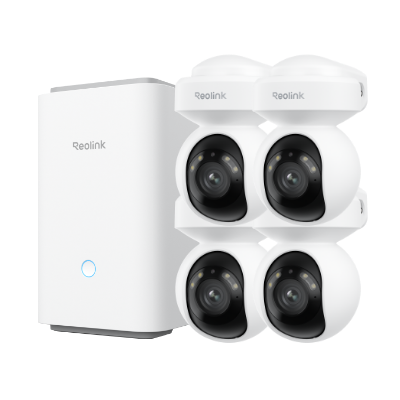
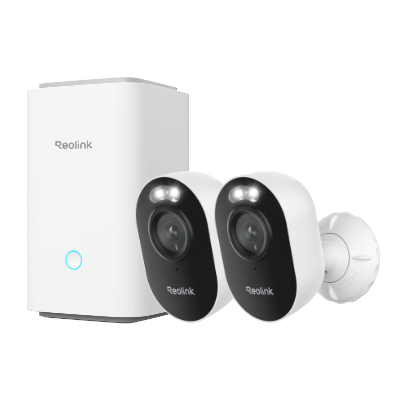
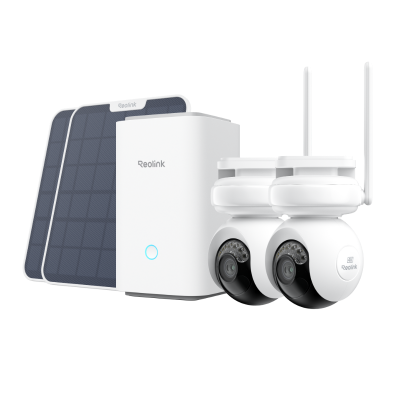
Not every Reolink camera has a zoom lens. Check your model against the supported camera list in Reolink's app steps. These four models show the range.
Note: The zoom factor comes from dividing the longest focal length by the shortest. On the RLC-811A, 13.5 divided by 2.7 gives 5x.
How to Zoom In From the Reolink App
Steps
- Open the Reolink App and log in to your camera.
- Go to the Live View screen.
- Tap the PTZ icon.
- Under Zoom, tap "+" to zoom in or "-" to zoom out. You can also drag the Zoom slider. The camera refocuses on its own after each change.
- If the picture still looks soft, adjust the Focus value by hand.
PTZ stands for pan, tilt, and zoom. Reolink lists the same path in its optical zoom guide for the app.
Is there a setting to turn optical zoom on?
Reolink's support steps list no setting that switches optical zoom on. On a supported camera, you open the PTZ controls and use the Zoom buttons or slider.
Zooming from a PC or browser
The Reolink Client and the web interface follow the same pattern. In the Client, open Live View and click PTZ. Then drag the Zoom bar or click the plus and minus buttons.
In a browser, enter the camera's IP address and log in. Then click PTZ and use the same Zoom controls. Reolink lists both methods in its optical zoom guide for cameras.
Example: zooming on the OMVI X16 PoE
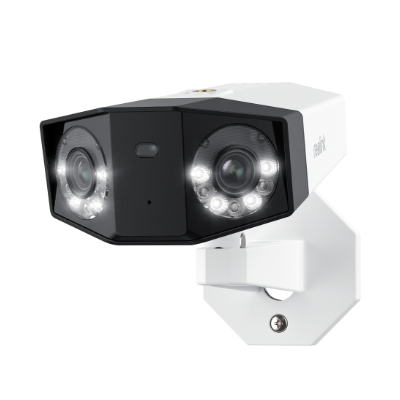
The OMVI X16 PoE shows what a wide zoom range looks like in practice. Its lower PTZ lens runs from 5.3 to 86 mm at 4K (8MP). That is 16x optical zoom. At full zoom, the horizontal field of view narrows from 54.2° to 3.6°.
The upper lenses capture a fixed panoramic view of about 180° at 16MP and use digital zoom. The OMVI X16 PoE FAQ gives the same Zoom controls as above. Tap "+" or "-", or drag the Zoom slider. For standalone use, you need Reolink App 4.64 or later.
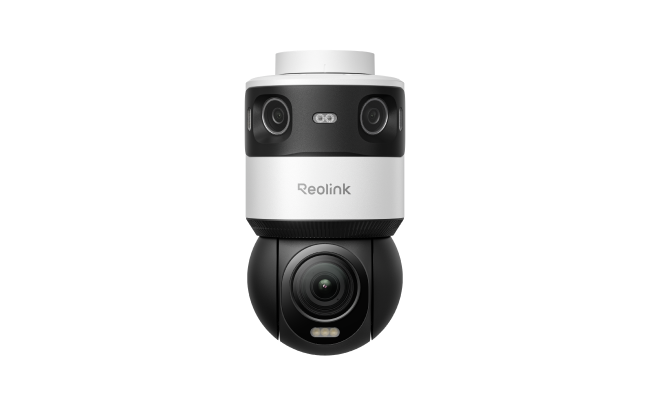
Revolutionary 16X Optical Zoom PTZ Camera with a 180° Panoramic View
- 16MP Dual-Lens with 180° Panoramic view
- 4K 8MP PTZ with Endless 360° Rotation
- SyncTrack with 16X Optical Zoom
- Pinpoint with One Tap
- Auto Patrol
Common Reolink Optical Zoom Problems and Fixes
The image goes blurry after the camera pans or tilts
Reolink autofocus cameras focus only while zooming. They do not refocus during pan and tilt, or when they return to a guard or preset position. Reolink's autofocus support guide treats this as expected behavior. Zoom in or out a notch, or adjust the Focus value by hand.
You can't find the zoom control
Check that your model supports optical zoom in Reolink's support articles. Then update the Reolink App and the camera firmware. For standalone use, the OMVI X16 PoE needs App 4.64 or later.
Focus shifts when the camera switches between day and night
Reolink lists this for the RLC-823A 16X only. Turn on Night Mode Enhancement and check whether the focus improves.
The image stays blurry after every fix
Check the lens for water or fog on the inside. If you find any, contact Reolink Support about a warranty claim. If the lens is clear, update the camera firmware and restart it. If the image is still soft, reset the camera.
If the blur remains, contact Reolink Support and include a short video of the blurry image. Reolink's blurry image guide and autofocus guide cover each step.
FAQs
Can a Reolink camera zoom in on its own?
Yes, models with auto-tracking can. The Reolink Argus Track moves and zooms on its own to follow detected people, vehicles, and animals. On the OMVI X16 PoE, the panoramic lenses spot a target and SyncTrack makes the PTZ lens zoom in on it. The camera records the zoomed footage into the video, so playback shows the same close-up. During Auto Patrol, automatic tracking pauses while the camera pans between points.
Do dual-lens Reolink cameras zoom optically on both lenses?
No. The TrackMix series and the Argus Track zoom optically on the telephoto lens only. The OMVI X16 PoE works the same way, with optical zoom on its PTZ lens and digital zoom on the panoramic view.
Conclusion
Pick the zoom range that fits the distance you need to watch. The E1 Zoom gives 3x indoors over Wi-Fi. The RLC-811A adds 5x over PoE, and the RLC-823S2 and OMVI X16 PoE reach 16x. The OMVI X16 PoE also adds a panoramic view of about 180° that spots targets for the PTZ lens to follow. See the full specs on the OMVI X16 PoE product page.
Search
Subscribe for the Latest Updates
Security insights & offers right into your inbox