
How to Make a Time Lapse Video: Step-by-Step Guide
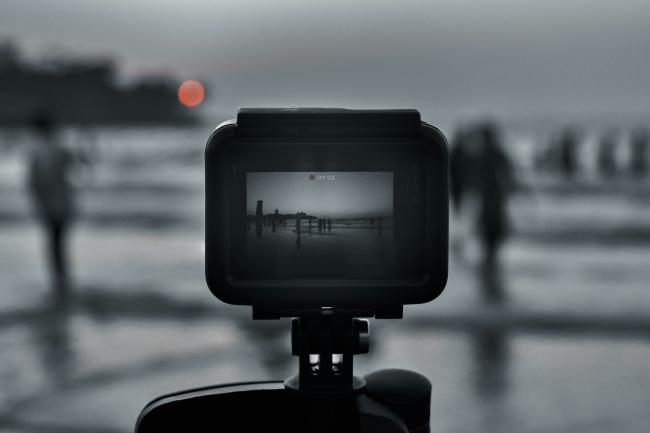
Learning how to time lapse a video gives you a clear way to turn long scenes into short moving pictures where hours slide past in seconds. This guide explains how to make time lapse video clips in direct steps.
You will see methods for phones, regular cameras, and even security cameras. Each part is explained easily so that anyone can apply the advice without special training.
What Is a Time Lapse Video?
A time-lapse video is a film built from still frames shot at set breaks over a long span. When you play those frames at normal video speed, slow events such as clouds drifting or a city street getting busy look fast and smooth. You shape the passage of time, shrink it, and show change in a way your eyes normally miss.
How to Make a Time Lapse Video? 7 Effective Steps
Before the steps, remember that learning how to make time lapse video footage follows the same path for any device. You plan, capture, and edit. The sections that follow break the task into seven clear actions.
Step 1: Choose a Story and Subject
Pick a scene that shows clear movement or growth. Sunrise, traffic flow, or a cake settling while it cools all work well. Decide on the length of real time you will cover and the final length you want on screen. A vision at the start will guide every later choice.
Step 2: Gather the Right Gear
Select a phone, camera, or an action camera that captures still pictures or one with an inbuilt time-lapse. Use on a hard tripod to make sure it does not wobble. Have an alternate supply of batteries or a power supply to avoid the loss of a frame. Add a memory card containing a large storage capacity for images.
Step 3: Set Frame Interval and Playback Speed
Choose how often the device will take a frame. A short gap, such as two seconds, captures a quick change. A long gap, such as one minute, suits slow scenes. Aim for at least twenty-four frames per second in the final video so motion looks smooth. Many editors let you build that frame rate later.
Step 4: Compose and Lock Focus
Frame the shot with care. Normalize the horizon and get rid of clutter. Tap and hold or change the focus of a phone to a manual lens. The frames are clear, and the video is steady when attention remains in the same position.
Step 5: Fix Exposure and White Balance
The set manual exposure is used to have an equal amount of light on each frame. Lock the ISO, shutter, and aperture or exposure lock on a phone. Select a preset of white balance according to the source of light. Stable color does not cause flicker and abrupt changes in brightness.
Step 6: Capture the Sequence
Record the press / record the interval and leave the equipment to operate. Store and check power when using long shoots, but keep away from as much as you can touch the camera, and shake the camera. Be close to hand in case the weather or the light changes and you have to make some quick adjustments.
Step 7: Edit and Export
Export the frames to video software. Adjust the frame rate, cut the beginning and the end, and apply a song in case you want to. Numerous tools have flicker removal and color polish. It should be an export with a common format, say MP4, and the resolution should be such that it can fit the platform you are going to post to.
How to Make a Time Lapse Video on iPhone?
Time-lapse mode is included in the iPhone Camera app. Below are the steps involved in how to make a time-lapse video on iPhone with no additional equipment, although a small tripod will be used.
Step 1: Open the Camera and Swipe to Time-Lapse
Launch the Camera. Keep on swiping until you reach Time-Lapse on the extreme left of the mode list. The phone establishes a time limit for your phone, which varies with the clip duration.
Step 2: Secure the Phone
Mount the iPhone on a tripod or lean it on a firm surface. Movement will ruin the smooth motion in the final clip.
Step 3: Set Focus and Exposure
Tap the screen where you want to focus. Hold your finger until a yellow AE/AF Lock box shows. Slide the sun icon up or down to brighten or darken the image.
Step 4: Start and Monitor
Press the red record button. The timer turns white. Let the phone run for the planned span. Check the battery and storage if you shoot for more than an hour.
Step 5: Stop and Trim
Tap the red button again to stop recording. Open Photos, select the clip, tap Edit, and drag the bars to trim any unwanted part. Export or share the clip straight from the phone.
How to Make Time Lapse Video on Android?
Most recent Android phones include a time-lapse or hyperlapse mode. If yours does not, you can add a free camera app from the Play Store. The steps below apply to stock camera apps on many brands and show how to make a time lapse video on Android.
Step 1: Locate Time Lapse Mode
Open the Camera. Look in More or Video modes for Time Lapse or Hyperlapse. Some brands place it under Video Settings.
Step 2: Fix the Phone
Set the phone on a tripod. If you hand-hold, the clip will shake and lose quality.
Step 3: Pick Frame Rate or Speed
Many Android apps let you pick the playback speed, such as 8× or 32×. Choose a speed that compresses time enough yet keeps events readable.
Step 4: Lock Focus and Exposure
Tap to focus and hold to lock. Open Pro settings if present and set manual exposure and white balance.
Step 5: Record and Save
Press record. Watch the timer. When you finish, press stop. The phone processes the frames into a video. Review the clip in the gallery and trim if needed.
How to Make a Timelapse Video using Cameras?
You may want to use an IP security camera for long projects such as building or construction work. The Reolink App lets you produce time-lapse footage with a few taps. Follow the steps below.
-
Launch the Reolink App and Find Time Lapse: Open the app. Go to Device Settings, then Time Lapse. If you do not see the option, update the app or confirm that your camera model supports time-lapse.
-
Tap Try Now and Choose a Scene: Press Try Now. Select a scene such as sunrise, sunset, or custom. Battery models lack Event, People, and Traffic scenes.
-
Adjust Duration and Capture Period: Set the capture length from one minute up to eight hundred thirty days. When you pick more than one day, pick a Daily Capture Period such as 6:00 to 18:00.
-
Set Interval and Quality: Wired cameras offer intervals from two seconds to six hours. Battery cameras start at ten seconds. Pick Clear for sharp images or Fluent for smaller files. Some models add a Balanced option.
-
Select File Type: Store the result as a photo series or as a compressed video. If you plan a long run, choose a video or raise the interval. A camera can save up to ten thousand photos per day.
-
Check Estimated Size: The app displays the estimated size of a video and a file. In case the size is bigger than what is free in the SD card, reduce the duration, increase the delay, or choose a lower quality.
-
Open the Capture: Select the settings, and click on Start. It is self-timing as you periodically check the progress made by the camera.
🎉 Exclusive Limited-Time Security Deals
- Save Up to 50% on Bundles & Multi-Packs
- Official Prime Day Sale is about to begin!
FAQs
How long is 30 minutes in time-lapse?
Shoot one photo every second for thirty real-time minutes. That gives eighteen hundred frames. Play those frames back at thirty frames each second. The sequence compresses thirty minutes into precisely sixty seconds of total finished length video, because eighteen hundred divided by thirty equals sixty. Adjust intervals to change the final clip duration.
Can I timelapse with my phone?
In the default camera apps of modern smartphones, the time-lapse or hyperlapse functions are available in the default apps, which means that you do not need additional equipment. Turn on the phone, put your focus and exposure on lock, and press the record button. Third-party apps offer manual control if needed. Ensure reliable, steady power, storage space, and a stable platform for smooth results.
What equipment is needed for time-lapse?
Important equipment will consist of any camera or phone with support for interval shooting, a solid tripod to avoid vibration, and sufficient power and storage to conduct the whole session. To use long outdoor shoots, it is necessary to add an external battery, a protection cover, and a remote shutter release. The brightness is controlled by optional neutral-density filters in case of strong sunlight and memory.
Conclusion
You now understand how to time-lapse a video on phones, regular cameras, and network cameras. Plan the story, steady the device, set the right interval, and keep exposure fixed. Edit the frames into a smooth clip and share the result. Try the steps and post your own work in the comments.
Search
Subscribe for the Latest Updates
Security insights & offers right into your inbox