






























































How to Increase Bandwidth? Easy Fixes That Work
Slow downloads, choppy video calls, and spinning wheels on every web page usually point to one thing: low bandwidth. This article walks through the question of how to increase network bandwidth with fixes you can start the same day.
The steps stay simple, and every fix comes from real home and small-office setups. Try the ideas, note the changes, and share your own results at the end; your feedback can help other readers who still fight the loading bar.
Can You Increase Network Bandwidth?
Yes, you can raise network bandwidth, but first, understand what the word means. Bandwidth is the width of the pipe that carries data to your home or office. A wider pipe lets more data move at once, so speeds feel faster even though the plan you pay for stays the same.
You do not break the laws of physics; you simply remove the junk that blocks part of the pipe. When you cut the junk, more of the paid width becomes usable, and every device enjoys smoother video, quicker file sync, and lower game lag.
How to Increase Bandwidth?
Most people look for a magic setting inside Windows or a secret menu inside the router. In truth, the easiest gains come from basic housekeeping. The sections below show how to increase internet bandwidth on a PC, on Wi-Fi, and for special cases such as cameras.
How to Increase Bandwidth on PC?
Computers often steal their own speed by running tasks you forgot about. Before you blame the provider, check what the computer itself is doing.
- Shut down cloud backups while you work. OneDrive, Google Drive, and iCloud can fill the upload pipe and drag the whole connection. Pause the sync, finish your call, then restart the backup at night.
- Update the network card driver. Old drivers force the card to talk in slow motion. Open Device Manager, find the adapter, click Update, and reboot. The new code can unlock the full port speed.
- Turn off the metered connection. Windows labels some networks as metered and then holds back traffic to save data. Go to Settings, Network, Properties, and set Metered to Off so the OS stops throttling.
- Remove peer-to-peer update sharing. By default, Windows shares updates with strangers on the net. Go to Windows Update, Advanced, Delivery Optimization, and switch it off. Your upload bandwidth stays yours.
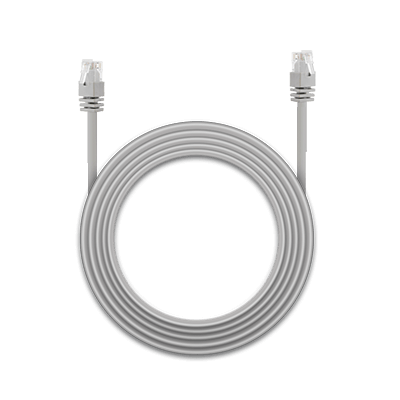
- Use a cable instead of Wi-Fi when you need the highest speed. A five-dollar patch cord removes walls, microwaves, and neighbor routers from the path and often doubles real-world throughput.
How to Increase Bandwidth on WiFi?
Wi-Fi is a radio, and radio is crowded. Small moves open big gaps in the air.
- Sit closer to the router. Every extra wall drops speed by thirty percent or more. Move the laptop to the same room, run a speed test, and see if the bar rises.
- Switch to the 5 GHz band. Most modern routers broadcast two names. The 5 GHz list is shorter range but far less busy, so devices close to the router gain instant headroom.
- Change the channel. Download a free phone app that scans neighbour signals. If everyone sits on channel 6, pick 1 or 11 and watch interference fall.
- Update router firmware. Makers post new code that fixes radio bugs and boosts throughput. Log in to the admin page, click Update, and reboot. The process takes ten minutes and costs nothing.
- Add an access point instead of a repeater. Repeaters cut the speed in half because they talk to both sides on the same channel. Run one Ethernet cable to the back room, plug in a second cheap access point, and enjoy full speed there.
When to Increase Internet Bandwidth?
Sometimes the line itself is the problem. The list below shows the clearest signs that you must call the provider and buy a wider plan.
- Four or more people stream 4K video at the same time every night. A 25 Mbps plan cannot feed six Netflix feeds, no matter how clean your router is.
- Your work-from-home job uses high-resolution video uploads daily. One 1080p Zoom call needs 3 Mbps up; three calls need 9 Mbps, which many basic plans do not give.
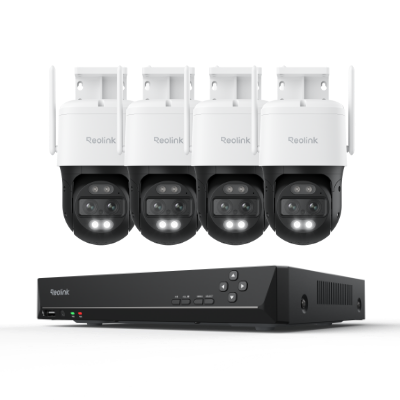
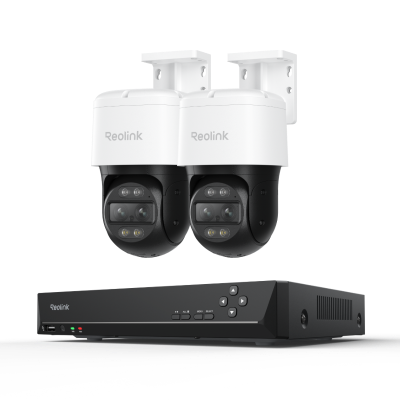
- IP security cameras upload 24/7. A single 4K camera can eat 4 Mbps around the clock. Add three cameras, and you have filled most low-tier plans before you open a web page.
- Game downloads on Steam or Xbox hit 100 GB every week. Waiting overnight for each patch is a quiet hint that the pipe is too thin.
- You run a home server for friends or customers. When outsiders pull files, you need spare upload headroom, or the server times out, and users complain.
How to Check Network Bandwidth?
Never fix what you cannot see. Run the checks below so you know exactly how much bandwidth you really have.
- Close every program that uses the net, then open speedtest.net and press Go. Note the download, upload, and ping. Write the numbers on paper so you can compare after each fix.
- Test at three times: morning, dinner, and late at night. Speeds drop in the evening when neighbors binge-watch shows. If the drop is large, the line is oversold, and no PC tweak will save you.
- Run the test from two devices. If a phone on Wi-Fi scores 40 Mbps and a wired laptop scores 90 Mbps, the wire is fine and the air is the weak link.
- Log in to the router and look for a Traffic Monitor page. The page lists every active device and how much it eats. A forgotten tablet streaming 4K cartoons can steal half the pipe.
- Use the provider’s own speed test first, then a third-party site. If the provider tool shows 100 Mbps and the outside tool shows 30 Mbps, the slowdown sits past the provider’s servers, and a plan upgrade will not help.
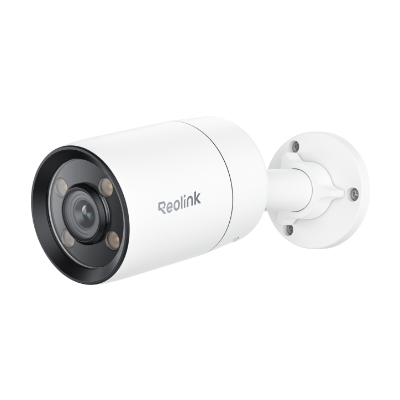
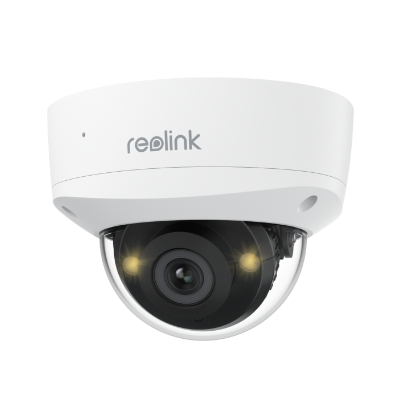
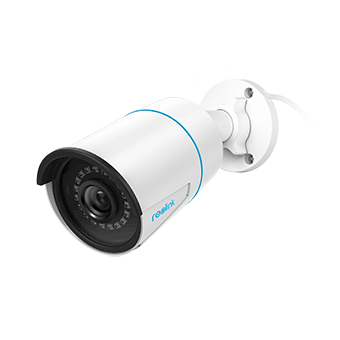
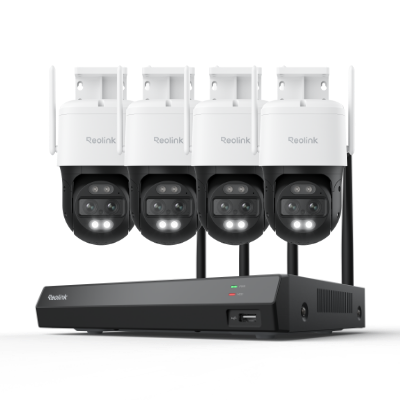
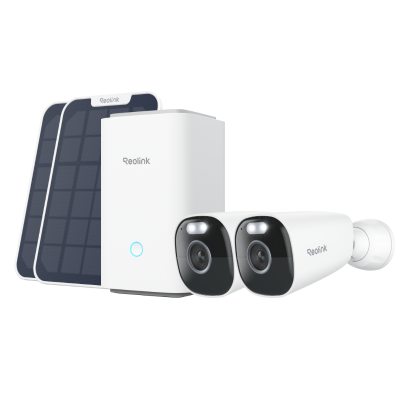
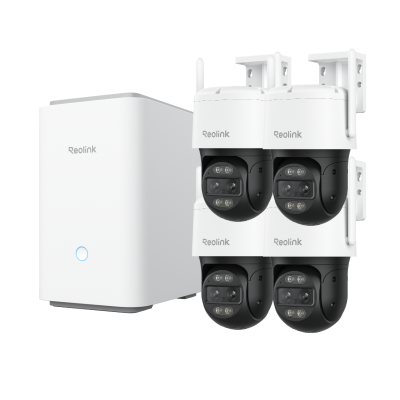
How to Increase Bandwidth for Security Cameras?
Cameras are bandwidth-intensive. They never sleep, and each one sips data every second. Use the tricks below to keep the video sharp without killing the rest of the network, and learn how to get more bandwidth.
- Lower the frame rate to 15 fps. Halving frames cuts the bit rate almost in half while the human eye still sees smooth motion.
- Use a motion record instead of a 24-hour record. When nothing moves, the stream drops to a trickle, and the rest of the house regains speed.
- Create a separate VLAN or guest network just for cameras. The isolation keeps camera traffic off the main lane, so your work calls stay clean.
- Enable H.265 encoding if the camera offers it. The new codec shrinks file sizes by thirty percent with the same clarity, freeing up upload space.
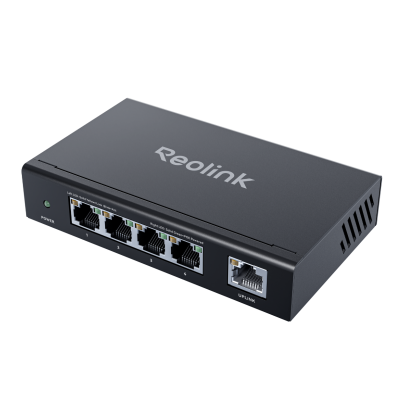
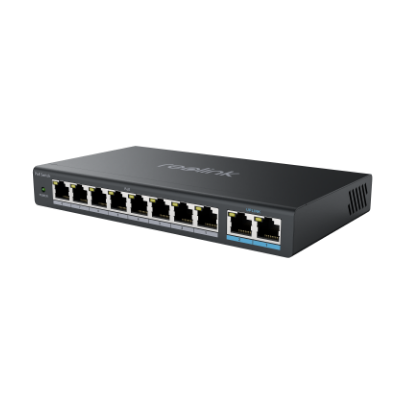
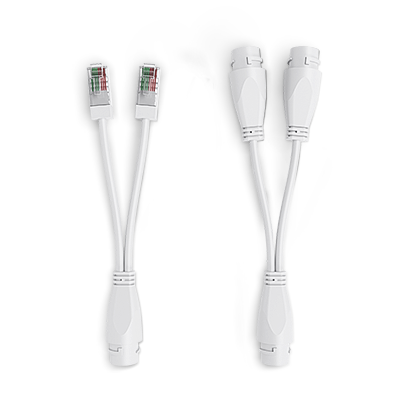
- Wire every camera you can. One Power-over-Ethernet cable gives constant power and a dedicated 100 Mbps lane, removing Wi-Fi fights entirely.

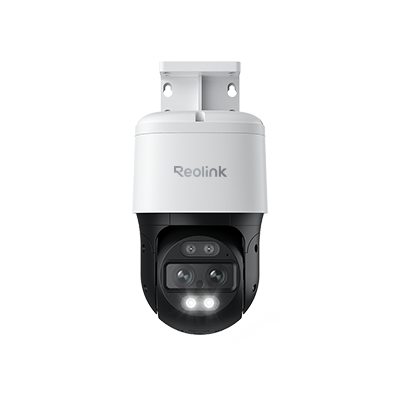
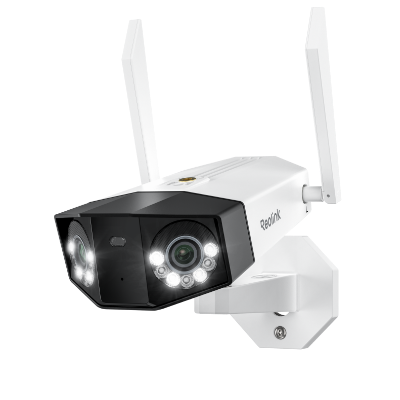
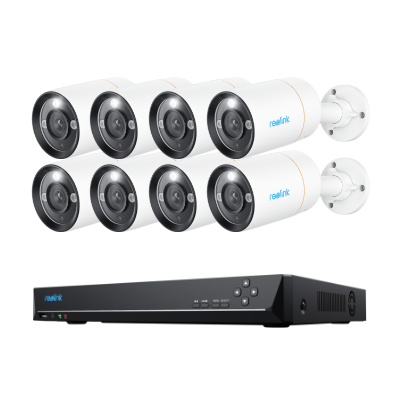
Groundbreaking 16MP Dual-Lens PoE Camera
16MP UHD, Dual-Lens, Motion Track, 180° Wide Viewing Angle, Power over Ethernet, Color Night Vision.
FAQs
How can I improve my internet bandwidth?
Shut off unused apps, update router firmware, switch to 5 GHz Wi-Fi, use Ethernet cables, and pause cloud backups during busy hours. These steps remove self-made noise and free the pipe you already pay for.
How do you get higher bandwidth?
If house-cleaning fails, call the provider and move to a plan with more Mbps. Any other fix only uses the width you already have; a plan change actually widens the pipe.
What causes low bandwidth?
Heavy video streams, cloud backups, old router firmware, crowded Wi-Fi channels, and too many devices at once all share the same line and leave less room for each click.
Conclusion
Start every slow-speed hunt with simple steps: pause backups, move closer to the router, update drivers, and run speed tests at different hours. Those quick moves solve more than half of all complaints about how to increase network bandwidth.
If numbers still fall short after every clean-up, upgrade the plan, add a wired access point, or split cameras onto their own lane. Write down which trick gave you the biggest jump, share the result below, and tell us what you will try next. Your story can save the next reader from another night of staring at a frozen screen.
Search
Subscribe for the Latest Updates
Security insights & offers right into your inbox