
iPhone/iPad Security Camera: The Smart Home Surveillance Solution
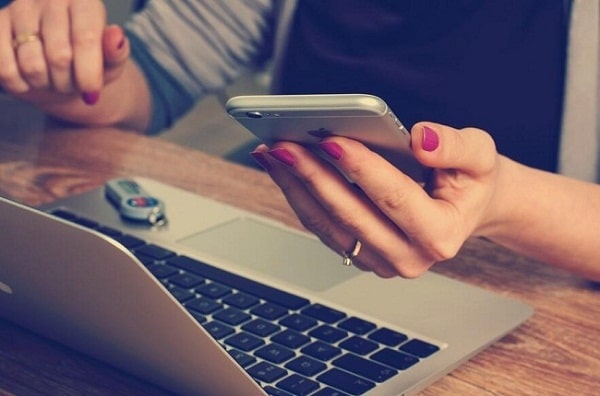
Searching for a ready-to-go iPhone security camera with the mobile app to view the security live and footage anywhere easily? Or you just want to do some DIY job to turn your old iPhone or iPad into a security camera and make it serve you better? Either way, you can find the best iPhone/iPad security camera solution here, within minutes!
Key Takeaways:
-
iPhone/iPad Security Cameras: Compatible security cameras let you view live footage, receive motion alerts, and access recordings through an iOS app, whether at home or away.
-
Choosing the Right Camera: Prioritize iOS compatibility, remote viewing, notification controls, and local storage options. Check whether the camera supports continuous or motion-triggered recording.
-
Using an Old iPhone/iPad: Apps such as AlfredCamera can turn an unused device into a basic indoor security camera, although battery life, night vision, and recording limitations make it less suitable for long-term surveillance.
- What Is an iPhone/iPad Security Camera?
- How to Choose the Best Security Camera for iPhone/iPad
- Best Security Cameras for iPhone/iPad Camera Recommendation
- How to Connect a Security Camera to iPhone/iPad?
- How to Use an Old iPhone/iPad as a Security Camera?
- iPhone Security Camera Not Working? How to Do?
- FAQs
- Conclusion
What Is an iPhone/iPad Security Camera?
An iPhone/iPad security camera typically refers to a security camera that works with an iOS app, allowing users to monitor their home or property directly from an iPhone or iPad. For example, Reolink cameras connect to the Reolink App via Wi-Fi, Ethernet, or 4G LTE, depending on the model. Users can view live footage, receive motion alerts, play back recordings, and use two-way audio on supported cameras, whether at home or away.
Besides connecting to a dedicated security camera, you can also use an old iPhone or iPad as a camera itself. With a compatible third-party app, the device can capture video and stream it to another phone or tablet for remote viewing. This provides an alternative for basic indoor monitoring without purchasing a separate security camera.
How to Choose the Best Security Camera for iPhone/iPad
Not every security camera offers the same experience on an iPhone or iPad. Before buying, consider how you plan to use the camera through its iOS app and whether its features match your monitoring needs.
Check iPhone/iPad Compatibility and App Features
Make sure the camera's app supports your iOS or iPadOS version. Beyond live viewing, check whether you can review recordings, receive motion alerts, adjust detection settings, and control the camera remotely. For pan-and-tilt cameras, the app should also allow you to change the viewing direction directly from your iPhone or iPad.
Understand Remote Viewing Requirements
If you want to check your home while travelling or at work, choose a camera that supports remote access over mobile data. The camera must also remain connected to a suitable network. Wi-Fi and PoE cameras generally need an internet connection for remote viewing, while compatible 4G LTE models can work in locations without home broadband using a cellular data plan.
Consider How Recordings Are Stored and Accessed
Check whether you can play back and download recordings directly through the iPhone/iPad app. Cameras with microSD or NVR storage can save footage locally without mandatory cloud subscriptions. Also consider the recording mode: battery cameras typically record motion-triggered events, while suitable wired models can support continuous 24/7 recording.
Check Motion Alerts and Notification Controls
Choose a camera that can distinguish relevant activity, such as people, vehicles, or animals, rather than notifying you about every movement. More importantly, check whether the iOS app lets you adjust detection sensitivity, set detection zones, and manage push notifications. These controls are particularly useful for avoiding repeated alerts from busy roads or moving trees.
Best Security Cameras for iPhone/iPad Camera Recommendation
Reolink security cameras work with the Reolink App for iPhone and iPad, allowing users to view live footage, receive motion alerts, and play back recordings remotely. The following two models offer different ways to monitor outdoor areas.
Reolink Argus 4 Pro
The Reolink Argus 4 Pro features 4K resolution and a 180° panoramic view, allowing users to monitor wide driveways, front gardens, and entrances in a single frame on their iPhone or iPad. Its ColorX night vision captures full-colour footage in low-light conditions without relying on spotlights. Users can also receive person, vehicle, and animal detection alerts and review locally stored recordings through the Reolink App.
Best For: Wide driveways and front gardens where users want to monitor multiple areas simultaneously without adjusting the camera's viewing direction.
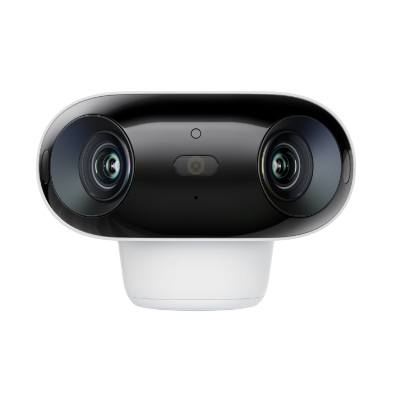
4k 180° Wire-free Color Night Vision Camera
4K UHD 180° Blindspot-free View; Color Vision Day and Night; 30% More Battery Life; Dual-band Wi-Fi 6; Smart detection.
Reolink Argus PT Ultra
The Reolink Argus PT Ultra offers 4K 8MP resolution with 355° pan and 90° tilt, allowing users to remotely adjust the camera's viewing direction through the Reolink App on their iPhone or iPad. Its automatic tracking feature follows detected movement, while smart alerts notify users of people, vehicles, or animals. With rechargeable battery and solar power options, it can monitor outdoor areas without requiring a wired power connection.
Best For: Large back gardens and yards where users need to follow movement or check different areas remotely from their iPhone or iPad.
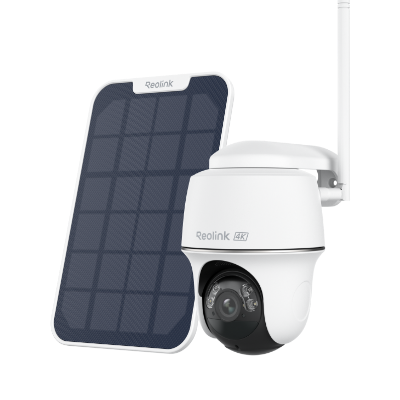
4k 100% Wire-Free PT Camera
4K 8MP Ultra HD; 5GHz/2.4GHz WiFi; Rechargeable Battery & Solar Powered; 355° Pan & 140° Tilt; IP65 Certified Weatherproof; Clear Night Vision; 2-Way Audio; 122° Wide Viewing Angle.
How to Connect a Security Camera to iPhone/iPad?
You can connect a compatible security camera to your iPhone or iPad using its dedicated mobile app. For Reolink cameras, the Reolink App allows you to view live footage, receive motion alerts, and access recordings from your iOS device.
Step 1: Download the Reolink App
Download and install the Reolink App from the App Store on your iPhone or iPad.
Step 2: Add Your Security Camera
Open the Reolink App and tap the "+" icon to add a camera. Scan the QR code on the camera or enter its UID manually. Follow the on-screen instructions to complete the setup and connect the camera to the appropriate network.
Step 3: View and Manage Your Camera
Once connected, select your camera in the App to watch live video. You can also review recordings, receive motion notifications, and use two-way audio if supported by your camera.
After the initial setup, you can access your camera remotely from your iPhone or iPad over Wi-Fi or mobile data, provided the camera remains connected to the internet.
How to Use an Old iPhone/iPad as a Security Camera?
An old iPhone or iPad can also work as a basic security camera with the help of a compatible app. Instead of purchasing a separate camera, you can use the device's built-in camera to monitor indoor areas such as living rooms, entrances, or pet spaces. Another iPhone or iPad can serve as the viewer, allowing you to check live footage remotely.
Best Apps to Turn an Old iPhone/iPad Into a Security Camera
Several apps allow you to repurpose an old iPhone or iPad for home monitoring. Depending on the app, you can access live video, receive motion alerts, and save recordings.
For more options, see our guide to free home security apps.
How to Use an Old iPhone/iPad as a Security Camera?
You can turn an old iPhone or iPad into a home monitoring camera in four steps:
- Install a Security Camera App: Download a compatible app on your old iPhone or iPad and the device you will use to view the footage.
- Connect Both Devices: Follow the app's setup instructions to configure the old device as the camera and your main iPhone or iPad as the viewer.
- Position the Camera: Place the old device where it can monitor an entrance, living room, or pet area. Keep it near a suitable power source if you plan to use it for extended periods.
- Configure Monitoring Settings: Enable motion alerts, recording, and other available features based on your monitoring needs.
Once the setup is complete, you can watch live footage from your main iPhone or iPad. Viewing the camera while away from home requires an app that supports remote access and a working network connection.
iPhone Security Camera Not Working? How to Do?
Some common problems you’ll find with your wireless iPhone security cameras can be categorized as:
- iPhone runs out of battery. When your iOS device runs out of battery, the whole iPhone security camera fails to work.
- No Internet. Compared to those security cameras with iPhone app, your DIY iPhone security camera will more likely to run into network failures. And it may also slow down your home network. If the WiFi cuts out, you need to use the LTE data.
- Bad night vision. Most branded night vision cameras feature advanced IR technology, which ensures a long night vision distance, while an iPhone surveillance camera counts on its flashlight to see at night.
- iPhone is stolen or missing. If you lost your DIY iPhone home security camera, there is risk that your camera will be accessed by burglars.
Note: The iPhone security camera setup guide also applies to the iPad security cameras which use an iPad as the monitoring device.
FAQs
1. Can someone watch me through my iPad or iPhone camera?
Yes, attackers can remotely access your phone's camera if they manage to install spyware on your device.
2. Does Apple make a security camera?
No, Apple does not make its own dedicated home security cameras. However, Apple supports compatible third-party security cameras through the Home app and Apple HomeKit Secure Video, which allows users to view live footage and, with supported devices and an eligible iCloud+ plan, securely store recordings.
3. What is the best security camera for iPhone?
The best security camera for iPhone should offer a reliable iOS app, remote live viewing, motion alerts, and easy access to recordings. The Reolink E1 Zoom is a good option for indoor monitoring, allowing users to remotely pan, tilt, and zoom through the Reolink App. It is particularly suitable for checking on pets, children, or different areas of a room from an iPhone, without requiring a monthly subscription for basic monitoring.
4. Is there a free security camera app for iPhone?
Yes. The Reolink App is free to download and allows iPhone users to view live video, receive motion alerts, and play back locally stored recordings from compatible Reolink cameras without a mandatory subscription. If you want to turn an old iPhone into a security camera, apps such as AlfredCamera also offer free basic monitoring features, although advanced features may require a paid plan.
Conclusion
Whether you're looking for a ready-to-go iPhone security camera or wanting to repurpose an old iPhone or iPad into a security camera, you now have the knowledge to do so. With the step-by-step guide for setting up an iPhone security camera and the list of popular security camera apps, you are now equipped to enhance your home security with ease.
Search
Subscribe for the Latest Updates
Security insights & offers right into your inbox