
WiFi Panorama Camera: Features and Set Up
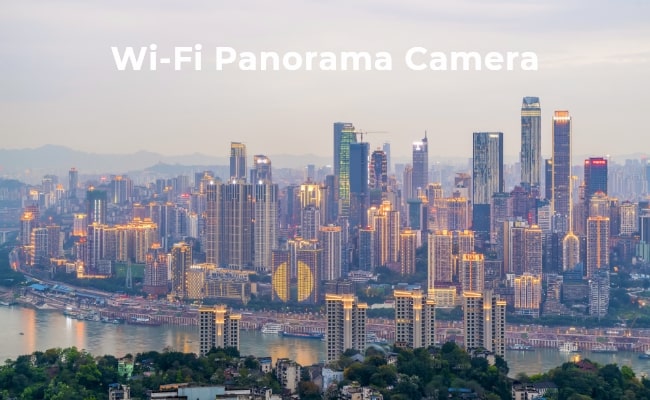
WiFi panorama cameras, also known as panoramic WiFi cameras, are security cameras with wide field of view that can see 180 to 360 degrees. They utilize advanced image stitching technology to capture the entire panoramic scene and stream high definition footage to your smartphone, tablet or computer over WiFi connection.
This article will introduce panoramic WiFi cameras, outline their key features, guide you through the set up process, provide tips on connecting them to mobile apps, summarize user reviews and answer frequently asked questions about such cameras.
Understanding WiFi Panorama Camera
A WiFi panorama camera has an ultra-wide field of view that allows it to see almost everything happening in front, behind and on the sides. It's like having multiple cameras looking in all directions at the same time. There are a few main types of panoramic WiFi cameras:
- 180-degree security camera: Sees left, right and everything in between. Good for monitoring long walls and pathways.
- 360-degree security camera: Provides a bird's eye view of an entire room or open area from a single vantage point.
- Light bulb camera: Fits into a standard light bulb socket for discreet ceiling monitoring.
The key advantage of panoramic cameras is their ability to capture a wide scenic view, eliminating the need for multiple cameras. The footage from the camera is stitched together using advanced algorithms to create a seamless panoramic video feed.
Key Features of Panoramic WiFi Camera
Below are some of the standout features that make Wi-Fi panorama cameras popular:
- Pan & Tilt: Most WiFi panoramic cameras can remotely pan 360° and tilt 114° up and down. This allows you to see in any direction from your phone with just a swipe.
- Wide Field of View: As mentioned earlier, panorama cams offer wide 180° to 360° field of view that reduces blind spots significantly.
- Image Stitching Technology: These cameras can stitch together images from multiple built-in lenses or image sensors to create one seamless 180° to 360° panoramic scene.
- Multiple Lens or Panoramic: WiFi panorama cameras feature multiple built-in lenses or special panoramic lens unlike normal IP cameras. The more lenses, the better the quality and wider field of view.
- Dual-Band WiFi Capability: Most panoramic WiFi cameras today support both 2.4GHz and 5GHz WiFi bands for reliable and long range connections. This allows streaming smooth high definition video to your smartphone or tablet.
How to Set Up Wi-Fi Panorama Cameras
Below are the step-by-step instructions for WiFi panorama camera setup, and we use Reolink panoramic camera and the Reolink app as examples:
Step 1. Unbox and Power on the Camera
Take out your brand new camera, charge built-in battery if it's a battery powered model or plug it into a power outlet. Then turn on the camera and wait for it to power up.
Step 2. Finish Initial Configurations
Use the Reolink app to set up date, time zone, admin user name, device name and WiFi password. Make sure the password is strong for security reasons.
Step 3. Pair with Smartphone or Other Monitoring Devices
Download the Reolink app on your iPhone, iPad and Android device. Tap "Add Device", scan the QR code on the back of the camera and follow prompts to connect it to WiFi and add it in the app.
Step 4. Mount and Install
Install the camera as per included user manual to get desired field of view. For outdoor, make sure it's weatherproofed.
Connecting WiFi Camera with Panoramic View to App: Tips and Tricks
Below are some tips for connecting and viewing WiFi panorama camera app Android, iOS or tablet:
- Download Manufacturer App: Download the manufacturer’s app (Reolink, Amcrest, Eufy, etc) to your iOS or Android device to get started. Make user account to access features in your WiFi panorama camera app iPhone.
- Activate WiFi Connection: When adding the camera, choose the right WiFi band (2.4GHz or 5GHz) for best connections. Refer user manual.
- Choose Suitable WiFi Band: If experiencing lagging or video buffering issues, switch to the cleaner 5GHz WiFi band for smoother footage.
- Configure Viewing Mode: Set streaming mode to ultra-HD for best details. Also, try out panoramic view for immersive experience.
- Set Up Push Notifications: Enable push notifications in the app to receive instant alerts when camera detects person or motion.
- Share Access to Footage with Family: Add shared users in the app to securely share live video and playback footage with family members.
Top WiFi Panorama Camera Reviews
Here are some top reviews from real users of Reolink WiFi panoramic cameras:
Best for Outdoor Wide Coverage - Reolink Argus 4 Pro
If you want to monitor a large outdoor area without installing multiple cameras, the Reolink Argus 4 Pro is an excellent choice. Its dual-image stitching technology delivers an ultra-wide panoramic view, helping you cover driveways, front yards, backyards, and side entrances with fewer blind spots. Combined with 4K UHD resolution, it captures fine details across a broader scene, making it easier to identify people, vehicles, and other activity around your property.
As a completely wire-free camera, the Argus 4 Pro is also easy to install in locations where running cables would be difficult. With smart detection, color night vision, and flexible placement options, it's ideal for homeowners who need maximum coverage with minimal setup.
"After thoroughly reviewing its features, I find the Argus 4 Pro impressive and worth the price. Its completely wire-free design makes installation straightforward. This 4K camera captures incredible details, allowing me to differentiate between people, vehicles, and animals easily. It's like upgrading from a regular photo to ultra-high-definition." – Reolink User
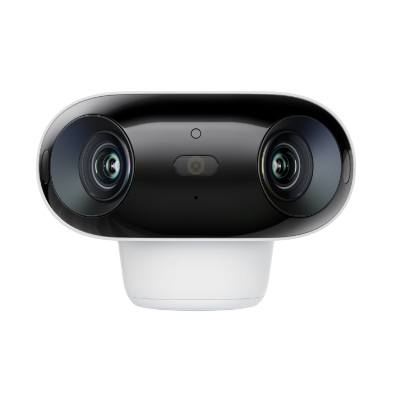
4k 180° Wire-free Color Night Vision Camera
4K UHD 180° Blindspot-free View; Color Vision Day and Night; 30% More Battery Life; Dual-band Wi-Fi 6; Smart detection.
Best for active deterrence and tracking - Reolink TrackFlex Floodlight WiFi
If you're looking for more than just a panoramic view, the Reolink TrackFlex Floodlight WiFi combines wide-area coverage with active security features. Its dual-lens design helps monitor larger outdoor spaces with fewer blind spots, while smart auto-tracking follows people, vehicles, and animals as they move across the scene.
The built-in floodlights provide bright nighttime visibility and can act as a powerful deterrent against unwanted visitors. Combined with AI motion detection, two-way audio, and real-time alerts, the TrackFlex Floodlight WiFi is a strong choice for homeowners who want both comprehensive surveillance and proactive protection around driveways, front yards, backyards, and other high-traffic areas.
"The dual-lens design gives me a much wider view than my previous camera, and the auto-tracking feature works surprisingly well. The floodlights are bright enough to illuminate my driveway at night, and I receive alerts quickly whenever someone approaches my property." - Reolink User
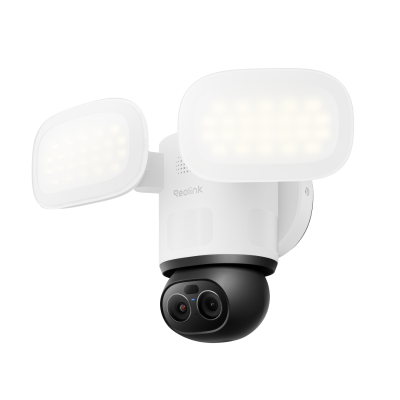
🎉 2026 Prime Day Sales Highlight: 4K 360° Wi-Fi Floodlight Security Camera
- 360° full coverage view & 4K 8MP resolution
- Dual-color floodlight & 6X hybrid zoom
Bonus Tips: Troubleshooting Common WiFi Panoramic Camera Issues
Here are some quick troubleshooting tips for common WiFi panorama camera issues:
- WiFi Disconnection: If camera frequently loses WiFi connection, try changing WiFi channel on router or moving camera closer to router.
- Power Loss: For battery powered cameras, make sure batteries are fully charged. For wired cameras, check power cables and outlets.
- Hardware Glitch: In rare cases, you may need to reboot camera hardware by long pressing reset button. As last resort, contact manufacturer support for repairs.
FAQs
How do I set up my Wi-Fi panorama camera?
Simply charge battery or plug in the camera, download the manufacturer’s app on your smartphone or tablet, create account, and follow the in-app prompts to connect camera to WiFi and add it in the app. Refer user manual for detailed steps.
What apps can I use with a Wi-Fi panorama camera?
Most major security camera brands have their own free mobile app for iOS and Android to connect the panoramic WiFi cameras. Some also work with third party apps like TinyCam, Xeoma and Blue Iris.
How do I connect to my Wi-Fi camera?
To connect, open manufacturer’s app on your smartphone/tablet, tap Add Device > Scan QR code on camera > Choose WiFi network > Follow prompts to view video feed.
Conclusion
WiFi panorama cameras offer unmatched wide 180° to 360° views that open up possibilities for smart home monitoring and security. With pan and tilt controls, detailed panoramic footage and intuitive mobile apps, these cameras provide 24/7 eyes on every corner of your property.
We discussed the key features, set up guide, app connection tips and actual customer reviews to help you make an informed purchase decision. Let us know which panoramic WiFi camera would you recommend!
Search
Subscribe for the Latest Updates
Security insights & offers right into your inbox