
What Resolution Is My Monitor? How to Check?
The resolution of a monitor defines the image quality, but often, people don't know what resolution their monitor offers.
In this article, we will explain what monitor resolution is and how you can check it on different operating systems. We will share the step-by-step process and compare different resolutions to give you a better idea.
What Is Monitor Resolution?
Monitor resolution refers to the number of pixels displayed on your screen horizontally and vertically. A 1920x1080 display packs 1,920 pixels across and 1,080 pixels down, totaling over 2 million individual pixels working together to create your image. Higher resolutions pack more pixels into the same physical space, resulting in sharper text, more detailed images, and smoother curves.
Resolution directly impacts what you see and how you see it. Lower resolutions make everything larger but blockier. Higher resolutions deliver crisp detail but make interface elements smaller. The best option balances your screen size, viewing distance, and personal preference.
Understanding your current resolution helps you make informed decisions about upgrades, game settings, and video playback quality.
How to Tell What Resolution My Monitor Is?
Finding your monitor's resolution varies by device and operating system. Below are step-by-step guides for the most common platforms.
How to Check Monitor Resolution on Windows 11?
Windows 11 offers multiple pathways to find your display resolution. The Settings app provides the most straightforward approach for most users.
- Right-click anywhere on your desktop background. A context menu appears with several options. Select "Display settings" from the menu.
- The Display panel opens, showing your monitor configuration. Scroll down to the "Scale and layout" section. Look for "Display resolution" with a dropdown menu showing your current setting.
- Click the dropdown to see all available resolutions. Your current resolution appears at the top with "(Recommended)" marked if optimal.
- For more detailed information, click "Advanced display" at the bottom. This reveals refresh rate, bit depth, and color format.
How to Check Monitor Resolution on macOS?
Apple's macOS provides simplicity for checking display settings through System Settings.
- Click the Apple logo in your top-left corner of the screen. A dropdown menu appears.
- Select "System Settings" (or "System Preferences" on older macOS versions). The settings window opens.
- Click "Displays" in the sidebar or icon grid. Your current resolution appears prominently at the top.
- Hold the Option key on your keyboard while clicking the "Scaled" radio button. Additional resolution options reveal themselves.
- Release the Option key after viewing. Your resolution remains displayed for reference without making changes.
How to Check Monitor Resolution on Linux?
Linux offers flexibility across different desktop environments. The GNOME method works for most modern distributions.
- Click the Activities button in the top-left corner or press the Super key (Windows key). The overview screen appears.
- Type "Settings" in the search bar and click the Settings icon when it appears.
- Select "Displays" from the left sidebar. Your current resolution appears in the Resolution dropdown menu.
- For terminal users, press Ctrl+Alt+T to open a terminal window. Type xrandr and press Enter.
- Look for your monitor name (like HDMI-1 or eDP-1). The current resolution appears next to it, marked with an asterisk.
How to Check Monitor Resolution Online?
Several websites detect your screen resolution automatically without installing any software.
- Open your preferred web browser and navigate to any resolution-detection website. A quick search for "what is my screen resolution" finds multiple options.
- Wait for the page to load completely. The website uses JavaScript to read your display settings.
- Look for the displayed result showing your current resolution in pixels (like 1920 x 1080). Most sites show this prominently at the top.
- For additional information, scroll down to see browser window size, color depth, and pixel density if available.
Understanding Display Technologies and Resolution Standards
Display technology has evolved over the years. Understanding common resolution standards helps you compare monitors and make informed purchasing decisions. The table below shows standard resolutions, their exact pixel counts, aspect ratios, and typical applications.
How Resolution Affects Performance and Visual Quality
Higher resolutions demand significantly more from your computer's hardware. Gaming at 4K requires approximately four times the graphics processing power of 1080p. Frame rates drop as resolution increases unless you invest in powerful components. A high-end graphics card might deliver 100+ frames per second at 1080p but struggle to maintain 60 fps at 4K in demanding games.
Text clarity and image sharpness improve dramatically with higher resolutions. Curves appear smoother, fine details emerge, and overall image quality feels more lifelike and immersive. The display quality of 4K surveillance footage on monitors captures crucial details like faces, clothing, and license plates. Viewing this footage on a 1080p monitor shows only what the screen can display. A 4K monitor reveals the full detail your camera captured.
The Reolink TrackFlex Floodlight WiFi camera captures true 4K Ultra HD video with dual lenses, ensuring every detail appears crystal clear when paired with an appropriate monitor. Its 360° pan-tilt covers your entire property while the 3,000-lumen floodlight illuminate a massive area.
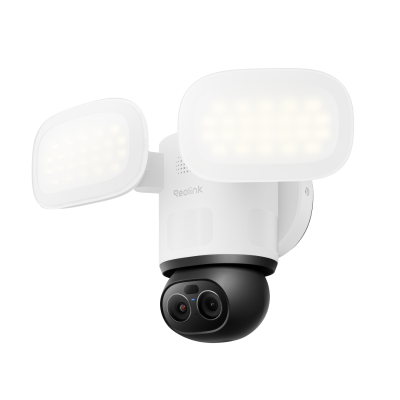
Smart 4K 360° Coverage Wi-Fi Floodlight Security Camera
Local AI Video Search, 4K 8MP Ultra HD, 360° Coverage View, 6X Hybrid Zoom, Dual-Color Floodlight.
FAQs
What is the resolution of a 1920x1080 display?
A 1920x1080 display is called Full HD or 1080p. It contains 1,920 pixels horizontally and 1,080 pixels vertically, totaling over 2 million pixels to create your image.
Is 1920x1080 or 2560x1440 better?
2560x1440 (1440p) offers sharper images. It has a higher number of pixels both vertically and horizontally compared to 1920x1080. However, 1920x1080 demands less from your graphics card and costs less.
How do I know if my monitor is 1080p or 1440p?
Check your display settings in Windows, macOS, or Linux. The resolution number tells you immediately. 1920x1080 means 1080p. 2560x1440 means 1440p.
Conclusion
You can easily find the resolution of your monitor on Windows 11 Settings, macOS System Settings, Linux terminals, and online tools, all of which reveal this essential information with simple steps. Once you know the resolution, you can choose appropriate games, set up surveillance viewing, and plan future upgrades with confidence.
Search
Subscribe for the Latest Updates
Security insights & offers right into your inbox