
How to Solve Reolink Wi-Fi Camera Connectivity Issues: A Step-by-Step Guide
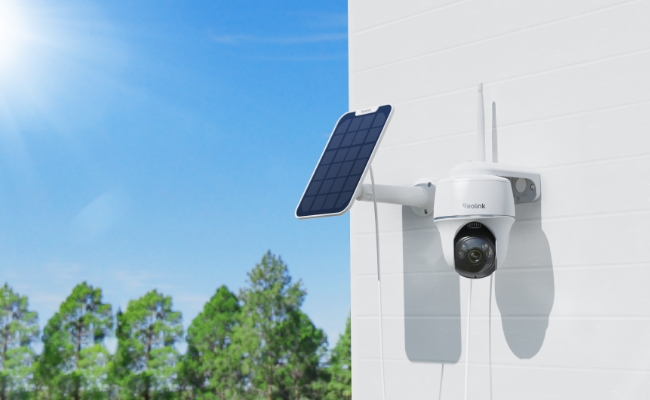
You might experience connectivity issues with Reolink Wi-Fi cameras due to Wi-Fi instability, outdated firmware, or device issues. First, look at the symptoms, then try to fix the issue.
In this article, we will explain how to resolve connectivity issues with Reolink cameras. We will share different solutions according to the symptoms.
Why Is My Reolink Wi-Fi Camera Not Connecting?
Symptoms
- When connected via Ethernet cable, the camera functions properly and allows preview through the phone app or PC client. However, when attempting to switch to Wi-Fi, either the camera displays "Wi-Fi connection failed" or appears configured for Wi-Fi but loses connection immediately after unplugging the Ethernet cable.
How to Fix
- Verify Wi-Fi credentials carefully: Double-check your entered SSID and password for typos. Passwords are case-sensitive, and some Android phones automatically add a blank space at the end. Remove the Wi-Fi from your phone, then manually reconnect using the exact credentials. Remember to click "OK" to save settings before unplugging the Ethernet cable.
- Check the router's configuration settings: Ensure the frequency band, encryption method, and channel meet Reolink's requirements. Improper settings block connections even when credentials are correct.
- Improve Wi-Fi signal strength: For cameras with external antennas, make sure the antenna is installed correctly and tightened fully. Temporarily move the camera closer to the router to test whether the distance is causing the issue.
- Update camera firmware: Old firmware versions cause compatibility issues with modern routers. Check Reolink's support site for your specific model and install the latest version available. Firmware updates often include connectivity improvements and bug fixes.
- Reboot and reset devices: Reboot both the camera and router. If possible, reset the router rather than just restarting it. For persistent issues, restore the camera through the phone app or manually reset it. If one camera fails while others work, resetting often resolves software glitches.
Why Is Reolink Camera Wi-Fi Keep Disconnecting?
Symptoms
- The camera connects initially and works properly for a period. Then it drops offline repeatedly throughout the day or week. Status LEDs indicate connection attempts failing. Router logs confirm frequent disconnections and reconnections. You find yourself constantly checking and reconnecting the device.
How to Fix
- Strengthen the Wi-Fi signal: Poor signal strength tops the list of causes for intermittent disconnections. Check antenna installation and tighten if loose. Move the camera closer to the router or reposition it for better reception. Thick walls, metal objects, and distance all weaken signals significantly. Consider Wi-Fi extenders for problem areas.
- Reduce router overload: Too many devices competing for bandwidth may kick cameras offline. Check how many devices connect to your network simultaneously. Prioritize your camera in router QoS settings if available.
- Check for network interference: Neighboring networks cause interference, especially in apartments or dense neighborhoods. Use Wi-Fi analyzer apps to find congested channels. Switch your router to a less crowded channel. Consider moving to the 5GHz band if your camera supports it and interference plagues the 2.4GHz band.
- Inspect the power supply: Insufficient power causes random reboots and disconnections. Verify your camera uses the correct power adapter. Check cable connections for damage. For battery-powered cameras, ensure batteries charge fully and remain at adequate levels.
Why Reolink Camera Won't Connect to Dual-band Wi-Fi?
Symptoms
- The camera detects your Wi-Fi network but fails to connect when attempting to use the 5GHz band specifically. It connects perfectly fine to 2.4GHz, or vice versa. Router settings show the camera attempting authentication, then failing repeatedly. The problem follows the band, not the network.
How to Fix
- Verify camera band compatibility: Not all Reolink cameras support 5GHz Wi-Fi. Older models and some battery-powered cameras work exclusively on 2.4GHz networks. Check your camera's specifications in the manual or on the Reolink website before proceeding with further troubleshooting.
- Separate dual-band SSIDs: Many routers broadcast the same network name for both bands, confusing connections. Temporarily disable one band in router settings. Or rename bands differently (like "MyNetwork-2G" and "MyNetwork-5G") to force connection to the desired frequency.
- Adjust encryption settings: Older cameras may not handle WPA3 encryption found on newer routers. Switch your router to WPA2 temporarily to test compatibility. Match encryption exactly to what your camera supports. Higher security sometimes blocks older devices entirely.
- Update camera firmware: Newer firmware versions often expand band compatibility and improve dual-band handling. Check for updates specific to your model. Manufacturers frequently add support for newer router technologies through firmware releases.
Reliable Wi-Fi Camera Recommendation
Reolink Solar Floodlight Cam
Reolink Solar Floodlight Cam is a battery/solar-powered Wi-Fi 6 security camera with a built-in 1,000 lumens floodlight. Its 3W solar panel requires only 1 hour of sunlight to provide daily illumination at night. It's equipped with a 7,800 mAh battery that lasts up to 90 days (without solar charging). Users can adjust the brightness and color of the solar floodlight, and it automatically turns on and off when a person or vehicle is detected.
Reolink Elite Floodlight Wi-Fi
Reolink Elite Floodlight Wi-Fi is a wired dual-lens Wi-Fi 6 security camera with floodlights. It captures 4K videos and covers a 180-degree field of view. You can adjust the color and temperature of its 3,000-lumen floodlight. Its local AI video search lets users find the desired event or video using keywords.
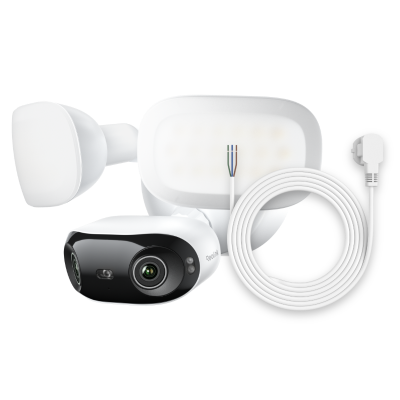
4K 180° Ultra-Wide Wired Floodlight Security Camera
3000-Lumen Dimmable Lighting, Adjustable Color Temperature, Local AI Video Search, Local Storage, Dual-Band Wi-Fi 6.
Reolink TrackFlex Floodlight Wi-Fi
Reolink TrackFlex Floodlight Wi-Fi is a wired floodlight security camera. It has dual lenses with pan and tilt motion and 6X hybrid zoom. It covers 360° and allows users to adjust the color and brightness of the 3,000-lumen floodlight. Its Wi-Fi 6 compatibility ensures fast and reliable operation. It also includes local AI video search and local storage, with no monthly fee.
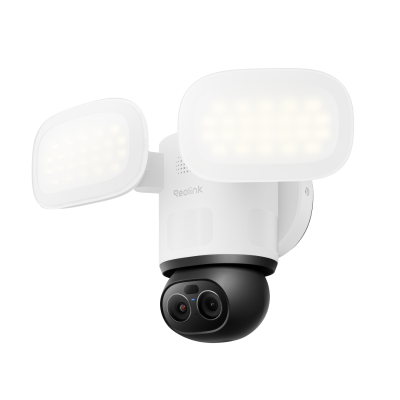
Smart 4K 360° Coverage Wi-Fi Floodlight Security Camera
Local AI Video Search, 4K 8MP Ultra HD, 360° Coverage View, 6X Hybrid Zoom, Dual-Color Floodlight.
Conclusion
You can fix Reolink Wi-Fi connectivity issues yourself. Look at the symptoms and try the solutions we have shared in this article. These will hopefully fix the connectivity issue and let your camera successfully connect to the Wi-Fi. It's not always the problem with the camera; often, the Wi-Fi, router, unsignals, and interference create the issues.
Search
Subscribe for the Latest Updates
Security insights & offers right into your inbox