
ONVIF Cameras Explained: Everything You Need to Know
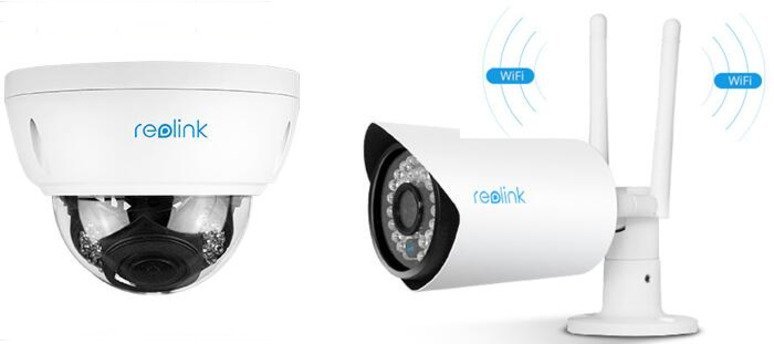
When designing a home or business surveillance system, cross-brand compatibility is often the biggest problem. Hardware configurations can vary wildly between brands. For example, a camera from one manufacturer may not inherently record to an NVR built by another. The ONVIF protocol solves this problem by creating a universal language for network video devices.
By understanding how ONVIF profiles work and how to check the official compliance list, you can mix and match high-performance hardware with confidence and adpot your monitoring setup to exact real-world scenario.
What Is ONVIF Camera?
An ONVIF camera is an IP security camera that adheres to open industry communication protocols. It can record, stream, and integrate with third-party Network Video Recorders (NVRs) and video management software, regardless of the brand.
If you already own an existing surveillance setup and want to replace your NVR, or if you want to add a brand-new IP camera model to your current network, ONVIF compliance bridges the compatibility gap. Instead of being locked into a single manufacturer's closed ecosystem, this universal protocol gives you the freedom to scale your security system on your own terms.
Breakdown of ONVIF Compliance in Video Surveillance
The Open Network Video Interface Forum (ONVIF) is a global, open organization dedicated to standardizing how network video devices talk to one another. An ONVIF-compliant HD IP security camera is engineered to translate its video, audio, and data streams into a standardized language that any compatible third-party device can instantly read.
How Does ONVIF Work?
ONVIF works by organizing specific sets of features into standardized frameworks called Profiles. For instance, to guarantee that your IP camera can stream high-definition video, send motion alerts, or utilize local recording on a third-party NVR, both devices must support the exact same ONVIF profile.
Instead of dealing with a confusing web of custom firmware, you only need to match the letter of the profile on your device to the letter supported by your recorder.
-
Profile S: Formulated for basic IP-based video setups. It handles standard H.264 live video streaming, audio streaming, and basic Pan/Tilt/Zoom (PTZ) commands.
-
Profile T: Built to support modern high-performance cameras. It expands on Profile S by adding mandatory support for H.265 video compression (essential for 4K cameras), bidirectional two-way audio, and advanced digital motion/tampering alerts.
-
Profile G: Specifically designed for local media storage and recording playback. It allows an NVR or video management client to configure recording schedules, search through metadata, and retrieve clips saved directly to a camera's local microSD card.
-
Profile Q (Deprecated - Avoid): Originally intended for quick out-of-the-box device discovery and configuration. ONVIF has officially deprecated Profile Q because its architecture required temporary anonymous access during setup, which violates strict modern cybersecurity compliance standards.
Note that never assume one profile implies another. A camera can be certified for both Profile T (for advanced streaming) and Profile G (for edge recording fallback) simultaneously.
What are the Pros and Cons of ONVIF?
The primary advantage of ONVIF is system flexibility. This allows you to build a custom, cross-brand security network without custom coding. However, its biggest downside is a potential drop in specialized feature support and the hidden licensing fees associated with third-party software.
ONVIF Pros vs. Cons:
Does ONVIF Only Works with IP Cameras
Yes, the ONVIF standard is natively designed exclusively for digital, IP-based network surveillance devices. Traditional analog CCTV cameras that rely on physical coaxial BNC cabling cannot understand or run the ONVIF protocol directly.
However, if you have legacy analog cameras that you are not ready to tear out, you can still bridge them into an ONVIF-based network:
-
Use a Digital Bridge: By routing your legacy analog coaxial lines into a specialized hardware component called a Video Encoder (an Analog-to-IP converter), the analog signals are translated into digital data streams.
-
If you ensure the video encoder itself is officially certified with ONVIF Profile T or S, your analog feeds will be broadcast across your network under a universally recognized IP address, allowing them to integrate seamlessly with modern third-party NVRs and monitoring clients.
Best Free ONVIF Software for IP Security Camera
Whether you want to monitor live footage, record videos, receive motion alerts, or control PTZ cameras, there are plenty of free ONVIF software options available for Windows, Mac, Linux, NAS devices, and mobile phones.
How to Set Up ONVIF Cameras?
Setting up an ONVIF-compatible camera requires matching its internal network parameters, port configurations, and profile access credentials directly within your third-party recording software. Here are the essential steps:
1. Connect the Camera to Your Local Network
Physically install and power your camera by attaching it to your local network router or PoE switch via an Ethernet cable, or connect it to a stable Wi-Fi .
2. Enable ONVIF in the Camera Settings
Log into the native mobile app or the browser-based web interface using the camera's default IP address. Many manufacturers turn off open network protocols by default to enhance out-of-the-box cybersecurity. Navigate to the network integration menus and check the box to explicitly toggle ONVIF Support to Enabled.
3. Initialize an ONVIF Admin Account
Within the camera's setup interface, establish a dedicated ONVIF user account and strong password. Note that this integration login can be completely separate from the primary administrator account used to access the camera's regular app interface.
4. Add the Camera to Your Third-Party VMS or NVR Software
Open your chosen ONVIF-compatible management app (such as Blue Iris, Milestone, or a third-party hardware NVR). Select the option to add a new device manually, and accurately input the required data points:
-
The Device IP Address: The unique local network path assigned to the camera.
-
The ONVIF Port: Usually defaults to port 80, 8000, or 8899 depending on the manufacturer.
-
The ONVIF Credentials: The exact username and password profile you generated in Step 3.
5. Verify the Integration and Test Live Streams
Run a configuration diagnostic test within your recording software. Check that the live video stream populates seamlessly, confirm that audio channels match, and trigger a brief walk-test to ensure your local storage hard drive or server is logging event recordings.
Best ONVIF-Compatible Cameras for Flexible System Integration
Choosing a ONVIF-certified camera allows you to break free from proprietary brand lock-in, and you can stream, record, and control high-performance hardware directly through top third-party video management platforms like Blue Iris, Synology, or Milestone.
1. Best Dedicated Bullet PoE Camera: Reolink RLC-810A
The RLC-810A is a hardwired 4K PoE bullet camera that complies fully with the ONVIF standard. You can use seamless H.265 video compression pipelines over a single Ethernet cable.
This camera is recognized by major third-party platforms like Blue Iris and Synology NAS networks. Operating on a premium 8MP image sensor streaming crisp 3840 x 2160 video at 25 frames per second, you can also enjoy flexible sub-streaming down to 1080p or 720p to save local network bandwidth.
The Power over Ethernet (PoE) technology transmits both high-speed digital data and electrical power through a single Cat5e or Cat6 line up to 330 feet.
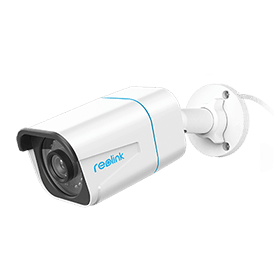
4K PoE IP Camera with Person/Vehicle Detection
Smart Person/Vehicle Alerts; 4K UHD Day; Night; 100ft Night Vision; Time Lapse; IP66 Certified Weatherproof; Audio Recording.
2. Best Heavy-Duty Wi-Fi 6 Camera: Reolink RLC-840WA
The RLC-840WA bridges wireless flexibility with physical security, offering an IK10 vandal-proof dome design coupled with next-generation Wi-Fi 6 open-protocol streaming.
Built on advanced Wi-Fi 6 dual-band (2.4 GHz / 5 GHz) protocols, the RLC-840WA ensures lightning-fast data transmission and robust interference resistance when sending 4K video feeds to third-party ONVIF platforms.
Enclosed in a rock-solid, heavy-duty metal housing boasting an IK10 vandal-proof rating, this outdoor camera can survive violent external mechanical impacts, alongside an IP67 rating to withstand severe weather.
3. Best Auto-Tracking PTZ System: Reolink TrackMix PoE
The TrackMix PoE is a dual-lens PTZ camera that utilizes ONVIF commands to execute remote pan, tilt, and 6X hybrid zoom controls across a centralized monitoring dashboard.
The Reolink TrackMix PoE tracks moving objects automatically, projecting a full wide-screen overview alongside a zoomed-in close-up frame on the same monitor screen.
This camera provides extensive visual coverage with a motorized pan-and-tilt mechanism. It supports up to 355° horizontal panning and 90° vertical tilting, so you can monitor a wide area with minimal blind spots.
Through standard ONVIF-compatible software, the camera's movements can be controlled remotely using on-screen PTZ controls or joystick configurations for precise positioning and tracking.
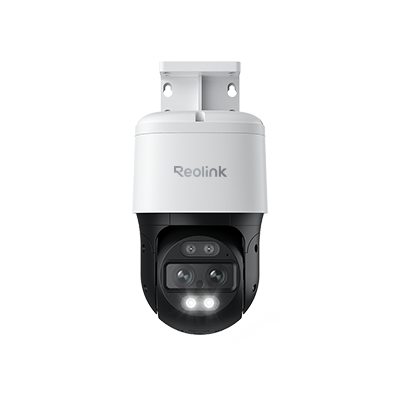
4K Dual-Lens PTZ Camera with Dual Tracking
4K 8MP Ultra HD, Wide & Telephoto Lenses, Pan & Tilt, Auto-Tracking, Person/Vehicle Detection, Power over Ethernet, Two-Way Audio.
4. Best 180° Panoramic Coverage: Reolink Duo 3 PoE
The Duo 3 PoE utilizes a dual-lens design and advanced image-stitching algorithms to output a seamless 180° ultra-wide panoramic 16MP view over a single ONVIF video stream.
Instead of deploying multiple narrow-angle cameras, the Duo 3 PoE can cover large areas with a single device. Its 180° panoramic field of view is ideal for monitoring open spaces such as warehouses, parking lots, front yards, and commercial properties.
The camera also transmits its panoramic video stream through standard ONVIF protocols, so you can integrate it with a wide range of third-party NVRs, video management systems (VMS), and surveillance software. This makes it a flexible choice for both residential and enterprise security deployments.
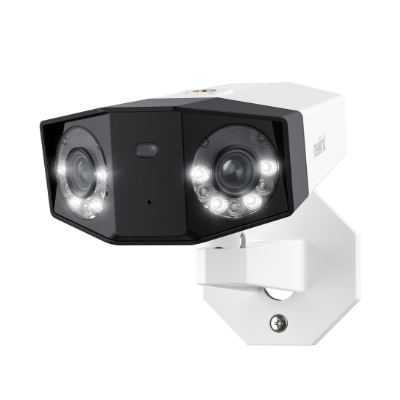
Groundbreaking 16MP Dual-Lens PoE Camera
16MP UHD, Dual-Lens, Motion Track, 180° Wide Viewing Angle, Power over Ethernet, Color Night Vision.
Reolink ONVIF Compatibility Explained
Does Reolink Support ONVIF?
Yes, many Reolink cameras support the ONVIF protocol, which means they are compatible with third-party NVRs, VMS software, and NAS systems like Blue Iris, Synology Surveillance Station, and Milestone.
However, not all models are ONVIF-compatible. For example, Reolink 4G models do not support ONVIF, except for the Reolink TrackMix Wired LTE. Battery-powered WiFi cameras must be connected to the Reolink Home Hub, and NVR kit cameras must be connected to a Reolink NVR for ONVIF compatibility.
You can check each model’s specifications page or Reolink’s ONVIF compatibilitylist to confirm ONVIF support.
Reolink ONVIF Camera Setup and Configuration
We take the Reolink camera and Blue Iris as an example to show you the main steps on adding or setting up your own Reolink ONVIF IP cameras.
-
Step 1. Please download Blue Iris ONVIF software from its official online store.
-
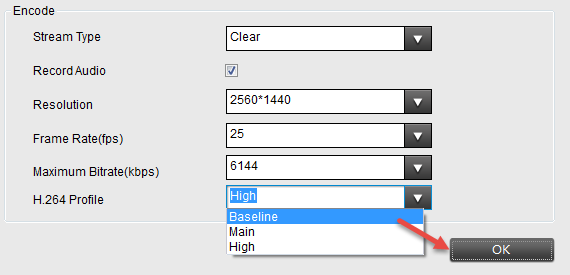
Step 2. Please check the camera’s local IP address and set the H.264 profile to Baseline.
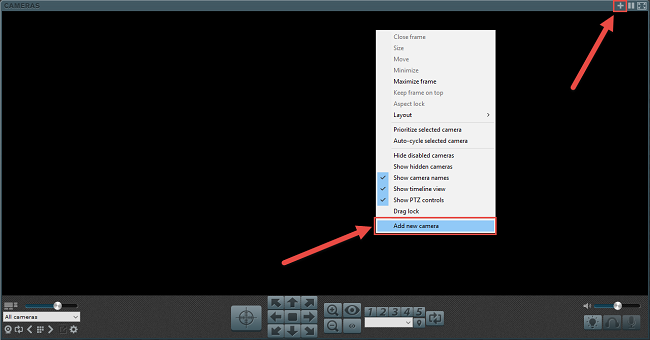
- Step 3. Launch Blue Iris and click the + button at top/right of the software window, or right click and select " Add new camera " to add a Reolink camera to Blue Iris.
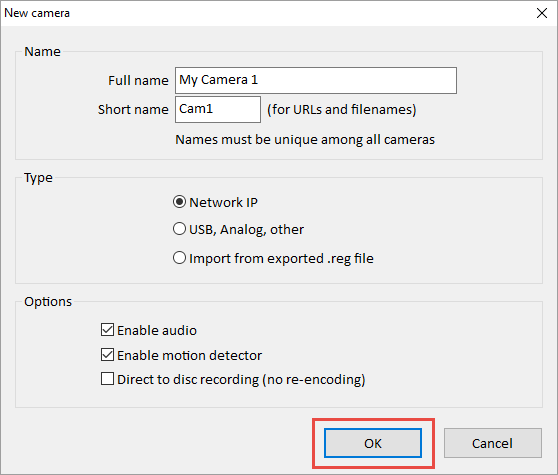
- Step 4. Input the name of the camera and choose Network IP as the connection type. Check “ Enable audio ” and “ Enable motion detector ” and click OK.
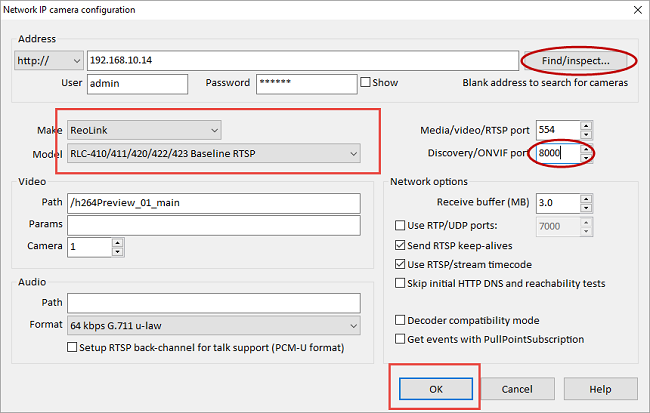
- Step 5. Click Find/inspect… button to search the camera in the LAN and choose the “ Make ” as Reolink, change the “ Discovery/ONVIF port ” to 8000 and then click OK.
Note: if you are using Reolink PTZ ONVIF IP security cameras, remember to enable PTZ function on Blue Iris. Don’t forget to set Network IP to ONVIF.
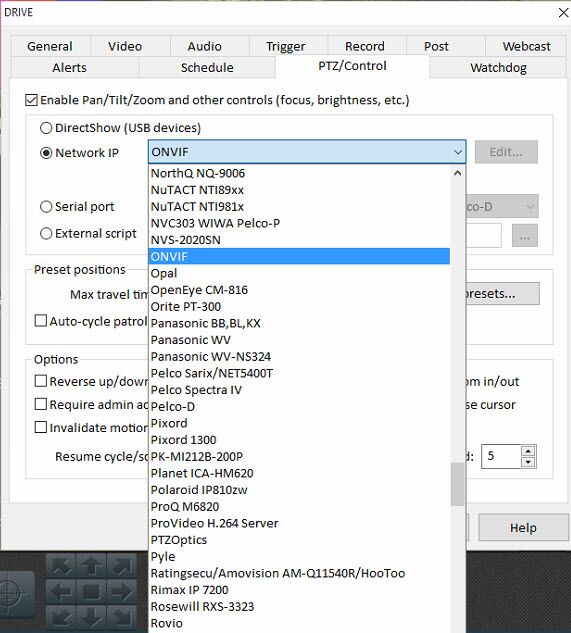
You can check more Reolink ONVIF camera setup, installation, or configuration, and other ONVIF software information from our support page.
FAQs on ONVIF Cameras
Which is better ONVIF or RTSP?
ONVIF is better for comprehensive system integration because it allows for full bidirectional camera control, while RTSP (Real-Time Streaming Protocol) is a one-way communication tool meant strictly for raw video and audio streaming.
What are the benefits of ONVIF?
The primary benefit of ONVIF is the complete elimination of brand lock-in. It gives you the freedom to mix and match cameras and recorders from thousands of different manufacturers on a single network.
How do I know if my camera is ONVIF compatible?
You can verify ONVIF compatibility by checking for certified "Profiles" (like Profile T, S, or G) on the manufacturer's spec sheet or by searching the official, publicly available database on the ONVIF website.
Conclusion
ONVIF cameras simplify surveillance by enabling cross-brand compatibility, letting users mix and match devices freely. They save time, cut costs, and future-proof both home and commercial security systems.
If you have any questions, or you want to add more insights on ONVIF IP cameras, shoot us in the comment below! We will add your feedback in our “Editor’s Update” so that more readers can see your excellent comments!
Search
Subscribe for the Latest Updates
Security insights & offers right into your inbox