
What Is Bridge Mode? A Simple Explanation
If you have a modem and a router, or an all-in-one gateway from your internet provider, you may wonder how to make them work better together. That is where bridge mode comes in. In this guide, you will learn what is bridge mode on a router and router bridge mode, how it works, when to use it, and how to set it up.
What Is Bridge Mode?
Bridge mode is a configuration that converts a router or an internet gateway into a straightforward network bridge. That is, the device no longer functions as a router and will relay your internet connection to another router, which will do the routing job.
What is router bridge mode? In simple words, it disables routing functionalities such as Network Address Translation (NAT), firewall rules, and DHCP on one router device and lets another router take charge of the network entirely.
How Does Bridge Mode Work?
Think about the path from your internet service provider to your laptop. Your provider gives you a public IP address. A router takes that public IP and uses NAT to let many devices share it. If you put both your provider’s gateway and your personal router in full router mode, you create two layers of NAT. That can break some apps and make port forwarding a headache.
In modem bridge mode, the gateway of the provider ceases to perform NAT and DHCP. It does not assign local IP addresses anymore or block traffic using its own firewall. Rather, it forwards the public IP address to the WAN port on your primary router. Your primary router is then able to do all of the heavy stuff: local IPs, NAT, firewall, Wi-Fi, parental controls, Quality of Service, and port forwarding. Your network is back to having just one brain.
When to Use Bridge Mode on a Router?
Before you flip any switch, it helps to know why you might need bridge mode router settings at all. Use a short checklist in your head. Do you have an all-in-one modem/router from your provider and a separate router you prefer? Do you run into gaming or VPN issues? Do you want a single network name and smooth roaming across a large home? If the answer is yes to one or more of these, bridge mode can help.
Below are common cases where bridge mode makes sense.
Expand WiFi coverage
You may have dead zones far from your gateway. If your provider’s gateway has weak Wi-Fi or sits in a corner, you can add a stronger router or a set of access points in central areas. Put the gateway in bridge mode and let the new router control the wireless network.
You get one Wi-Fi name, one password, and consistent settings across the house. Your devices roam more smoothly because a single router manages the radio plan, channels, and power. You remove the tug of war between two routers that both try to lead.
Avoid double NAT
Double NAT happens when two routers try to translate addresses at the same time. You might see problems with online games, peer-to-peer apps, smart home cameras, port forwarding, or a VPN that needs inbound connections. For example, if your home has multiple routers, double NAT can block or slow down remote access to your security camera feeds.
By using bridge mode on the gateway, you remove the extra NAT layer. Your main router gets the public IP. Port forwarding and UPnP live in one place. Troubleshooting gets easier because you have one firewall and one set of rules.
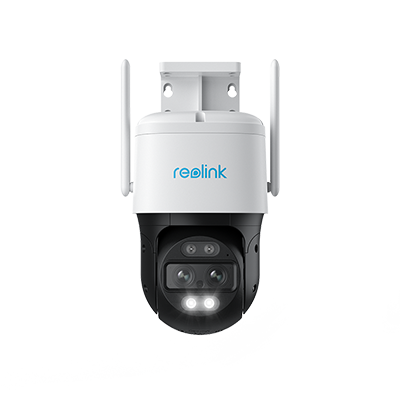
4K Dual-Lens PTZ Camera with Motion Tracking
4K 8MP UHD, Wide-Angle & Telephoto Lenses, Pan-Tilt-Zoom, Auto-Tracking, Person/Vehicle Detection, 2.4/5 GHz Dual-Band WiFi, Two-Way Audio.
Connect a second router
You may want to use a high-end router for features your gateway lacks. Think advanced QoS for video calls, strong parental controls, custom DNS, or strong security tools. In this case, put the provider’s box in bridge mode and connect your second router to it. Your second router becomes the only routing device. The gateway acts like a modem only. You keep the reliability of the provider’s hardware for the internet link, but you gain control and features in your own gear.
Use a mesh WiFi system
Mesh Wi-Fi kits work best when one device runs the network and the rest act as satellites. If you plug a mesh system into a gateway that also routes, you can end up with double NAT and split features. You may need to set the gateway to bridge mode or set the mesh to its bridge or AP mode.
In most homes, letting the mesh system route work well. The gateway in bridge mode simply feeds the internet to the mesh base station, and the mesh takes care of coverage and roaming.
How to Set Up Bridge Mode?
Each brand uses a different menu layout, and names change across firmware versions. Still, the general flow stays the same. The steps below work for many providers and brands, including what is bridge mode Xfinity situations, as well as TP-Link, Netgear, and ASUS equipment. Read the steps once before you begin so you know what to expect.
- Pick the router that will handle all routing. Back up current WiFi names, passwords, and any port forwards. Connect your computer to the ISP gateway with an Ethernet cable.
- Log in to the gateway’s admin page. Turn on Bridge Mode (or IP Passthrough or Modem Only on some models, including Xfinity). Save and reboot the gateway.
- After the gateway restarts, connect an Ethernet cable from a LAN port on the bridged gateway to the WAN or Internet port on your main router. Power-cycle both devices.
- Log in to your router. Set the WAN to DHCP unless your ISP uses PPPoE or a static IP. Create the WiFi network name and password. Turn off WiFi on the bridged gateway if it is still broadcasting.
- Confirm the main router receives a public IP on its WAN. Run a speed test. Test apps that need inbound access, such as games or cameras. Place the router in a central spot and add mesh nodes if you need more coverage.
Bridge Mode vs. Router Mode: What’s the Difference?
It can help to compare the roles side by side before you commit to one setup. In router mode, the device protects, translates, and manages your home network. In bridge mode, the device hands those jobs to another router and acts as a link between the internet and your network. The table below sums up the key differences.
FAQs
When should I use bridge mode?
Use bridge mode when you have two routers in the stack and you require only one to forward. The most common reasons are that a customer wants to utilise a mesh Wi-Fi system, they require a solution to their double NAT challenges, or they wish to enhance their features, such as Heracles (IQOS Attendant) and parental controls, above those provided by their gateway supplier. Since you have a simple network, and you have no need for extra features, you might leave router mode enabled on your gateway and not add additional hardware.
What does bridge mode do in Xfinity?
Bridge mode makes the Xfinity gateway into a pass-through device in Xfinity installations. The gateway terminates NAT, DHCP, and firewall activities. The home network is facilitated by your individual router, which is accessible via the viewable IP. Then you set up Wi-Fi, port forwarding, and security on your own router or mesh system.
What are the benefits of bridge mode?
Bridge mode gives you one routing device and one place to manage settings. It removes double NAT, which solves many gaming, VPN, and port forwarding issues. It lets you run stronger Wi-Fi with a high-quality router or mesh system without fighting the provider’s gateway. It also simplifies troubleshooting. When a problem appears, you adjust settings on one router rather than two.
Conclusion
Bridge mode is a simple idea with a big payoff. It turns a gateway or spare router into a plain bridge so your main router can lead the network. By understanding what is bridge mode on a router, how it works, and when to use it, you can fix common problems like double NAT, weak Wi-Fi, and complex port forwarding.
Have you used bridge mode in your home? Did it solve your coverage or double NAT issues? Share your thoughts and what worked best for you so others can learn from your experience.
Search
Subscribe for the Latest Updates
Security insights & offers right into your inbox