
WAN vs LAN Port: What’s the Difference?
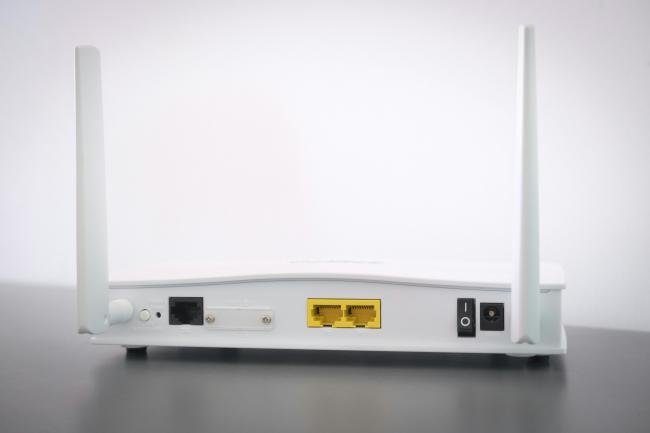
LAN vs WAN port is a common question when you set up a home or small office network. Both ports sit on the same router, yet they serve very different roles. This article explains those roles in clear terms, so you know which port to use, why it matters, and how to spot each one fast.
LAN vs. WAN Port: Understanding the Basics
Routers link two worlds: your local devices and the wider internet. To do that job, the router offers ports with different purposes. Before you compare them, you need a clear picture of what each port is and what it does.
What is a WAN port?
A WAN (Wide Area Network) port is what links your router out there. Just consider it as the gateway between your local network and your internet service provider (ISP). This is where you insert the Ethernet cable of the modem. Once that is done, your router is capable of sending as well as receiving data to the internet.
What is a LAN port?
Your local devices will be connected to the router by using a LAN (Local Area Network) port. Here you can plug computers, printers, game consoles, or switches. The LAN port ensures that your traffic remains within the network, and the devices in the network communicate among themselves without sending the traffic to the internet.
WAN vs. LAN Port: Key Differences
You now know what each port is. Next comes the WAN vs LAN port on router differences. These points help you pick the right port for every connection. First, a short overview: WAN connects outward to the ISP’s network; LAN connects inward to your local gear. From that core idea, several practical differences follow.
Function
The WAN port links your router to the internet or another wide area network. It handles upstream and downstream data for your entire network.
The LAN port links end devices to the router. It keeps local traffic inside your network and sends outbound traffic to the WAN only when needed.
Number of ports
Routers usually ship with one WAN port. Some dual-WAN or multi-WAN routers add more for failover or load balancing, but that is less common in homes.
Routers commonly include multiple LAN ports. Four LAN ports are standard on many consumer models. Business switches can add dozens more if you need them.
Traffic type (external vs internal)
WAN traffic is external. It travels between your network and the ISP or another remote site.
LAN traffic is internal. It moves between devices in the same local network. The router only forwards it to the WAN if the destination is outside.
Size and coverage
The WAN side covers a large area. It spans cities, countries, or even continents because it ties into your ISP’s wider backbone and the global internet.
The LAN side is local. It covers your house, office, or campus building. It is limited by your Ethernet cables, wireless coverage, and switch capacity.
Infrastructure
The WAN side depends on ISP equipment like modems, fiber ONTs, or cellular gateways. It may include leased lines, DSL, cable, or fiber networks.
The LAN side depends on your internal gear: Ethernet switches, patch panels, and access points. You control this infrastructure and can expand it as you need.
Speed
WAN speed depends on your internet plan and the ISP’s network. It can be lower or higher than LAN speed, but it often becomes the bottleneck for internet access.
LAN speed depends on your local hardware. Gigabit LAN ports are common today; 2.5G, 5G, and 10G ports appear on higher-end or business gear. Your LAN can run faster than your WAN plan allows.
LAN Port vs. WAN Port: Key Similarities
Differences are clear, but LAN vs WAN port also share some traits. Both use Ethernet standards, both move digital data, and both need security and proper settings. Here is a short lead-in before you explore the shared points.
Physical connection
Both WAN and LAN ports use RJ-45 connectors in most home and office routers. Both use twisted-pair Ethernet cables like Cat5e or Cat6. Both can also use fiber in enterprise gear.
Network nodes
Both ports attach to nodes on a network. Your WAN port links to your ISP’s node (often the modem). Your LAN port links to local nodes like PCs or printers. In both cases, the router sits between nodes and routes traffic.
Security concerns
Both sides need protection. The WAN side faces the internet, so you need a firewall and strong router firmware. The LAN side can also pose risks if a device is infected or misused. Both ports benefit from access control, segmentation, and updates.
Communication protocols
Both ports use TCP/IP and Ethernet standards. They handle IP addresses, MAC addresses, and frames. While roles differ, the core protocols remain the same.
WAN Port vs. LAN Port: Comparison Table
You now understand the big picture. A table helps lock in the facts. Here is a clear side-by-side view with the main points you need.
WAN Port or LAN Port: Where to Use?
At this point, you should decide which port to use for each scenario. The choice is clear if you think about the direction of traffic and the device you plug in. Use this list to match the right port to the right job:
- Connect the modem (cable, DSL, fiber ONT) to the WAN port.
- Plug your desktop PC, gaming console, smart TV, or printer into a LAN port for a stable wired link.
- Connect a network switch to a LAN port if you need more Ethernet jacks for local devices.
- Use the WAN port on a second router only if you want it to act as a separate router behind the first one (double NAT).
- Use a LAN port to turn a spare router into an access point (disable DHCP and use LAN-to-LAN).
- Plug your NAS or media server into a LAN port for fast local file transfers. For example, PoE cameras use the LAN port on a router, PoE switch, or NVR to receive power and transmit video footage over your local network.
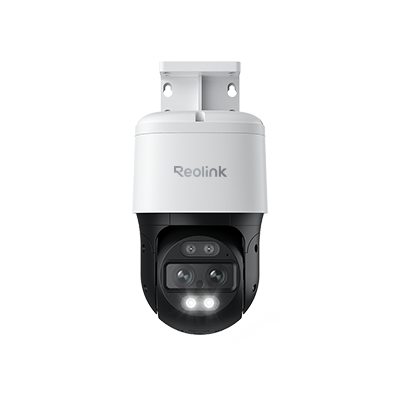
4K Dual-Lens PTZ Camera with Dual Tracking
4K 8MP Ultra HD, Wide & Telephoto Lenses, Pan & Tilt, Auto-Tracking, Person/Vehicle Detection, Power over Ethernet, Two-Way Audio.
How to Identify WAN and LAN Ethernet Ports on Your Router?
Not all routers look the same. Labels sometimes fade. Colors vary. A quick visual check and a few steps help you find which is which. Below are practical tips with brand examples.
- Look for labels on the back panel. Most routers print “WAN,” “Internet,” or a globe icon above the WAN jack. TP-Link and Netgear often use blue for WAN and yellow for LAN. ASUS may use a blue WAN port and black or yellow LAN ports. Read the small text; it is often clear.
- Count the ports. If you see one port grouped alone and a cluster of four ports together, the solo port is likely WAN. The group of four is the LAN ports. Netgear Nighthawk and TP-Link Archer models follow this layout.
- Check the user guide or quick-start card. TP-Link Archer AX series and ASUS RT-AX models include diagrams that point to the WAN port. The manual shows where to connect the modem cable.
- Find the modem cable. If the router is already running, trace the cable from your modem. The modem’s Ethernet cable should land on the WAN port. That identifies it right away.
- Watch the port icon. ASUS routers often show a globe for WAN and a computer icon for LAN. Netgear may show “Internet” printed above the WAN jack and numbers (1–4) above LAN jacks.
- Check the port speed label. On some high-end routers (ASUS ROG series), the WAN port might be marked “2.5G WAN” or “10G WAN,” while LAN ports show “1G LAN” or “2.5G LAN.” The unique speed mark can tip you off.
- Use the web interface. Log in to your router (for example, 192.168.0.1 on TP-Link). The status page often shows the WAN link state (up/down, IP, DNS). If one port has WAN status, that is the WAN jack.
FAQs
Should I use WAN or LAN port?
Use the WAN port to connect your router to the modem or any upstream network. Use LAN ports to connect your local devices. If you are unsure, ask: “Is this device part of my local network, or is it the path to the internet?” If it is the path to the internet, use the WAN port. If it is a local device, use a LAN port.
Do I plug Ethernet into WAN or LAN for access point?
In the case of transforming a router into a mere access point, it will only require that you plug the Ethernet cable from your main router into a LAN port of the access point device. Put the access point in DHCP OFF. Do not log in to its WAN port in such a connection. This makes one router hold the IP addresses and prevents multiple NATs.
Is Wi-Fi LAN or WAN?
Wi-Fi is part of your LAN. It is just a wireless way to join the local network. Your wireless clients still rely on the router’s LAN side for IP addresses and local traffic. They reach the WAN only when you browse or stream from the internet.
Conclusion
You now know the difference between a WAN vs LAN port and how to use each one. The WAN port links your router to the ISP. The LAN ports link your devices to each other and to the WAN link.
Both use Ethernet standards, both need security, but they play different roles in your network. Share your thoughts: Did this guide clear up “LAN vs WAN port” confusion for you? What else would you like to know about home or office networking?
Search
Subscribe for the Latest Updates
Security insights & offers right into your inbox