
How to View & Stream IP Cameras on TV: Complete Guide
Viewing IP security cameras on mobile phones, computers, monitors, Macs, and web browsers is common. But can you watch IP camera or CCTV camera footage directly on a TV? Can you stream an IP camera to a smart TV wirelessly, or connect your security cameras to an HDMI TV for a larger live view?
The answer is yes. There are several ways to view and stream IP camera videos on a TV, including using smart TV apps, NVR systems, HDMI/VGA connections, streaming devices, or IP camera-to-HDMI converters. Some users also look for options like a Reolink TV app, Reolink app for smart TV, or compatibility with Reolink Android TV and Reolink on Samsung TV, but availability depends on the device and platform. For example, Reolink Samsung TV support is typically achieved through casting or external devices rather than a native app.
In this guide, you will learn how to connect IP cameras to TVs, what protocols and ports are required, and which solutions work best for different home and business security setups.
Key Takeaways:
- IP cameras can be viewed on TVs through NVRs, smart TV apps, HDMI connections, streaming devices, or IP camera converters.
- RTSP/RTP protocols allow compatible IP cameras to stream video to TVs and third-party viewing platforms.
- HDMI and VGA ports can be used to display camera footage through compatible hardware.
- Wireless streaming is possible with smart TVs, network devices, and supported camera systems.
- An IP-camera-to-HDMI converter can help connect network cameras directly to TVs without using a computer.
- The right setup depends on your TV type, camera compatibility, network connection, and viewing needs.
Is It Possible or Easy to View My IP Cameras on TV
Yes, it’s possible. If your camera system consists of an NVR, it’s fairly easy to hook the NVR to your TV via an HDMI port or VGA port. While it might not be easy to stream IP camera on TV without the NVR.
One enthusiast shares his saga of viewing IP camera on TV, which might shed light on how seemingly easy-to-get job can entail so much work.
How to View & Stream IP Cameras on TV or Smart TV
Today we consult many professionals and experts and gather some insights on how to stream IP camera live feeds on a TV or smart TV without an NVR easily or view IP camera video feeds on TV wirelessly.
Solution 1: IP-Camera-to-HDMI Converter/Decoder
There is a device so-called NetcamViewer Monitor, which claimed to be able to live feed any IP security camera to your TV or monitor easily.
Users can just plug IP cameras into this device via Ethernet cable and connect to the TV HDMI port, you can switch the channel to watch TV or check out IP camera video feeds.
Or some users choose IP-camera-to-HDMI converter to convert videos streams, commonly seen as MPEG, MJPEG or H.264 into the format that can be broadcasted on TV, for example, Geovision decoder.
Solution 2: DLNA Method
Setting up Digital Living Network Alliance DLNA server on a desktop computer PC and streaming IP videos on a DLNA-compliant TV is a way to go.
In order to have IP cameras stream accessible to be monitored on a standard modern television, IP video camera needs to be capable of data transfer over RSTP/RTP and the PC is acting as a bridge connecting IP cameras and DLHA-enabled TV.
Here is a detailed guide on how to stream an IP camera to a TV shared by IP camera users.
Solution 3: Google Chromecast or Apple TV
When you don’t want to run cables directly to your TV, Google Chromecast or Apple TV is a great alternative as long as the viewing apps support casting.
For example, some users suggest using Google Chromecast to mirror what you are watching on our Android phone to your home TV, or using Apple TV to mirror video feeds from surveillance camera mobile apps to display IP camera videos on a TV.
One user found a way to cast IP camera stream to TV with Chromecast via FFMPEG, converting RTSP stream into an HLS (HTTP Live Streaming).
It works by starting up the IP camera monitoring apps, enabling mirroring or screencast and displaying the video feeds. The setup might require a few steps along the road.
Solution 4: Streaming Apps on Smart TV
Of course, there are other feasible solutions, for example, you can download IP camera viewing apps on your Android TV, Smart TVs such as Samsung Smart TV, LG Smart TV.
For example, one Reolink user downloads Reolink Android APK file on LeTV and successfully views Reolink IP cameras on TV.
Users can download IP Cam Viewer or tinyCam Monitor to the TV together with Mini Android PC like UG802 Mini PC, which support TV (Android TV, Amazon Fire TV) viewing, however, the apps could be slow to load or respond or a bit frustrating to navigate.
Other Alternatives to View/Stream IP Cameras Videos Locally or Remotely
1. View & Stream IP Camera Videos on a Smartphone
Nowadays, thanks to surveillance technologies, such as P2P, users can easily tap into their Smartphone app, such as Reolink apps, Blue Iris, iSpy, IPcam Viewer, to view live video feeds at anytime anywhere as long as IP cameras and mobile devices are connected to the Internet.
Many IP cameras are 3rd-party compatible such as Reolink PoE cameras, which make them compatible with third-party software such as Blue Iris, Milestone, iSpy, Synology, or IP Cam Viewer.

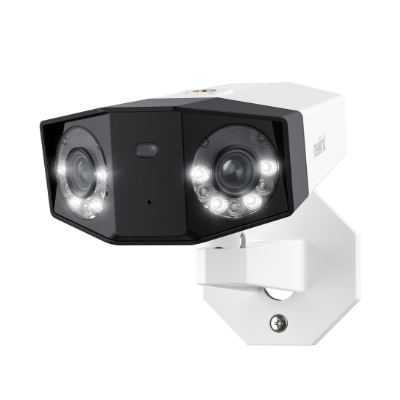
Groundbreaking 16MP Dual-Lens PoE Camera
16MP UHD, Dual-Lens, Motion Track, 180° Wide Viewing Angle, Power over Ethernet, Color Night Vision.
2. View & Stream IP Camera Videos on a Computer
Besides, users can use the computer like Window PC or Mac to get access to cameras remotely or locally via desktop software like Reolink Client, Milestone, Synology etc.
3. View & Stream IP Camera Videos on a Web Browser
Or users can live streaming videos on multiple web browsers without downloading apps or software such as on Google Chrome, IE Explorer, FireFox or Safari via logging in with IP address.
How to Connect CCTV Cameras to TV Without a DVR
Many users don’t need to record video footage to a DVR/NVR and just want to display the IP camera live videos on a TV or monitor. So how can you view video feeds on your TV, say, Smart TV, Samsung Smart TV or LG Smart TV?
It’s rather easy to connect CCTV camera to a TV because analog CCTV cameras transmit an analog/composite video signal, which is compatible with TVs that have a composite RCA video input.
Therefore, CCTV cameras can be hooked up directly with a pre-made Siamese cable and then be connected to BNC-to-RCA adapter.
Does Reolink App Support TV?
No, Reolink does not currently offer an official dedicated TV app for platforms such as Android TV, Google TV, LG webOS, or Samsung Tizen. However, you can still watch Reolink camera live streams on a TV using alternative methods, including screen casting, NVR connection, or compatible smart home devices.
If your TV or streaming device supports casting, you can mirror the Reolink App live view from your smartphone to the TV. For a more reliable multi-camera monitoring setup, connecting a Reolink NVR directly to your TV through HDMI or VGA is recommended.
How to Use Reolink App on Smart TV?
Since the Reolink App is not officially available on most smart TV app stores, you cannot simply download and install it like a regular TV application. Instead, you can use one of the following methods:
Method 1: Connect Reolink NVR to TV
For continuous monitoring, connect your Reolink cameras to a Reolink NVR, then connect the NVR to your TV using an HDMI cable. This provides a stable live view with support for multiple cameras.
Best for: Uninterrupted, continuous 24/7 monitoring across multiple camera channels.
Method 2: Use Smart Home Devices
You can connect Reolink cameras with compatible smart home platforms such as Google Home or Amazon Alexa. This allows you to use voice commands to display camera feeds on supported smart displays or TV devices.
Best for: Use voice commands (e.g., "Hey Google, show the front door on my TV") to cast the feed directly to supported TVs or Chromecast devices.
Method 3: Cast Reolink Camera Live View to TV
- Open the Reolink App on your smartphone.
- Open the camera's live view.
- Tap the cast/screen mirroring option (if available).
- Select your compatible TV or streaming device.
- View your camera feed on the TV screen.
Best for: Quick, wireless checks without buying additional hardware.
FAQs
Can I put the Reolink app on my TV?
No. The Reolink App is not officially available for most smart TV platforms. However, you can still view Reolink cameras on a TV by casting from your phone, connecting a Reolink NVR, or using compatible smart home devices (Google Home/Amazon Alexa).
Can you view Reolink cameras on your TV?
Yes. You can view Reolink cameras on your TV using methods such as HDMI connection through a Reolink NVR or screen casting from the Reolink App to a compatible TV or streaming device.
How do I watch my security camera on my smart TV?
To watch your Reolink security camera on a smart TV, connect your camera system to a Reolink NVR and connect it to your TV with HDMI, or cast the live view from the Reolink App to a supported TV device.
Conclusion
Viewing and streaming IP camera videos on a TV is easier than ever with the right setup. While most IP camera apps are not directly available on smart TVs, you can still watch live camera feeds using solutions like an NVR connected through HDMI, screen casting from your mobile device, or compatible smart home platforms.
For the most stable and feature-rich experience, connecting your IP cameras to an NVR is recommended, especially for multi-camera monitoring and continuous surveillance. If you only need occasional live viewing, casting your camera feed to a compatible TV can be a simple and convenient option.
By choosing the right method based on your camera model, TV type, and viewing needs, you can enjoy a larger screen experience and monitor your property more conveniently.
Search
Subscribe for the Latest Updates
Security insights & offers right into your inbox