
How to Effortlessly Share Your Reolink Camera: A Step-by-Step Guide
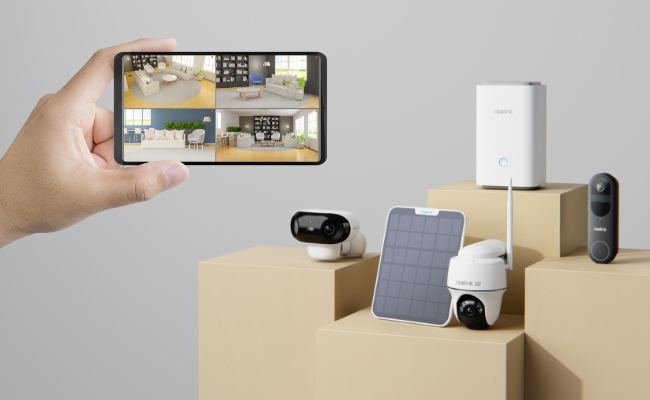
Reolink cameras can be shared with your friends, family members, roommates, or anyone you want. You can give access to others so that they can see the live feed and make changes according to the permissions they have.
In this article, we will explain how to share Reolink camera. We will share different methods along with the step-by-step process so that anyone can follow without any hassle.
How to Share Your Reolink Camera with QR code?
If you want to share your Reolink camera with all permissions and without any restrictions, you can follow this Basic Sharing method via QR code.
Step 1: Open the Reolink app. You will see connected cameras. Tap the settings icon of the camera you want to share.
Step 2: Scroll down and tap Share Device.
Step 3: You will have a QR code along with a UID. Share it with anyone you want to give access to the device.
How to Share Reolink Camera on the Reolink App?
If you want to limit the access of the person you want to share the camera with, follow this Advanced Sharing method on the Reolink app.
Step 1: Open the app and tap the settings of the device you want to share.
Step 2: Tap Share Device. Tap Add Share User.
Step 3: On the Add Share page, you can configure the permissions, end of authorization, etc. After making changes, tap Generate Authorization Code.
Step 4: You will get the QR code or authorization link to share. It will be valid for 30 minutes.
How to Share Reolink Camera on Reolink Client?
The Reolink Client also allows you to share the Reolink camera. With the advanced sharing, you can limit access by configuring permissions.
Step 1: Log in to your device on the Reolink Client. Click the “Greater Than” icon. Click Customize and go to the Device Settings.
Step 2: Click System > Share Device. Tap the “+” icon in the top right corner.
Step 3: You will have the Add Share User page. Configure the permissions and authorization date. Click Generate Authorization Code.
Step 4: Copy the Authorization Code or Link and share it with the person you want to give access to.
Supported Models for Reolink Camera Sharing
The Basic Sharing feature is supported on all models. Which means you can give access to anyone with complete permissions as you have on all Reolink devices.
However, Advanced Sharing is available on specific models. It is supported on battery-powered devices, such as Argus 4, Atlas Series, and TrackMix. PoE & Wi-Fi (plug-in) cameras are supported, such as Elite Pro Floodlight PoE, Duo 3V PoE, and E1 Zoom. It's also available on Reolink NVRs, such as RLN8-410 and RLN16-410.
Check out the list of all supported cameras for Advanced Sharing here.
Bonus: Reliable Reolink Security Camera Recommendation
Reolink Altas PT Ultra
Reolink Altas PT Ultra is a battery-powered Wi-Fi 6 security camera. Its battery lasts about 500 days, and you can connect the camera to a solar panel for automatic recharging. Its pan and tilt movement allows the camera to cover 360⁰. It records videos in 4K resolution and captures clear videos at night with ColorX night vision. It automatically detects objects and tracks their movements along with real-time alerts.
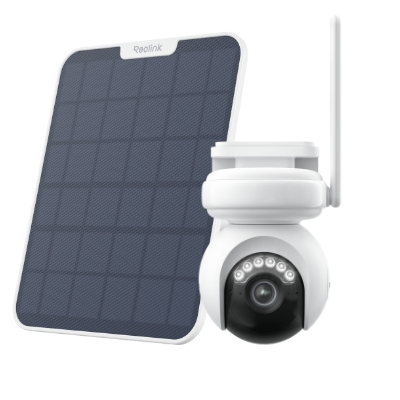
Industry-leading 4K Continuous Recording Battery Camera
4K UHD Continuous Recording; ColorX Night Vision; Pan & Tilt; Automatic Tracking; All Recordings Stored Locally.
Elite Floodlight Wi-Fi
Elite Floodlight Wi-Fi is a wired Wi-Fi 6 security camera with a 3000-lumen floodlight. Not only does it capture videos with exceptional clarity and detail, but it also illuminates a massive area to record clear videos in extreme darkness. You can adjust the color temperature and brightness of the floodlight. The camera has dual lenses that capture a 180⁰ ultra-wide view in 4K. Its AI video search allows you to look for the desired video using keywords.
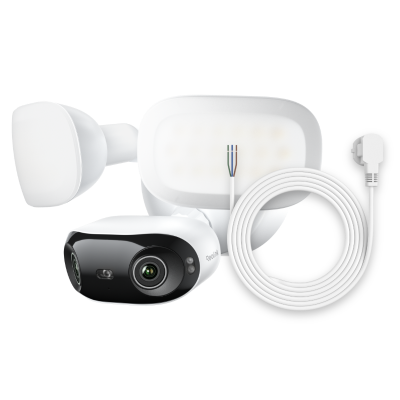
4K 180° Ultra-Wide Wired Floodlight Security Camera
3000-Lumen Dimmable Lighting, Adjustable Color Temperature, Local AI Video Search, Local Storage, Dual-Band Wi-Fi 6.
FAQs
1. Can Reolink be connected to two phones?
Yes, Reolink can be connected to multiple phones at a time. There is no limitation on the number of devices you can connect.
2. Can I connect more than one phone to the same camera?
Yes, you can connect more than one phone to the same camera. Check the number of devices you can connect to the camera you have, and connect phones via the application.
Conclusion
You can use the Basic sharing feature to share the camera with all permissions. While the Advanced sharing allows you to configure the permissions and control the access. We have explained the step-by-step methods of using both the sharing features through the mobile application and the desktop client. Now, you can easily share a Reolink camera with anyone you want.
Search
Subscribe for the Latest Updates
Security insights & offers right into your inbox