
How to Solve Reolink Wi-Fi Camera Connectivity Issues: A Step-by-Step Guide
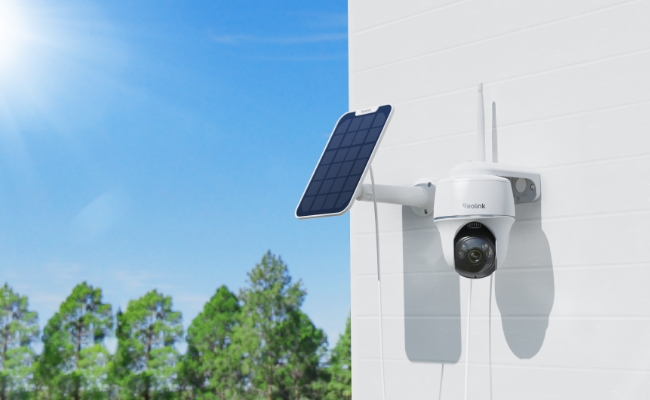
Reolink Wi-Fi cameras may experience connection problems during setup or lose their Wi-Fi connection after installation. The issue may come from the camera, Wi-Fi network, or router configuration.
This guide covers the most common Reolink Wi-Fi connectivity problems and provides troubleshooting steps based on different symptoms, helping you identify the cause and find the right solution.
- Why Is My Reolink Wi-Fi Camera Not Connecting?
- Why Does My Reolink Camera Keep Disconnecting from Wi-Fi?
- Why Won't My Reolink Camera Connect to 2.4GHz or 5GHz Wi-Fi?
- Why Can't My Reolink Camera Find My Wi-Fi Network?
- Why Does My Reolink Camera Say 'Connection to Router Failed'?
- Reliable Wi-Fi Camera Recommendation
- FAQs
- Conclusion
Why Is My Reolink Wi-Fi Camera Not Connecting?
Symptoms
- When connected via Ethernet cable, the camera functions properly and allows preview through the phone app or PC client. However, when attempting to switch to Wi-Fi, either the camera displays "Wi-Fi connection failed" or appears configured for Wi-Fi but loses connection immediately after unplugging the Ethernet cable.
How to Fix
- Verify Wi-Fi credentials carefully: Double-check your entered SSID and password for typos. Passwords are case-sensitive, and some Android phones automatically add a blank space at the end. Remove the Wi-Fi from your phone, then manually reconnect using the exact credentials. Remember to click "OK" to save settings before unplugging the Ethernet cable.
- Check the router's configuration settings: Ensure the frequency band, encryption method, and channel meet Reolink's requirements. Improper settings can block connections even when credentials are correct. See Why Won't My Security Camera Connect to My Wi-Fi Network? for Reolink's detailed troubleshooting steps.
- Improve Wi-Fi signal strength: For cameras with external antennas, make sure the antenna is installed correctly and tightened fully. Temporarily move the camera closer to the router to test whether distance or obstacles are causing the issue.
- Update camera firmware: Check Reolink's support site for your specific model and install the latest firmware version available. Firmware updates may include connectivity improvements and bug fixes.
- Reboot and reset devices: Reboot both the camera and router. If the problem continues, reset the camera and configure the Wi-Fi connection again.
Why Does My Reolink Camera Keep Disconnecting from Wi-Fi?
Symptoms
- The camera connects to Wi-Fi successfully but repeatedly goes offline or reconnects during use.
How to Fix
- Strengthen the Wi-Fi signal: Poor signal strength can cause intermittent disconnections. Check the antenna installation and move the camera closer to the router or reposition it for better reception. Thick walls, metal objects, and long distances can weaken the signal. See Reolink Camera Wi-Fi Disconnected for additional troubleshooting steps.
- Reduce router overload: Too many devices competing for bandwidth may affect the camera's connection. Check how many devices are connected to your network and prioritize the camera in router QoS settings if available.
- Check for network interference: Neighboring Wi-Fi networks can cause interference, especially in apartments or densely populated areas. Try switching the router to a less crowded channel or use the 5GHz band if your camera supports it and is within suitable range.
- Inspect the power supply: Insufficient or unstable power can cause random reboots that appear to be Wi-Fi disconnections. Verify that the camera uses the correct power adapter and check cables for damage. For battery-powered cameras, make sure the battery has sufficient charge.
Why Won't My Reolink Camera Connect to 2.4GHz or 5GHz Wi-Fi?
Symptoms
- The camera detects your Wi-Fi network but fails to connect to one frequency band, such as 5GHz, while it can connect to the other band.
How to Fix
- Verify camera band compatibility: Not all Reolink cameras support both 2.4GHz and 5GHz Wi-Fi. Check your camera's specifications to confirm which frequency bands it supports. For supported models, see Wi-Fi Band Preference Settings for Reolink Cameras for more information about choosing between 2.4GHz and 5GHz.
- Separate dual-band SSIDs: If your router uses the same network name for both bands, temporarily separate them by assigning different SSIDs, such as "MyNetwork-2G" and "MyNetwork-5G." This allows you to connect the camera to a specific band.
- Adjust encryption settings: Check whether the router's encryption method is supported by your camera. If necessary, test a compatible security mode such as WPA2 to determine whether the encryption settings are preventing the connection.
Why Can't My Reolink Camera Find My Wi-Fi Network?
Symptoms
- The camera cannot detect your Wi-Fi network during setup, even though other devices can find the same network.
How to Fix
- Check the Wi-Fi signal: Move the camera closer to the router and make sure the external antenna, if available, is securely installed.
- Check whether the SSID is hidden: Make sure your router is broadcasting the Wi-Fi network name. If the SSID is hidden, enter the network information manually.
- Check the Wi-Fi band and channel: Make sure the router is using a frequency band and Wi-Fi channel supported by your camera.
- Check the router: Confirm that the Wi-Fi network is broadcasting normally and restart the router if necessary. For more troubleshooting steps, see Failed to Find WiFi for WiFi Cameras.
Why Does My Reolink Camera Say 'Connection to Router Failed'?
Symptoms
- During setup, the camera detects the Wi-Fi network but reports "Connection to Router Failed" when attempting to connect.
How to Fix
- Verify the Wi-Fi password: Make sure you are using the correct Wi-Fi password rather than the router administrator password.
- Check router restrictions: Make sure settings such as MAC filtering, access control, or parental controls are not preventing the camera from connecting.
- Check router compatibility: Confirm that the router's Wi-Fi band, encryption type, and channel are supported by your Reolink camera.
- Test another network: Try connecting the camera to another compatible router or mobile hotspot. If it connects successfully, the original router or its settings are likely causing the issue. For additional troubleshooting, see Reolink Connection to Router Failed.
Reliable Wi-Fi Camera Recommendation
Reolink Solar Floodlight Cam
Reolink Solar Floodlight Cam is a battery/solar-powered Wi-Fi 6 security camera with a built-in 1,000 lumens floodlight. Its 3W solar panel requires only 1 hour of sunlight to provide daily illumination at night. It's equipped with a 7,800 mAh battery that lasts up to 90 days (without solar charging). Users can adjust the brightness and color of the solar floodlight, and it automatically turns on and off when a person or vehicle is detected.
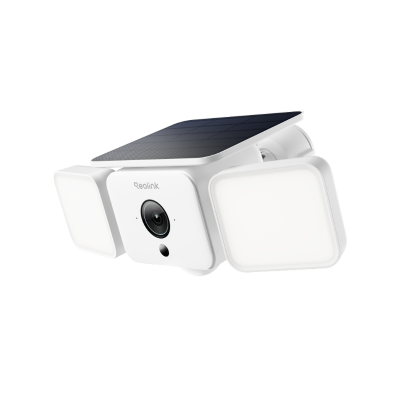
Smart 2K Solar Floodlight Security Camera
150° Ultra-Wide View, 2K 4MP HD Resolution, AI-Based Adaptive Floodlight, Endless Power with Reolink SolarEase™.
Reolink Elite Floodlight Wi-Fi
Reolink Elite Floodlight Wi-Fi is a wired dual-lens Wi-Fi 6 security camera with floodlights. It captures 4K videos and covers a 180-degree field of view. You can adjust the color and temperature of its 3,000-lumen floodlight. Its local AI video search lets users find the desired event or video using keywords.
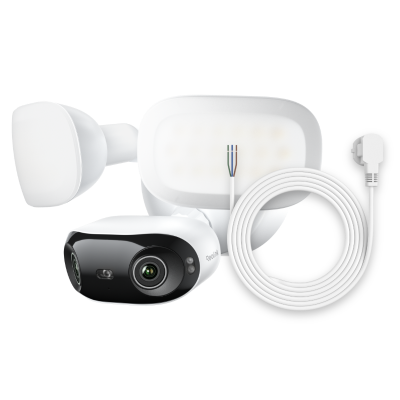
4K 180° Ultra-Wide Wired Floodlight Security Camera
3000-Lumen Dimmable Lighting, Adjustable Color Temperature, Local AI Video Search, Local Storage, Dual-Band Wi-Fi 6.
Reolink TrackFlex Floodlight Wi-Fi
Reolink TrackFlex Floodlight Wi-Fi is a wired floodlight security camera. It has dual lenses with pan and tilt motion and 6X hybrid zoom. It covers 360° and allows users to adjust the color and brightness of the 3,000-lumen floodlight. Its Wi-Fi 6 compatibility ensures fast and reliable operation. It also includes local AI video search and local storage, with no monthly fee.
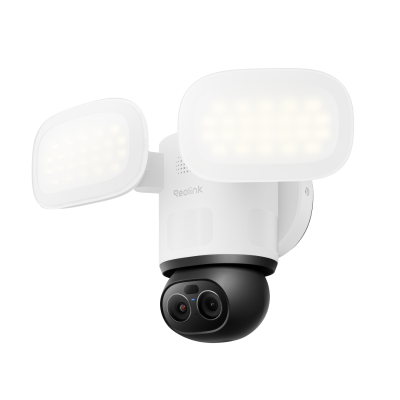
4K 360° Wi-Fi Floodlight Security Camera
- 360° full coverage view & 4K 8MP resolution
- Dual-color floodlight & 6X hybrid zoom
FAQs
How to boost Reolink signal?
To improve your Reolink camera's Wi-Fi signal, install a dedicated wireless extender, such as the Reolink Wi-Fi Extender, between your router and camera to extend coverage and improve connection stability.
Will a Reolink camera reconnect to Wi-Fi automatically?
Yes. A Reolink Wi-Fi camera will generally try to reconnect automatically when the Wi-Fi connection is restored. If it remains offline, check the Wi-Fi signal, router status, and camera power, then reboot the camera or router if necessary.
How do I reconnect my Reolink camera to Wi-Fi?
If the Wi-Fi network and password have not changed, reboot the camera and router and allow the camera to reconnect automatically. If you changed the router, SSID, or Wi-Fi password, update the camera's Wi-Fi settings through the Reolink App or Client and connect it to the new network.
Conclusion
Most Reolink Wi-Fi connection problems can be narrowed down by checking the camera's Wi-Fi compatibility, signal strength, router settings, and power supply. Start with the symptom that matches your issue and test one possible cause at a time.
If the camera works on another router or mobile hotspot but not on your home network, check the original router settings. If the problem continues across different compatible networks after updating and resetting the camera, contact Reolink Support for further troubleshooting.
Search
Subscribe for the Latest Updates
Security insights & offers right into your inbox