
NVR vs. NAS: Which Is Right for Your Security Cameras?
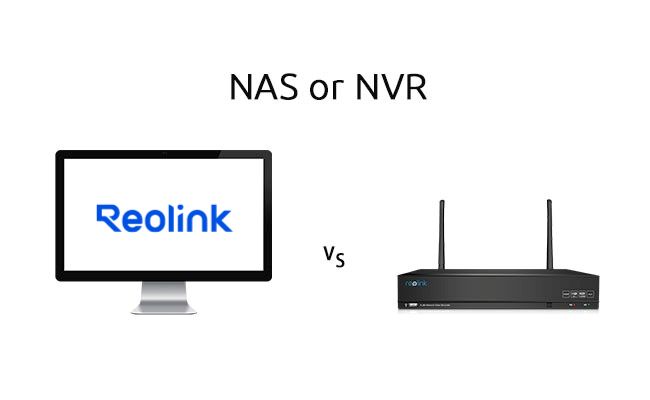
You've already chosen the cameras. Now you're looking at either an NVR or a NAS that both claim to handle the footage. On paper they seem interchangeable. They're not. An NVR is a purpose-built appliance that records camera video and nothing else. A NAS is a general-purpose network storage device that can record cameras only after you install surveillance software on it.
Which one fits depends on what else the box needs to do. This guide covers what each actually is, the concrete differences in setup, cost, and reliability, how to decide based on your situation, and which specific Reolink models make sense if an NVR is the answer.
What Is an NVR?
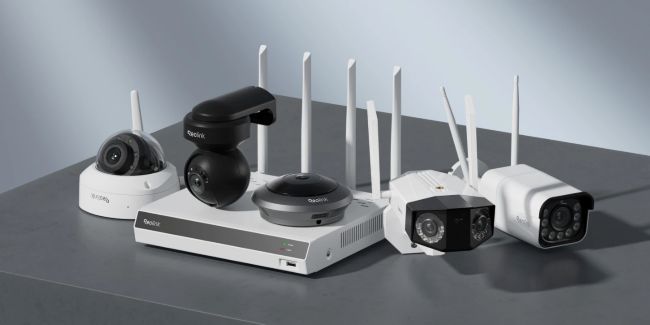
An NVR (Network Video Recorder) is a dedicated hardware box built for receiving, recording, and playing back footage from IP cameras, with no other function competing for its resources.
Cameras connect directly to it, often over Power over Ethernet so a single cable carries both power and video. The unit records continuously or on motion and is managed through a local app or browser rather than a general operating system you configure from scratch. On a PoE model, compatible cameras are auto-discovered on its ports. Setup is largely a matter of connecting the cables and confirming the feeds rather than installing separate recording software and wrestling with network settings.
A typical consumer NVR supports anywhere from a handful of cameras up to a few dozen, usually mixing a bank of PoE ports with room for a few Wi-Fi/battery cameras on top. Most models include one or more internal drive bays, and quite a few ship with a drive already installed so you can start recording the day the box arrives. Consumer-grade units generally don't pool their drives into a RAID array. Each drive operates independently. Some enterprise-grade NVRs support RAID, but that's uncommon at the consumer level. Camera counts, port counts, and storage limits vary by brand, and even by hardware or firmware version within the same product line, so always check the exact specifications for the unit you plan to buy.
That single-purpose design is the point. The hardware and software are optimized only for video streams. Nothing else is competing for processing power or disk writes, which is why many people find an NVR more reliable for continuous recording than a general-purpose machine asked to do the same job.
What Is a NAS, and Why Do People Use One for Cameras?
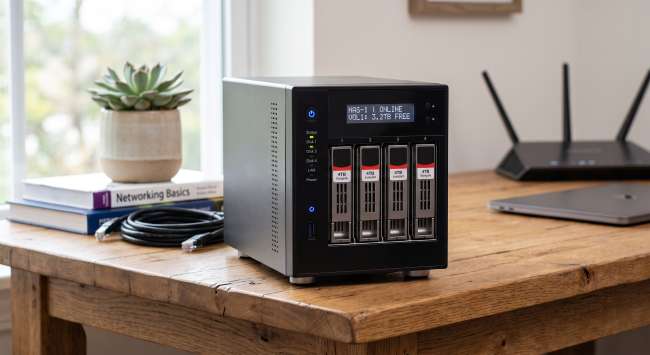
A NAS (Network Attached Storage) is a general-purpose network storage box, not built for cameras at all, that becomes a camera recorder only once surveillance software is installed on it.
Its native job is storing files, running backups, and serving media to multiple devices on the network. The same box that already runs Plex or backs up family photos can also handle cameras after you add the right software. Synology's Surveillance Station is the most common example. QNAP has its own equivalent. Once installed, the software manages motion detection, live view, and playback much like a dedicated NVR, but it runs on general-purpose hardware instead of purpose-built silicon.
This is also where the "nvr synology" search confusion comes from. Synology sells both. Its standard NAS line runs Surveillance Station as an add-on package, and it also sells separate, dedicated NVR/DVA appliances built only for video. A typical Synology NAS ships with two free camera licenses. Each additional camera typically costs $50 to $75. A single-device license runs around $74.99 at authorized retailers, though prices vary by region and retailer, and don't include tax or shipping.
The real advantage is flexibility. The same box can keep serving files, running backups, hosting Plex, or spinning Docker containers while it records cameras. A single-purpose NVR cannot do any of that. The practical limit shows up in processor headroom. Running Surveillance Station alongside Plex transcoding and Docker on a low-end dual-core processor often leads to dropped frames or a sluggish interface. Community testing consistently points to a quad-core chip as the safer baseline once you reach four to six or more cameras. Plan for that capacity if you intend to keep the NAS busy with other services.
NVR vs. NAS: The Real Differences
The two aren't competing on the same features. They're built around different priorities, and that's the actual difference worth understanding before comparing specs line by line.
One distinction that rarely appears in comparison articles is the uptime-versus-data-integrity trade-off. An NVR with independent drives keeps recording even if one drive starts developing problems, since there's no shared array to protect. A NAS running RAID protects against losing data the same way, but a degraded array runs with reduced performance during a rebuild, and in a worst-case multi-drive failure it can go offline until the rebuild finishes. That's a genuine trade-off between the two designs, not a knock against either one.
For a homeowner whose main concern is "did the camera catch the moment," the uptime-first design of a dedicated NVR is the practical argument. For someone who already trusts a NAS with irreplaceable files and photos, the data-integrity-first approach of keeping cameras on the same box makes more sense.
RAID support follows the same split. Most NAS units treat RAID as a standard feature. Some enterprise-grade NVRs also support it. The specific Reolink consumer models checked for this article do not pool drives that way. That is a real, checkable difference, not a blanket claim about every product in either category.
Basic hardening applies to both boxes. Put cameras on a separate VLAN or SSID if your network allows it, change every default password, disable UPnP, and keep firmware current. These are the same core steps the NSA and CISA recommend for securing any home network, and they're worth doing whether you choose an NVR, a NAS, or both.
Which One Should You Choose?
Choose based on whether the box only needs to record cameras or needs to do that alongside something else. Technology preference or which term sounds more advanced is the wrong starting point.
Just Cameras, Nothing Else
A straightforward home or small-business setup with no other storage needs points toward an NVR. Setup stays simple, there is no per-camera licensing, and you do not have to maintain a separate operating system or monitor CPU load from competing services. For most people covering a house or small office with a modest number of cameras, this is the path of least resistance.
Already Have (or Want) a NAS for Other Things
A household or office already running (or planning) a NAS for file backup, Plex, or Docker can add cameras to that same box and avoid buying a second device. The trade-offs are camera licensing fees and enough CPU headroom, since Synology's own Surveillance Station specs note that CPU load rises directly with camera count. A quad-core processor is the practical recommendation from community testing when running Surveillance Station alongside other services with four to six or more cameras. A basic dual-core unit can bottleneck under that combined load and produce dropped frames or a laggy web interface. If your NAS is already maxed out on CPU or RAM, or you rely on heavy Plex transcoding, adding multiple cameras may degrade both surveillance and media performance. In that case, an NVR is safer.
Business, Multi-Site, or Enterprise Network Storage
At this scale the per-camera licensing costs on a NAS stack up quickly across many cameras or sites. A dedicated NVR (or an enterprise-tier NAS purpose-built for surveillance) usually wins on total cost of ownership. Organizations that already run centralized NAS and IT infrastructure may still prefer folding cameras into the existing system for unified management, even if the licensing math is less favorable.
Neither choice is permanent. Footage can be migrated later. Many households start with an NVR and add a NAS for longer-term backup, or the reverse. If cameras-only or multi-site needs point you toward an NVR, the next section covers the specific Reolink models that match different camera counts.
Popular Reolink NVRs
Camera count and whether you want a pre-installed drive or the flexibility to add your own should decide the model, not the highest channel number on the box.
Note: Channel counts and max drive sizes can vary by hardware revision, so confirm those on the product page before purchase.
RLN8-410: Best for Small Home Setups (Up to 12 Cameras)
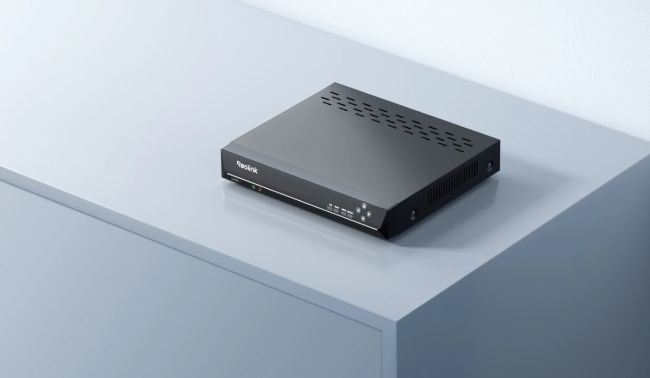
The straightforward pick for anyone who just wants cameras recorded and nothing else, with a drive already installed so you can start recording without a separate purchase. It handles cameras up to 16MP, the same range as the two larger models below. Adding the battery-powered Wi-Fi cameras needs a specific hardware version (N7MB01), current Reolink camera models, and an updated app, so check compatibility before you count on that mix. It's also worth knowing that playback caps at 4 channels viewed at once, even though it records all 12, so reviewing every camera at the same time isn't possible.
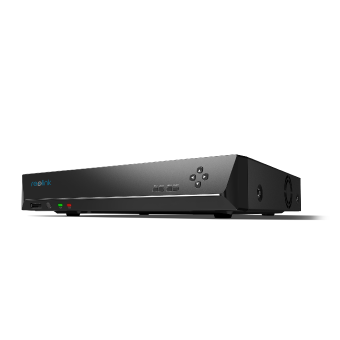
12-Channel PoE NVR
Supporting Up to 16MP, Power over Ethernet, 24/7 Continuous Recording, Expandable Storage Up to 16TB.
RLN16-410: Best for Larger Homes or Small Businesses (Up to 24 Cameras)
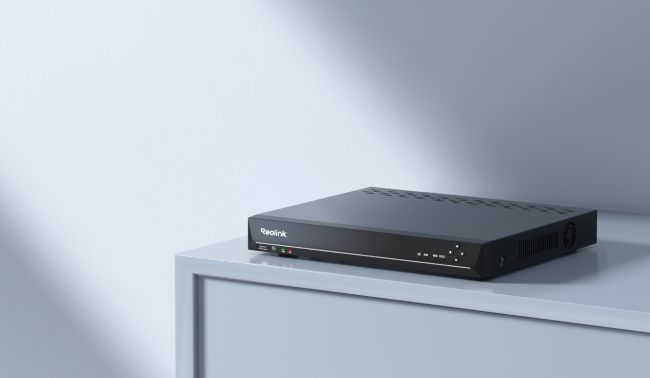
The RLN16-410 is the right fit once a property is planning past what an 8-channel unit comfortably covers, without jumping straight to a 36-channel deployment. It also handles cameras up to 16MP, matching the RLN8-410 and RLN36. The larger 4 TB pre-installed drive, versus the RLN8-410's 2 TB, reflects the higher camera count this model is built for. As with the RLN8-410, adding battery-powered Wi-Fi cameras needs a matching hardware version (N6MB01), current camera models, and an updated app.
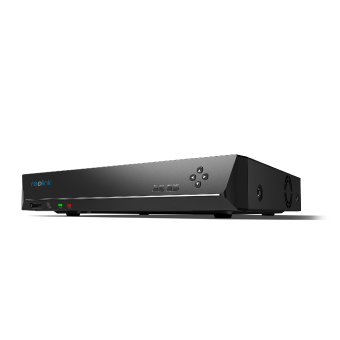
16-Channel PoE Security NVR
3TB Built-in HDD; Work with All Reolink 5MP/4MP Cameras for 24/7 Video Recording, Monitoring, and Management; Plug and Play.
RLN36: Best for Large-Scale or Multi-Site Deployments (Up to 36 Cameras)
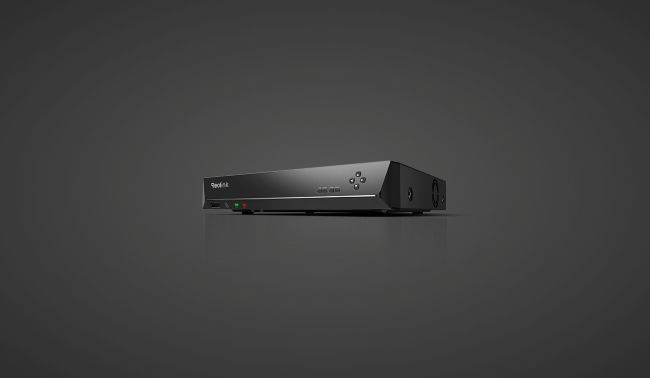
The Reolink RLN36 has three separate SATA bays support up to 48 TB total (16 TB per drive) across up to 36 channels. It ships diskless and without built-in PoE, so a separate PoE switch is required. That is also why its list price can look lower than the smaller two models: the drives and switch are additional purchases that the RLN8-410 and RLN16-410 already include.
Cameras-only buyers with a modest count can stop at the RLN8-410. Anyone planning to scale past roughly 16 wired cameras, or who wants the flexibility to install their own larger drives, should look at the RLN16-410 or RLN36. Specs and pricing move, so confirm the current figures on the product pages before purchasing.
What Each One Actually Costs
The sticker price on the box is only part of the real cost. Licensing and drive requirements change the total more than most people expect.
NVR cost is mostly upfront and fixed. You pay for the appliance (which already covers all its channels with no per-camera add-on fee) plus any hard drives if they are not pre-installed. The Reolink models above show which ones include a drive and which do not. Once the hardware is paid for, ongoing costs stay low.
NAS cost is the hardware plus a real ongoing variable. You buy the NAS box, drives (often in a redundant pair or more for RAID), and camera licenses beyond the two free ones that typically ship with a standard unit. Each additional camera typically costs $50 to $75, with a single-device license running around $74.99 at major retailers (prices vary by region and retailer, and don't include tax or shipping). Over several years and more than a handful of cameras, that licensing line item can exceed the price difference of a dedicated NVR.
Storage math is another place where estimates help. Community testing puts motion-triggered 1080p recording across four to six cameras at roughly 15 to 25 GB per day, though the real number depends heavily on bitrate and compression settings. At about 20 GB/day in this specific scenario (four 1080p cameras, motion-triggered, moderate activity), a 4 TB drive holds roughly 200 days. Continuous 24/7 or 4K will cut that significantly. Treat the figures as estimates for one specific scenario, not exact rules.
Pro Tip: You can run your own setup through a storage calculator to get a number that matches your actual resolution, frame rate, and compression, since actual usage depends on scene complexity, motion frequency, compression settings, and whether you keep continuous or event-based recording.
For a small, fixed number of cameras with no other storage needs, an NVR's flat cost is usually cheaper over time. For a household or business already absorbing a NAS for files, backups, or media, the marginal cost of adding cameras can still make sense despite the per-camera licensing.
Can You Use an NVR and a NAS Together?
Yes, and it is a common setup rather than an edge case. The usual pattern is primary-plus-backup rather than a pure either/or.
Most hybrid systems use an NVR (or the cameras themselves) as the primary recorder for local footage, and then periodically back up or archive clips to a NAS for longer retention or off-site-style redundancy. That pairing gives the uptime benefit of the NVR and the data-integrity benefit of the NAS instead of forcing a choice between the two philosophies. Some people also use the NAS purely for long-term archives while the NVR handles the day-to-day motion events that need quick access.
The reverse pattern also exists. Some setups record directly to the NAS as primary storage and treat a smaller NVR or camera-local SD card as the fallback if the network briefly drops. Either approach works. The choice depends on which box you already trust more for day-to-day recording and how much you value continuous local recording versus centralized storage management.
FAQs
Can I use a NAS instead of an NVR for security cameras?
A NAS running surveillance software such as Synology's Surveillance Station can fully replace a dedicated NVR for recording IP cameras. However, the trade-off is usually per-camera licensing costs and the need for enough CPU and RAM headroom if the NAS is also running other services.
Is NAS or NVR cheaper for security cameras?
For a small, fixed number of cameras with no other storage needs, a dedicated NVR is usually cheaper overall because it has no per-camera licensing fee. If a NAS is already being bought or owned for file storage, backups, or media, adding cameras to it can be cheaper than buying a second separate device despite the licensing cost.
Does a NAS support as many cameras as an NVR?
It depends on the specific NAS and NVR models being compared, not on the technology category itself. Both scale from a handful of cameras up to dozens depending on hardware tier. A higher-tier NVR such as the Reolink RLN36 supports up to 36 channels. NAS camera limits are typically set by licensing and CPU instead of physical ports.
Do I need RAID for security camera storage?
RAID is not required to record footage, but it protects against losing that footage if a single drive fails. That is why it is a common NAS feature. Some enterprise-grade NVRs also support RAID. The Reolink consumer models reviewed here do not.
Which Reolink NVR should I buy?
Camera count is the deciding factor. The RLN8-410 fits up to 12 cameras depending on type and hardware/firmware version (typically 8 PoE + up to 4 Wi-Fi/battery, or 12 battery-only on certain versions), the RLN16-410 fits up to 24, and the RLN36 fits up to 36 (diskless, needs a separate PoE switch). Confirm current specs and pricing on the product pages before buying, as they can change.
Conclusion
There is no universally better option. An NVR and a NAS solve different problems. The right choice depends on what else the system needs to do: cameras only, cameras plus other storage tasks, or broader business requirements.
If your primary focus is video surveillance, an NVR is typically the more straightforward solution because it is purpose-built for recording, storing, and managing camera footage. A NAS, on the other hand, can be a better fit if you need surveillance capabilities alongside file storage, backups, media serving, or other applications.
Ultimately, the best option comes down to factors such as camera count, storage requirements, retention policies, scalability needs, and whether the system will be used for more than surveillance. To compare available recording solutions and capabilities, browse the full NVR lineup or check out our recommended models above before making a decision.
Search
Subscribe for the Latest Updates
Security insights & offers right into your inbox