
How to Charge an Apple Pencil? A Step-by-Step Guide
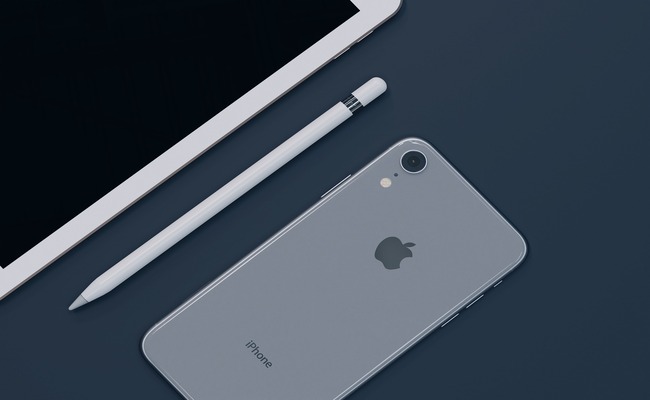
The charging method for an Apple Pencil depends on its model. There are slight differences in connecting it to the charging source and in compatibility. Often, it confuses new users about the charging methods of different models of Apple Pencil.
In this article, we will discuss the step-by-step guides on charging different models of Apple Pencils. We will also talk about how to charge an Apple Pencil without an iPad and compatible iPad options for different Apple Pencil models.
How to Charge an Apple Pencil?
How to Charge Apple Pencil Gen 1?
- Uncover the lightning connector by removing the cap from the backside of the Apple pencil.
- Plug the Apple Pencil directly into the Lightning port of the compatible iPad.
- Once plugged in, the Apple Pencil will start charging by using the iPad as a power source.
- Keep the pencil plugged in for 30 to 45 minutes and then gently unplug it from the iPad.
- Place the cap back, and your Apple Pencil Gen 1 is ready for use.
How to Charge Apple Pencil 2?
- Take a compatible iPad model that supports Apple Pencil (Generation 2) and turn the Bluetooth ON.
- Locate the flat magnetic strip on the side of your iPad, usually at the right side of the device.
- Now, hold your Apple pencil and align its flat side with the magnetic strip of the iPad.
- The magnet will snap the pencil into the correct position automatically.
- Once attached, the Apple Pencil will start charging automatically, and you will see a charging icon on your iPad’s screen along with the charging percentage.
How to Charge Apple Pencil (USB)?
- Apple Pencil (USB-C) comes with a sliding cap on one end. Gently slide the cap to open and uncover the USB-C charging port.
- Now, take a USB-C cable and plug one end into the Apple Pencil and the other end into the iPad, laptop, power adapter, or power bank.
- Once connected, the Apple Pencil will start charging automatically.
- Now, let the Pencil charge for 20 to 30 minutes and gently remove the USB-C cable.
How to Charge Apple Pencil Pro?
- Take a compatible iPad that supports Apple Pencil Pro and turn its Bluetooth ON.
- Locate the flat magnetic side of the iPad and bring the Apple Pencil’s flat side near it.
- The magnetic side will snap the Apple Pencil to its correct position.
- Once attached, the Apple Pencil Pro will start charging.
- Leave the Apple Pencil attached to the iPad for 20 to 30 minutes, then remove it gently.
How to Check the Battery Level of the Apple Pencil
- Connect or pair your iPad and Apple Pencil.
- Swipe right from the Home Screen to access the Today View. Scroll down and find the Batteries Widget.
- This widget will show the battery levels of all the connected devices. The battery level of your Apple Pencil will also be shown there.
- If you want to add the Battery widget, then swipe right on the Home Screen. Go to Today View, Tap Edit > “+” sign next to the Batteries to add it.
- If you are using an Apple Pencil Generation 2/ pro, the battery level will immediately appear on the screen via a small pop-up once you attach the pencil magnetically to the iPad.
Apple Pencil Not Charging? Troubleshooting
-
Check iPad Compatibility: Ensure that your iPad model is compatible with your Apple Pencil. Make sure the iPad’s iOS is updated because outdated iOS versions also cause recognition or charging issues.
-
Restart the iPad: Sometimes, small software glitches cause Apple Pencil recognition issues. Restarting the iPad can clear such temporary software glitches. So, power back your iPad, wait for a few seconds, turn it back on, and charge your Apple Pencil.
-
Try a Different Power Source: A faulty charging setup can also cause trouble in charging your Apple Pencil. So, try using different options like power adaptors, different wall outlets, power banks, or different charging cables.
-
Unpair and Re-Pair the Apple Pencil: Try unpairing your Apple Pencil and iPad and re-pairing them after a few seconds. This step refreshes the connection and restores proper functionality of both devices.
-
Check the Connection: Make sure that your iPad and Apple Pencil are connected properly. In case of the 1st Generation Apple Pencil, plug the Apple Pencil firmly into the charging adapter or the Lightning port of the iPad. For the 2nd Generation or Pro, make sure that the Apple Pencil is properly aligned with the magnetic area of the iPad.
Compatible iPads for Apple Pencil Charging
Not every iPad is compatible with all Apple Pencils, so it is very important to figure out the correct pairing models. The correct combination ensures stable connectivity and efficient charging.
Compatible iPads for Apple Pencil Generation 1
-
iPad Air (3rd Generation)
-
iPad Mini (5th Generation)
-
iPad (7th, 8th, and 9th Generation)
-
iPad Pro 12.9 inches (1st & 2nd Generation)
-
iPad Pro (10.5 & 9.7 inches)
Compatible iPads for Apple Pencil Pro & 2nd Generation
- iPad Mini (6th Generation)
- iPad Air (4th Generation & Later)
- iPad Pro 11 inches (1st Generation & Later)
- iPad Pro 12.9 inches (3rd Generation & Later)
FAQs
1: How Long Does an Apple Pencil Take to Charge?
An Apple Pencil often reaches full charge in 15 to 30 minutes and charges rapidly when attached to an iPad. The charging capacity is so efficient that even a short charge of 15 seconds can give up to 30 minutes of usage. On the other hand, the charging via any power adapter is slower compared to the iPad.
2: Can You Charge An Apple Pencil Without An iPad?
Yes, you charge an Apple Pencil without an iPad, but it depends on the model of the Apple Pencil you are using. If you are using a 1st Generation Apple Pencil or USB-C Apple Pencil, then you can use power adapters, laptops, or power banks as a power source instead of an iPad. For the Apple Pencil 2nd Generation and Pro, you will have to use third-party magnetic charging cases.
3: How Do You Know If An Apple Pencil Is Charging?
For Apple Pencil 1st Generation, you will see the charging icons by checking the Batteries widget on your iPad. A small power icon will appear over the Apple Pencil icon if paired with the device. For Apple Pencil 2nd Generation & Pro, a small charging pop-up will appear on the screen when connecting the pencil to the magnetic area of the iPad.
4: Does Plugging In an Apple Pencil to an iPad Charge It?
Yes, plugging an iPad with an Apple Pencil will start charging the pencil, but only in the case of the Apple Pencil 1st Generation. Apple Pencil 2nd Generation or Pro does not need to be plugged in; it starts charging after being attached to the magnetic strip of the iPad.
Conclusion
Charging an Apple Pencil can be a problem if you do not know the compatible devices for correct pairing. Specific iPad models can charge specific Apple Pencils. However, you can also use some other power sources like a power adapter, a power bank, or a laptop as a power source to charge your Apple Pencil in an emergency. We have explained the step-by-step method of charging different Apple Pencils to make it easier.
Search
Subscribe for the Latest Updates
Security insights & offers right into your inbox