
Hey Google Not Working? Causes & Troubleshooting Guide
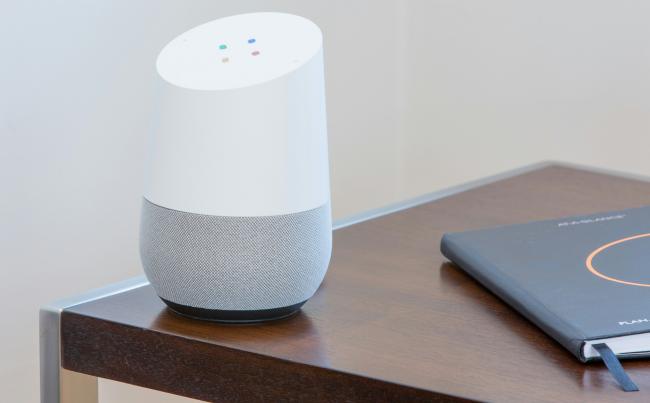
Many phone and smart speaker owners rely on the voice hotword “Hey Google” for quick tasks. When the feature stops listening, daily routines grind to a halt, and the first question that comes up is, “Why isn't my Google working?”
This guideline takes one through the most common reasons and presents clear procedures that restore the assistant to the internet. The tips are compatible with Android phones and Nest displays, among similar devices, which have the Google Assistant. Take one step after the other in each part, and you will be able to hear the old chime once more.
Why Is “Hey Google” Not Working?
If “Hey Google” isn’t responding, it’s usually caused by microphone issues, incorrect settings, power restrictions, outdated apps, or network problems. On phones and smart devices, even small changes can stop the hotword from working. Here are some common reasons:
- Microphone problems: Dust, a phone case, or a muted mic can block sound. Test with a voice recorder and clean the mic if needed.
- Wrong language or voice model: Assistant may not recognize your voice if the language or accent settings changed. Update language settings and retrain Voice Match.
- Battery saver or app restrictions: Power-saving modes can disable background listening. Turn off battery saver and remove restrictions on the Google app.
- Outdated apps: An old version of the Google app or Play Services can cause issues. Update them from the Play Store.
- Device mic switch (smart speakers/displays): Make sure the physical microphone switch is turned on.
- Low hotword sensitivity: If set too low, the device may not wake. Increase sensitivity in the Google Home app.
- Wrong account or Voice Match issues: Ensure your account is linked and Voice Match is set up correctly.
- Wi-Fi or network issues: Poor connection or DNS settings can block Assistant. Check signal strength and network settings.
How to Fix “Hey Google” Not Working?
To fix “Hey Google” not working, first make sure the feature is enabled in Google App Settings → Google Assistant → Voice Match, and confirm your internet connection is stable. You can also retrain your voice model, update the Google app, and check microphone permissions. In some cases, switching from Google Gemini back to Google Assistant may restore hotword functionality.
Follow the steps below from quick fixes to more advanced solutions. Test “Hey Google” after each step.
Step 1: Check Microphone and Sound Input
- Make sure the mic isn’t muted (look for a crossed-out mic icon)
- Remove cases or debris blocking the microphone
- Test audio using a voice recorder
Step 2: Speak Clearly and Position Yourself Correctly
- Stay within one arm’s length
- Speak clearly at a normal volume
- Reduce background noise
Step 3: Restart Your Device
- Restart your phone or smart device
- This clears temporary glitches and reloads audio services
Step 4: Check Your Internet Connection
- Ensure stable Wi-Fi or mobile data
- Open a webpage to confirm connectivity
Step 5: Make Sure “Hey Google” Is Enabled
- Go to Google App → Settings → Google Assistant → Voice Match
- Turn on “Hey Google” detection
Step 6: Update Google App and Services
- Update the Google app and Google Play Services
- Restart after updating
Step 7: Retrain Voice Match
- Go to “Hey Google & Voice Match”
- Delete and retrain your voice model in a quiet place
Step 8: Check Language Settings
- Go to Settings → Voice → Languages
- Use only your primary language
Step 9: Disable Battery Saver and App Restrictions
- Turn off battery saver
- Remove Google app from restricted/sleeping apps
Step 10: Clear Google App Cache
- Settings → Apps → Google → Storage
- Tap Clear cache
Step 11: Reconnect Your Google Account
- Remove and re-add your Google account
- Fixes sync and recognition issues
Step 12: Switch Between Gemini and Assistant (If Needed)
- Some devices replace Assistant with Google Gemini
- If “Hey Google” stops working, switch back to Google Assistant in settings
- Check Assistant default app under system settings
Step 13: Reset Device or Try Advanced Fixes
- Reset app preferences
- Factory reset smart devices (like Nest Hub)
- Install latest firmware updates
Source: Google Help
How to Activate “Hey Google” Again After It Stops Working?
[ga-seo-howto]
To activate “Hey Google” again, enable Voice Match, retrain your voice, check mic permissions, and make sure Google Assistant is set as your default assistant instead of Google Gemini.
1. Turn On “Hey Google” Detection
- Open the Google app
- Go to Settings → Google Assistant → Voice Match
- Toggle on “Hey Google”
2. Retrain Your Voice Model
- In Voice Match, tap “Delete voice model”
- Set it up again in a quiet place
- This helps the system recognize your voice accurately
3. Check Microphone Permissions
- Go to Settings → Apps → Google → Permissions
- Make sure Microphone access is enabled
4. Set the Correct Default Assistant
- Go to Settings → Apps → Default apps → Digital assistant app
- Select Google Assistant
- If your device is using Google Gemini, switch back if hotword detection isn’t working
5. Update the Google App
- Open the Play Store
- Update the Google app and Google Play Services
6. Restart Your Device
- A quick restart can restore background services and fix minor glitches
7. Disable Battery Saver (If Needed)
- Turn off battery-saving mode
- Ensure the Google app can run in the background
Turning On Google Assistant on Reolink Cameras
Reolink cameras are compatible with Google Home. To enable voice control, open the Google Home app, tap “+” → Set up device → Works with Google,” and link your Reolink account. Once connected, you can use Google Assistant to view live feeds or control supported features with simple voice commands.
Most PoE/Wi-Fi Reolink cameras support Google Home, while some battery models may not unless connected via a hub or NVR.
Recommended Reolink Cameras That Work with Google Home
RLC-811A:
- Ideal for outdoor use with 4K resolution + color night vision
- Supports person/vehicle detection and voice streaming
- Great balance of performance and price
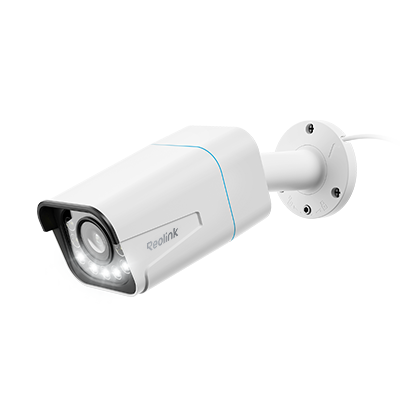
4K Smart PoE Camera with 5 Spotlights
4K 8MP Ultra HD Day & Night, Person/Vehicle Alerts, 5X Optical Zoom, Two-Way Audio, Built-in Siren, Color Night Vision, Live View Anywhere.
Reolink E1 Pro Indoor Camera:
- Compact and budget-friendly
- Works well for home monitoring and pets
- Easy to integrate with Google Home
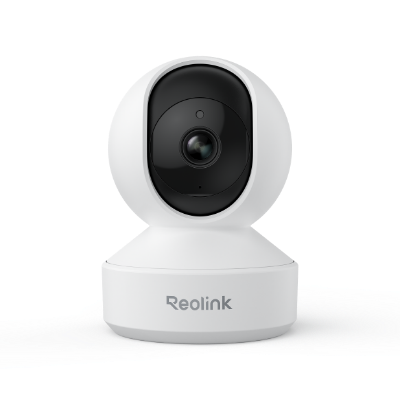
Smart 5MP Wi-Fi PT Indoor Security Camera
Crying Detection for Baby Monitoring; Smart Detection & Auto Tracking; 360° Coverage with Pan & Tilt; 5MP Super HD.
FAQs
Why isn't my Hey Google working anymore?
It usually stops working due to disabled Voice Match, microphone issues, battery saver restrictions, outdated Google app, or a switch to Google Gemini instead of Google Assistant.
How do I restart Google Assistant?
Restart your device, then open the Google app and re-enable “Hey Google” in Voice Match settings. You can also retrain your voice model in Assistant settings.
Why is my Google Assistant ignoring me?
It may be caused by low microphone sensitivity, wrong language settings, background noise, disabled permissions, or network issues. Sometimes switching back from Google Gemini to Google Assistant also fixes the problem.
Conclusion
The phrase “why isn't my Google working?” usually points to muted microphones, outdated apps, or weak networks. Android owners watch for settings that restrict background listening, while Nest users inspect physical switches and Wi-Fi strength.
Follow the structured checks, progress to software tweaks, and finish with resets only when needed. Share your findings below so other readers can resolve their Hey Google not working on Android faster.
Search
Subscribe for the Latest Updates
Security insights & offers right into your inbox