
Ethernet Not Working but WiFi Is | Troubleshooting Guide
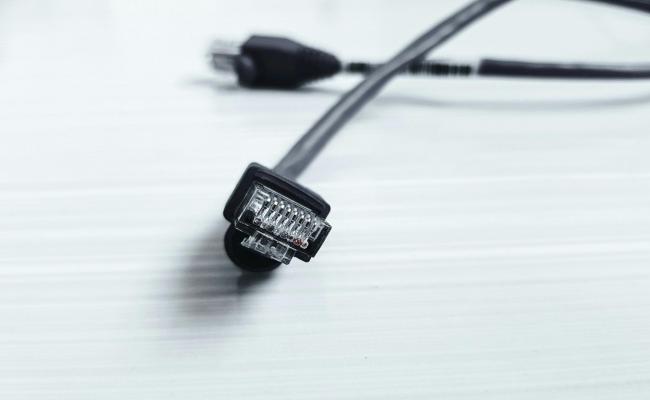
When WiFi works but not Ethernet, the whole workday slows down. A solid cable link should give the fastest speed, yet the little wireless icon keeps blinking while the port stays dark.
This guide walks through the reasons why WiFi working but no Ethernet and shows how to put the cable back online without extra tools or complicated steps.
- Why Is Ethernet Not Working but WiFi Is?
- How to Fix Ethernet Not Working but WiFi Is?
- What to Do If Ethernet Not Working but WiFi Is on Windows 11?
- How to Prevent WiFi Working but No Ethernet?
- What Happens When Camera Ethernet Fails but WiFi Works?
- Bonus: WiFi Not Working but Ethernet Is? How to Fix?
- FAQs
- Conclusion
Why Is Ethernet Not Working but WiFi Is?
You open the browser, pages load fine on wireless, yet the moment you plug the cord, the status light stays off, and Windows reports “No Internet.” Below are the usual suspects for WiFi is working, but Ethernet is not.
Faulty or Loose Ethernet Cable
A bent clip or a cracked sleeve breaks the eight tiny wires inside. Even a slight tug at the desk can pull the connector just far enough out so the latch no longer clicks. When the plug is loose, the port LED never turns on, yet the Wi-Fi radio keeps talking to the router because it never knew the cable was left.
Disabled Ethernet Adapter
Windows can turn off the built-in chip to save power or because the airplane-mode switch shut it down last week. You plug in the cord, but the adapter sits gray in the list, so data never reaches the wire, even though the wireless side is wide awake.
Incorrect Network Settings
Static addresses, the wrong gateway, or a subnet you typed last year can lock the cable out. Wi-Fi pulls a fresh lease from the router every time it reconnects, while the Ethernet port clings to the old numbers and stays silent.
Router or Modem Issues
A power spike or a firmware update can freeze one LAN port while the rest stay alive. If the LED on the router socket is dark but the Wi-Fi lights blink, the switch inside the box is the choke point.
Network Driver Conflicts
Windows Update or a new game app can push a driver that does not match the card. The chip boots, the LED glows, but the scrambled code keeps the packets from flowing. Wi-Fi uses a different driver, so it sails on without noticing.
Hardware Problems
The port on the laptop may have taken a hit when the cord snagged on the chair. A bent pin, burnt capacitor, or simply age can kill one socket while the rest of the board runs fine. Wi-Fi continues because its radio is on another circuit entirely.
How to Fix Ethernet Not Working but WiFi Is?
Most cable failures fall into one of five quick moves: swap, enable, renew, restart, or update. Work down the list in order, and your issue will be resolved about why WiFi is working but Ethernet is not.
Step 1 – Check the Cable and the Clip
Grab a spare cord that you know is good. Push the new plug in until you hear the snap. Watch the port LED: orange means link, green means ready. If the light shows on the router but not on the computer, move to the next step.
Step 2 – Wake the Adapter
Open Settings, Network & Internet, Advanced network settings, Change adapter options. If the Ethernet icon is gray, right-click and choose Enable. The LED should wake up in two seconds. Run a speed test to see if the numbers beat Wi-Fi.
Step 3 – Pull a Fresh IP Address
Open Command Prompt, type ipconfig /release, then ipconfig /renew. The cable will ask the router for a new lease and drop the bad static numbers. Open a web page; if it loads, you are done.
Step 4 – Restart the Router and the Computer
Power both devices off for thirty seconds. The router reloads its switch firmware, and the PC reloads the driver stack. Plug the cord back in and look for the green LED.
Step 5 – Update or Roll Back the Driver
Open Device Manager, expand Network adapters, right-click the Ethernet entry, and choose Update driver. If the problem started right after an update, pick Properties, Driver, Roll back driver instead. Reboot and test again.
What to Do If Ethernet Not Working but WiFi Is on Windows 11?
Windows 11 hides a few toggles that earlier versions never had. Use the list below in order; each line takes under a minute.
-
Run the built-in troubleshooter: Settings, System, Troubleshoot, Other troubleshooters, Network Adapter. Pick Ethernet and let the wizard reset the port.
-
Turn off power efficiency: Settings, Network & Internet, Ethernet, turn off “Power-efficient Ethernet.” The chip no longer sleeps to save battery.
-
Check VLAN or metered flags: Settings, Advanced network settings, Data usage, confirm Ethernet is not set to metered. A metered flag blocks big packets.
-
Flush the DNS cache: Command Prompt, ipconfig /flushdns, then netsh int ip reset. Bad DNS entries can stall the cable while Wi-Fi keeps cached answers.
-
Disable IPv6 trialware: Adapter properties, uncheck Internet Protocol Version 6. Some routers advertise IPv6 but fail to route it, stalling the wired side.
How to Prevent WiFi Working but No Ethernet?
A five-minute habit once a month keeps the cord ready when you need low latency for games or big uploads.
- Seat and release the plug twice a month: The simple motion wipes oxidation off the pins before it builds up.
- Strain-relief the cable: Run the cord along the desk edge so the latch never bears weight when you roll your chair.
- Keep a spare certified patch cord in the drawer: Cat-5e or Cat-6, three feet long, factory ends. Swap it in the moment the LED stays dark.
- Let Windows Update run on schedule: Driver makers push fixes for new router chips; staying current avoids the crash that kills the port.
- Turn on surge protection for the router: A blown switch inside the box is the hardest part to replace, and the cheapest strip saves it.
What Happens When Camera Ethernet Fails but WiFi Works?
When your Ethernet stops working but WiFi is fine, it can directly impact devices like IP security cameras. Many wired PoE cameras rely on Ethernet to deliver stable, high-quality video without interruptions. If your Ethernet connection is down, these cameras may go offline.
WiFi security cameras may continue to function as long as your wireless network is stable. However, WiFi cameras can sometimes face issues with lag, interference, or weaker signals, especially in larger homes or outdoor areas.
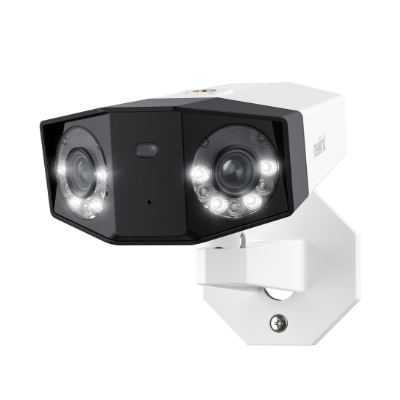
Groundbreaking 16MP Dual-Lens PoE Camera
16MP UHD, Dual-Lens, Motion Track, 180° Wide Viewing Angle, Power over Ethernet, Color Night Vision.
Bonus: WiFi Not Working but Ethernet Is? How to Fix?
Sometimes the tables turn, and the radio goes quiet while the wire keeps browsing. The fixes mirror the earlier steps but aim at the air side.
- Toggle airplane mode on and off: The quick switch forces the Wi-Fi card to reload its country code and channel list.
- Delete the saved network: Settings, Wi-Fi, known networks, click Forget, then reconnect from scratch. Corrupt keys block the handshake.
- Move the router one foot higher: A metal file cabinet or a fish tank can shade the 2.4 GHz signal, while the Ethernet path never knew the difference.
- Switch bands manually: If the 5 GHz name drops, hop to the 2.4 GHz SSID; the longer wave slips through walls even at lower speed.
- Update the router firmware: Log in to the admin page, check for updates; the changelog often lists “fixed wireless hang on channel 13” or similar.
FAQs
Why is my Ethernet not working but Wi-Fi is?
The wired path needs eight good copper conductors, a socket with clean spring pins, and a powered controller. If the retention clip is cracked, the driver is asleep, or the router port drops link-state, the cable goes silent. Wi-Fi uses separate radio firmware and its own authentication path, so it keeps surfing while the wired connection stalls.
What would cause Ethernet to stop working?
A bent latch, corroded contacts, or a kinked cable raise resistance above the IEEE limit and break the link. The adapter can be disabled by Windows to conserve power or scramble the PHY register set by a firmware update. The NIC is also isolated by the same Static IPs and VLAN mismatch, but the radio operating at 2.4 GHz or 5 GHz remains attached.
How to fix no Ethernet connection?
First, make sure that the LED lights and the retention clip attach firmly in the port. Enable the controller with Open Device Manager, and after that, roll back/update the driver to a stable release. Run ipconfig /release and /renew, replace with a certified Cat-5e or Cat-6 cable, and power-cycle the router for thirty seconds to reload the switch firmware and renegotiate 1 Gbps full-duplex.
Conclusion
When WiFi works but not Ethernet, the fix is almost always one of the steps above: seat the cord, wake the adapter, or refresh the numbers.
Walk the list calmly, test after each move, and the little green light will return. Share in the comments which step solved your case so the next reader knows where to start.
Search
Subscribe for the Latest Updates
Security insights & offers right into your inbox