
How to Connect Reolink Floodlight Camera to Smart Home System?
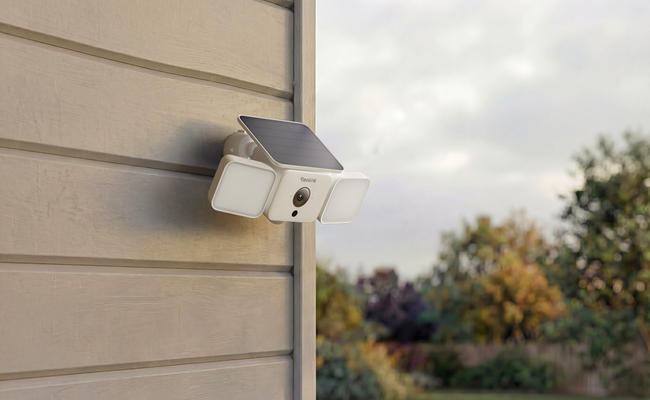
Reolink floodlight cameras that support SHome can be connected to a compatible system, such as Amazon Alexa and Google Home. You can connect the device and control it without any hassle.
In this article, we will explain the step-by-step process of connecting the Reolink floodlight camera to Google Home and Amazon Alexa. We will also explain how you can control the floodlights through the respective applications.
How to Connect a Reolink Floodlight Camera to Google Home?
- Launch the Google Home app. Go to Devices and tap Add Device> Works with Google Home.
- Search "Reolink" in the search bar. Tap Reolink Smart Home and log in to your account. Tap Allow.
- Open the Reolink app. Log in with the same account as on the Google Home app. Tap the "+" button and scan the QR code at the back of the camera. Enter the name and password and complete the initialization.
- Tap Me > Smart Home. Tap Google Home. You will see a list of devices. Select the one you want to use with Google Home.
- Launch the Google Home app. You will see the camera on the Device page. Tap it to access its settings page.
- Go to the Home section and assign the camera to a specific home. Tap Next > Move Device. Choose the location of the camera and tap Next.
How to Control Your Reolink Floodlight with Google Home?
- Open the Google Home app and tap on the floodlight. Now, you can manually turn on/off the light from here.
- Long-press the floodlight to enter settings. Here, you can adjust the brightness and color temperature.
How to Connect a Reolink Floodlight Camera to Amazon Alexa?
- Launch the Reolink app. Tap the "+" button and scan the QR code at the back of the camera. Add a name and password and complete the initialization process.
- Tap Me > Smart Home. Tap Amazon Alexa and tap Link Now. Follow the on-screen instructions to log in to your Amazon account first.
- It will direct you to the Account linking page. Enable the Reolink skill and link your Reolink account with Alexa. Tap Link > Finish.
- You will see a list of devices. Tap the camera you want to connect. Enable the smart home skill for the device.
- Launch the Alexa app. The camera will appear on the devices page. You have successfully connected the camera to Alexa.
How to Control Your Reolink Floodlight with Amazon Alexa?
- Open the Alexa app. Tap on the floodlight to access the settings.
- Here, you can manually turn on/off the floodlight. You can adjust the brightness and select the color temperature.
- You can also create a routine for the floodlight. Go to the floodlight menu and tap Create a Routine > Your Routines.
- Tap the "+" icon to create a new routine, set Trigger and Action. Enter the settings you want and tap Next.
- Add an event to When. Select Voice, set a trigger phrase. Tap Next. Add an action to Alexa WILL. Go to Smart Home > Lights > Floodlight and tap Next. Adjust the settings and tap Save.
Reliable Reolink Floodlight Camera Recommendation
TrackFlex Floodlight Wi-Fi
TrackFlex Floodlight Wi-Fi is a wired dual-lens security camera with floodlights. It can seamlessly connect to Smart Home. It is a pan and tilt security camera that covers a 360-degree view. The 6X hybrid zoom feature allows capturing a close-up view with intricate details. It has 3,000-lumen floodlights that illuminate a massive area. You can adjust the color and brightness as needed. It also features local AI video search, so you can find the desired event/clip using keywords.
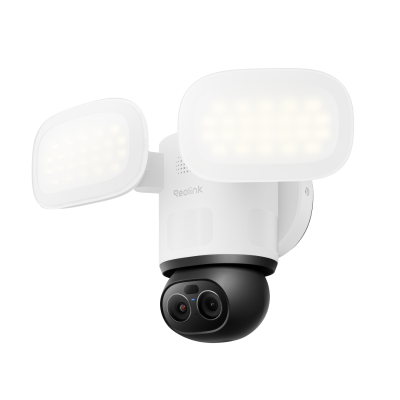
Smart 4K 360° Coverage Wi-Fi Floodlight Security Camera
Local AI Video Search, 4K 8MP Ultra HD, 360° Coverage View, 6X Hybrid Zoom, Dual-Color Floodlight.
FAQs
1. Can Reolink cameras be linked to Google Home?
Yes, Reolink cameras that support Smart Home can be linked to Google Home. We have explained the step-by-step process connecting them through the application.
2. Can I connect a Reolink camera to Alexa?
You have to link your Amazon account to Reolink first. You can do it in the Reolink app. Then, you can connect the camera to Alexa easily and enable the Smart Home skill for the device.
3. Is Reolink compatible with Nest?
Yes, most Reolink cameras are compatible with Google Nest devices via Google Assistant. You need to connect the Reolink app and the Google Home app to control the cameras with Nest devices.
4. How do I add a Reolink camera to Home Assistant?
Open Home Assistant in your browser. Go to settings and look for the Reolink camera in the Discovered devices list. Click Add and enter the device username and password.
Conclusion
You can easily connect the Reolink floodlight camera to Google Home and Amazon Alexa. If you have a camera that supports Smart Home, it can be connected and controlled through these platforms. We have explained the step-by-step process of connecting a Reolink device to Google Home and Amazon Alexa through the application. Follow these steps to control your camera hands-free.
Search
Subscribe for the Latest Updates
Security insights & offers right into your inbox