
SD Card Not Showing Up? Here’s How to Troubleshoot and Fix It
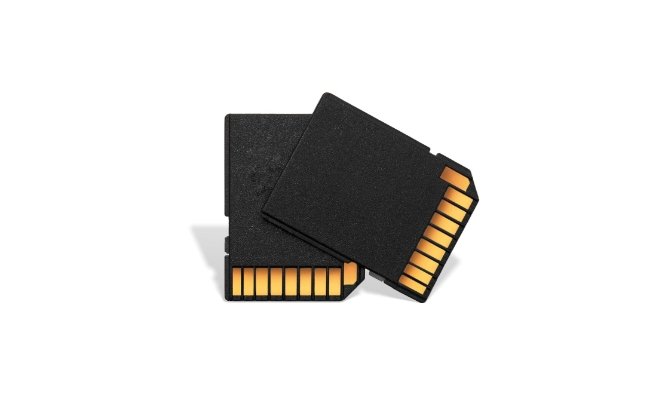
Have you ever inserted an SD card into your computer or device, only to find that the SD card not showing up or can't be accessed? This frustrating problem can happen on Macs, PCs, cameras, Android devices, and more. But don't worry - in most cases, it can be fixed.
In this guide, We'll walk you through why micro SD not showing up or being detected, as well as troubleshooting steps and solutions for Mac, Windows, Android, and cameras. We'll also look at some of the best wireless security camera systems that work well with SD cards for local video storage.
Why is My SD Card Not Showing Up?
There are several potential reasons why your SD card is not being detected:
- Faulty card reader or port: The SD card reader or port could be damaged, especially if you've recently dropped your device or exposed it to liquids. This can prevent proper communication between the device and the SD card.
- Improperly inserted: It's possible the card was not fully inserted or was inserted upside down. SD cards can be finicky and need to be oriented correctly.
- Old card or reader: Outdated card readers or old SD cards may not be compatible with newer devices. For example, older cameras may not read newer SDXC cards.
- Corrupted data: If the SD card's data or file system becomes corrupted, the device may not be able to read it. This can happen from improper ejection, file transfer issues, or physical damage to the card.
- Card lock enabled: SD cards have a lock switch to prevent files from being deleted or overwritten. If enabled, the card will appear locked or read-only.
SD Card Not Showing Up on Mac? How to Fix
If your SD card not showing up Mac, first make sure it is properly inserted in the SD card slot. Push it gently until it clicks into place. Next, try these troubleshooting steps:
1. Restart Your Mac
Restarting your Mac essentially refreshes the operating system, which can resolve temporary glitches with hardware components like SD card readers.
To restart:
- Click the Apple menu and select “Restart...”
- Or press the Control + Command + Power button
2. Inspect Card Reader and Port
Carefully inspect the SD card reader and port for any debris, damage, or bent pins. Debris, like dust or pocket lint, could be blocking connectivity.
If you see any damage to the port or reader contacts, this likely needs professional repair. An Apple Authorized Service Provider can examine the SD card reader and Mac logic board.
3. Reseat SD Card Properly
Eject the SD card, then reinsert it carefully in the proper orientation to ensure the gold contacts are facing down and the card is fully seated. Double-check that the card clicks fully into place. Don’t force it if you meet resistance.
4. Try a Different SD Card Reader
Test with an external USB card reader to help determine if the issue is with the SD card or the built-in SD card reader itself.
- Connect the external reader and insert the SD card
- Open Finder and see if the card shows up on the desktop or sidebar
5. Reset NVRAM
Resetting the Mac's NVRAM (non-volatile random-access memory) clears out any potential corrupted device settings and refreshes hardware communication channels.
To reset NVRAM:
- Shut down Mac
- Power up your Mac and immediately press Option + Command + P + R keys
- Keep holding the keys until you hear the startup chime a second time
- Release keys and let Mac reboot normally
6. Check with the Card in Disk Utility
The macOS Disk Utility can check connected drives and storage media. Open Disk Utility and see if your SD card appears under External Drives.
If you see it listed, try mounting it from Disk Utility. If successful, you should then be able to access the SD card normally in Finder.
If it fails to mount or doesn't show up at all in Disk Utility, the card or data is likely to corrupt. Now, you need to attempt recovery software or reformatting.
How to Troubleshoot Micro SD Card Not Showing Up on Windows
Like Macs, Windows PCs can also fail to detect inserted SD cards. If your card isn't showing up in File Explorer, use these troubleshooting tips for Windows 10 and Windows 11:
Windows 10
Follow these steps for SD card not showing up Windows 10:
1. Check card reader and restart the PC: Examine the card reader slot for any damage or debris blocking the pins and contacts. Also, confirm the card is inserted properly in the correct orientation.Restart your Windows 10 computer, which will reload device drivers and refresh hardware components.
2. Update or reinstall card reader drivers: Open Device Manager, expand the Disk drives category and right-click on your card reader device. Select Update driver.
If that doesn't work, uninstall and then reinstall the card reader device driver to refresh communication with the hardware.
3. Run Hardware Troubleshooter: Go to Settings > Update & Security > Troubleshoot > Additional troubleshooters, then run the Hardware and Devices troubleshooter. This automated tool checks for issues with connected devices like card readers.
4. Check Disk Management: Open Disk Management and see if your SD card shows up as a removable volume. If you see the drive, try assigning a new drive letter.
5. Test card in external reader: Connect a USB card reader to your Windows 10 PC, insert an SD card, and see if that setup detects the card properly. If successful, it may indicate an issue with a built-in reader.
6. Check and recover errors: Open the command prompt as admin and run "CHKDSK E: /f," where E is the drive letter. This scans and fixes disk errors that could prevent the drive from showing. If CHKDSK finds corruption, run the recovery software. Otherwise, reformat the SD card to factory settings.
Windows 11
The troubleshooting process for SD cards not showing up is nearly identical in Windows 11 as in Windows 10. Follow the steps for the SD card not showing up Windows 11.
Here are a couple of extra things to try on Windows 11:
- Check Quick Settings: Pull down the Quick Settings menu and see if your inserted SD card appears under the Storage Devices section. If shown here, it is at least being detected at some level.
- Turn off the USB selective suspend: Type powercfg /usbports into the Start menu and disable selective suspend for your card reader device for consistent power.
SD Cards Not Showing Up on Android? How to Fix
SD card problems can also arise on Android phones and tablets. If you insert a microSD card in your device but can't access the data, try these troubleshooting tips:
- Check if the SD card is properly oriented in the card slot
- Look for any debris or damage in the slot
- Restart your Android device
- Inspect the card reader slot under a bright light for bent pins
- Check if the SD card is listed under Settings > Storage
- Remove and reinsert the SD card gently
- Try SD cards in different Android device
- Back up data and reformat SD card on the computer
- Test SD card with external mobile card reader
- Update Android OS to the latest version
What to Do If MicroSD Card Doesn't Show Up on Cameras
Security cameras and action cams that record video internally require a working SD card for local storage. But sometimes, the camera cannot detect or access an inserted memory card.
If your Reolink camera displays "No SD card" or 0GB capacity for the card, try this:
- Power off the camera, remove the SD card, and check for any debris or damage to the card slot's metal contacts. Then, reinsert the microSD card with gold contacts facing downwards until it clicks evenly into place.
- Confirm that your memory card matches the storage requirements for the Reolink camera model per the product documentation. This includes capacity, speed rating, and filesystem format.
- Unmount the microSD card from the Reolink camera, then connect it to a Windows/Mac computer using an external card reader. Back up any video footage you need from the misbehaving card. Then, use the computer's built-in disk utility to securely format the card to the FAT32 filesystem.
- With the card formatted to FAT32, install it back into the Reolink camera properly until it clicks. Power on the camera and check if it now detects the SD card correctly.
- If problems continue, test with a spare SD card that you confirm works properly on another device. This helps determine if the issue is caused by the camera's card reader or the SD card itself.
Best Wireless Camera System Compatible with SD Card
When choosing a wireless home security camera system for local SD card recording, I recommend considering Reolink models. Here are two top-rated options:
Reolink Home Hub with Argus PT Ultra
The Reolink Argus PT Ultra is a durable 4K wireless battery camera powered by a solar panel for non-stop operation. It records sharp, detailed footage day and night onto an microSD card.
When paired with the Reolink Home Hub, it becomes part of an expandable whole-home security system with centralized storage and remote access. The Home Hub supports up to 8 Reolink cameras with no monthly fees required.
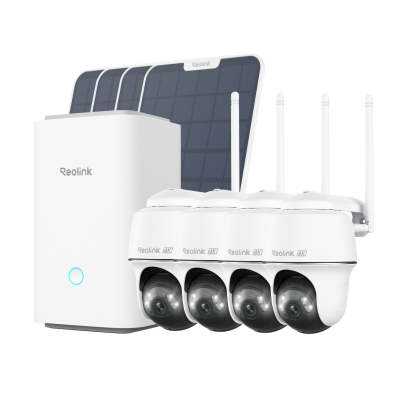
Wireless Security System With 4K PT Standalone Battery/Solar Wi-Fi Cameras
4K Color Footage Day & Night, 1 Year of Local Storage, Exclusive Anti-Theft Algorithms, 360° All-Around Coverage, Expandable System Up to 8 Reolink Cams.
Reolink Home Hub with Argus 4 Pro
Another stellar wireless security camera system is the Reolink Argus 4 Pro, also centrally managed by the Home Hub.
This camera captures crisp 4K UHD video with a wide 180° view for zero blindspots. It features true-full color night vision and extended night vision range.
Despite being 100% wire-free, the Argus 4 Pro provides constant power thanks to an integrated solar panel. So it doesn't miss any action. Moreover, Reolink Home Hub uses a MicroSD card as local storage.
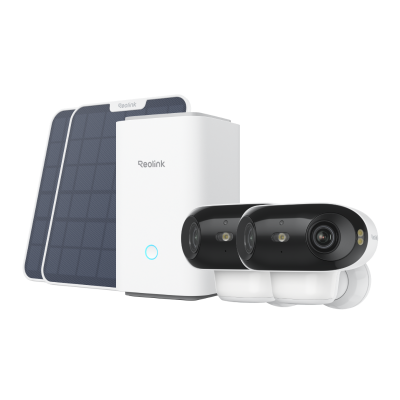
4K UHD Wi-Fi 6 Security System with 180° Blindspot-Free View
ColorX Night Vision, 1 Year of Local Storage, Exclusive Anti-Theft Algorithms, 180° Blindspot-Free Coverage, Expandable System Up to 8 Reolink Cams.
FAQs
Why is my SD card not being detected?
Common reasons include a faulty or dirty card reader, improperly inserted card, corrupted data, unsupported card specifications, driver issues, or the card itself has failed.
How to repair an SD card that is not showing?
First, try the card on a different device, like an external USB card reader connected to a computer. If it appears on the computer, backup data immediately, then reformat the card. If the card is still not detected, it may be permanently damaged, requiring replacement.
Why isn't my SD card showing up on my files?
If an inserted SD card shows up on the device but not within the user file system, the card reader and contacts are likely okay. This points to corrupted data or partitioning issues on the card. Reformatting the card can wipe out corrupt data. Also, update card reader drivers and USB controllers for the latest compatibility.
Conclusion
While SD cards mysteriously not showing up can be frustrating, hopefully, this guide has given you some helpful troubleshooting tips to resolve the issue on various devices. Proper insertion orientation, gently cleaning card slots, trying different card readers, reformatting, and testing new SD cards are all good things to try. Updating drivers and OS/firmware is also wise for maximum hardware compatibility.
Have you encountered "missing" SD cards before? What steps did you take to make them detectable again? We'd love to hear your experiences and advice in the comments below!
Search
Subscribe for the Latest Updates
Security insights & offers right into your inbox