
IFTTT Cameras for Smart Home Automation 2026: Ultimate Buying Guide
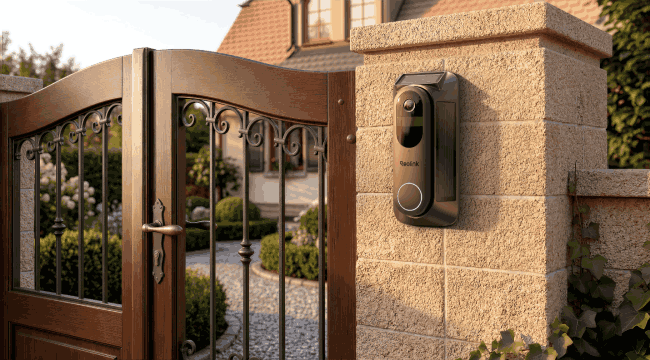
An IFTTT security camera can use camera events to start supported smart-home actions. It may trigger lights, create activity logs, or send custom alerts automatically afterward. IFTTT helps when devices from different brands must work together in 1 routine.
Each camera service controls which triggers and actions become available through its integration. This guide covers IFTTT cameras, buying points, useful automations, and current Reolink support.
- What Is an IFTTT Camera?
- What Security Cameras Work With IFTTT?
- 7 Key Features to Consider Before Choosing an IFTTT Camera
- Best Ways to Use IFTTT With Security Cameras
- How to Connect a Security Camera to IFTTT?
- IFTTT Camera Automation Examples
- IFTTT Cameras vs. Built-In Smart Home Integrations
- FAQs
- Conclusion
What Is an IFTTT Camera?
An IFTTT camera connects a security camera service with the IFTTT automation platform. It may provide triggers, accept actions, or support both through its official integration.
What Does IFTTT Mean?
IFTTT means "If This Then That," where 1 supported event starts another supported action.
How Do IFTTT Cameras Work?
You connect the camera service, choose an event, then select another service's action. IFTTT links that supported camera event with the action chosen for your Applet.
Camera event → IFTTT trigger → Applet → automated action
For example, motion detection can turn on lights through 1 compatible IFTTT Applet. A visitor event can also send a notification when that trigger is available.
What Can You Do With an IFTTT Security Camera?
A supported camera can trigger lights, alerts, logs, switches, and other smart-home actions. IFTTT only uses controls that the camera company makes available through its service.
What Security Cameras Work With IFTTT?
IFTTT currently lists direct services for several well-known home security camera brands online. Arlo, Blink, Ring, Wyze, EZVIZ, and Blurams have active IFTTT service pages today.
IFTTT-Compatible Security Camera Brands
These camera brands currently appear with direct services in the main IFTTT directory.
- Reolink
- Arlo
- Blink
- Ring
- Wyze
- EZVIZ
Do All Smart Security Cameras Support IFTTT?
No, smart security cameras do not all support direct connections through the IFTTT platform. A camera may support Wi-Fi, cloud storage, Alexa, or Google Home without IFTTT support.
Reolink Cameras Compatible with IFTTT
Reolink cameras that support Automation features are compatible with IFTTT, allowing users to connect their cameras with other smart home devices and create customized automation workflows.
With IFTTT, users can trigger actions based on camera events, such as receiving alerts, turning on smart lights, or activating other connected devices.
Currently, the following Reolink models support IFTTT compatibility:
Note: IFTTT availability depends on the camera model and supported firmware version. Make sure your device firmware is updated to the latest version to access Automation and IFTTT features.
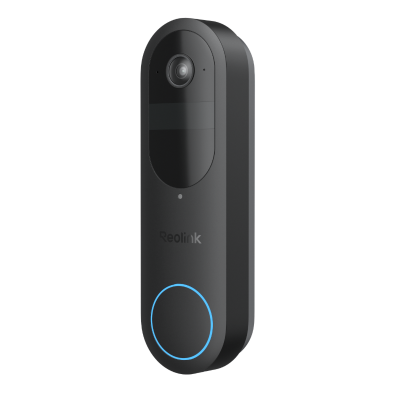
2K Battery Wi-Fi Video Doorbell with Smart Detection
- 2K 4MP Head-to-Toe View
- Person/Vehicle/Animal/Package Detection
- 300-Day Lasting Battery Life
- No Monthly Fees for Local Storage
How to Check If Your Camera Works With IFTTT?
Use these checks before buying, because model support and available automation options can change.
-
Search the camera brand in the official IFTTT service directory before choosing hardware.
-
Review the service page and check every available trigger and action carefully there.
-
Check model support, camera software needs, and any required cloud account conditions before buying.
-
Review whether the camera service or planned IFTTT setup needs a paid subscription.
-
Confirm the other device offers the exact action required for your planned routine.
7 Key Features to Consider Before Choosing an IFTTT Camera
1. Native IFTTT Compatibility
Verify that the camera natively supports IFTTT through an official channel before purchasing, as general smart home compatibility does not ensure IFTTT integration.
-
Direct Integration: Check the official IFTTT service directory to confirm the camera brand maintains an active integration.
-
No Workarounds Required: Native support ensures you can link your account directly without relying on unstable third-party bridge platforms.
2. Available Triggers and Actions
Audit the camera manufacturer's IFTTT channel to ensure it exposes the specific event triggers and control actions your automations require.
-
Trigger Capabilities: Look for essential motion, sound, button press, or person-detection event triggers.
-
Action Controls: Verify whether IFTTT can actively command the camera to arm/disarm, toggle motion recording, activate built-in spotlights, or pan to specific presets.
3. Automation Speed
Execution speed depends on your IFTTT subscription tier and whether the camera service supports real-time webhooks or standard polling.
-
Free vs. Paid Speeds: Pro and Pro+ tiers offer faster Applet execution speeds, whereas standard free accounts experience longer polling delays.
-
Real-Time Triggers: Ensure critical security automations (like flashing smart lights during an intrusion) use real-time triggers to prevent execution lag.
4. On-Device Smart Detection
Advanced AI detection for people, vehicles, or packages only works in IFTTT if the manufacturer exposes those specific event types to the platform.
-
Selective Event Passing: Cameras may process smart AI alerts in their native app but only pass generic "motion detected" triggers to IFTTT.
-
Filter Capabilities: Confirm the service differentiates between event categories so your Applets trigger exclusively for critical events like human motion.
5. Subscription and Feature Paywalls
Some manufacturers restrict IFTTT integration or advanced event triggers behind their proprietary paid cloud subscription plans.
-
Paywalled Integration: Verify whether the brand requires an active cloud plan to unlock its IFTTT channel.
-
Local Storage Limits: If using onboard microSD or local NVR storage, check if the camera still transmits event triggers to IFTTT without an active cloud tier.
6. Cloud Dependency and Internet Reliability
Because IFTTT processes automations via cloud-to-cloud communication, your automations depend entirely on an active internet connection.
-
Cloud Linkage: Outages to your local Wi-Fi or the manufacturer's cloud servers will temporarily halt all IFTTT Applet executions.
-
Fail-Safe Planning: Avoid relying exclusively on IFTTT for primary safety alarms; pair automations with local sirens or direct push notifications.
7. Account Privacy and Security Controls
Protect your video feeds by enforcing strong authentication protocols and regularly auditing connected third-party app permissions.
-
Multi-Factor Authentication (MFA): Enable 2-factor authentication on both your camera manufacturer account and your IFTTT profile.
-
Granular Permissions: Periodically review connected IFTTT Applets and revoke access for unused services or deprecated camera hardware.
Best Ways to Use IFTTT With Security Cameras
These examples show practical security routines that users can understand and recreate more easily. Each section follows a situation-to-action format so the benefit and the limitation stay clear.
Turn On Smart Lights When Motion Is Detected
An IFTTT security camera can trigger compatible smart lights when motion is detected, creating an automated response without the user manually turning the lights on. The camera detects movement, IFTTT runs an Applet, and a supported light turns on. This works well near porches, driveways, garages, backyards, and side entrances at night.
Outdoor lighting can improve camera visibility and make nearby activity easier to notice. Both services must provide matching IFTTT triggers and actions for this routine to work successfully. A motion trigger cannot control a light without the light service's matching action.
Get Customized Alerts When Your Camera Detects Motion
IFTTT can make camera alerts more customizable by using a detected event as the trigger for actions in other compatible services. Motion near 1 entrance could send a custom notification for that camera location. The same event could add 1 row to a spreadsheet or activity log.
Different cameras can also start different actions based on their location or purpose. An event can begin another connected smart-home workflow when both services allow it. The camera service decides which event data IFTTT receives and can use later.
Do not expect snapshots, recordings, or AI labels unless the integration provides them.
Trigger Other Smart Home Devices With Your Camera
IFTTT can connect a supported camera trigger to actions offered by other compatible IFTTT services. Motion near an entrance can turn on a light when both services support it. Driveway activity can activate a supported smart switch and start another connected device.
A camera event can also create an activity record for later review and reference. Security-related triggers can start another connected service when that service provides an action. Still, IFTTT cannot make 1 camera control every smart device within your home.
Always check both services for the exact trigger and action before planning automation.
Automate Cameras Based on Location
Yes, IFTTT can support location-based camera routines, but the available actions vary by camera brand and integration. Leaving home can start a supported security action after a location trigger runs. Arriving home can change another compatible security setting when that action is available.
Location routines normally require the IFTTT mobile app and permission to access location. Location-based automation is only possible if the camera or security service exposes the required action through IFTTT. IFTTT cannot directly arm, disarm, enable, or disable every connected security camera automatically.
Create Scheduled Security Routines
IFTTT schedules help when 1 set time should control several connected smart-home services. A 10:00 PM trigger could turn on lights and supported security devices together. A morning schedule could change those supported devices again for normal daytime use.
Camera apps may already provide their own recording or notification schedules for users. If the goal is simply to schedule camera recording, the camera's native app may be easier and more reliable. IFTTT is more useful when 1 schedule needs to coordinate several different smart-home services.
How to Connect a Security Camera to IFTTT?
Connecting a supported camera usually follows 5 simple steps inside IFTTT's website or app.
Step 1: Create or Sign In to Your IFTTT Account
Create a new IFTTT account, or sign into your existing account before continuing.
Step 2: Connect Your Security Camera Service
Search for the camera brand, select its service, then authorize your camera account.
Step 3: Choose a Trigger
Select an available event, such as motion, sound, or another listed camera event.
Step 4: Choose an Action
Choose the service that should respond, then select the action it should perform.
Step 5: Create and Test Your IFTTT Applet
Save the Applet, create the trigger event, then confirm the planned action runs. Check IFTTT activity records if the action does not run during your test.
IFTTT Camera Automation Examples
This table shows common camera routines and the IFTTT action each routine can start.
IFTTT Cameras vs. Built-In Smart Home Integrations
IFTTT and built-in platforms solve different problems, so the better choice depends on goals.
IFTTT vs. Alexa
Alexa often provides direct voice controls and routines for supported security camera models. The former direct IFTTT Amazon Alexa service ended on October 31, 2023, affecting older Applets. Alexa still supports many cameras through camera skills, routines, and direct brand integrations.
Do not treat Applets that used the removed direct Alexa service as current options today.
IFTTT vs. Google Home
Google Home provides direct controls for security camera brands that support its platform. IFTTT still connects with Google Home through its current Google Assistant service connection. That connection uses supported scene commands within Google Home to start selected IFTTT Applets.
IFTTT vs. Home Assistant
Home Assistant can provide deeper local and network controls for supported camera hardware. However, setup often needs more technical work than a basic IFTTT automation requires. IFTTT is simpler when both services already provide the required triggers and actions.
When Should You Use IFTTT?
Use IFTTT when a camera event should trigger actions across another compatible service. Use the camera app for direct controls, recording schedules, and built-in camera settings. Native integrations may also provide more direct camera controls than IFTTT offers users.
FAQs
Does IFTTT Still Work With Alexa?
The former direct Amazon Alexa service on IFTTT ended on October 31, 2023. Alexa still supports cameras through skills and routines, but old Applets using that service may fail. Do not treat Applets using the removed direct Alexa service as current options today.
Which Cameras Work With IFTTT?
Current IFTTT camera services include Arlo, Blink, Ring, Wyze, EZVIZ, and Blurams brands. Check the exact IFTTT service because supported models, triggers, and actions can change.
Is IFTTT Free for Security Cameras?
IFTTT has a free plan with 2 Applets and standard Applet processing speeds. Some services, triggers, actions, and advanced features need a paid IFTTT plan today.
Does IFTTT Work With Google Home?
Yes, IFTTT currently works with Google Home through its Google Assistant service connection. Users can link IFTTT in Google Home and use supported scene commands there. Those scene commands can then run the selected IFTTT Applet for connected services.
Conclusion
An IFTTT camera works best when camera events must start actions across services. Before buying, check support, triggers, speed, detection, privacy, plans, and existing device compatibility. IFTTT cannot add any control that the camera company has not made available.
Search
Subscribe for the Latest Updates
Security insights & offers right into your inbox