
How to Find IP Address on Windows? Find Step-by-Step Guide Here

A computer cannot join the internet without a numeric label that points other devices toward it. Windows keeps that label, your IP address, in several easy-to-reach places. This guide shows how to find IP address on Windows in clear steps that work on Windows 10 and Windows 11. Follow along and you will know every route to the number that identifies your PC, printer, or smart camera on a network.
Different Types of IP Addresses on Windows
Windows may show more than one IP address. Each serves a role in how your device talks to the local network and the broader internet.
- IPv4 address: Four sets of digits (for example, 192.168.1.14). IPv4 is the most common format and appears in nearly every router, app, and diagnostic tool.
- IPv6 address: Eight groups of alphanumeric characters (for example, 2401:db00:1020:105::1). IPv6 provides a much larger address pool and is slowly replacing IPv4.
- Public IP address: The address your internet service provider assigns to your router. Every device in your house shares this number when it reaches sites on the open internet. You usually view it in a browser, but Windows can reveal it with PowerShell if you query an external service.
- Private IP address: The address your router hands out to each device inside your home or office. Windows lists this number in Settings, Command Prompt, PowerShell, Control Panel, Task Manager, and other built-in tools.
How to Find IP Address on Windows?
You can check your IP address through the modern Settings app, legacy tools, or quick commands. Pick whichever method feels natural.
Method 1: Use the Settings app (Windows 10 and 11)
The path looks slightly different on Windows 11, yet the labels remain the same. This is the most direct answer for anyone who searches for how to find IP address Windows 11.
- Press Windows + I to open Settings.
- Select Network & Internet.
- Choose Wi-Fi or Ethernet, depending on your connection.
- Click the network name.
- Scroll to the Properties section.
- Note the IPv4 address and IPv6 address.
Method 2: Use Command Prompt
Command Prompt works on every Windows version from XP onward, so it is handy for support calls where you guide another person over the phone.
- Press Windows + R, type cmd, and press Enter.
- Type ipconfig and press Enter.
- Find the adapter that shows Ethernet adapter or Wireless LAN adapter.
- Read the line IPv4 Address for the private address.
- Look at the IPv6 Address for the longer form if enabled.
Method 3: Use PowerShell
PowerShell is script-friendly. You can save the command in a batch file to export addresses from several PCs.
- Right-click the Start button and choose Windows PowerShell (Admin) or Terminal.
- Type Get-NetIPAddress | Format-Table and press Enter.
- The table lists every address, gateway, and interface index in neat columns.
Method 4: Use the Control Panel Network Status window
Though Control Panel may seem dated, it still offers a concise dialog that many technicians trust.
- Press Windows + R, type ncpa.cpl, and hit Enter.
- Double-click your active adapter.
- Click Details.
- Read IPv4 Address, IPv6 Address, Subnet Mask, and Default Gateway.
Method 5: Use Task Manager
Task Manager provides a live graph of bandwidth, so you can watch traffic while confirming the address.
- Press Ctrl + Shift + Esc to open Task Manager.
- Click More details if you see the compact view.
- Go to the Performance tab.
- Select Wi-Fi or Ethernet in the left pane.
- Look in the right pane under IPv4 address and IPv6 address.
Method 6: Use the System Information tool
System Information lists every driver property, making it a solid one-stop reference for hardware and software audits.
- Press Windows + R, type msinfo32, and press Enter.
- Expand Components > Network > Adapter.
- Scroll until you find the adapter named Intel(R), Realtek, or your Wi-Fi chipset.
- Inspect the IP Address field.
How to Find IP Addresses on Windows Network?
You may need the addresses of all phones, printers, or cameras on the same LAN. Windows supplies several ways to list them.
- Use the arp -a command: Open Command Prompt. Type arp -a and press Enter. The output pairs every known IP address with its hardware (MAC) address.
- Use net view for Windows shares: In Command Prompt, type net view and press Enter. The list shows every computer that has file and printer sharing turned on. Follow with ping
to get its IP address. - Check the router’s client list: Enter the router’s gateway address in a browser (commonly 192.168.0.1 or 192.168.1.1). Log in with admin credentials. Open the Attached Devices, Client List, or DHCP Table page. View every active IP address with device names.
- Run a network scanner: Advanced IP Scanner, Angry IP Scanner, or Nmap can sweep a subnet. Install one, enter the subnet (for example, 192.168.1.0/24), and run a scan. The tool lists live hosts, open ports, and sometimes vendor names.
What to Do If You Can’t Find IP Address on Windows 10/11?
If the methods above return blank fields or error messages, narrow down the cause with these checks and repairs.
- Enable the adapter: Turn off Airplane mode, toggle Wi-Fi or Ethernet back on in Quick Settings, or click Enable beside the adapter in Settings > Network & Internet > Advanced network settings.
- Refresh the lease: Open Command Prompt and run ipconfig /release followed by ipconfig /renew to force the router to hand out a new address.
- Update the driver: In Device Manager, right-click the network adapter and choose Update (or uninstall and let Windows reload) to fix driver glitches.
- Disable conflicting VPN or virtual adapters: Temporarily turn off VPN clients or extra virtual NICs that may hide the main address, then rerun ipconfig.
- Check your syntax: Make sure you typed ipconfig (no space) or use Get-NetIPAddress in PowerShell if Command Prompt seems empty.
- Allow network discovery: In Windows Security > Firewall & network protection, allow File and Printer Sharing traffic through so local queries work.
- Verify the subnet: If the router now uses 10.0.0.x instead of 192.168.1.x, note the gateway in ipconfig, and scan that new range for your device.
Can You Find a Security Camera IP Address on Windows?
Yes. A Windows PC can reveal the address of any IP-enabled security camera that shares the same local network. Use one of these routes: Check the camera’s companion software. Most vendors ship a Windows discovery tool that lists every unit by name, address, and firmware version.
For example, you can easily find the IP address of a Reolink security camera using their smartphone app or Windows client in just a few taps.
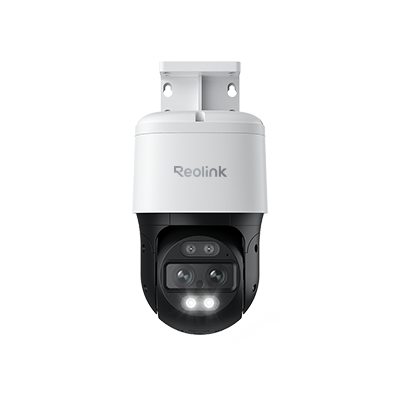
4K Dual-Lens PTZ Camera with Dual Tracking
4K 8MP Ultra HD, Wide & Telephoto Lenses, Pan & Tilt, Auto-Tracking, Person/Vehicle Detection, Power over Ethernet, Two-Way Audio.
FAQs
How do I find the IP address of my computer?
Open Settings > Network & Internet, pick Wi-Fi or Ethernet, click the network name, and read the IPv4 address line. This is the quickest path for most people.
How do I find my IP address using command prompt?
Launch Command Prompt and type ipconfig. Press Enter. The output shows IPv4 Address under the active adapter.
How do I find my device IP address?
If you run multiple devices, repeat the steps above on each one. On phones, check Settings > Wi-Fi > Network details. On printers, open the control panel and view Network Setup. Every connected gadget shows its own IP in a network menu or a status page.
Conclusion
You now know several direct ways to see your IP on any Windows PC, why the address matters, and how to solve common roadblocks. Test the Settings app for fast checks, lean on Command Prompt for scriptable work, or explore router tables when you manage many devices. Keep these steps handy, and you will never lose track of your network identity again. Share your own tips on how to find an IP address on Windows in the comments so others can learn from your experience.
Search
Subscribe for the Latest Updates
Security insights & offers right into your inbox