
How to Connect TV to WiFi Without Remote: Easy Methods

Losing a TV remote can feel like a disaster, especially when you need to set up a network connection. The good news is that you can still link your television to the internet without the original controller. This guide explains how to connect my TV to WiFi without remote and walks you through several clear, practical solutions.
- Can You Connect TV to WiFi Without Remote?
- How to Connect TV to WiFi Without Remote?
- How to Connect Roku TV to WiFi Without Remote Using iPhone?
- How to Connect TCL TV to WiFi Without Remote?
- How to Connect Vizio TV to WiFi Without Remote?
- Bonus Tips: How to View Security Camera Feeds on TV Without Remote?
- FAQs
- Conclusion
Can You Connect TV to WiFi Without Remote?
Yes, you can. Modern smart televisions include backup controls that let you reach the settings menu, pick a network, and enter a password. Brands also supply mobile apps, wired ports, or quick‐setup tricks that help you finish the job. You only need to pick the approach that matches your equipment and comfort level. The rest of this guide breaks down each option so you can follow along with ease.
How to Connect TV to WiFi Without Remote?
Before diving in, remember that no single method suits every model. Test the one that seems most convenient first. If that does not work, move on to the next. The five methods below cover most smart TVs sold today.
Use Built-In Buttons
- Locate the TV’s built-In buttons on the side, back, or bottom edge of the TV. Common buttons include: Power, Menu/Settings, Volume Up/Down, Channel Up/Down, Input.
- Turn on the TV and press the button.
- Access the Menu or Settings. However, if your TV doesn't have buttons mentioned above, press Channel Up + Volume Up or long-pressing Menu opens the settings menu.
- Adjust Network settings. Use Volume/Channel buttons to move through the menu and look for Network, Wi-Fi, or Internet Settings.
- Select your WiFi. Press Menu/Select/Power button (depending on your TV) to open Wi-Fi options. Use Volume/Channel buttons to scroll to your network and press Select/Menu/Power button to choose it.
- Confirm and connect. Enter your WiFi password using Volume/Channel buttons to scroll through letters or using a keyboard. At last, navigate to Connect/OK to confirm the connection.
Use USB Devices
Smart televisions usually detect standard USB keyboards or mice. This solution works when the TV keeps showing the “no network” alert, but still accepts USB input devices. A USB keyboard lets you type passwords faster than most remotes, making this fix both quick and user‑friendly.
- Locate a wired USB keyboard or mouse.
- Plug the device into any free USB port on the television. A prompt may appear that confirms the new hardware.
- Press the physical “Menu,” “Input,” or “Settings” button on the TV bezel to open the on‑screen menu. If there is no single menu button, press the central joystick or power button until the menu appears.
- Use the arrow keys on the keyboard or move the mouse pointer to navigate to “Network” or “Wi‑Fi Settings.”
- Select your home network name (SSID) and choose “Connect.”
- Type the Wi‑Fi password on the keyboard, then hit “Enter.”
- Wait for a success notification. Once connected, remove the keyboard or keep it in place for future control.
Use a Universal Remote
If you prefer a handheld controller, a universal remote can replace the lost original. Universal remotes cost little, and they restore full control, not just Wi‑Fi access. They remain a solid long‑term fix.
- Purchase a universal remote that lists your TV brand on its package.
- Insert batteries and power on the television using its physical button.
- Follow the remote’s pairing instructions. Some models sync automatically; others need you to enter a code while pointing at the TV.
- Once paired, press the “Home” or “Menu” button.
- Navigate to “Network,” “Wireless,” or “Internet Setup.”
- Pick your Wi‑Fi network, enter the password with the remote keypad, and confirm.
- Test the connection by opening a streaming app or built‑in browser.
Connect via Ethernet Cable
When your router sits near the TV, a wired link is the fastest route to the internet and skips password entry entirely.
- Find an Ethernet (CAT5e or CAT6) patch cable of suitable length.
- Plug one end into a spare LAN port on the router.
- Insert the other end into the TV’s Ethernet jack, often labeled “LAN” or showing a network icon.
- Turn on the television. Many models detect the wired connection automatically and show “Connected” within seconds.
- If no automatic link appears, open the TV menu with its side buttons, go to “Network,” and set “Connection Type” to “Wired.”
- Confirm that the status reads “Connected” or shows an IP address. You can now stream or browse without Wi‑Fi.
Rename Your WiFi
If your TV remembers an old network but cannot reach it because the router or password has changed, rename the new Wi‑Fi to match the stored entry.
- Log in to your router’s admin page from a computer or phone.
- Change the SSID (network name) to the exact name the television memorized. Also, set the same security type (often WPA2) and password.
- Save changes and reboot the router if prompted.
- Power on the TV. Because the credentials now match, the television should connect on its own.
- Verify the link by opening a smart app.
If you want to keep your original SSID later, connect a remote or keyboard, add the new network, then rename the router back.
Use a Mobile Hotspot
A smartphone hotspot acts like a router, letting the TV join a temporary network. Use this when no router stands nearby or when you need quick internet during travel.
- On your phone, open “Settings” and pick “Hotspot” or “Personal Hotspot.”
- Name the hotspot and set a simple password of at least eight characters.
- Turn on the hotspot switch.
- Press the TV’s physical menu buttons and open “Network.”
- Select the hotspot SSID from the list.
- Enter the password using the bezel buttons or a USB keyboard.
Check the connection status on both the phone (it should show one connected device) and the TV.
Remember that streaming can consume large amounts of mobile data. Monitor your plan limits.
How to Connect Roku TV to WiFi Without Remote Using iPhone?
Sometimes you lose the Roku remote but still have your iPhone nearby. The Roku mobile app turns the phone into a full controller and helps you rebuild the wireless link.
- Download the Roku app: Open the App Store, search for “Roku – Official Remote,” and install the free app.
- Ensure local network permission: The first launch requests access to your local network. Tap “Allow.”
- Enable iPhone hotspot (only if the TV is offline): Go to “Settings → Personal Hotspot” and create a hotspot with the same network name and password the Roku last used. This step tricks the TV into joining automatically.
- Launch the Roku app: Tap the device icon. The app scans for Roku TVs on the same Wi‑Fi.
- Select your Roku TV: When it appears, tap its name to connect. If you used the hotspot trick, keep the phone within a few feet for a stable link.
- Open the remote tab: A virtual remote appears, matching the buttons on the lost controller.
- ** Navigate to Settings → Network**: Use the on‑screen arrows and “OK” in the app.
- Choose “Set up connection”: Pick “Wireless,” then select your home Wi‑Fi from the list.
- Enter the Wi‑Fi password: Use the virtual keyboard in the app.
- Confirm connection: The TV should show a success message. You can now turn off the hotspot (if used) and switch the iPhone back to the regular home network.
How to Connect TCL TV to WiFi Without Remote?
Most TCL smart TVs include a small control panel hidden on the bottom edge or back. You can use these buttons to reach the network menu.
Press the “Menu” or “Settings” button on the panel to open the on‑screen menu. Next, tap the “Channel +” or “Channel −” buttons (or the four‑way joystick, depending on your model) until you highlight “Network.” Press “OK” or “Enter.”
Inside the network menu, pick “Wi‑Fi.” The TV scans for nearby networks and reveals a list. Scroll to your home network name. Press “OK,” and an on‑screen keyboard appears. Use the directional buttons to highlight each character of your Wi‑Fi password, pressing “OK” after each selection.
When the password entry is complete, choose “Connect.” A confirmation banner or a small Wi‑Fi icon will appear, showing that the TV is now online. The process requires no extra tools and takes only a few minutes.
How to Connect Vizio TV to WiFi Without Remote?
Vizio offers the SmartCast app, which replaces the remote completely. First, connect your Vizio TV to the router with an Ethernet cable so the app can discover it.
After you join the wired network, install the “Vizio SmartCast” app on your smartphone or tablet from the App Store or Google Play. Open the app and make sure the phone and TV share the same wired or wireless network segment.
The app displays a list of Vizio devices. Tap your TV’s name, then follow the prompts to pair. Once linked, the app provides on‑screen controls and casting features.
You can open “Settings,” tap “Network,” select “Wi‑Fi,” pick your home network, and enter the password with your phone’s keyboard. After a successful notice, disconnect the Ethernet cable if you prefer purely wireless use.
Bonus Tips: How to View Security Camera Feeds on TV Without Remote?
You may want to watch camera footage on the big screen, but lack the remote. The steps below help you switch inputs or cast feeds without it.
- Use HDMI auto‑detect: Many TVs switch to a new HDMI source automatically when you plug in an active device. Connect the camera’s HDMI receiver or network video recorder (NVR) to an open HDMI port. Wait a few seconds for the screen to switch.
- Employ CEC control: If your camera box supports HDMI‑CEC, press its own remote or front panel to send a wake or input signal. The TV detects the CEC command and changes to the correct HDMI channel.
- Cast from a mobile app: Open the camera manufacturer’s mobile app. Tap the cast icon and pick the TV if it shows up on the same Wi‑Fi. This works with Chromecast‑ready or AirPlay‑ready televisions.
- Use a streaming stick: Plug a Roku, Fire TV, or Chromecast device into the TV, then control that stick with its own remote or phone app to open a compatible security camera skill.
- Cycle inputs with the physical button: Most TVs let you change inputs by pressing the “Input” or power button repeatedly. Each press moves to the next HDMI port, AV, or component input. Stop when you reach the camera feed.
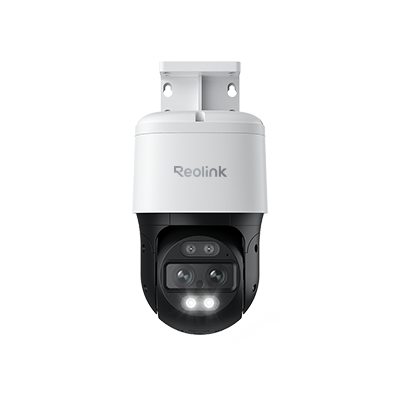
4K Dual-Lens PTZ Camera with Dual Tracking
4K 8MP Ultra HD, Wide & Telephoto Lenses, Pan & Tilt, Auto-Tracking, Person/Vehicle Detection, Power over Ethernet, Two-Way Audio.
FAQs
How can I connect my phone to my TV without Wi‑Fi and remote?
Use a direct cable link. For Android, a USB‑C‑to‑HDMI adapter projects the phone screen onto the TV. For iPhone, use a Lightning‑to‑HDMI adapter. Plug the adapter into the phone, connect an HDMI cable from the adapter to the TV, and press the TV’s physical “Input” button until the correct HDMI channel appears. Content now mirrors without Wi‑Fi or a remote.
How do I manually connect my smart TV to Wi‑Fi?
Look for a small set of buttons on the TV itself—often under the logo or on the back. Press the “Menu” or “Settings” button. Navigate with the arrow keys to “Network,” then “Wireless.” Choose your Wi‑Fi name, enter the password using the on‑screen keyboard and arrow keys, and confirm. The TV will complete the connection.
How to connect TV to Wi‑Fi with phone?
Install the brand’s official remote app (such as Samsung SmartThings, LG ThinQ, or Vizio SmartCast). Make sure the TV and phone share the same network, or connect the TV with an Ethernet cable first. Launch the app, let it find the TV, and pair. Open network settings inside the app, select your Wi‑Fi, and enter the password. The app sends the credentials to the TV.
How can I connect my phone to my TV without Wi-Fi and remote?
You can connect your phone to your TV without Wi-Fi or a remote by using a wired connection such as HDMI (via an adapter for your phone) or USB-C/Lightning to HDMI. Once connected, the TV should automatically switch to the input, allowing your phone’s screen to display on the TV.
Conclusion
Setting up a smart television without its original controller does not need to be hard. This guide showed how to connect my TV to WiFi without remote by using a USB keyboard or mouse, buying a universal replacement, plugging in an Ethernet cable, renaming your router, or turning your phone into a hotspot. Brand‑specific tips for Roku, TCL, and Vizio models prove that each manufacturer offers a clear path when you lose the handheld device. Share your experience in the comments—your feedback can help someone facing the same problem.
Search
Subscribe for the Latest Updates
Security insights & offers right into your inbox