
How Old Is My Phone? Quick Ways to Check Your Phone’s Age

Wondering how old your phone is? You can usually find out by checking when it was purchased, activated, or manufactured. Your receipt or order history is often the easiest place to start, while the phone’s settings, serial number, IMEI, or the manufacturer’s support page can provide additional details.
This guide walks you through the easiest ways to check your phone’s age, with specific steps for iPhone, Samsung, Google Pixel, Xiaomi, and OnePlus devices.
How Old Is My Phone? 4 Quick Ways to Check
You can find out how old your phone is by looking at the manufacturing date on its retail box, checking the “About Phone” settings, or searching the serial number online.
Before we dive into brand-specific tricks, let’s cover 4 quick steps that work on almost every device. Pick the one that feels easiest, and you will soon know how to tell how old your phone is.
Method 1: Check the retail box
- Check out if there is a sticker on the retail box that contains barcodes and numbers.
- Then find the manufacturing date on this sticker.
Method 2: Go to your phone's settings.
- For iPhone users: Go to Settings > General > About and note down your serial number for the next step.
- For Android users: Go to Settings > About Phone, where the manufacturing date may be displayed directly.
Method 3: Use the serial number
- Enter your phone’s serial number on the brand’s official website. For example, iPhone users can use Apple’s Check Coverage page to view the warranty status and original purchase date.
- You can also use third-party lookup tools online. These services can decode your phone’s serial number or help you check the model number and its release date.
Method 4: Check the Battery Compartment or SIM Tray
- If you're using an older or removable-battery phone, turn it off and check behind the battery, under the back cover, or around the SIM tray for a label containing device information.
- Some phones may display a manufacturing date or code, such as "2023-04-15" or a year-and-week format. This information can help you estimate when the device was manufactured.
Keep in mind that not all phones display manufacturing information in these locations, and the format varies by brand and model.
Just like with smartphones, knowing how to look up the model and serial number of your Reolink IP cameras can make troubleshooting much easier.
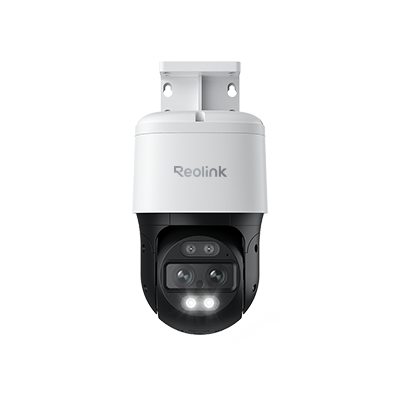
4K Dual-Lens PTZ Camera with Dual Tracking
4K 8MP Ultra HD, Wide & Telephoto Lenses, Pan & Tilt, Auto-Tracking, Person/Vehicle Detection, Power over Ethernet, Two-Way Audio.
How Old Is My IPhone?
Apple offers clear tools that make it simple to answer how old your phone is if you own an iPhone.
Method 1: Check Apple Coverage Information
Go to Settings > General > About > Coverage (or Limited Warranty) to view your current warranty or AppleCare information.
You can also find your serial number under Settings > General > About, then enter it on Apple’s Check Coverage page to view available coverage and purchase information.
If your iPhone is still covered by Apple’s standard limited warranty, the coverage information can help you estimate when it was originally purchased or activated. However, the warranty expiration date should not always be treated as the exact activation date, especially if the device has AppleCare+ or its standard coverage has already expired.
Method 2: Check Battery Dates on iPhone 15 and Later
If you have an iPhone 15 or later running iOS 17.4 or later, go to Settings > Battery > Battery Health. Depending on your iOS version, you can find details including:
- Manufacture Date – when the iPhone’s battery was manufactured
- First Use Date – when the battery was first used
- Cycle Count – how many charge cycles the battery has completed
The First Use Date can be particularly useful for estimating when the iPhone began being used. Keep in mind that the Manufacture Date shown here refers to the battery, not necessarily the manufacture date of the iPhone itself.
Method 3: Decode the Serial Number on Older iPhones
For some older iPhones, the serial number can provide information about the device’s manufacturing period. You can find the serial number under Settings > General > About.
Apple’s older serial-number format contained manufacturing information that could be used to estimate when an iPhone was produced.
However, Apple began switching to randomized serial numbers in 2021, so this method does not work with newer iPhones. If your device uses a randomized serial number, use Apple’s coverage information or other purchase records instead.
How to Check How Old My Android Phone Is?
The way to check an Android phone's age varies by manufacturer. Below are the available methods for Samsung, Google Pixel, Xiaomi, and OnePlus phones.
Method 1: Samsung — Secret code #12580369# or serial decoding
Samsung provides a built-in hardware diagnostic tool to reveal manufacturing dates:
- Secret Code: Open the Phone app, type
*#12580*369#, and press call. Look for the RF Cal (Radio Frequency Calibration) line. A value like20241015means the hardware was assembled and calibrated on 15 October 2024. - Serial Decode (Fallback): If your carrier disables secret codes, check your 11-digit S/N under Settings › About phone. The 4th character marks the year (W = 2023, X = 2024, Y = 2025, Z = 2026), and the 5th character marks the month (1–9 for Jan–Sep, A–C for Oct–Dec).
Note: You can also check the Samsung Members app under Support › Warranty Info to view your official registration date.
Method 2: Google Pixel — Decode the serial number
Google encodes the precise manufacturing date into the first four characters of the device serial number (found in Settings › About phone):
- 1st character: Year (3 = 2023, 4 = 2024, 5 = 2025, 6 = 2026)
- 2nd character: Month in hexadecimal (1–9 = Jan–Sep, A = Oct, B = Nov, C = Dec)
- 3rd & 4th characters: Day of the month (01 to 31)
For example, a serial starting with "5B12..." means the Pixel left the factory on 12 November 2025. You can verify your live server records under Settings › About phone › Warranty details.
Method 3: Xiaomi — Product authentication tool or serial decode
Xiaomi provides both web-based verification and serial number lookup:
- Official Checker: Obtain your 15-digit IMEI by dialing
*#06#, then visit the official Xiaomi Product Authentication page. Entering your IMEI reveals the exact date the device first registered on Xiaomi servers. - Serial Decode: Inspect the Serial Number (SN) on your box or under Settings › My Device › All Specs. The 10th character denotes the year (P = 2024, Q = 2025, R = 2026), and the 11th character marks the month (A = Jan, B = Feb, and so on).
Method 4: OnePlus — Settings menu or Red Cable Club
On modern OnePlus devices, finding your device age no longer requires installing separate legacy diagnostic apps:
- System Check: Go to Settings › About device and tap Warranty & Benefits (or open the built-in Red Cable Club app). The system pulls purchase records and activation dates straight from OnePlus servers.
- Serial Decode: Look at the serial number under Settings › About device › Status. The 3rd and 4th characters mark the year (e.g., "24" = 2024), and the 5th character points to the manufacturing month.
Why Checking How Old Your Phone Is Matters?
Before we jump into the quick tricks for figuring out how old your phone is, it helps to know why this question matters in the first place.
- Warranty and repair costs: Most brands offer a fixed warranty window that starts the day you activate the phone.
- Security and software support: Manufacturers ship updates for a limited number of years. When your phone reaches that cut-off date, it loses security patches and fresh features.
- Battery health and performance: Batteries age in both charge cycles and calendar years. If your phone is two or three years old, you can expect shorter run time and slower charging.
- Resale or trade-in value: The newer a phone looks on paper, the more cash you can earn when you sell it.
- Key dates to track: You need to keep track of Release Date, Manufacturing Date, Purchase Date, and Activation Date. Each date answers a different question about how old your phone is.
How Long Do Phones Usually Last?
Most modern smartphones last three to five years before they feel slow, lose software support, or need pricey repairs. High-end models may receive security updates for seven years, but batteries often drop below 80 percent health after 800 charge cycles—roughly three years of daily charging.
Screens survive longer unless you crack them, and chips stay fast enough for casual use. If your phone crosses the five-year mark, parts grow scarce and resale value shrinks, so plan to upgrade soon.
FAQs
How can you tell how old a mobile phone is?
Every phone ships with a unique serial number and a 15-digit IMEI (International Mobile Equipment Identity). The easiest way is to check your purchase or activation date, phone settings, original packaging, or the manufacturer's support page. A serial number or IMEI can also help you look up device information, although the available details vary by brand and model.
How do I tell how long I've had my phone?
Find the activation date, which is the day you first inserted a SIM or connected to Wi-Fi during setup. You can see that date on many warranty portals, inside brand support apps, or in your Google or Apple account history. Subtract the activation date from today’s date, and you have the exact time you have owned the phone.
How do I check which year I bought my phone?
You can check the year you bought your phone by looking up its purchase receipt or order history, checking the warranty info on the manufacturer’s website using your serial number, or reviewing the activation date in your phone’s settings.
How do I find out the original date of my phone?
The “original date” can mean the model’s public Release Date or your specific unit’s Manufacturing Date. For the Release Date, search the model name plus “launch.” For the Manufacturing Date, read the serial number or the sticker under the battery/SIM tray.
How do I check what year my iPhone was made?
For older iPhones, the serial number may contain information that can help identify the manufacturing year. You can find it under Settings > General > About > Serial Number. However, Apple began using randomized serial numbers in 2021, so this method does not work for newer models.
For newer iPhones, check your purchase or coverage information instead. On iPhone 15 and later, you can also view the battery’s manufacture date under Settings > Battery > Battery Health, but note that this is the battery manufacture date, not necessarily the iPhone’s production date.
Conclusion
You now have clear steps to know how to tell how old your phone is. First, learn why age matters for warranty, security, battery, and resale. Next, try the three universal methods or the brand-specific tricks for Android and iPhone.
And, remember that most phones serve you well for three to five years, but age shows in slower updates and weaker batteries. Did these tips help you uncover your phone’s true birthday? Share your findings or extra tricks in the comments—we’d love to hear from you!
Search
Subscribe for the Latest Updates
Security insights & offers right into your inbox