
Hey Google Not Working? Causes & Troubleshooting Guide
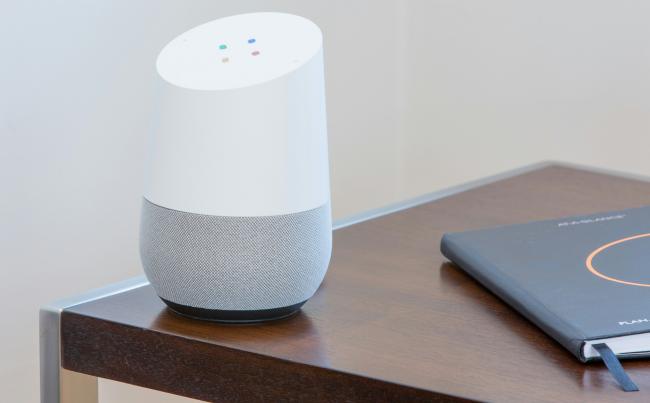
Many phone and smart speaker owners rely on the voice hotword “Hey Google” for quick tasks. When the feature stops listening, daily routines grind to a halt, and the first question that comes up is, “Why isn't my Google working?”
This guideline takes one through the most common reasons and presents clear procedures that restore the assistant to the internet. The tips are compatible with Android phones and Nest displays, among similar devices, which have the Google Assistant. Take one step after the other in each part, and you will be able to hear the old chime once more.
Why Is My Hey Google Not Working?
On a phone, the Assistant depends on microphones, settings, and power management. A single change can silence the hotword. The points below explain why you might notice Hey Google not working on Android and outline what to check first.
Microphone muted or blocked
Google Assistant needs a clean audio path. If the phone case covers the mic hole or lint sits inside, the hotword never reaches the software. Most of the users tend to turn on the physical mute key of some of the phones during meetings and forget about it. Launch the voice recorder app, talk and listen to it. In case the recording is too low, wipe the mic port, and switch off the hardware mute.
Wrong language or voice model
The assistant processes the hotword based on the language pack you selected. The model can not recognise your accent when you set up a second language, or when you change the system locale. Open the Google application > Settings Voice Languages and select an appropriate language that you speak regularly. After that, retrain Voice Match in the Assistant settings, which will make the model learn to pronounce you again.
Battery saver or power settings stop background listening
Android battery saver, designed for longer runtime, often restricts background microphones. The phone will then suspend the Google app when it activates until you open the phone door. Check Settings > Battery > Battery Saver and switch it off. On Samsung phones, disable the Google application in the sleeping apps list. Also, disable any third-party optimizer that pauses background services.
Outdated Google app or Play services
Each Assistant update refines hotword detection. If your Play Store blocks auto-updates on mobile data, the installed version may be months old. Open Play Store, search “Google,” and press Update. Also, update Google Play services and Device Health Services. A fresh build often clears mysterious voice issues in one step.
Why Is Hey Google Not Working on Smart Hubs?
Smart displays and speakers work in a controlled sound field yet share some of the same failure points. The items below describe why you might run into OK Google not working on Nest Hub and related gear. Start with the simplest option first.
Mic hardware switch off
Every Nest Hub, Mini, or Audio includes a physical microphone switch for privacy. When the orange sign shows, the assistant ignores the hotword. Move the slider back, wait for the device to say the microphones are on, and test again. The switch resets after power cuts, so check it after an outage.
Hotword sensitivity set too low
Recent firmware lets you change how easily the hub wakes. If you lowered sensitivity to reduce false triggers, the device may now miss real queries, especially with background noise. Open the Google Home app, pick the device, select Audio, then Hotword sensitivity. Slide the bar one step higher and try calling it again.
Wrong account linked to the hub
Assistant responds only to accounts with Voice Match enrolled. If you changed the default user, personal requests stop working even though other users still trigger the device. In the Home app, long-press the hub, press the gear icon, and check the linked account. Remove and add your account if necessary, then retrain Voice Match.
Network or DNS issues
The assistant must send every query to Google servers. A spotty Wi-Fi link or a custom DNS that blocks Google domains can break communication. In the Home app, open Device Info, examine signal strength, and run the built-in network test. If results show poor quality, move the hub closer to the router, switch to the 2.4 GHz band, or change DNS to the router's default.

Reolink Spring Sale - Step Into Spring, Step Into Security!
Reolink Spring Sale is here! Grab top deals on security cameras, doorbells, and systems to keep your home safe this season.
How to Fix Hey Google Not Working?
After you identify the likely cause, move through the practical fixes below. The tips start with quick checks, advance to setting tweaks, and finish with deeper methods. Test the hotword after each step so you know which action solved the problem.
Basic checks
- Check microphone mute icons: Look for a crossed-out mic on your phone status bar or smart hub. Disable the mute switch and confirm the icon disappears.
- Speak at normal volume: Stand one arm’s length from the device and say the hotword clearly. Soft speech can fail to hit the activation threshold.
- Remove case and screen guard: Thick accessories can block sound holes. Take them off, then try the voice command again.
- Restart the device: Hold the power key, choose Restart, and wait for a full boot. This reloads audio drivers and clears stalled services.
- Check network: Ensure the phone or hub uses a stable Wi-Fi or cellular link. Open a web page to confirm data flows.
Software and setup
- Update Google app and Play services: Use the Play Store or App Store to install the latest versions, then reboot.
- Retrain Voice Match: Go to Assistant settings > Hey Google & Voice Match, delete the old voice model, and add a new one while in a quiet room.
- Set primary language: In Google app settings, select Voice > Languages and choose only the language you use every day.
- Disable battery saver: Turn off system battery-saving modes and remove the Google app from any aggressive power manager list.
- Clear Google app cache: In Android settings, Apps > Google > Storage, press Clear cache to remove corrupted temp files.
Other advanced troubleshooting
- Remove and re-add Google account: In Settings > Accounts, remove the account, reboot, and add it back. This refreshes authentication tokens.
- Reset app preferences: In Android settings, select Apps, tap the three-dot menu, and choose Reset app preferences. This restores disabled system services.
- Factory reset smart hub: Hold both volume keys on the Nest Hub for ten seconds until the screen goes black. Set it up again in the Home app.
- Manually install the latest firmware: Opt in to the Nest Public Preview to get newer firmware that includes audio fixes. You can leave the program after the update completes.
How to Prevent Hey Google Issues in the Future?
Keeping the Assistant healthy saves time next time you say the hotword. The habits below reduce the odds of another breakdown and keep response times fast.
- Enable auto-updates: Turn on auto-updates on Google apps, Play services, hub firmware, etc., and you will receive updates containing new patch changes without having to visit the update screen to confirm them.
- Clean microphones often: Dust from the mic holes on the phones and the back of smart speakers should be removed with the help of a soft brush or compressed air.
- Reliable charger: Cheap adapters run on low voltage, which will set up power saving on phones and choke the Assistant.
- Keep a good Wi-Fi connection: Place the routers close to smart hubs, update the firmware regularly, and do not use the routers in the channel that is occupied by other neighbouring stations.
- Change power settings every month: On the day after the OS updates, take a look at battery optimisations, making Google Assistant and the Google app exceptions.
FAQs
How do I activate Hey Google again?
Open the Google application, then, in the upper right corner, tap on your profile, then, in the top right of your profile, tap on settings, and on Google Assistant. Tap Hey Google & Voice Match, turn on the switch, and tap the instructions on the screen in order to have your voice trained. Test by saying the hotword. It is important to have the screen turned off.
How do I restart Google Assistant?
Restart the device. A restart interrupts and restarts all the Assistant services. In Android, hold the power button and then select Restart. In the smart hubs, disconnect the power cable and wait ten seconds, and connect again. Upon completion of the boot, say Hey Google to the device to check.
Why is my Google Voice not working?
Google Voice requires an internet connection and an authenticated account. Connect to the Wi-Fi or cell data, open the Google Voice application, and make sure that you are signed in and clear the cache of the application, upgrade the app, and make sure that the applications have permission to use the microphone, App info. In case of further failure of calls, reinstall the app.
Conclusion
The phrase “why isn't my Google working?” usually points to muted microphones, outdated apps, or weak networks. Android owners watch for settings that restrict background listening, while Nest users inspect physical switches and Wi-Fi strength.
Follow the structured checks, progress to software tweaks, and finish with resets only when needed. Share your findings below so other readers can resolve their Hey Google not working on Android faster.
Search
Subscribe for the Latest Updates
Security insights & offers right into your inbox