
How to Change Alexa Voice?
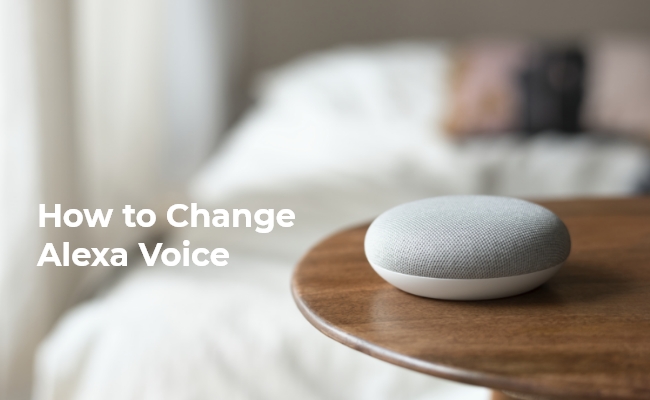
Alexa, Amazon's virtual assistant, has become a household name, assisting us with various tasks and making our lives more convenient. While her default voice is pleasant and easy to understand, some users may want to personalize their experience by change Alexa voice.
Fortunately, Amazon provides several options to customize Alexa's voice, ranging from different accents and languages to celebrity voices. In this article, we'll explore how to do Alexa voice change on various devices, including the Echo, Echo Show, and the Alexa app, so you can tailor your experience to your preferences.
Can I Get Different Voices for Alexa?
Absolutely! Amazon offers a variety of voice options for Alexa, allowing users to customize their experience. Whether you prefer a different accent, language, or even a celebrity voice, Alexa can adapt to your preferences. This versatility ensures that you can enjoy an experience that feels more personal and tailored to your tastes.
Changing Alexa's voice is not only a matter of preference but also serves practical purposes. For instance, if you're learning a new language, you can set Alexa's voice to that language, immersing yourself in the pronunciation and intonation.
Note: Some security cameras can also be controlled by voice commands. For instance, the new Reolink Argus 4 Pro is compatible with Google Assistant, allowing you to control it using your voice.
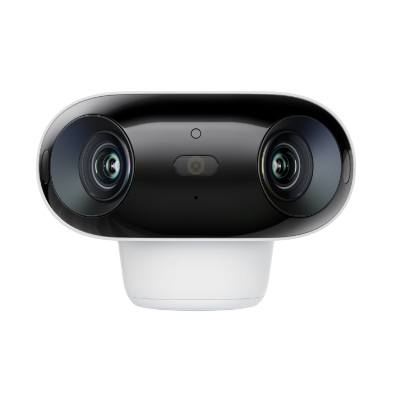
4k 180° Wire-free Color Night Vision Camera
4K UHD 180° Blindspot-free View; Color Vision Day and Night; 30% More Battery Life; Dual-band Wi-Fi 6; Smart detection.
How to Change Alexa Voice Using the Alexa App
If you own an Amazon Echo or Echo Show, you can change Alexa's voice directly from the device itself. Here's a step-by-step guide to help you through the process:
Step 1: Open the Alexa App
Start by opening the Alexa app on your smartphone or tablet. The app is available for both iOS and Android devices, and it serves as the central hub for managing your Alexa devices and settings.
Step 2: Select the Device Settings
From the app's main menu, locate the "Devices" option and select the Echo or Echo Show device for which you want to change Alexa's voice. This will take you to the device-specific settings.
Step 3: Navigate to the Language Settings
Once you're in the device settings, look for the "Language" or "Voice" section. This is where you'll find the options to change Alexa's voice. Depending on your device's software version, the exact label may vary slightly.
Step 4: Choose Your Preferred Voice
Scroll through the available voice options and select the one you prefer. Amazon offers various accents and languages, including American English, British English, Australian English, and more. You can even find options like Hindi, Spanish, and French, making Alexa truly multilingual.
Step 5: Confirm the Voice Change
After selecting your desired voice, confirm the change by following the on-screen prompts. Alexa will then respond with her new voice, confirming the successful switch. You can also ask Alexa to repeat her voice change to ensure it's the one you wanted.
Using Alexa's voice control, you can also manage your security camera. However, you need to choose an Alexa-compatible device, such as the Reolink Argus PT. After connecting this 2K+ 5MP battery-powered camera to Alexa, you can view real-time footage by saying, "Alexa, show me the front door camera."
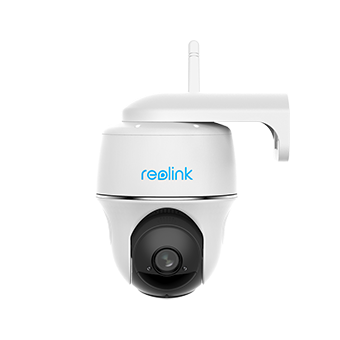
100% Wire-Free PT Camera
2K+ 5MP Super HD; 5GHz/2.4GHz WiFi; Rechargeable Battery & Solar Powered; 355° Pan & 140° Tilt; IP65 Certified Weatherproof; Color Night Vision; 2-Way Audio; 122° Wide Viewing Angle.
How to Change Alexa's Voice Using Voice Command?
- Make sure your Alexa device is connected to the internet. A stable internet connection is required for voice settings to update properly.
- Wake Alexa and give a voice command. Say “Alexa, change your voice” or “Alexa, choose a new voice.”
- Listen as Alexa switches voices. Alexa will toggle between the default female voice and the available male voice.
- Try alternative commands if needed. You can also say “Alexa, I want a different voice” to switch voice options.
How to Change Alexa to Celebrity Voices?
In addition to the standard voice options, Amazon has partnered with various celebrities to offer their voices for Alexa. This unique feature adds a touch of personality and excitement to your Alexa experience. Here's how to enable celebrity voices:
- Open the Alexa app and navigate to the "Skills & Games" section.
- Search for the celebrity voice you want, such as "Samuel L. Jackson" or "Melissa McCarthy."
- Select the corresponding skill and enable it by following the on-screen instructions.
- Once enabled, you'll typically need to purchase the celebrity voice through a one-time payment or subscription.
- Follow the on-screen instructions to complete the purchase and set up the celebrity voice.
- Once purchased, you can ask Alexa to switch to the celebrity voice by saying, "Alexa, switch to [celebrity name]'s voice."
Keep in mind that celebrity voices may have limited functionality compared to Alexa's default voices, and they may not be available in all regions or languages.
Upgrade: In May 2023, Amazon announced that Jackson's voice was discontinued after June 7, 2023.
FAQs
Can you change Alexa's voice to Samuel L. Jackson?
No, you can’t change Alexa’s default voice to Samuel L. Jackson. Amazon previously offered Samuel L. Jackson as a celebrity voice add-on, but it has been discontinued and is no longer available for new or existing users.
How to give Alexa an Irish accent?
You can give Alexa an Irish accent by changing the English (Ireland) voice in the Alexa app.
- Open the Alexa app on your phone or tablet.
- Go to Devices → Echo & Alexa, then select your Alexa device.
- Tap the Settings icon, then choose Language.
- Select English (Ireland).
Can I give my Alexa a custom voice?
Currently, Amazon does not offer the option to create a custom voice for Alexa. The available voices are pre-recorded by Amazon and their celebrity partners, and users cannot upload or create their own custom voices.
Conclusion
Changing Alexa's voice is a simple process that can add a personalized touch to your smart home experience. Whether you prefer a different accent, language, or a celebrity voice, Amazon provides various options to customize Alexa's voice on your Echo, Echo Show, or the Alexa app. Experimenting with different voices can make your interactions with Alexa feel more natural and engaging, tailored to your preferences and needs.
We'd love to hear your thoughts and experiences with changing Alexa's voice in the comments below. Share your favorite voice options, tips, or any challenges you may have encountered during the process. Your feedback can help others navigate this customization feature and make the most of their Alexa experience.
Search
Subscribe for the Latest Updates
Security insights & offers right into your inbox