
Why Is My Monitor Flickering? Common Causes & Fixes

Monitor screen flickering is the quick, repeated flash or blink that turns a steady picture into a strobe-like distraction. If you have ever asked yourself, “Why my monitor is flickering?” you are not alone; this is one of the most common support calls in homes and offices.
The good news is that the causes are well known and most fixes take less than thirty minutes. This article walks through every major reason the image wavers and gives clear, step-by-step cures you can handle without special tools.
Why Is My Monitor Flickering?
In most cases, the image on the screen blinks because the video signal arriving at the panel is not steady. The next sections list the five areas that trigger almost every flickering monitor complaint.
Outdated or corrupt graphics drivers
The small program, which informs Windows, macOS, or Linux on how to communicate with the graphics card, is the driver. In the event that the driver file is outdated or corrupt, the card may pass the broken frames to the monitor, and you observe fast flashes. Visit the card maker’s site, NVIDIA, AMD, or Intel, download the newest package, choose “clean install,” restart the computer, and test. If the blink stops, you solved the cheapest culprit first.
Loose or damaged cables
The data stream is interrupted by a split-second plug that fits half-out of the port, resulting in the screen going black or displaying lines and subsequently returning. Turn it off, insert all video connections with a push-fit, and screw the VGA or DVI brand, and ensure that the locking clips with HDMI and Displayport connect.
Incorrect refresh rate settings
The refresh rate tells the monitor how many times per second it should repaint the image. A mismatch between what the graphics card outputs and what the screen expects produces a fast pulsing flicker. Right-click on the desktop in Windows, pick “Display settings,” then “Advanced display settings,” and choose the rated hertz for your model, usually 60 Hz for basic office panels, 75 Hz, 120 Hz, 144 Hz, or higher for gaming screens.
Faulty monitor hardware
Every LCD or OLED panel contains a small board that turns the incoming video signal into the picture you see. If a capacitor on that board bulges or a solder joint cracks, the backlight or the entire image can strobe. Test for this by plugging the monitor into a different computer or game console.
Electromagnetic interference
Fluorescent lights, desktop fans, space heaters, and cheap phone chargers create radio noise. That noise rides the power line or flies through the air and upsets the sensitive timing inside the panel.
Why Is My Computer Monitor Flickering?
The same failure points show up on every computer, yet the symptoms change slightly depending on how you use the machine. The sections below explain why my monitor flickers depending on the case.
While gaming
Games push the graphics card to its limit. If power delivery to the card wobbles or the card’s memory overheats, the driver can reset mid-battle, and the screen flashes black for one or two seconds. Cap the frame rate to the panel’s maximum refresh, turn off “overclock” utilities, and clean dust from the card’s fans.
On laptop
A laptop screen receives the video signal through a thin ribbon cable that passes through the hinge. After thousands of open-close cycles, that cable can wear, and the image blinks or shows odd colors when you move the lid. First, update the driver and set the refresh rate as described earlier. If the flicker happens only at certain lid angles, the ribbon is breaking.
On Mac
Modern Mac desktops and notebooks use Apple-signed drivers that arrive through macOS updates. If you deferred updates, the old driver can clash with the Retina panel’s timing. Open System Settings, General, Software Update, and allow every pending patch.
Why Is My Secondary Monitor Flickering?
Adding a second screen can double your desktop space, yet it also doubles the places where the signal can break. Start with the list below; most dual-monitor setups stabilize after one of these checks.
-
Different refresh rules: Windows allows unique refresh rates per monitor. If screen one runs at 144 Hz and screen two at 59 Hz, older applications can poll both rates, and the lower panel blinks. Set every monitor to 60 Hz as a test, then raise the gaming panel back to its native rate once the trouble is gone.
-
Underpowered graphics card: Two 4K streams need more memory bandwidth than one. Open the card control panel, lower the resolution on the secondary monitor to 1080p, and see if the flash stops. If it does, the card is at its limit.
-
Bad docking station: Many USB-C docks reuse a single DisplayPort lane for two outputs. Swap the dock for a model that dedicates a full lane per port, or plug one monitor straight into the computer.
-
Shared ground loop: When two screens take power from different walls, the slight voltage difference can travel down the HDMI shield and create a rolling bar. Plug both into the same power strip and, if necessary, add an in-line ground-loop isolator on the audio or video line.
Why is My CCTV Picture Flickering on Monitors?
Traditional CCTV cameras send an analog-like signal over long coax runs, and any break in that chain shows up as a flicker on the guard station monitor. The bullet list below covers the causes technicians check first.
-
IR blaster reflection: Night-vision LEDs can bounce off a nearby wall back into the lens, overload the sensor, and create a pulsing image. Tilt the camera or add a small shade.
-
Ground-loop hum on 60 Hz mains: The camera and the DVR often sit on separate circuits. Install a ground-loop isolator at the DVR end or run a single 18 VAC power supply for every camera.
-
Damaged BNC connector: Twist-on connectors let the shield braid touch the center pin after months of heat-cool cycles. Cut off the old end and crimp a new RG-59 plug.
-
Fluorescent or LED bulb in the scene: Cheap bulbs strobe at twice the mains rate, and the camera captures it. Swap the bulb for a high-quality type or raise the shutter speed above 1/120 s.
-
DVR frame rate too low for panel refresh: Some DVRs default to 15 frames per second. Set the channel to 30 FPS, and the monitor stops twitching.
To prevent these issues, opt for modern IP cameras with reliable PoE or WiFi connections to avoid monitor flickering. Selecting cameras with advanced video compression and higher frame rates can also improve video quality.
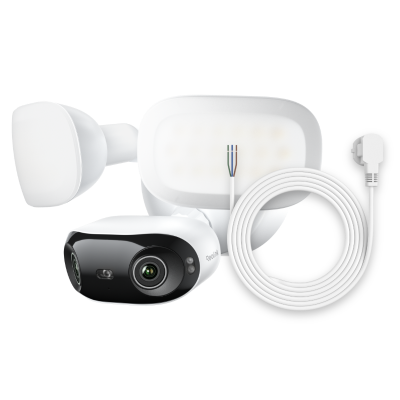
4K 180° Ultra-Wide Wired Floodlight Security Camera
3000-Lumen Dimmable Lighting, Adjustable Color Temperature, Local AI Video Search, Local Storage, Dual-Band Wi-Fi 6.
How to Fix Flickering in Monitor?
Now that you know which side of the chain is guilty, walk through the numbered cures below. Work in order; each step is free or low-cost, and you can stop as soon as the picture stays solid.
Update or roll back graphics drivers
Head to the vendor site, grab the newest driver, and choose “clean installation” so old scraps do not linger. If the flicker began right after a driver update, open Device Manager, click “Properties,” “Driver,” and “Roll Back Driver.” Reboot and test.
Check and replace video cables
Unplug every video wire, look for bent pins or cracked plastic, then reseat firmly. Swap in a brand-new cable that meets the version your monitor and card expect, HDMI 2.1, DisplayPort 1.4, or VGA for very old equipment. Keep the new cable away from power bricks and loop it once to avoid tension.
Adjust refresh rate and resolution
Open display settings, choose the native resolution first, then pick the highest hertz the panel lists. Click “Keep.” If the screen goes black for more than ten seconds, Windows rolls back automatically; no harm done.
Test the monitor on another computer
Carry the monitor and its power cord to a second PC or even a game console. If it still flickers, the defect lives inside the panel, not inside your main box. Record a short video on your phone; most warranty desks accept that as proof.
Eliminate external interference
Move high-load motors, heaters, and phone chargers two feet away. Plug the monitor into a filtered power strip or a small UPS. If you run many devices on one wall outlet, spread them across two outlets on different breakers and retest.
FAQs
Why is my monitor flickering on and off?
A one or two-second black screen reappears as the video signal or the electricity that sustains the panel in movement is being interrupted. Start with the little power LED on the lower edge of the bezel.
Is a flickering monitor bad?
Yes, both in the long term and in the short term. When you change brightness so quickly in the short run, the muscles of your eyes are forced to refocus dozens of times every minute, causing headaches, dry eyes, and a decline in productivity.
What is a likely cause of a display flickering?
The most prevalent trigger is a video cable without a complete fit in its port: HDMI, DisplayPort, DVI, or VGA. Through months of desk motion, temperature variation, and mere gravitational pressure, the plug will slowly creep outwards gradually by a few millimetres until one or two of the high-speed data pins will briefly lose contact to allow the next unit of time, a microsecond, to pass.
Conclusion
Monitor screen flickering can stem from bad drivers, loose cables, wrong refresh rates, dying hardware, or outside interference. Work through each area one by one, update drivers, secure cables, set the right hertz, isolate the panel on a second computer, and clean up the power source.
In most cases, the picture stabilizes within an hour, and you avoid an expensive replacement. If you found another cause or a simpler fix, share your story below; your tip might save the next reader a full afternoon of troubleshooting.
Search
Subscribe for the Latest Updates
Security insights & offers right into your inbox