
What Is My Default Gateway? A Simple Guide

Your home network sends data between your devices and the internet all the time. The device that makes this work is the default gateway. If you wonder, “What is my default gateway IP address and why should I care,” this guide gives you clear answers. You will see what a default gateway does, why it matters, how to find it on any device, and how to fix common problems.
What Is My Default Gateway?
The device that routes traffic on your local network to other networks, such as the internet, is your default gateway. The Wi-Fi router or a modem router is the default gateway for most houses. When your computer or phone is interested in loading a site, it directs the request to the gateway of last resort. The gateway transfers the information to the correct address.
Your local network has an IP address for your gateway. Devices use this gateway IP address as the next hop IP to the internet. It usually resembles 192.168.0.1, 192.168.1.1, 10.0.0.1 or 192.168.1.254. The specific figure varies with the setting of the router.
Why Is Default Gateway IP Address Important?
Now that you know what it is, it helps to see why it matters. The gateway is not just a number. It is the path out of your network and the door to your router’s controls.
-
Internet access: Your machine directs traffic to the default gateway when it wants to get to anything external to your local network. Without the response of the gateway, web pages time out, and apps display errors.
-
Router sign-in: You put the IP address of the gateway into a browser, where you log in to the web page of the router. It is there you activate parental controls, install firmware updates, set port forwarding, and set the Wi-Fi name and password.
-
Troubleshooting: A problem occurs, step-by-step test the path. First, check whether you can access the gateway. Then the internet should be tested. When you can access the gateway but not the internet, then the problem lies with the router or your internet provider.
-
Security: The router is placed between your devices and the internet. It operates a firewall and NAT to assist in screening undesired traffic. The strictness of those protections is regulated by Gateway settings.
-
Advanced configuration: The router page leads to options such as static IPs, VPN passthrough, DNS settings, and quality of service. The gateway IP is required to access that page and optimize streaming, games, or calls.
How to Find Default Gateway?
You can find your gateway IP address on any device in a minute or two. The path varies by operating system, but the steps are simple.
Mac
If you search “what is my default gateway mac,” you see many guides. These steps work on current macOS versions.
- Click the Apple menu and open System Settings.
- Click Network in the sidebar.
- Select your active connection. For Wi-Fi, click Wi-Fi, then click your connected network name. For Ethernet, click Ethernet.
- Click Details or Advanced for that connection.
- Open the TCP/IP tab.
- Read the Router field. That number is your default gateway.
Windows
You can use Settings or a quick command.
- Open Settings and go to Network & Internet.
- Click Wi-Fi if you use Wi-Fi, or Ethernet if you use a cable.
- Click your current network.
- Scroll to Properties.
- Find the Default gateway. The number shown is the gateway IP.
Android/iPhone
Phones and tablets show the gateway in Wi-Fi details. Labels vary by version, but the flow is the same. If you need to search, use “what is my default gateway Android” for Android steps.
On iPhone or iPad
- Open Settings and tap Wi-Fi.
- Tap the info icon next to your connected network.
- Scroll to the IPv4 Address section.
- Read Router. That number is the gateway IP.
On Android
- Open Settings and tap Network & Internet or Connections.
- Tap Wi-Fi, then tap the gear icon for your current network.
- Tap Advanced or IP settings if needed.
- Find the Gateway or Router. The number shown is your default gateway.
Linux
Linux gives you several choices. Pick the one that fits your tools. We will do with the terminal.
- Open a terminal.
- Type ip route and press Enter.
- Find the line that starts with “default via.” The IP after “via” is your default gateway.
What to Do If My Default Gateway Is Not Available?
Sometimes Windows shows “Default gateway not available,” or your phone joins Wi-Fi but cannot reach the internet. This usually means your device cannot talk to the router. Work through the steps below. Test after each step to see if the link returns.
- Restart the basics: Power cycle the router and your device. Unplug the router for 15 seconds, plug it back in, and wait two minutes. Restart your computer or phone. This clears bad caches and resets the network stack. Many issues end here.
- Update or reset network drivers and settings: On Windows, open Device Manager, expand Network adapters, right-click your Wi-Fi or Ethernet adapter, and choose Update driver. If the issue stays, choose Uninstall device and restart.
- Check security software, VPN, and firewall rules: Turn off VPN and security apps for a short test. Strict rules can block local traffic and stop access to the gateway. If it works with those tools off, allow local subnets like 192.168.0.0/16 or 10.0.0.0/8 and turn the tools back on.
- Verify Wi-Fi and IP configuration: Make sure you connect to the right SSID and that the password is current. Check that your adapter uses DHCP if your router hands out addresses.
Can I Change My Default Gateway?
Yes. You can change your default gateway, but do it with care. On most home networks, your device gets the gateway from DHCP on the router. When you assign a fixed IP to the device, you may type in another gateway. That is provided that the gateway you get in is valid in your network. Entering the wrong number will cause the loss of the internet connection on the device. You can also update the local network settings for your security cameras and NVR, including changing the default gateway of cameras linked to the NVR, to avoid IP conflicts.
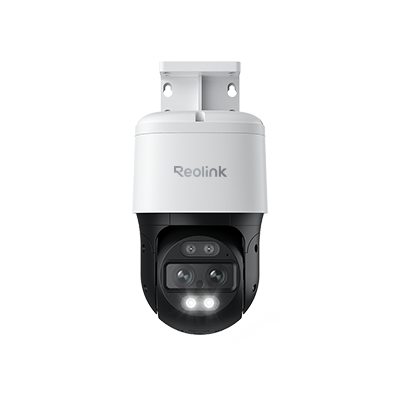
4K Dual-Lens PTZ Camera with Dual Tracking
4K 8MP Ultra HD, Wide & Telephoto Lenses, Pan & Tilt, Auto-Tracking, Person/Vehicle Detection, Power over Ethernet, Two-Way Audio.
FAQs
How do I find my Default Gateway?
Open your network settings and read the field named Router, Gateway, or Default gateway. On Windows, run ipconfig in Command Prompt and find “Default Gateway.” On Mac, System Settings shows “Router” under TCP/IP. On iPhone, open the Wi-Fi network’s details and read “Router.” On Android, open your Wi-Fi network’s details and read “Gateway” or “Router.” On Linux, run ip route and look for “default via.”
Is 192.168 1.1 a Default Gateway?
Yes. 192.168.1.1 is a typical default gateway used in lots of residential routers. The other common values are 192.168.0.1, 10.0.0.1, and 192.168.1.254. Your specific address varies depending on the model of router and the combination. The number in the network settings of your device should always be checked.
What is my WIFI gateway IP address?
The local IP of your router is your Wi-Fi gateway IP. Click on the network details on any device on your Wi-Fi and search the following: Router > Gateway > Default Gateway. The figure indicated is your Wi-Fi gateway IP. That number can be typed into a web browser to access your router's configuration in the case that the router is web-enabled.
Conclusion
Now you understand what a default gateway is and why it is important, and how to locate one in any device. Your router door to the internet is the default gateway. It transmits all the requests that move out of your network, and it results in the configuration that secures your devices.
In case a problem is seen, use the above simple steps to restore the path. Give your opinions and inquiries. Share with us what approach worked for you to locate your gateway and the tips you would recommend to include.
Search
Subscribe for the Latest Updates
Security insights & offers right into your inbox