
How to Find Camera IP Address & Set up Remote Viewing
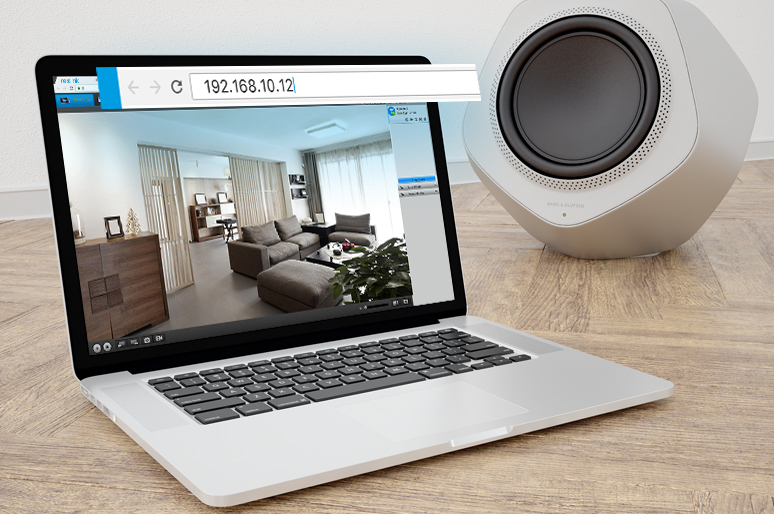
Camera IP address is the key to remote viewing.The right IP camera address enables you to access the specific camera you want in the crowded Internet, which is oftentimes fully packed with various electronic devices.
Here we will introduce how to find CCTV ip address quickly and easily (with step-by-step guides and videos).
And more importantly, you’ll learn how to set up remote viewing with the IP camera address here.
Summary: 4 Quick Ways to Find an IP Camera Address
- What Does an IP Camera Address Look Like?
- How to Find Camera IP Address: 4 Easy Ways
- How to Find a Reolink Camera IP Address?
- How to Find an IP Camera Address When Connected to an NVR?
- How to Access an IP Camera Remotely?
- Can an IP Camera Address Change?
- Why Can't I Find My IP Camera Address?
- Why Does My Camera's IP Address Keep Changing?
- Reolink IP Cameras for Different Network Setups
- FAQs
- Conclusion
What Does an IP Camera Address Look Like?
A local IP camera address typically looks like 192.168.1.100 or 10.0.0.25. It identifies the camera within your local network. A public IP address identifies your internet connection instead and should not be confused with the camera's local IP address.
How to Find Camera IP Address: 4 Easy Ways
Here are 4 options you can find the IP address for camera.
1. Find the IP camera address via the security camera companion software
This is the easiest way to find the IP address.
The easiest way to find the IP camera address is to check the Network page on the CCTV camera software (mobile app or PC client). The network page will display all the IP address information of your camera.
2. Find the IP camera address via the router configuration software
Another easy option to obtain your security camera IP address is to check the " DHCP Clients Table " or " Attached Devices " page on the router configuration software. The page displays all the IP addresses of devices attached to the router. And you can quickly identify the IP address of your security camera with the unique MAC address of the camera.
For example, you may easily find the Reolink camera addresses via the following steps:
Step 1. Enter the gateway IP address of the router.
Step 2. Check the IP camera MAC address via the camera software.

Step 3. Go to the WiFi setting page > DHCP server page and find the IP camera address according to the camera MAC address.
3. Use an IP camera address finder or network scanner
Network scanning tools such as Advanced IP Scanner for PC or Fing for mobile can scan devices connected to your local network. They may display each device's IP address, MAC address, hostname, and manufacturer, making it easier to identify your security camera.**
There are many IP camera address finders and scanners online. For example, the Advanced IP Scanner (for PC) and Fing (for mobile device) can scan all the devices connected to the Internet and show you the security camera IP addresses, MAC address, and manufacturer for everything.
4. Find the CCTV IP address via the URL of the camera configuration page
If you have access to the security camera settings and configuration page, you can obtain the IP camera address by observing the URL of your camera’s setting page.
Here is the thing: the IP camera address is something that lists at the top of the URL. If the URL of your security camera’s setting page begins with “http://183.37.194.134”, then the IP camera address might be 183.37.194.134.
How to Find a Reolink Camera IP Address?
For a Reolink IP camera connected to your network, you can check its network information through the Reolink App or Client, or identify the camera from your router's connected-device list. Reolink NVR-connected cameras may use addresses within the NVR's own subnet, so their addressing can differ from cameras connected directly to your router.
Generally you can get the CCTV IP address with 2 easy steps. Take Reolink cameras as an example:
Step 1. Download the free Reolink software on your phone or PC.
Step 2. Come to its device settings, and then find the security camera IP address on the Network Status tab.
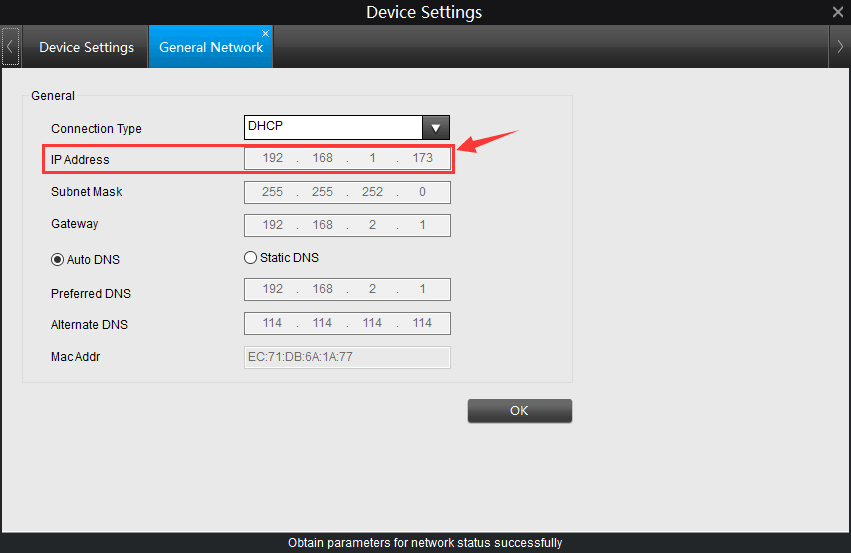
Here is also a video tutorial:
How to Find an IP Camera Address When Connected to an NVR?
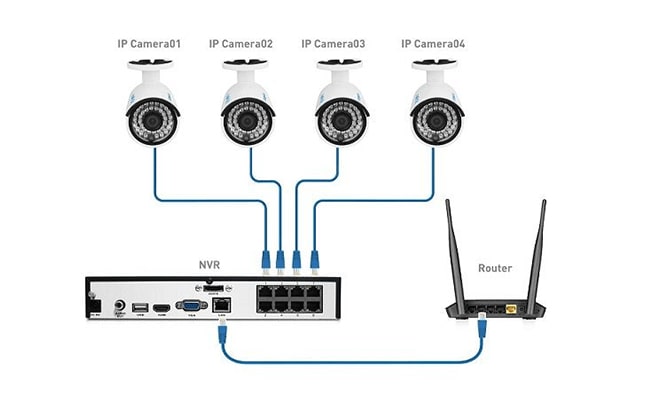
NVR will automatically assign IP camera addresses to the devices connected to it.
So the cameras can communicate with the NVR in its subnet once they are powered up and connected.
That’s to say the cameras will start recording and save the videos to the NVR without connecting to a router. You may also access the live view after connecting the IP address camera system to a monitor.
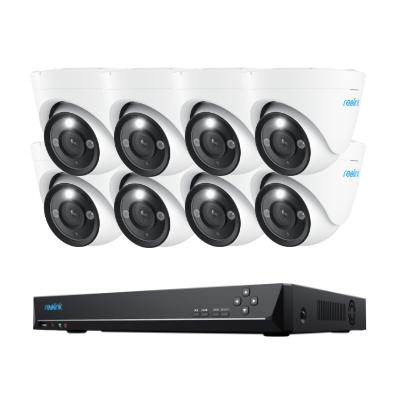
12MP PoE Security System with Color Night Vision
12MP Ultra HD, Person/Vehicle Detection, Power over Ethernet, 16-Channel NVR.
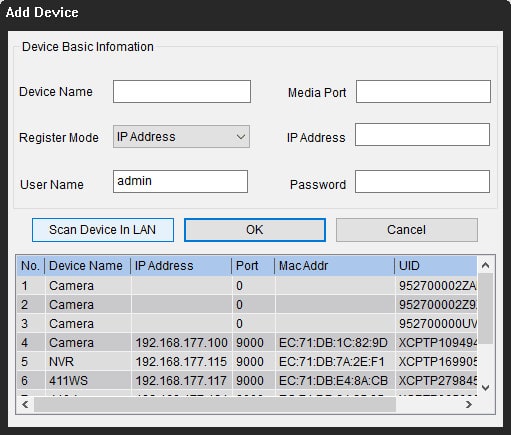
So you don’t need to know what the IP camera address is for remote viewing. Many security camera NVRs, including Reolink, will take care of the whole process: Simply scan and add all the cameras on the LAN.
How to Access an IP Camera Remotely?
Via 3rd Party Software
Some of you might prefer to use the 3rd party software like Blue Iris or iSpy for remote viewing. In that case, you’ll need to add cameras manually via the IP camera address.
Note that your camera should be 3rd-party compatible so that the software could discover it.
Here we take Blue Iris software as an example to show the steps to configure the CCTV IP address:
Step 1. Launch Blue Iris and click + button and select Add new camera.
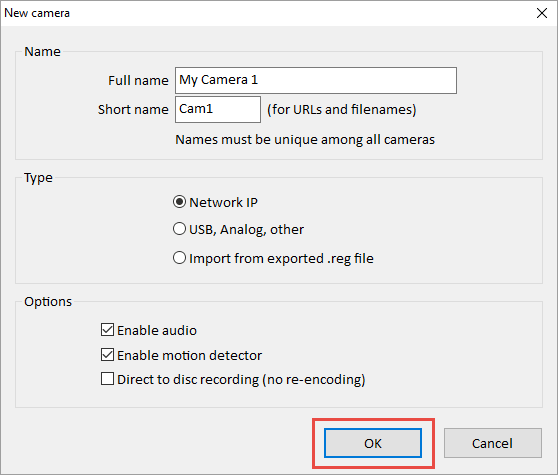
Step 2. Set up camera basic information.
Input the camera name and choose Network IP as the connection type. Check “Enable audio” and “Enable motion detector” and then click OK.
Step 3. Configure the CCTV camera IP address.
Click Find/inspect button to search the camera in the LAN and choose the Make as your camera brand, Reolink for example. Remember to change the “Discover port” to 8000 (the Reolink camera default port number and you may change it according to your situations).

Via a Web Browser
With the right CCTV IP camera address, your next move is probably the port forwarding setup.
Port forwarding is a general solution for remote viewing.
Actually, all you need to do is to find the public IP camera address (http://wanip:httpport), and then you can access the camera wherever you are.
Here are detailed steps:
Step 1: Find the IP camera address on local network. (We’ve already got it.)
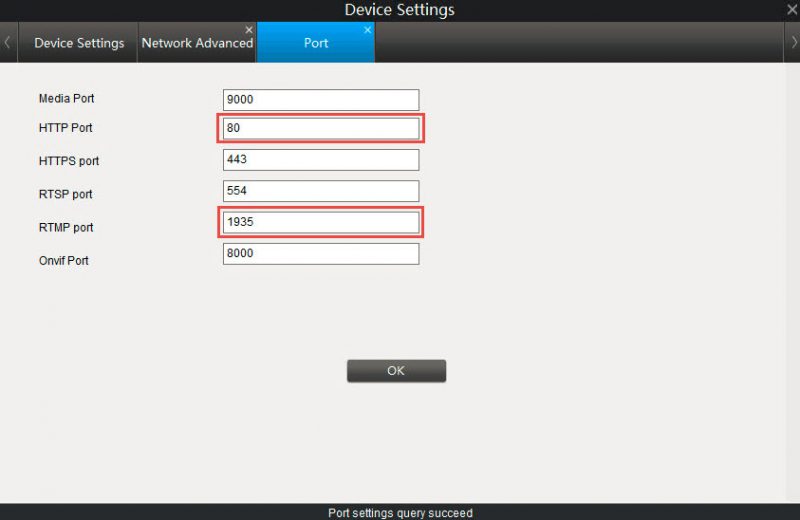
Step 2: Check the “HTTP port” and “RTMP port” of the camera via the security camera software. Here we take Reolink client as an example.
Click “Network” -> “Advanced”, and then click “Setup” next to the “Port Setting”, and then you’ll find the page with all the port setting information.
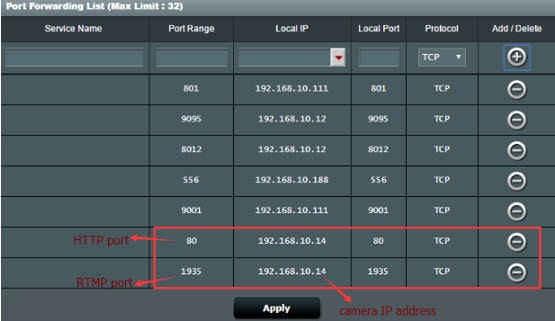
Step 3: Log into your router to set up the port forwarding rules.
Enter the port number and IP camera address as required. Some routers may allow you to specify the packet types (TCP or UDP). Select both if possible, otherwise select TCP.
Step 4: Check the WAN IP address of your router.
Use IP address finding Internet to check your current WAN IP address of your home network.
Step 5: Enter the IP camera network URL address in the address bar.
The format of the CCTV camera public IP address is: http://(wanip):(httpport).
So if your WAN IP address is 183.37.194.135, and the HTTP port is 805, the home security camera IP address should be “http://183.37.194.135:805”. Enter it in the address bar, the live view will appear.
Bonus: With the IP camera address available, you can connect the security camera to your PC even without Internet. The critical thing you need to do is to change the computer’s IP address to the same network prefix of the IP camera address.
Can an IP Camera Address Change?
Yes. If your camera uses DHCP, your router or NVR can assign it a different IP address after reconnecting or restarting. A DHCP reservation or properly configured static IP can keep the camera at a consistent local address.
Should I Give My Security Camera a Static IP Address?
A fixed address can be useful for NVRs, third-party software, browser access, and integrations that expect the camera at the same IP. For most users, a DHCP reservation on the router is easier to manage than manually assigning a static address.
Why Can't I Find My IP Camera Address?
-
Make Sure the Camera Is Powered On: Ensure status LEDs or IR lights are lit. If wireless, confirm the Wi-Fi status light is solid.
-
Confirm the Camera and Phone/PC Are on the Same Network: Connect your phone or PC to the exact same Wi-Fi network and frequency band (typically 2.4 GHz) as the camera.
-
Check the Router's Connected Devices: Log into your router's admin panel (192.168.1.1 or 192.168.0.1) and check the DHCP Client List or Connected Devices page.
-
Check Whether the Camera Is Connected Directly to an NVR: If plugged directly into an NVR's PoE port, the camera operates on a private subnet managed by the NVR—access it through the NVR's interface instead.
-
Restart the Camera and Router: Unplug power from both the camera and router for 30 seconds, then reconnect them to refresh network registration.
-
Use the Camera's MAC Address to Identify It: Find the MAC address printed on the camera label and match it using an IP scanner tool (like Fing) or your router's device list.
Why Does My Camera's IP Address Keep Changing?
Your router uses DHCP to assign temporary IP addresses that renew periodically. To keep a fixed IP address, assign a DHCP Reservation in your router settings or toggle the camera to a Static IP in its configuration menu.
Reolink IP Cameras for Different Network Setups
Reolink Video Doorbell WiFi
The Reolink Video Doorbell WiFi is a practical IP camera for monitoring visitors, packages, and activity around your front door. It connects to your WiFi network for remote live viewing, alerts, two-way communication, and video recording.
Like other network cameras, the doorbell receives an IP address on the local network. This makes it a useful example when learning how to find and manage the IP address of a security camera.
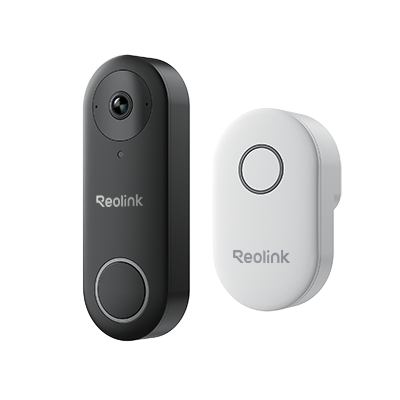
Smart 5MP Video Doorbell with Chime
5MP Super HD Day & Night, Person Detection, 2.4/5 GHz Dual-Band WiFi, 180° Diagonal Viewing Angle, Two-Way Audio, Rich Notification.
Reolink RLC-811A
The Reolink RLC-811A connects to a router, PoE switch, or compatible NVR through an Ethernet cable that carries both power and data. When connected to your LAN, the camera receives a local IP address and can be managed through the Reolink App or Client.
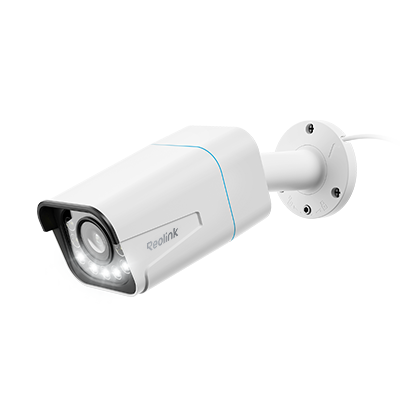
4K Smart PoE Camera with 5 Spotlights
4K 8MP Ultra HD Day & Night, Person/Vehicle Alerts, 5X Optical Zoom, Two-Way Audio, Built-in Siren, Color Night Vision, Live View Anywhere.
Reolink PoE Security Camera System: RLK16-1200D8-A
A Reolink PoE NVR system connects multiple cameras directly to an NVR. The NVR can assign and manage camera IP addresses within its own network, so cameras connected directly to its PoE ports may not appear as regular devices on your router.
12MP PoE Security System with Color Night Vision
12MP Ultra HD, Person/Vehicle Detection, Power over Ethernet, 16-Channel NVR.
FAQs
How Do I Find the IP Address of My Security Camera?
Check the camera's app or desktop client, your router's connected-device list, or use a network scanner. You can identify the correct camera using its device name, manufacturer, or MAC address.
What Does an IP Camera Address Look Like?
A local camera IP usually looks like 192.168.1.100 or 10.0.0.25. It identifies the camera within your local network.
Can I Find a Camera IP Address From My Router?
Yes. Open your router's connected-device or DHCP client list and locate the camera by its device name, manufacturer, or MAC address.
Can an IP Camera Address Change?
Yes. Cameras using DHCP may receive a different address when they reconnect. A DHCP reservation or static IP can keep the address consistent.
Why Can't I Find My IP Camera on My Network?
The camera may be offline, connected to another network, or connected directly to an NVR that uses its own subnet. Check power, network connection, router devices, and NVR settings.
Can You Access a Camera With an IP Address?
Keep your existing answer, but clarify that knowing an IP address alone is not sufficient—authentication and supported access methods are still required.
Conclusion
Knowing how to find IP camera address is essential for remote viewing and management of your cameras and ensuring the safety and security of your home or business. If you have any further questions or concerns, please feel free to leave them in the comments section below.
Search
Subscribe for the Latest Updates
Security insights & offers right into your inbox