
How to Turn Off Inverted Camera: Easy Fix for Upside-Down Video
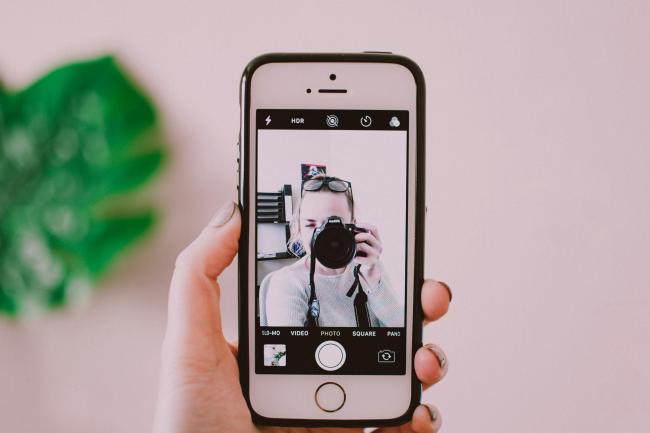
The front-facing camera on most phones shows a mirror image, so text reads backward. If you want to know how to turn off inverted camera settings or how to make camera not inverted on calls, recordings, or social apps, this guide walks you through every major platform in plain steps.
Why Is Your Camera Inverted?
Before you change anything, it helps to see why the picture flips in the first place. The phone makers set the front camera to behave like a bathroom mirror. The list below shows the usual triggers.
- The phone was rotated after the camera opened, and the sensor did not catch the new position
- A third-party camera app forces mirror mode and locks it
- A case or magnet covers part of the gyroscope, so the software guesses the wrong side is up
- An old operating system build ships with a camera driver bug
- You moved from the rear camera to the front camera while the phone lay flat on a table
- The desktop webcam sits on a monitor upside down and has no hardware swivel
- A preview filter in Zoom, Teams, or FaceTime adds a mirror layer on top of the native feed
- You restored a backup from a different model, and the settings file mismatched the new camera module
How to Turn Off Inverted Camera on iPhone?
Apple keeps the mirror switch in slightly different spots depending on the app. The steps below start with the stock Camera app and then cover FaceTime and third-party apps. Let’s take a look at how to turn invert off on iPhone camera:
Step 1. Open Settings and Tap Camera
Scroll down the main Settings list and choose Camera. Look for the section called “Composition.” You will see a toggle labeled “Mirror Front Camera.” Turn this off if you want the saved photo or video to look the same way your viewers see you, not the way you see yourself in the preview.
Step 2. Use the Flip Button Inside the Camera App
Open Camera, switch to the front lens, and tap the arrow at the top of the screen. A row of icons appears. Tap the flip icon that looks like two triangles split by a dotted line. This button only changes the live preview for that session; it does not change the saved file. Use it when you want to check how the text looks while you record.
Step 3. Update iOS to the Latest Build
Go to Settings, General, Software Update. Install any waiting updates. Apple lists camera orientation fixes in the patch notes several times each year. An update can remove a bug that keeps the flip toggle from working.
Step 4. Reset All Settings If the Toggle Is Missing
If the mirror switch is gone or gray, open Settings, General, Transfer or Reset iPhone, Reset, and choose “Reset All Settings.” This step keeps your photos and apps, but returns every system toggle to default. After the restart, the Mirror Front Camera option reappears in the Camera settings.
How to Turn Inverted Camera Off on Android?
Android brands move the flip switch to different menus, but the ideas are the same. Start with the stock camera, then check the app you use for calls.
Step 1. Open the Native Camera App and Tap the Settings Gear
With the front camera active, tap the gear icon on the viewfinder. Scroll to “Save options” or “Picture as preview.” Turn off “Mirror photo” or “Flip selfie.” Samsung calls it “Save pictures as previewed,” while Pixel labels it “Flip photo.”
Step 2. Turn Off Mirror Mode in Samsung Galaxy Devices
Launch Camera, tap the cog, choose “Shooting methods,” and disable “Mirror selfie.” On older Galaxy models, you may see “Preview” and “Saved photo” toggles. Turn both off to keep the final file in normal orientation.
Step 3. Disable Flip in Google Pixel Stock Camera
In Pixel Camera, tap the down arrow, choose Settings, then “More settings.” Under “Advanced,” disable “Flip photo horizontally.” The change applies to both photos and videos shot with the front lens.
Step 4. Check Third-Party Camera Apps for a Flip Switch
Open Instagram, Snapchat, or TikTok, start a front-camera story, and look for a flip icon on the viewfinder. Each app keeps its own settings. Turning off the flip inside the app keeps the upload from looking reversed even if the system camera is still set to mirror.
How to Turn Off Inverted Camera on FaceTime?
FaceTime always shows you a mirror preview so you can fix your hair, but it can send the normal view to the other person. If both sides see an upside-down video, use the steps below.
Step 1. Rotate the Phone Slowly Until the Icon Appears
Hold the phone upright and turn it 90 degrees left or right. A small white arrow appears on your tile. Tap it once to flip your video right-side up for everyone on the call.
Step 2. Use the Flip Button During the Call
Tap your own picture-in-picture tile. A stack of icons shows up. Tap the flip icon to rotate the feed 180 degrees. This button is handy when you prop the phone on a low table and the camera sees the ceiling.
Step 3. Check the Orientation Lock
Open Control Center and be sure that the lock icon is turned off. When the phone is physically in the landscape position, with the screen locked in portrait, FaceTime can transmit the frame horizontally or vertically.
Step 4. Restart FaceTime If the Button Is Gone
Leave the call, force-close FaceTime from the app switcher, and dial again. A fresh session reloads the camera driver and brings back the flip controls.
How to Turn Off the Inverted Camera on Windows?
Built-in or USB webcams often mount upside down on monitors. Windows gives you two places to fix the rotation.
Step 1. Open the Camera App and Click the Rotate Button
Launch the Camera app from the Start menu. Click the gear icon on the left bar. Choose “Rotation” and pick 0 degrees. The setting sticks until you change it again.
Step 2. Use the Camera Manufacturer’s Utility
Dell, Lenovo, Logitech, and Razer ship their own control panels. Search the Start menu for the brand name plus “Camera” or “Webcam.” Inside the utility, look for “Image” or “Advanced” and set rotation to off or 0 degrees.
Step 3. Disable Flip in Zoom, Teams, or Google Meet
Open the video calling app, start a meeting with video off, click Settings, then Video. Uncheck “Mirror my video” or “Flip horizontally.” Each app keeps its own toggle, so you need to turn it off in every program you use.
Step 4. Update or Reinstall the Camera Driver
Right-click the Start button, then Device Manager, and expand Cameras, then right-click on the device and update the driver. In case the image remains inverted, select the option of uninstalling the device, reboot the computer, and allow Windows to download a new driver.
What to Do If Can't Turn Inverted Camera Off?
Sometimes the switch is missing, or the video stays reversed no matter what you tap. Work through the list below before you contact support.
- Hold the phone away from your face for three seconds so the proximity sensor resets the gyroscope.
- Remove the case and any magnet ring that may block the sensor.
- Restart the device to reload the camera driver.
- Clear the cache of the camera app: Settings, Apps, Camera, Storage, Clear Cache.
- Install pending system and app updates.
- Test in Safe Mode to see if a downloaded app is forcing a flip.
- Factory reset the phone after you back up photos, if every app shows the same fault.
Select a phone-connected security camera so you can check live views wherever you are.
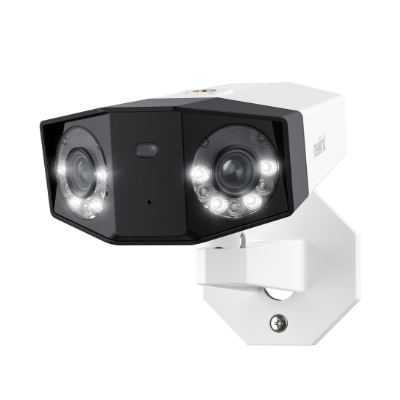
Groundbreaking 16MP Dual-Lens PoE Camera
16MP UHD, Dual-Lens, Motion Track, 180° Wide Viewing Angle, Power over Ethernet, Color Night Vision.
FAQs
How do I stop my Camera from inverting?
Open Settings, choose Camera, and turn off Mirror Front Camera on iPhone. On Android, open the stock camera, tap the gear, and disable Save as preview or Flip selfie. In Windows Camera, click the gear and set rotation to 0 degrees.
How do I turn off invert in my iPhone Camera?
Go to Settings, Camera, and toggle off Mirror Front Camera. The change applies to every photo and video you take with the front lens after that point. You can still flip the live preview inside the app without affecting the saved file.
How do I turn off the inverted Camera on FaceTime?
During the call, tap your picture-in-picture tile and hit the flip icon that appears. You can also rotate the phone slowly until the white arrow shows, then tap it. Orientation lock must be off for the arrow to appear.
Conclusion
You now know how to turn off the inverted camera on iPhone, Android, FaceTime, and Windows. The mirror setting hides in different menus, but the fix is always a single toggle or tap.
You can start with the system camera settings, go through every video app, and update drivers in case the picture remains inverted. In case this guide assisted you in mastering the technique of not inverting the camera, give your experience or any other suggestions in the comments section so that other readers can benefit.
Search
Subscribe for the Latest Updates
Security insights & offers right into your inbox