
How To Reset Alexa? Expert Tips
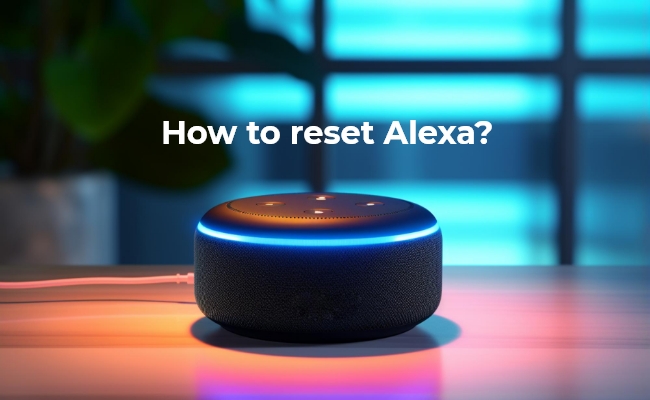
If you are dealing with glitches and technical faults in Alexa, resetting is the best option to troubleshoot the problems. People often reset it when handing it over to the new owner so their data can be removed.
In this article, we will guide you how to reset Alexa with and without the app. We will share the step-by-step procedure for different devices.
Key Takeaways:
- Alexa can be reset through the app or with physical controls
- Exact steps depend on the Echo model/generation
- For minor problems, restart before factory resetting
How to Restart Alexa? (Before Resetting It)
Restarting is one of the basic solutions to get rid of bugs and technical issues. It is less critical than resetting the device because you will not lose the personalized settings. It is a quick way to refresh your device and clear the temporary data causing it to malfunction.
- Disconnect the power adapter and wait a few seconds.
- Reconnect the adapter and check if the issue is resolved.
- Say, “Alexa! Restart.” The device will automatically restart.
- If the issue persists, perform a full reset on the Echo Dot.
How to Reset or Remove Alexa Using the App?
You can use the Alexa app to manage or remove an Alexa device from your Amazon account. However, the available options may vary depending on the Echo model and app version. For a full factory reset, some Echo devices still require you to use the physical buttons or the device's touchscreen.
- Navigate to the main menu and open Amazon Alexa from your phone.
- Tap the Devices icon on the homepage's bottom right corner.
- Tap Echo & Alexa and choose the device you want to reset.
- Go to the Device Settings and tap Factory Reset. It will open a dialogue box for the confirmation; tap the Factory Reset again to proceed. Wait for a few minutes for a complete reset.
How To Reset Alexa Without App on Different Devices?
You can reset Alexa without the app using the physical buttons or touchscreen on your Echo device. The exact method varies by model and generation. Let's see the details:
How to Reset an Amazon Echo
-
1st Generation: To restore the device to factory settings, use a paperclip or similar tool to press and hold the Reset button for about 8 seconds.
-
2nd Generation: To restore the device to factory settings, press and hold the Microphone Off and Volume Down buttons simultaneously. Follow the device's light-ring prompts until it enters setup mode.
-
3rd & 4th Generations: Press and hold the Microphone Off and Volume Down buttons for about 20 seconds to restore the device to factory settings. If you only want to reset the device while keeping existing smart home connections, press and hold the Action button for about 20 seconds.
How to Reset an Echo Dot
-
1st Generation: Use a paperclip or similar tool to press the recessed Reset button on the device. Follow the light-ring prompts until the Echo Dot enters setup mode.
-
2nd Generation: Press and hold the Microphone Off and Volume Down buttons for about 20 seconds. Wait for the light ring to turn off and on again.
-
3rd, 4th & 5th Generations: For a full factory reset, press and hold the Microphone Off and Volume Down buttons for about 20 seconds. On supported models, pressing and holding the Action button for about 20 seconds resets the device while retaining smart home connections.
How to Reset an Echo Show
For Echo Show devices, you can perform a factory reset using the physical buttons or the on-screen Settings menu.
-
Using the buttons: Press and hold the Microphones & Camera Off and Volume Down buttons for about 15 seconds, until the Amazon logo appears on the screen.
-
Using the touchscreen: Swipe down from the top of the screen and go to Settings > Device Options > About this Device > Reset to Factory Defaults.
Some Echo Show models also provide a Reset to Factory Defaults, but Retain Smart Home Device Connections option. Availability varies by model.
How to Reset an Echo Pop
To restore an Echo Pop to factory settings, press and hold the Volume Down and Microphone Off buttons for about 25 seconds. Wait for the light bar to turn off and then back on as the device enters setup mode.
How to Reset an Echo Studio
The reset method depends on the Echo Studio version.
- Echo Studio (2019 Release): Press and hold the Microphone Off and Volume Down buttons for about 20 seconds to restore the device to factory settings.
If you have a newer Echo Studio model, check the reset instructions for that specific release, as the controls may differ.
How to Reset an Echo Flex
For a full factory reset, press and hold the Microphone Off button for about 20 seconds and wait for the device to enter setup mode.
If you want to reset the Echo Flex while retaining its smart home connections, press and hold the Action button for about 20 seconds.
How to Reset an Echo Plus
-
1st Generation: Use a paperclip or similar tool to press and hold the recessed Reset button for about 8 seconds to restore the Echo Plus to factory settings.
-
2nd Generation: Press and hold the Microphone Off and Volume Down buttons for about 20 seconds for a full factory reset. To reset the device while retaining smart home connections, press and hold the Action button for about 20 seconds.
How to Reset an Echo Hub
You can factory reset the Echo Hub directly from its touchscreen.
- Open Settings.
- Select Device Options.
- Select About the Device.
- Choose Reset to Factory Defaults.
If available, you can also choose the option to reset the Echo Hub while retaining its smart home device connections.
How to Reset an Echo Input
For a full factory reset, press and hold the Microphone Off button for about 20 seconds.
If you want to reset the device while retaining its smart home connections, press and hold the Action button for about 20 seconds.
How to Reset an Echo Spot
For newer Echo Spot models with a display, use the on-screen Settings menu:
- Swipe down from the top of the screen.
- Select Settings.
- Tap Device Options.
- Select Factory Reset.
Depending on the model, you may also see an option to reset the device while retaining existing smart home connections.
How to Reset an Echo Sub
Press and hold the Action button on the back of the Echo Sub for about 25 seconds. Release it when the light indicator flashes orange, indicating that the device is ready to be set up again.
How to Add Smart Security Device to Your Alexa?
How to Add Reolink Security Camera to Your Alexa?
- Prepare Devices
Install the Reolink App and Amazon Alexa App. Make sure your Reolink camera is online and supports Smart Home. - Link Accounts
In the Reolink App, go to Me > Smart Home > Amazon Alexa > LINK NOW.Log in to your Amazon account and enable the Reolink Smart Home skill. - Enable Smart Home on Camera
Turn on the toggle for your camera or hub/NVR in the Reolink App to activate Alexa integration. - Check in Alexa App
Open Alexa App > Devices. Your camera should appear and be controllable via voice commands.
Smart Security Device Recommendation
For powerful all‑around protection, the Trackflex Floodlight Wi‑Fi is an excellent choice. It combines a high‑resolution security camera with bright floodlights and motion detection to cover larger outdoor areas. With Wi‑Fi connectivity, it sends real‑time alerts to your phone and records locally, making it a reliable, subscription‑free option for enhancing your home security.
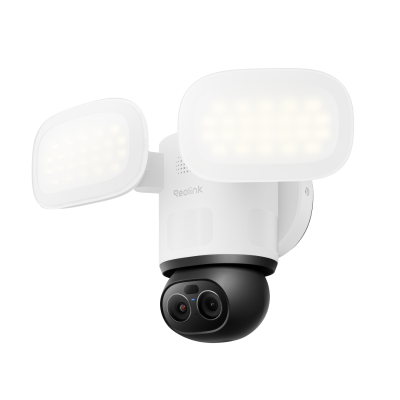
Smart 4K 360° Coverage Wi-Fi Floodlight Security Camera
Local AI Video Search, 4K 8MP Ultra HD, 360° Coverage View, 6X Hybrid Zoom, Dual-Color Floodlight.
How To Deregister The Alexa?
Deregister From Alexa App
Deregistering devices from the Alexa App is important because you must remove the linkage from your Amazon account before selling it. It will remove all the preferences and personal information from the device and make it a fresh restart. Follow the quick steps to deregister the device using the Alexa app.
- Open the Alexa app and tap the Devices icon at the bottom right corner.
- Tap Echo & Alexa from the menu and select the device you want to deregister.
- Scroll down at the bottom and tap the Deregister option, appearing next to your registered name. Tap Deregister again to confirm.
Deregister From Amazon.com
-
Log in to your Amazon account and click Manage Your Devices And Content.
-
Click Devices and select the device you want to deregister.
-
It will open a prompt window; click the Deregister option to remove it.
FAQs
1. How do I manually reset my Alexa?
In old devices, you need to insert a paper clip or similar tool and hold it in the same position until the ring lights up.
In new devices, you must press and hold the Mute and Volume down buttons for a few seconds to enter the reset process.
2. How do I reset Wi-Fi on Alexa?
To reset the Wi-Fi on your Alexa device, open the Amazon Alexa App, tap Devices, select your Echo device, and open Settings or the gear icon. Select the Wi-Fi network option, choose Change, and follow the on-screen instructions to connect your Alexa device to a new Wi-Fi network.
3. How do I get my Alexa back to work?
To resolve an unresponsive Alexa, start by unplugging the device for 30 seconds and then plugging it back in—this fixes most issues. Ensure your Wi-Fi is active, the mute button isn’t red, and the original power adapter is in use. If problems persist, try resetting the device or updating the Alexa app.
4. Can you tell Alexa to reboot?
To reset your Echo Show, press and hold the Mute and Volume Down buttons simultaneously for about 15 seconds. Release them when the Amazon logo appears, and the device will restart.
5. Can you reset an Alexa without the app?
Yes. You can reset most Amazon Echo devices without the Alexa app using the physical buttons on the device, while Echo devices with screens can also be reset through their on-device Settings menu. The exact steps vary by model and generation. See the reset instructions above for the specific steps for each Echo device.
Conclusion
Knowing how to reset Alexa can be helpful in getting rid of the bugs and issues with the device. It is a straightforward procedure if the restart does not work. We have shared the step-by-step process of resetting different Alexa devices. And if you are selling your device, make sure to follow the steps to deregister the device.
Search
Subscribe for the Latest Updates
Security insights & offers right into your inbox