
How to Format SD Card in Camera – Quick & Easy Steps
The correct operation of SD cards serving as camera storage requires appropriate formatting protocols. The formatting process creates compatibility between devices and removes potential errors to boost system performance.
The following guide provides instructions on how to format an SD card in a camera, along with camera-specific step-by-step operations and troubleshooting advice.
When to Format SD Card for Camera?
Multiple cases require SD card formatting as one of the necessary steps.
- A newly bought SD card should be formatted as its initial usage step.
- When the camera shows an "SD card error" alert on its screen.
- When the data transfer process ends, users must restart the system completely.
- The card's performance can be improved by formatting it when it operates slowly.
- The occurrence of file corruption alongside unreadable file states will render the SD card unusable.
- You should reset the memory card before moving it from device to device.
How to Format SD Card in Camera?
If you want to keep your SD card in the camera and format it without using a computer, we have you covered. Here are the steps to format your SD card on the camera.
1. Initial preparation
The initial preparation step involves creating a data backup on your computer. Meanwhile, you must ensure that the camera is turned off and its battery is fully charged.
2. Access formatting settings on the camera
Turn on your camera and select “Menu”. Now, go to “Setup” and select the “Format” option.
3. Format your SD card
Choose "OK" to begin formatting your SD card. Wait, as the process may take a few minutes. Once the camera says your SD card is formatted, restart the camera.
How to Format SD Card in Reolink Camera?
If you have a Reolink security camera, you can use the Reolink app on your smartphone for the easiest process of formatting your SD card with these steps given below.
1. Open the Reolink App and access the camera settings
Open the Reolink application on your smartphone. Select the camera whose SD card you want to format and tap the "Gear icon" button. Now, tap "Device Information," and select the "Storage" option here.
2. Select and format your SD Card.
Select your SD card in the "storage" section, tap "Format," and then tap "OK." Within a few minutes, the camera will restart, and the SD card will be formatted.
What to Do If Your Camera Can’t Format an SD Card?
The following given sequence of steps will help when your camera cannot perform an SD card format.
- Make sure you place the SD card correctly inside the camera slot.
- Verify whether the SD card lock is enabled by checking for a write-protection status.
- Disable the protection if necessary.
- The first solution for dealing with an unformatted SD card is to format it on your computer before inserting it into the camera.
- Insert a different SD card to check whether the problem originates from the card or the camera system.
- Upgrading your camera firmware will guarantee compatibility between different components.
- Wipe the SD card contact points slowly with a clean microfiber fabric to remove debris and dust.
- Perform disk management checks on your computer to identify bad sectors and errors.
- A damaged SD card should be substituted with another one if none of the above steps works.
Essential Tips for Formatting a Camera SD Card Without Issues
Many users quickly format their SD cards and end up losing their data or making things worse by rendering them useless. So, if you want to format your SD card without any bad results, you must follow the tips shared below to get successful results and no issues whatsoever.
- Keeping all vital data safe is crucial before performing a format.
- Camera users should select the built-in formatting utility to guarantee optimal compatibility.
- Limiting the number of times you place your SD card between different devices is best.
- High-quality SD cards will help prevent errors. Always invest wisely.
- Periodically formatting your SD card helps to keep its performance level high.
- The camera must have a full battery charge when performing the formatting procedure.
- Cancelling or pausing the formatting procedure should always be avoided because it can introduce file corruption.
- The correct speed class labeling on your SD card will guarantee operational fluency, so buy the SD card with the right specifications.
- Protective cases should be used for SD cards to shield them from physical harm.
- Review the brand recommendations of your SD card device manufacturer before purchase.
Best SD Card Camera & System Recommendation
If you are looking for a security camera that not only supports SD card for local data storage but also supports Home Hub connectivity, then below are 2 of the best recommendations for you.
Reolink Home Hub with Argus 4 Pro
You can access the powerful security system Reolink Home Hub with Argus 4 Pro. It has 4K resolution capabilities, advanced motion detection system, and weatherproof feature. The device uses local SD card storage to protect videos when users have no connection to the cloud. This camera delivers excellent home security due to its reliable operation and color night vision functionality.
The Home Hub kit's connectivity allows seamless connection between devices and enables you to use your Google Home assistant and other smart assistants like Alexa. Moreover, it allows you to connect to 8 devices and use them simultaneously to have complete home security with peace of mind.
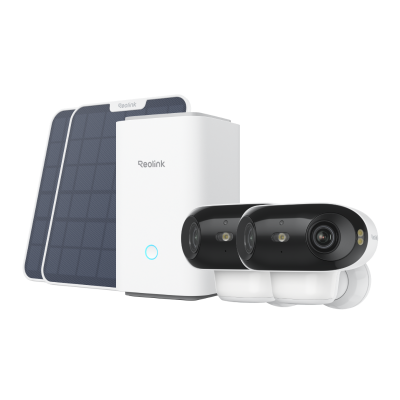
4K UHD Wi-Fi 6 Security System with 180° Blindspot-Free View
ColorX Night Vision, 1 Year of Local Storage, Exclusive Anti-Theft Algorithms, 180° Blindspot-Free Coverage, Expandable System Up to 8 Reolink Cams.
Reolink Home Hub with Argus PT Ultra
With a 4K pan-tilt-zoom function, Reolink Home Hub with Argus PT Ultra provides a large field of view and stronger video monitoring capability. The camera can easily be connected to a built-in SD card slot, which is helpful for field situations where access to the internet would be difficult. This camera's sturdy design and the power of the smart detection feature make it perfect for outdoor surveillance.
The kit comes with Home Hub, which provides 1 year of local storage to enjoy peace of mind about your surveillance recordings. It also comes with solar panels, so you will enjoy green power, and the system allows you to connect to 8 cameras wirelessly. One of its best qualities is the color footage at night, which ensures you never miss an important detail.
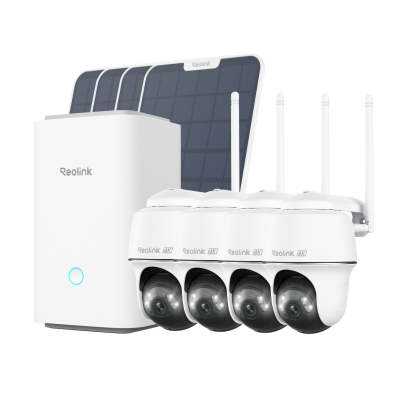
Wireless Security System With 4K PT Standalone Battery/Solar Wi-Fi Cameras
4K Color Footage Day & Night, 1 Year of Local Storage, Exclusive Anti-Theft Algorithms, 360° All-Around Coverage, Expandable System Up to 8 Reolink Cams.
FAQs
How to format an SD card for a Canon camera?
When you insert an SD card into a camera, you can access a menu, navigate to Format Card, confirm the action, and let the process complete.
How do I format my SD card for my outdoor security camera?
To format the SD card for outdoor security cameras, insert the SD card, go to the camera settings using an app or client, go to Settings, select ‘Storage,' select 'Format,' and authenticate to begin the formatting process.
What happens when the Reolink SD card is full?
Upon reaching full capacity, a Reolink SD card automatically overwrites the oldest recordings to save the new footage.
Conclusion
Formatting an SD card properly guarantees top performance and avoids camera errors. Using a DSLR, a trail cam, or a security camera and following the right steps will facilitate efficiency. Troubleshooting methods will fix common problems if formatting issues occur.
We hope that this guide has been helpful enough, and now you know how to format SD cards in-camera for both DSLR and security cameras. Share your thoughts and experiences in the comments below!
Search
Subscribe for the Latest Updates
Security insights & offers right into your inbox