
How to Connect Ethernet Cable to PC?
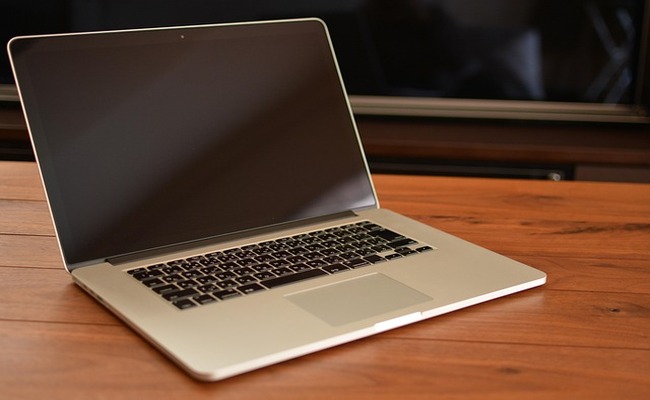
Ethernet is still a reliable and fast connection, which is the reason people still prefer to put more effort into wiring for some applications rather than going wireless.
In this article, we will explain how you can connect an Ethernet cable to a PC. We will share the step-by-step method for different operating systems and devices.
How to Connect an Ethernet Cable to a PC?
Connecting an Ethernet cable to a PC is simple and ensures a stable, high-speed internet connection. Follow these steps to get started.
Step 1: Gather Your Equipment
You will need an Ethernet cable (Cat 5e or higher for best performance) and a working router or modem with an available Ethernet port. Ensure your PC has a built-in Ethernet port, typically located on the rear of desktops.
Step 2: Connect the Cable to Your Router
Take one end of the Ethernet cable and plug it into one of the LAN ports on your router. These ports are usually yellow and numbered. Make sure the connection is secure.
Step 3: Connect the Cable to Your PC
Plug the other end of the cable into the Ethernet port on your PC. Push firmly until you hear a click, indicating the connector is fully seated.
Step 4: Check the Connection
Once connected, your PC should automatically detect the wired network. Look for the network icon in your system tray. It should display a wired connection. If not, proceed to troubleshoot settings.
How to Connect an Ethernet Cable to a PC Windows 11?
Windows 11 makes it easy to set up a wired connection. Here’s how to connect an Ethernet cable to a PC Windows 11 for optimal performance.
Step 1: Physically Connect the Cable
Plug one end of the Ethernet cable into your router and the other into your PC’s Ethernet port. Ensure both ends are secure.
Step 2: Navigate to Network Settings
Click the Start menu, then select Settings > Network & Internet > Ethernet. Your connection should appear as “Connected.”
Step 3: Configure Network Preferences (If Needed)
If your network requires static IP settings, go to Settings > Network & Internet > Ethernet > Hardware Properties. Click “Edit” to input manual IP, subnet, and gateway addresses.
Step 4: Test Your Connection
Open a browser and visit a website to confirm internet access. For advanced settings, use the Network Troubleshooter to resolve any issues.
How to Connect an Ethernet Cable to Mac?
Mac users may need an adapter for Ethernet connectivity. Here’s how to establish a wired connection on macOS.
Step 1: Check for an Ethernet Port or Adapter
Most modern Macs require a USB-C to Ethernet adapter. Connect the adapter to your Mac, then plug the Ethernet cable into the adapter.
Step 2: Connect to Your Network
Go to Apple Menu > System Preferences > Network. Select Ethernet from the list on the left. If it isn’t listed, click the “+” button to add it.
Step 3: Configure Settings
Choose “Using DHCP” for automatic configuration. For manual settings, enter the required IP address, subnet mask, and router details provided by your network administrator.
Step 4: Verify the Connection
Click “Apply” and check the status indicator. It should show “Connected.” Open a browser to test internet functionality.
How to Connect an Ethernet Cable to a Laptop?
Laptops offer portable wired connectivity. Here’s how to connect an Ethernet cable to your laptop.
Step 1: Locate the Ethernet Port
Most laptops have an Ethernet port on the side or back. If yours doesn’t, use a USB to Ethernet adapter.
Step 2: Plug In the Cable
Connect one end of the Ethernet cable to your router and the other to your laptop’s port or adapter. Ensure a snug fit.
Step 3: Check the Connection
On Windows, go to Settings > Network & Internet > Ethernet. On Mac, use System Preferences > Network. The status should update to “Connected.”
Step 4: Test and Troubleshoot
Browse the internet to confirm connectivity. If issues arise, check cable integrity, router functionality, and network settings.
Why Is My PC Not Connecting Through Ethernet?
If your PC isn’t connecting via Ethernet, start by checking the physical components. Ensure the Ethernet cable is firmly plugged into both the PC and the router. Inspect the cable for any signs of damage, such as fraying or bent pins. Try a different cable or router port to rule out hardware issues.
Software and settings can also cause connectivity problems. Verify that your network adapter drivers are up to date through Device Manager. Run the Windows Network Troubleshooter to automatically detect and resolve common issues like IP configuration errors or driver conflicts.
Check your network settings to ensure that the Ethernet connection is enabled and not being blocked by a firewall or antivirus software. This can sometimes interfere with network access.
Bonus: How to Connect a Security Camera to a PC?
Let's take a Reolink PoE camera as an example to understand the process.
Step 1: Set Up the Cable
Set up the PoE cable from your router or PoE switch to the security camera.
Step 2: Connect to the Network
Plug one end of the Ethernet cable into the camera and the other into your router or switch. Ensure the camera is powered on.
Step 3: Open the App
Open the Reolink app. Tap the "+" button to add a new device and scan the QR code at the back of the camera.
Step 4: Complete Initialization
Set a name and password for the camera. Complete the initialization steps. Once done, you can see the live feed of the camera.
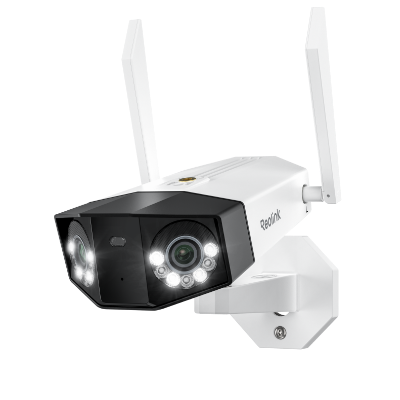
Groundbreaking 16MP Dual-Lens WiFi Camera
16MP UHD, Dual-Lens, Motion Track, 180° Wide Viewing Angle, Plug-In WiFi, Color Night Vision.
FAQs
How to Connect Ethernet Cable to PC If Router Is Far Away?
Use a powerline adapter to extend your network through electrical wiring, or install a long Ethernet cable (up to 100 meters). For larger homes, consider a mesh system with Ethernet backhaul.
How to Connect PC to WiFi Without Ethernet Cable?
Install a WiFi USB adapter or PCIe card on your desktop. For built-in WiFi, enable it in settings and select your network. Use a smartphone USB tethering option as a temporary solution.
Conclusion
Connecting an Ethernet cable to a PC is extremely simple. However, the steps differ depending on the device and operating system. We have explained how you can connect an Ethernet cable to desktops, laptops, and Macs for faster and more reliable connectivity. If you are still facing issues, you can follow the troubleshooting tips and tricks we have shared.
Search
Subscribe for the Latest Updates
Security insights & offers right into your inbox