
How to Change WiFi to 2.4GHz?
To get the best wireless performance, it’s important to choose the right WiFi band. The two most common options are 2.4 GHz Wi-Fi and 5 GHz Wi-Fi. By changing the Wi-Fi to 2.4ghz 2.4 GHz, you'll enjoy a more stable and faster connection across your home or office. This guide will take you through step-by-step instructions on how to change WiFi to 2.4GHz. Just keep reading!
What Is 2.4GHz WiFi and Why It Matters?
2.4GHz WiFi is a wireless frequency band used by routers to transmit internet signals. It is one of the two main WiFi bands, along with 5GHz
How 2.4GHz WiFi Works
- Sends data over longer wavelengths compared to 5GHz
- Provides wider coverage across rooms and walls
- Prioritizes range over speed
Key Advantages
- Stronger signal over long distances
- Better wall penetration
- More compatible with older devices and smart home devices
How to Change WiFi to 2.4GHz? 4 Methods
To switch your WiFi to 2.4 GHz on your router you must first ensure that it supports this frequency band, if it does, you may follow the methods below:
Method 1: Connect to a 2.4GHz Network (Easiest)
Steps:
- Open WiFi settings on your device
- Look for your network name (SSID)
- If you see two options (e.g.,
MyWiFiandMyWiFi_2.4G) - Select the one labeled 2.4G / 2.4GHz
- Enter the password and connect
Method 2: Split 2.4GHz and 5GHz in Router Settings
If your router uses one name for both bands:
Steps:
- Open a browser and enter your router IP (usually
192.168.1.1or192.168.0.1) - Log in to your router admin panel
- Find Wireless Settings / WiFi Settings
- Locate Band Steering / Smart Connect and turn it OFF
- Rename networks:
- 2.4GHz →
MyWiFi_2.4G - 5GHz →
MyWiFi_5G
- 2.4GHz →
- Save settings
- Reconnect your device to the 2.4GHz network
Method 3: Temporarily Disable 5GHz
Steps:
- Log in to your router settings
- Go to Wireless Settings
- Disable the 5GHz band
- Connect your device (it will use 2.4GHz automatically)
- Re-enable 5GHz after setup (optional)
Method 4: Force 2.4GHz on Your Device (If Supported)
On Windows:
- Open Device Manager
- Expand Network Adapters
- Right-click your WiFi adapter → Properties
- Go to Advanced tab
- Set Preferred Band to 2.4GHz
On iPhone / Android:
- You cannot manually force band selection
- You must choose the correct WiFi network (Method 1 or 2)
How to Change WiFi to 2.4GHz on Different Devices?
With modern operating systems, you can easily switch your WiFi network frequency on your computer, phones, or other smart devices.
On Windows
- Press Win + X and click Device Manager.
- Right-click the network adapter and open its properties.
- Go to Advanced, Property, Preferred Band, and select 2.4 GHz.
- Click OK to save and reconnect with your WiFi network.
On Mac
- Open the Airport Utility app on Mac and go to Graphical Overview
- Select a base station and click edit
- Click wireless then wireless options
- A dialogue will appear where you can select the WiFi Channel 2.4 GHz
- Click save then update to save these changes
On iPhone
- Open Settings → Tap Wi-Fi
- Find your WiFi network in the list
- If you see two networks (e.g.,
HomeWiFiandHomeWiFi_2.4G), tap the 2.4GHz network - Enter the password and connect
If only one network shows:
- Log in to your router settings
- Disable Smart Connect / Band Steering or rename networks (2.4G / 5G)
- Return to WiFi settings and connect to the 2.4GHz network
Tip:
- Tap the “ⓘ” next to your network → Forget This Network to avoid reconnecting to 5GHz
On Android
- Open Settings → Tap Wi-Fi / Network & Internet
- View available networks
- Select the network labeled 2.4G / 2.4GHz
- Enter the password and connect
If your phone keeps switching to 5GHz:
- Tap and hold the network → Select Forget network
- Reconnect manually to the 2.4GHz network
If only one SSID exists:
- Access router settings and split 2.4GHz and 5GHz bands
- Then reconnect to the 2.4GHz network
On Smart Home Devices
- Open the device’s companion app (camera, plug, etc.)
- Start the setup or pairing process
- When prompted, connect to your home WiFi
- Ensure your phone is already connected to the 2.4GHz network
- Select your WiFi and enter the password
Many smart home devices only support 2.4GHz, so they will not detect or connect to 5GHz networks. In contrast, Reolink WiFi cameras support dual-band connectivity, allowing you to switch between 2.4GHz and 5GHz based on your specific needs for better flexibility and performance.
Helpful Tips When Changing WiFi to 2.4GHz
- Move closer to the router during setup: Being near the router reduces connection issues when switching bands or connecting new devices.
- Temporarily forget other WiFi networks: This prevents your device from automatically reconnecting to a 5GHz network.
- Restart your router and device: A quick reboot can fix detection or connection issues when switching to 2.4GHz.
- Check your device compatibility: Some older or smart home devices only support 2.4GHz and won’t detect 5GHz networks.
- Use simple WiFi names (SSID): Avoid special characters or spaces (e.g., use HomeWiFi_2.4G) to prevent connection errors.
- Keep passwords consistent: If you split bands, use the same password for both networks to make switching easier.
- Avoid interference: Devices like microwaves, cordless phones, and Bluetooth devices can interfere with 2.4GHz signals.
- Update your router firmware: Outdated firmware can cause issues with band switching or network visibility.
- Check router app (if available): Many modern routers let you switch bands easily through a mobile app instead of browser settings.
5GHz and 2.4GHz WiFi Security Camera Recommendation
If you are looking for enhanced security with dual-band WiFi capabilities, here are 3 top recommendations:
Reolink Argus 4 Pro
Argus 4 Pro features include video in high definition, night vision, and the best motion detection. Besides, it supports dual-band WiFi for secure connections and thus is ideal for surveillance during the day as well as at night. This camera provides 4K 180-degree coverage.
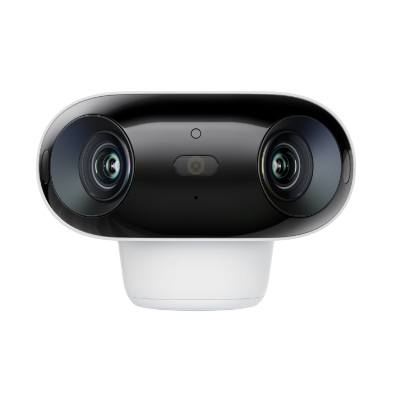
4k 180° Wire-free Color Night Vision Camera
4K UHD 180° Blindspot-free View; Color Vision Day and Night; 30% More Battery Life; Dual-band Wi-Fi 6; Smart detection.
Reolink Argus PT Ultra
The Argus PT has mounting/configuration options for both pan and tilt, therefore it provides versatile configuration for the desired degrees of coverage. With features such as dual-band WiFi connectivity and waterproof features, the system is suitable for home and business security both indoors and outdoors. It provides 4K 8MP clear coverage and enhanced auto-tracking capability.
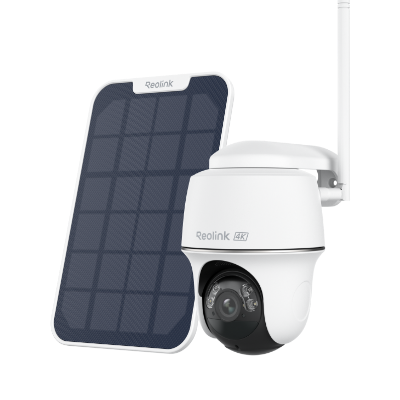
4K 100% Wire-Free PT Camera
4K 8MP Ultra HD; 5GHz/2.4GHz WiFi; Rechargeable Battery & Solar Powered; 355° Pan & 140° Tilt; IP65 Certified Weatherproof; Clear Night Vision; 2-Way Audio; 122° Wide Viewing Angle.
Reolink TrackFlex Floodlight WiFi
If you want both outdoor lighting and security, the Reolink TrackFlex Floodlight WiFi is a great choice. This advanced camera combines a adjustable floodlight with a pan-and-tilt security camera, offering 360-degree coverage and the ability to zoom in for clear details.
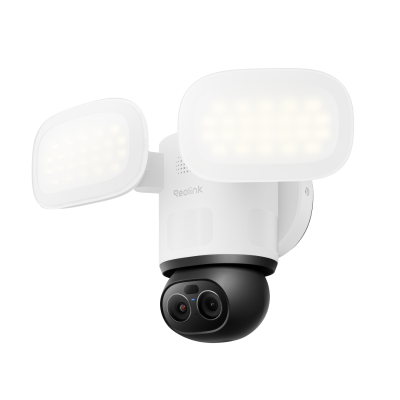
Smart 4K 360° Coverage Wi-Fi Floodlight Security Camera
Local AI Video Search, 4K 8MP Ultra HD, 360° Coverage View, 6X Hybrid Zoom, Dual-Color Floodlight.
FAQs
How to change Wi-Fi from 5GHz to 2.4 GHz?
To switch from 5GHz to 2.4GHz, you need to connect to a 2.4GHz network or adjust your router settings. If your router shows separate networks (e.g., “WiFi_2.4G” and “WiFi_5G”), simply select the 2.4GHz one. If not, log into your router settings and disable “Smart Connect” or split the bands into two separate networks, then reconnect using the 2.4GHz SSID.
How to set Wi-Fi to 2.4 GHz on iPhone?
You cannot manually force 2.4GHz on an iPhone. Instead, you must:
- Open Settings → Wi-Fi
- Select the WiFi network labeled 2.4G / 2.4GHz
- Enter the password to connect
If only one network name appears, you need to change settings in your router to separate the 2.4GHz and 5GHz bands.
What happens if I change Wi-Fi from 5GHz to 2.4 GHz?
Switching to 2.4GHz usually gives you:
- Better range and wall penetration
- More stable connection at longer distances
However, you may experience:
- Slower internet speeds compared to 5GHz
- More interference in crowded areas
It is often preferred for smart home devices and setups far from the router.
Can you convert a 5GHz WiFi network to 2.4 GHz?
No, you cannot directly convert 5GHz into 2.4GHz because they are different frequency bands. Instead, you can:
- Enable both bands on your router
- Split them into separate networks (2.4GHz and 5GHz)
- Connect your device to the 2.4GHz network
Most modern routers support both bands simultaneously.
Conclusion
The 2.4 GHz WiFi network standard has been around for a long time, and the reason behind that is its reliable connection over a long distance. While the other standards may be faster, they do not provide such better distance coverage, and that might be the reason why you want to switch to 2.4 GHz WiFi.
With the guides covered here, we hope that now you can easily know how to change WiFi to 2.4GHz network standard if your device supports it.
Search
Subscribe for the Latest Updates
Security insights & offers right into your inbox