
How to Change WiFi on Alexa: Quick & Easy Guide

When you change between internet providers or update your router or move your Alexa device to a different location the process of changing WiFi networks becomes essential. But how to change Alexa WiFi? This guide provides detailed information about changing WiFi on Alexa including the necessary conditions and step-by-step procedures for how to change WiFi on Alexa.
How to Change WiFi on Alexa Devices?
For Alexa devices with a screen, such as an Echo Show, you can use the following method:
- Swipe down from the top of your Echo device’s screen and open Settings.
- Go to Network (or Device Options > Network).
- Choose your new Wi-Fi network from the list and enter the password to connect.
If your Echo Dot is offline or not showing up, you can follow this video tutorial to put your Alexa device into setup mode and reset its Wi-Fi settings:
- Press and hold the Action button (the one with a dot) for about 15 seconds. If your device doesn’t have an Action button, hold Volume Up and Volume Down together instead.
- When the light turns orange, the device is in setup mode.
- Open the Alexa app again and follow the steps under “Add Device” or “Change Wi-Fi” to detect your device and reconnect it to your network.
How to Change WiFi with Alexa App?
Alexa change WiFi is an easy process that takes just a few minutes in the Alexa smartphone app. Here are step-by-step instructions for how to change WiFi on Alexa APP,
Step 1: Connect Mobile Device to New WiFi (If Applicable)
You should connect your mobile device to the new wireless network before modifying your Alexa's WiFi connection.
Step 2: Open Alexa App and Go to Devices Tab
Open the Alexa app from your smartphone and navigate to the bottom toolbar to tap the “Devices” icon.
Step 3: Select Your Alexa Device
From the “All Devices” section choose the Alexa device (such as an Echo or Echo Dot) that needs its WiFi settings updated.
Step 4: Access Device Settings
Open the device overview page on your Alexa device then tap the “Settings” cog icon located in the upper right corner to access device settings.
Step 5: Select Wi-Fi
You can find the Wi-Fi management options under the device settings menu.
Step 6: Tap Available Networks
From the Wi-Fi settings page you can access all WiFi networks currently detectable by tapping “Available Networks.”
Step 7: Select Your Preferred Network
Browse available WiFi options and select the name of the wireless network you want your Alexa to connect to.
Step 8: Enter WiFi Password
Choose from the list of available WiFi networks then select the one your Alexa needs to connect to.
Step 9: Wait for Alexa to Reconnect
Type the password for the chosen WiFi network at the prompt. Tap “Connect” once entered correctly. Your Alexa device needs time to reconnect after you finish the process.
How to Change WiFi Password on Alexa?
If the password for your existing WiFi network changes, you’ll also need to update that password in the Alexa app to maintain internet connectivity. Here’s how to change WiFi password on Alexa app:
Step 1: Connect Mobile Device to WiFi
First, connect the mobile device with the Alexa app to WiFi network whose password has been changed.
Step 2: Open Alexa App and Navigate to Wi-Fi Settings
Open the Alexa app, select your Alexa device, tap “Settings”, and select “Wi-Fi” on the device settings menu.
Step 3: Tap Connected Network
On the Wi-Fi settings page, tap the name of the currently connected WiFi network.
Step 4: Enter New WiFi Password
Delete the old WiFi login password and carefully enter the updated, correct password.
Step 5: Tap Connect
Once the new WiFi password is entered without typos, tap “Connect”.
Step 6: Wait for Reconnection
Give your Alexa a few minutes to disconnect and automatically reconnect to the WiFi network using the new password you provided.
When Need to Change Alexa WiFi?
You will need to adjust the WiFi settings on your Alexa devices under specific circumstances. When your Alexa device faces these situations, you need to switch its WiFi connection to keep all smart home and voice assistant features working.
- Reconnect to new WiFi network: If you change your router or switch internet providers, reconnect your Alexa devices to the new WiFi network.
- Changed network: If the network changes or you move the device to an area with poor signal other than a range of about 150 feet, then you may need to connect the device to another network.
- WiFi password change: Update the password in the Alexa app if the credentials of your network have changed.
- Connection problems: Changing to a more stable WiFi network can fix connection problems.
What to Do If You Can't Change WiFi Network on Alexa?
In some cases, you may encounter issues getting your Alexa device to successfully connect to a new wireless network during the WiFi change process. Here are some top troubleshooting tips:
- Restart your router and Alexa device completely.
- Double-check that the WiFi password you entered is 100% correct.
- Make sure your Alexa device is within strong range of the new WiFi router. If not, move it closer during setup.
- Delete old WiFi connections and connect Alexa to new WiFi.
- Factory reset your Alexa device and reconfigure WiFi as if new.
- Ensure your new WiFi network is visible and not hidden. Set to automatic DHCP IP addressing.
- Check if a software/firmware update is available for your Alexa device.
- Contact Amazon Alexa tech support if issues persist for further troubleshooting.
How to Improve Alexa's WiFi Connection?
Aside from changing WiFi settings, making small tweaks to optimize the WiFi environment can strengthen the connectivity and performance of Alexa-enabled devices:
- Place your router at the home's center point where it remains separated from objects that produce interference.
- Position your Alexa devices near the router at a distance of 25 feet while keeping the path to the router unobstructed.
- Minimize the WiFi interference caused by other devices accessing the network.
- Set devices including baby monitors, microwaves and garage door openers to operate on channels that do not overlap with the WiFi band.
- If your Alexa device location has weak WiFi coverage you should consider getting a mesh WiFi system or WiFi range extender or moving your router to that area.
- The router antenna needs adjustment to spread the WiFi signal directionally across a larger area.
- You should periodically reboot your router along with your connected Alexa devices to remove stored data from memory.
If your wired or wireless security cameras work with Alexa, make sure they’re placed within range of both your Alexa device and your home WiFi.
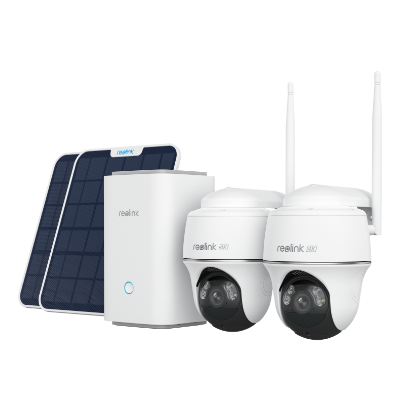
Wireless Security System With 4K PT Standalone Battery/Solar Wi-Fi Cameras
4K Color Footage Day & Night, 1 Year of Local Storage, Exclusive Anti-Theft Algorithms, Expandable System Up to 8 Reolink Cams
FAQs
How do I connect my Alexa to a new Wi-Fi?
The process of connecting an Amazon Echo or Echo Dot to a new Wi-Fi network begins in the Alexa app > Devices > [Your Alexa Device] > Settings > Wi-Fi > Available Networks. Use the new Wi-Fi name field to select your network then input the correct password before tapping the "Connect" option.
How do I fix Alexa when I change my Wi-Fi?
A Wi-Fi change can prevent Alexa from connecting so attempt moving it nearer to the router then reinitialize the router and device together. Remove all saved Wi-Fi networks from the Alexa application followed by a factory reset installation and new setup of the device. Verify that DHCP is enabled for your new network then perform firmware updates to optimize Alexa performance.
How to change Wi-Fi on Alexa without apps?
You can change an Alexa device’s Wi-Fi without the Alexa app by using a web browser on your phone or computer, though this method is more involved and may require a factory reset first. If your Alexa device has a screen, the process is much easier—you can update the Wi-Fi settings directly from the device’s display. We have mentioned in first part.
Can I change the Wi-Fi on all my Alexa devices at once?
Each Alexa device has to be updated separately through the Alexa app—there’s no one command that can change the Wi-Fi settings for all devices at the same time.
Conclusion
The process of changing your Alexa's WiFi network through the Alexa app remains simple but may result in connectivity problems that need troubleshooting. You can achieve a smooth connection of your Alexa device to new WiFi by making configuration attempts and performing troubleshooting steps.
What challenges have you faced changing WiFi on Alexa before? Do you have any other WiFi connectivity tips to ensure stable performance from smart home devices? Please share your experiences in the comments below!
Search
Subscribe for the Latest Updates
Security insights & offers right into your inbox