
How To Cast Phone To TV? 2025 Easiest Ways

Casting a mobile device to a TV has now become common, as it gives an immersive experience while watching movies and shows on a larger screen. It is one of the lovable features for people who want to enjoy a cinema-like experience at home. However, the main hurdle is casting the screen to the TV.
In this article, we will provide a comprehensive guide to help you stream on TV seamlessly. We will see different scenarios and guide you to easily connect the device.
How To Cast To TV From Android Phone?
How To Cast a Samsung Phone To a TV?
Samsung phones also have a straightforward way to cast to a TV through Wi-Fi. Here are the steps to follow.
- Drag down the Quick Panel on your Samsung phone.
- Tap Smart View. Select your TV from the list.
- Tap Start Now.
- It will start the mirroring, but if you want to adjust the screen, go to Smart View > More Options. Tap Settings and Phone Aspect Ratio. Select “Full screen on connected device.”
How To Cast Other Android Phone To TV?
Casting from any Android phone to the TV is similar to what we have discussed before, but it may vary according to the device. You must ensure that you are using an Android version of at least 6+ and have a smart TV with an updated OS. Let’s see how you can cast any Android phone to TV.
- Open YouTube or Netflix.
- You will see a cast icon at the top.
- Once you tap the icon, it will start discovering the devices.
- If you found your TV, tap on it to connect and enjoy seamless streaming.
Note: You must ensure that the TV and your Android phone are connected to the same Wi-Fi network.
How To Cast To TV From iPhone?
Apple offers the AirPlay feature that can easily cast your phone to the TV. You must check that your smart TV is supported with AirPlay. If it doesn’t support it, you should move to third-party apps for streaming.
- If you have an iPhone 8 or earlier, swipe up from the bottom left of your screen to access the control panel. For iPhone X or later, swipe down from the top right corner.
- Please tap screen mirroring from the menu.
- It will show your TV if it is compatible with AirPlay.
- Please tap on it to connect your iPhone to the TV. It will start displaying once you get connected.
How To Cast Phone To TV Without Wi-Fi
You can cast your phone to TV without Wi-Fi via an HDMI cable.
- You need an appropriate adapter to connect an HDMI cable to your phone’s charging port.
- Connect the HDMI cable to the phone via the adapter and connect the other end to your TV.
- Use your TV remote and select the correct HDMI channel. You will see the phone’s screen on the TV.
How To Cast Phone To TV Using Streaming Devices?
There are various popular streaming devices, such as Amazon Fire TV Stick, Roku, and Chromecast. The steps for using them could slightly differ, but here is the general method.
- Connect the streaming device to your TV, and then connect it and your phone to the same Wi-Fi network.
- Open the content app (Netflix, Hulu, YouTube, etc.) on your phone. Play anything you want.
- Look for the Cast option in the video player and tap it.
- Select the streaming stick or device from the list. Now, the media will appear on the TV screen.
Note: Reolink cameras can also be connected to your TVs to show the live feed on a large screen.
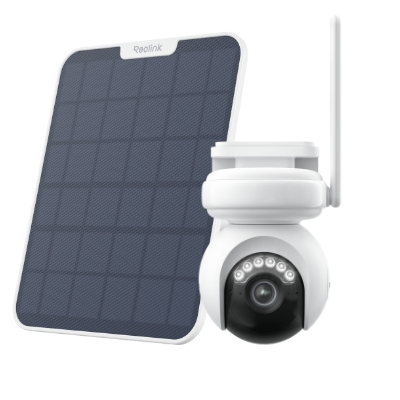
Industry-leading 4K Continuous Recording Battery Camera
4K UHD Continuous Recording; ColorX Night Vision; Pan & Tilt; Automatic Tracking; All Recordings Stored Locally.
Troubleshooting About Casting Phone To TV
- Connect your phone and TV to the same Wi-Fi network.
- Check that the TV’s Bluetooth or casting must be enabled.
- In case of buffering issues, try to reduce the distance between the router and TV.
- Try a better internet connection or plan for increased bandwidth.
- If you still can’t connect, try restarting the TV and your mobile phone.
- Check the compatibility of casting on your mobile phone and TV. Both of them must be compatible with casting and have an updated OS.
- Poor picture quality can be improved via an HDMI cable, providing no reliance on Wi-Fi networks.
FAQS
1. How to cast phone to LG TV?
To cast phone to LG TV, please follow the steps.
- Ensure that the TV and mobile phone are connected to the same Wi-Fi network.
- Open YouTube or Netflix and tap the cast icon.
- Tap the TV name once it becomes discoverable in the list.
- It will start casting the screen. You can also pair casting from the settings.
2. Is casting the same as mirroring?
No, casting is different from mirroring. Casting will only display the specific content that you want to share. While mirroring means your entire screen is shared. In casting, you can use your mobile phone and change the screen, which will never affect your content.
Conclusion
Casting provides a hassle-free option to stream the content on a larger screen. The content, like your memorable videos, movies, and shows, will be seamlessly displayed on a TV that gives you a more enjoyable experience. However, you must understand how casting can be done easily and how to pair using different devices.
Search
Subscribe for the Latest Updates
Security insights & offers right into your inbox