
How Do I Know If My Wi-Fi is 2.4GHz or 5GHz?
Have you ever asked which frequency band your home Wi-Fi network is broadcasting on, whether it’s 2.4GHz or 5GHz? One should be able to pinpoint the specific wireless frequencies to troubleshoot connectivity problems, attain maximum speeds, and ensure that smart home devices can connect well.
This extensive guide will provide several simple ways to establish whether your router and devices use the 2.4 GHz Wi-Fi range. Finally, let’s look at how do I know if my Wi-Fi is 2.4GHz.
What is 2.4GHz Wi-Fi?
2.4GHz Wi-Fi is a common wireless frequency band used by routers, operating between 2.4–2.4835 GHz.
- Speed: It can reach up to 600 Mbps in theory, but real-world speeds are usually around 50–100 Mbps.
- Range & Coverage: It offers wider coverage and better wall penetration than 5GHz, making it ideal for larger spaces.
- Compatibility: Supported by all modern routers, it ensures compatibility with older devices.
2.4GHz Wi-Fi is best for long-range and stable connections, but slower than 5GHz Wi-Fi.
How Do I Know If My Wi-Fi is 2.4GHz? Top 5 Methods
Here are some popular methods to check if your Wi-Fi frequency is 2.4GHz:
On Your Router
- Check the specifications on your wireless router or access point
- Look for a label stating whether it broadcasts at 2.4GHz and/or 5GHz
- Log into your router’s administrative interface via a web browser
- Check the technical details of your wireless networks to see the frequency band
Check Network Names (SSID)
- Many routers use different names (SSIDs) for each band
- Look for names like “WiFi_2.4G” or “WiFi_5G”
- If your network name includes “2.4G,” it indicates a 2.4GHz connection
- If both bands share the same name, you’ll need to use other methods to confirm
on Windows PC
- Click the Start menu and open the Control Panel
- Click Network and Internet > Network and Sharing Center
- Next to Connections, click your Wi-Fi network name
- In the Wi-Fi Status dialog box, click Wireless Properties
- On the General tab, check the Band section
on macOS
- Click the Wi-Fi icon in the menu bar
- Select your connected network
- Check the Channel field
Note: Channels 1–14 indicate 2.4GHz; Channels 36–165 indicate 5GHz
on Android Phones
- Open Settings > Network & Internet > Wi-Fi
- Tap your connected Wi-Fi network name
- Check the Frequency field
Note: 2.4GHz networks show a frequency starting with 2. Some devices display “2.4GHz” or “5GHz” directly
Using Analyzer App
- Use Wi-Fi analyzer apps for detailed insights
- These apps show channel numbers, frequencies, and signal strength
- Examples include Wi-Fi Analyzer (Android) and NetSpot (iOS)
- Open the app while connected to see if your network is 2.4GHz or 5GHz
What to Do If I Can’t Find Right Wi-Fi Frequency?
If you still can’t positively identify your Wi-Fi frequency after trying all the methods suggested, here are some next steps:
- Contact your internet service provider or router manufacturer for assistance determining your Wi-Fi network’s frequency band. They have additional tools to analyze your equipment.
- Search the exact model number of your wireless router to find technical specifications that state its supported frequency bands.
- Connect a device like a laptop directly to your router via an Ethernet cable. Then, check the Wi-Fi settings to identify frequency information.
- Purchase a Wi-Fi analyzer device that can detect granular network details that are not visible through software tools.
- Try disconnecting all other nearby wireless gadgets that could cause interference and obscure your network’s frequency.
- Ultimately, you may need to reset your router to factory default settings to reconfigure a new network with known 2.4GHz or 5GHz bands.
How to Connect Mobile Devices to 2.4GHz Wi-Fi?
If you need to specifically connect your mobile devices to a 2.4GHz Wi-Fi network, use these tips:
- Check your router admin console to confirm 2.4GHz network name (SSID) if separate from 5GHz.
- Go to Wi-Fi settings on your phone and select the correct 2.4GHz network name to join it.
- If the networks have the same SSID, use advanced options and force 2.4GHz mode if available on your device.
- Disable 5GHz networks on the router if possible, so only 2.4GHz broadcasts.
- Position the phone closer to the router for a stronger 2.4GHz signal than 5GHz.
- Try manually assigning a fixed channel like 6 or 11 instead of automatic channel selection.
Best 2.4GHz WiFi Security Cameras
Reolink offers a wide range of WiFi security cameras that support 2.4GHz connectivity, ensuring better range and more stable connections—especially for larger homes or areas with walls and obstacles.
Best Overall: 4K Pan & Tilt with Dual-Band Support
Reolink Argus PT Ultra 4K WiFi Camera
- Supports 2.4GHz WiFi for wider coverage
- 4K ultra HD for detailed monitoring
- Pan & tilt for full-area coverage
- Battery-powered with optional solar panel
Best for: Outdoor security with flexible placement and strong signal reliability
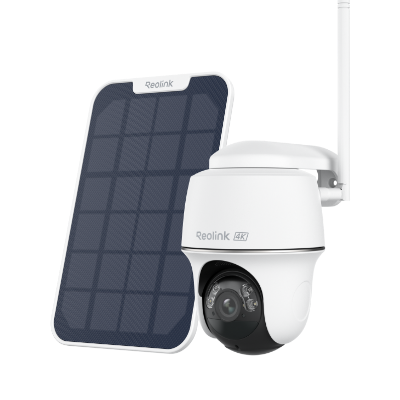
4k 100% Wire-Free PT Camera
4K 8MP Ultra HD; 5GHz/2.4GHz WiFi; Rechargeable Battery & Solar Powered; 355° Pan & 140° Tilt; IP65 Certified Weatherproof; Clear Night Vision; 2-Way Audio; 122° Wide Viewing Angle.
Best Budget Indoor Camera
Reolink E1 Indoor WiFi Camera
Affordable 2.4GHz-compatible indoor camera with pan-tilt and smart detection.
- Works with 2.4GHz WiFi networks
- Compact design for indoor use
- 355° pan and tilt coverage
- Two-way audio for real-time communication
Best for: Home monitoring, pets, and small spaces

PTZ Wireless Smart Home Camera
Smart, Powerful and Affordable All-Round Home Protection. 355° Pan and 50° Tilt; 4K Ultra HD, 3X Optical Zoom, Two-Way Audio, 2.4/5 GHz WiFi, with Google Assistant Integration.
FAQs
Can Traeger connect to 5GHz Wi-Fi?
Most Traeger grills do not support 5GHz Wi-Fi. They typically connect only to 2.4GHz networks, which provide better range and stability for outdoor devices. If your router combines both bands, you may need to enable a separate 2.4GHz network to connect your Traeger successfully.
Do all routers have 2.4 and 5GHz?
No, not all routers support both bands. Older routers may only have 2.4GHz, while most modern routers are dual-band, supporting both 2.4GHz and 5GHz Wi-Fi. Some newer models even offer tri-band or Wi-Fi 6/6E for improved performance.
How do I check if my Wi-Fi is 2.4GHz on my iPhone?
Open Settings > Wi-Fi on an iPhone and tap the “i” icon next to your connected network. Look at the Frequency field—2.4GHz will show a frequency starting with 2.4. Some routers explicitly state “2.4GHz.”
How do I make sure my router is on 2.4GHz?
Log into your router admin page and look for 2.4GHz network settings. Ensure the 2.4GHz radio is enabled, the network name (SSID) is broadcasting, and the channel width is set to 20MHz for best performance. Disable “smart connect” features that hide 2.4GHz vs. 5GHz.
How to change Wi-Fi from 5GHz to 2.4GHz?
On your device, manually select the 2.4GHz network name from the list of available networks instead of letting Wi-Fi automatically choose 5GHz. You can also go into advanced options on your device and force 2.4GHz mode. You can also disable the 5GHz radio on your router.
Conclusion
Checking whether your Wi-Fi is 2.4GHz or 5GHz is simple using your router settings, device network details, or analyzer tools. Knowing your network band helps improve performance, fix connection issues, and ensure compatibility with smart devices.
Search
Subscribe for the Latest Updates
Security insights & offers right into your inbox