
Access Point vs. Router: What’s the Difference and Which One Do You Need?

You often hear people mix up “access point” and “router.” They are not the same. Knowing the difference between router and access point helps you build a stable, secure, and fast network at home or at work. This guide explains what each device does, how they differ, where each one fits, and how to choose the right setup.
Wireless Access Point vs. Router: Understanding the Basics
You will see both devices in most modern networks. A router connects your local devices to the internet and manages traffic between them. An access point lets wireless devices join an existing wired or wireless network. They work in related ways, but they solve different problems. Let’s break down each term before we compare them.
What is a wireless access point?
A wireless access point (AP) lets wireless devices connect to a wired network. Think of it as a bridge between Ethernet cables and Wi‑Fi devices. The AP broadcasts a wireless signal. Your phone, laptop, and smart TV use that signal to reach the main network and the internet.
An access point does not decide where data goes on the internet. It does not hand out IP addresses on its own. It sends traffic to the router or a central switch that already runs the network. You normally add an AP when you need more coverage, more user capacity, or both. Offices, schools, hotels, and large homes use many APs to cover every floor and room.
What is WiFi router?
A WiFi router is the main traffic director in many homes and small offices. It connects your local network to your internet service. It also creates a wireless network so your devices can get online. A router gives out IP addresses, enforces firewall rules, and decides how to send data in and out.
Many consumer routers combine several functions in one box: modem, router, switch, and access point. You plug it into your internet line. You connect devices by cable or Wi‑Fi. The router manages all of that.
Access Point vs. Router: Key Differences
You now know what each device does. Let’s move into the WiFi access point vs router specifics. A short note first: both devices can broadcast Wi‑Fi. The big split lies in who controls traffic flow and who only extends wireless reach. Below are the core differences.
Function
A router routes. It directs traffic between your network and the internet and between devices inside your network. It also runs services like DHCP (for IP addresses) and NAT (network address translation).
An access point extends wireless coverage. It gives wireless clients an entry point to the network that the router already manages. It does not route traffic on its own. It forwards data to the router or switch.
Placement and setup
You place a router where your internet line enters the building. It needs a direct link to the modem or ONT. You set it up first because it forms the heart of the network.
You place access points where Wi‑Fi signal drops or where you need more capacity. You run an Ethernet cable from the router or switch to each AP. Some APs use Power over Ethernet (PoE), so one cable carries both data and power. This keeps placement flexible.
IP assignment
The router assigns IP addresses to devices through DHCP. It keeps track of who is who on the network. The access point does not assign IPs. It passes the request to the router. The router does the job. The AP stays transparent in this process. If your router's signal doesn't reach areas where you want to install WiFi cameras (e.g., backyard, garage), adding a wireless access point can extend your network so cameras stay connected reliably.
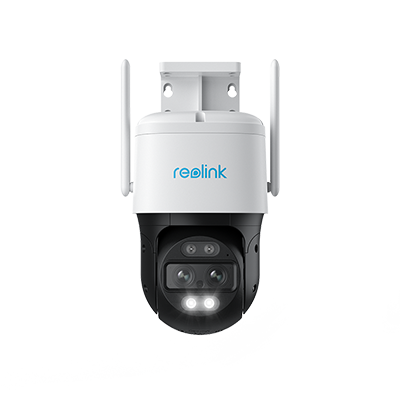
4K Dual-Lens PTZ Camera with Motion Tracking
4K 8MP UHD, Wide-Angle & Telephoto Lenses, Pan-Tilt-Zoom, Auto-Tracking, Person/Vehicle Detection, 2.4/5 GHz Dual-Band WiFi, Two-Way Audio.
User control & firewall
Routers offer user controls, parental controls, Quality of Service (QoS), and a firewall. You can block sites, set bandwidth limits, and protect devices from external threats at the router level. Access points usually skip these deeper controls. Some enterprise APs offer captive portals or client isolation, but they still rely on a router or controller for full security rules and network policies.
Coverage area
A single router’s Wi‑Fi radio may cover a small home or apartment. In a big house, office, or warehouse, that range falls short. The signal weakens through walls and floors. Access points solve that. You add more APs to cover dead spots and high-density areas. Each AP handles a zone. Together, they give even coverage across large spaces.
Cost and complexity
A single router is simple. One device, one setup. You plug it in, set a password, and you are online. Access points add cost and complexity. You pay for each AP and the wiring. You also need to configure channels, power levels, and SSIDs to avoid overlap. In return, you get better coverage and performance in larger settings.
Access Point Mode vs. Router Mode: Comparison Table
Some routers let you switch between “router mode” and “access point mode.” Here is how they differ. First, a quick note: you pick AP mode if you already have a main router and you only need to add more Wi‑Fi. You pick router mode if this device must manage the whole network.
Wireless Router vs. Access Point: Pros and Cons
You should weigh the strong points and weak points of each device. This helps you match the tool to the job.
WiFi router: pros and cons
Pros:
- One box handles internet access, routing, DHCP, firewall, and Wi‑Fi
- Fast, simple setup for small homes or offices
- Lower upfront cost than a multi‑AP system
- Built-in Ethernet ports for wired devices
- Many models include basic parental controls and QoS
Cons:
- Wi‑Fi range drops in large or multi‑story spaces
- One radio struggles with many users or heavy traffic
- Antennas and hardware in budget units limit performance
- You cannot place it far from the modem/ONT without extra gear
- Upgrades often mean replacing the whole unit
Access point: pros and cons
Pros:
- Extends Wi‑Fi to dead zones and high‑density areas
- Scales easily. You can add more APs as coverage needs grow
- Let's you place wireless coverage exactly where users are
- Works with PoE to simplify cabling and power
- Enterprise models handle many clients and run smoothly
Cons:
- Needs a router for DHCP, NAT, and firewall services
- Adds cost for each AP and for Ethernet runs
- Requires channel and power planning to avoid interference
- More pieces to manage (firmware, placement, mounting)
- Overkill for small spaces with few devices
Router vs. Wireless Access Point: Can You Use Them Together?
You can indeed have them in combination. Most larger or growing networks do, in fact. Sitting at the center is the router. It gives out IPs, makes the firewall work, and goes online. The Wi‑Fi is everywhere with access points. You may begin with a router and add APs at a later stage in case of further coverage.
FAQs
What is the purpose of an access point?
An access point is a connection point in a wired network to connect wireless devices. It is a device that turns an Ethernet connection into a Wi‑Fi signal. It enhances coverage and capacity without an alteration in the traffic management of the router.
What can a router do that an access point cannot?
A router can assign IP addresses, run a firewall, and route traffic between networks and the internet. An access point cannot do those core jobs. It passes that work to the router.
Should I use router mode or access point mode?
Use router mode if this device must manage your whole network and connect to the internet line. Use access point mode if you already have a main router and you only need more Wi‑Fi coverage. Many people switch an old router to AP mode to reuse it as a simple extender.
Conclusion
The difference between router and access point comes down to control versus coverage. The router controls traffic, IPs, and security. The access point extends Wi‑Fi reach and handles more users in more places.
For small spaces, one good router may do the job. For larger homes or business sites, a router plus multiple access points gives you stronger, smoother Wi‑Fi. Which setup fits you best? Share your network needs and let others learn from your experience.
Search
Subscribe for the Latest Updates
Security insights & offers right into your inbox