
What Is the WPS Button on My Router? Meaning, Uses, and Safety Tips
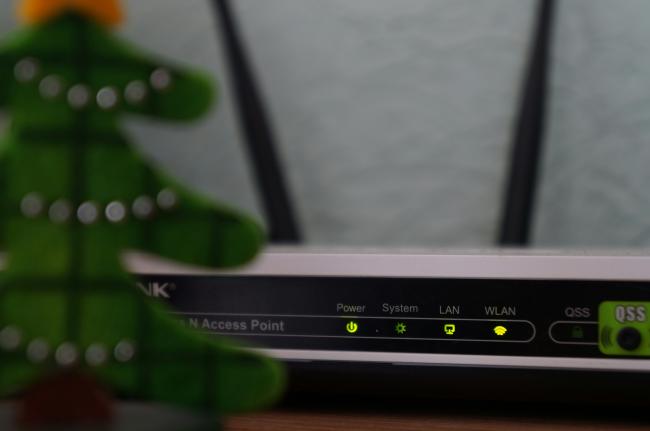
The wireless routers are sold with numerous possibilities, but there is a single feature that makes people question: the WPS button on router. The label is pressed by the consumers once or twice, and they are left wondering what exactly happened.
This guide discusses the WPS meaning, how it works, the equipment that depends on it, and the dangers that each homeowner should consider. By the time you are finished, you will have no doubts about how to switch the function on or off.
What Is the WPS Button on My Router?
WPS stands for Wi-Fi Protected Setup. The button offers a shortcut for adding a new gadget to a secured wireless network without typing a long password. You press the button on the router, then start a similar WPS process on the device. If the two units recognize each other during a short window—about two minutes—the device joins the network using the existing Wi-Fi password stored inside the router.
How Does the WPS Button Work?
Routers store your Wi-Fi passphrase in memory. When you push the WPS key, the router broadcasts a one-time code that lasts for a brief period. During that span, a compatible gadget can send a request. The router checks a hidden identification handshake rather than the normal password string.
If the match succeeds, the router hands the saved network key to the new gadget. From that moment on, the gadget connects like any other client, and no further WPS actions are required unless you reset the gear.
What Are Common Types of WPS Methods?
Many routers and devices support more than one WPS procedure. Each process removes typing for the end user, yet the steps differ.
- Push-Button Configuration (PBC): You press the WPS key on the router and the client within two minutes. The devices finish the link on their own.
- PIN Entry—Router Displays a Code: The router shows an eight-digit PIN on its label or web page. You enter that number in the device’s WPS screen to approve the link.
- PIN Entry—Device Displays a Code: Some smart screens, printers, or TVs show their own eight-digit PIN. You type that value into the router’s settings page instead.
- Near Field Communication (NFC) Tap: A few enterprise routers embed an NFC tag. A phone or badge taps the tag, which transfers the network details and completes the join.
What Devices Use the WPS Button?
An increasing number of consumer electronics continue to support WPS due to the fact that it makes first-time setup quicker, particularly on screens that do not have a keyboard. The most widespread ones are listed below.
Smart TVs
Large screen televisions that have built-in Wi-Fi usually have a WPS option in the menu of the network. Rather than type a passphrase letter by letter using the remote, the owners press the router key and select WPS on the TV. The set has the ability to connect in seconds, update, and stream content.
Printers
Many desktop and small office printers offer WPS so that staff can install drivers without physically attaching a USB cable. Press the WPS key, then tap the same choice on the printer’s panel or companion app. The printer pulls the Wi-Fi credentials, announces itself on the network, and permits shared printing.
Wi-Fi Cameras
Indoor and outdoor cameras benefit from WPS because they often mount far from desks. A quick button press on the router followed by a press or app prompt on the camera pairs the units. The camera then streams video to the cloud or local storage without manual password entry.
Smart Home and IoT Devices
Plugs, bulbs, thermostats, and hubs sometimes retain a hidden WPS client. Installers press the WPS button on the router, then use the product’s companion app or built-in key. The smart item gains Wi-Fi access and appears in the control app, ready for automation rules.
Is the WPS Button Safe to Use?
WPS remains convenient, yet it introduces attack points absent when you rely only on a strong passphrase. The eight-digit PIN mode, in particular, has well-known flaws because hackers can try codes by brute force if the router ignores failed-attempt limits. Push-button mode does not reveal the same PIN risk, though it keeps WPS services live in firmware.
For everyday homes, the chance of a nearby intruder during the brief pairing window is low. Still, security-minded users often disable WPS once every device has joined, then rely on saved keys for ongoing access.
How to Enable or Disable the WPS Button on a Router?
All the brands conceal settings under varying names in the menu, but the majority of them are patterned. Screenshots will be shown in the manual or the support site that matches your model. The following steps include the fundamentals.
How to Find the WPS Button on a Router?
-
Place the router upright in good light and look near the rear antennas or side vents.
-
Search for a key labeled WPS, Wi-Fi, or an icon of two arrows forming a circle.
-
Confirm that the button sits flush to avoid accidental presses.
-
On some mesh kits, the WPS control lives in the mobile app rather than on hardware. Open the app and look under Wi-Fi settings for a software WPS toggle.
How to Enable WPS Settings?
-
Connect a computer or phone to the router via Wi-Fi or Ethernet.
-
Open a browser and enter the router’s local address, such as 192.168.1.1.
-
Log in with the admin username and password printed on the label or set during the first run.
-
Navigate to the Wireless or Advanced tab.
-
Switch WPS to On or Enabled and pick your preferred method—Push Button or PIN.
-
Save the change and exit the menu.
How to Disable WPS Settings?
-
Sign in to the router’s management page using the steps above.
-
Go to the Wireless or Security section.
-
Toggle WPS to Off or Disabled.
-
Apply or save the setting, then reboot the router if prompted.
-
Test that your devices still connect; they should because they store the passphrase from earlier joins.
FAQs
What does WPS mean on a router?
WPS is abbreviated as Wi-Fi Protected Setup. It is an option that allows you to add compatible devices to your secured wireless network without entering the complete password. When the WPS button is pressed, a short pairing window opens, and in the process, the router transfers the saved Wi-Fi key to the new device.
What happens if I press the WPS button on my router?
When the WPS button is pressed, there is a two-minute time interval. Any other gadget close enough to access WPS is able to do so at that period. When a device initiates its own process of WPS, the router provides the stored Wi-Fi password to it without any notice, and the device joins the network. No transition happens when no device wants to get access.
How do I know if WPS is on or off?
The majority of routers have a light of small light close to the WPS button. A constant light usually indicates the feature is turned on, whereas a flickering light indicates the pairing window. The router can also be opened in the web interface, and the WPS setting can be checked under the Wireless or Security tab, and verified whether the router is in the current state or not.
Conclusion
A router has a short and easy route to the WPS button to connect new equipment, and lots of households use it weekly. Now you have the knowledge of the meaning of WPS, the steps involved in the process, and the security trade-offs. Use WPS only on the occasions when required, keep your passphrase in a secure place, and occasionally access the menu of your router. Write your experience with WPS in the comments to allow other readers to learn from the experience of real-life arrangements.
Search
Subscribe for the Latest Updates
Security insights & offers right into your inbox