
Ultimate Guide to Setting Up HomeKit: Step-by-Step Tutoria
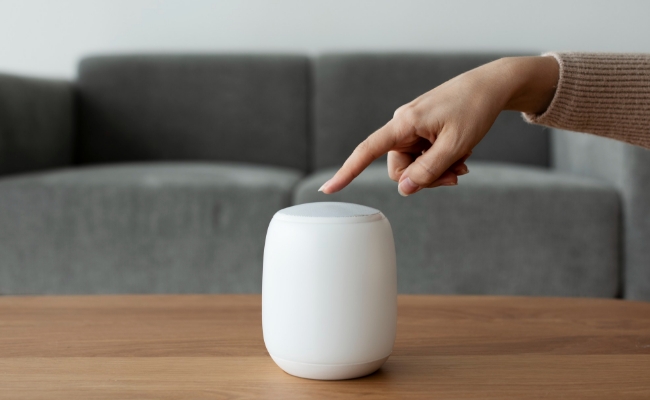
You might have finished installing a smart home system and plan to integrate all of them with HomeKit. Setting up HomeKit is crucial for managing all devices in a single place. However, you might face some difficulties in setting up if you are a first-time user.
In this guide, we will comprehensively discuss how to set up a home kit, with detailed steps. We will also assist you with your accessory requirements and with organizing them across different zones and rooms.
What To Do Before Setting Up HomeKit?
Before setting up a HomeKit, there are certain essential steps you must take to ensure stability and durability.
-
Initially, ensure you have an updated version of iOS.
-
Turn on the Bluetooth and check whether you can add the accessories before setting up the HomeKit.
-
It is also important to check the accessory compatibility with HomeKit. If it is not compatible, you will be unable to connect it to HomeKit.
-
Always check whether any additional hardware is required for the accessory, and ensure that all devices are connected to the same Wi-Fi network. Connect your home hubs, Apple TV, or other devices with the same Apple ID.
-
Evaluate the quality of your Wi-Fi network; it should be stable so devices can perform to their optimal potential.
-
Moreover, proper planning is necessary to manage the HomeKit application. You should pre-plan the room, zones, and floor names for tagging purposes to ensure no confusion exists upon calling a specific device.
How To Set Up HomeKit On iPhone?
- Ensure that your iPhone is connected to a Wi-Fi network. Open the Home app from the menu.
- Tap Continue to start using the app.
- Tap the + icon on the top right corner and hit Add New Home from the dropdown menu.
- Add a Home Name and description on the prompts. You can also add a home wallpaper on the app.
- Turn on the location services and allow access.
- Hit the Save button in the top right corner to finish the configuration.
How Do I Set Up HomeKit Accessories?
Setting up HomeKit accessories is handy and can be done within seconds. Let's follow the steps and connect them.
- Open the Home app on your phone.
- Tap the + icon on the right-hand corner and hit Add Accessory from the options. You can also tap the Add Accessory option on the homepage.
- Please read the instructions carefully and scan the QR code to add the device. Assign a room to the accessory and name it. You can also choose a specific icon type.
- For additional accessories that are previously paired with other apps can be paired by navigating to the More option.
- The accessory will be discoverable; tap Allow to add it to the list.
- Tap Continue and then hit Done to complete the action.
Which Accessories Are Compatible With HomeKit?
The HomeKit is compatible with a broad accessories network to ensure a completely automated smart home. Let's see the list of accessories compatible with HomeKit.
Security Devices: Security cameras, video doorbells, video door locks, motion sensors, and other devices for efficient monitoring.
Lighting Devices: LED strips and smart LED bulbs are ideal lighting accessories to get a hands-free experience to adjust brightness, colors, and temperature.
Climate Control: Fans, thermostats, and air conditioners are also vital devices to control the temperature with voice.
Outlets: Smart plugs provide an automation to turn on or off the plug-in devices with just a click.
Window and Garage Shutters: Smart blinds and automatic doors can also be controlled through HomeKit.
Locks: Smart door locks allow you to remotely open and close the doors. Moreover, they are also used for security purposes with fingerprint and video integrations.
How To Organize Accessories By Room And Zone In Apple Home?
With various devices, it's challenging to find a specific one within a few seconds. It should be a better practice to organize them just as you organize your clothes in a closet.
You should organize accessories by dividing them into specific zones and rooms. Assigning a specific area would make it simpler for you to find the required device and automate quickly.
For instance, creating rooms like the Study Room, Dining Room, Bedroom, and Drawing Room will give you designated spaces to add accessories. You can also create zones such as rooftop, upstairs, and downstairs to control the accessories with a single command.
Recommendation For HomeKit Siri Commands
With Siri commands, you can remotely control all the smart devices mounted in your house. The basic commands include turning any specific accessory on or off. For instance, you can say, "Siri, turn off the lights." Or "Siri, turn on bedroom lights."
Other commands include adjusting the temperature or brightness of lights. You can say, "Siri, dim the bedroom lights to 30%" or "Set the temperature to warm." This command will warm the light color. You can also call any specific zone to control the environment.
You can also command Siri to check the status of the doors or the garage, or ask any other question. For instance, you can ask "Siri, is my garage door open?" Additionally, Siri can also control the scenes according to your requirements. Say, "Siri, Good Morning." This command will help you automate opening blinds, turning off lights, and other related tasks.
FAQs
1. How to set up HomeKit without a QR code?
The QR code isn't the only resource to connect to the HomeKit. You will find an 8-digit code in the device manual or packaging. Entering this code will help you connect the devices manually without hassle.
2. How to enable Apple Home?
Please follow the steps to enable Apple Home. Go to Settings > Your name > iCloud > See all > Home. Toggle on the slider next to the Home; turning green will indicate that it's now enabled.
Conclusion
Setting up a HomeKit is an easy task if you know how to do it correctly. We have explained the step-by-step method for setting it up and connecting the desired accessory. Management is also a key factor that you should keep in mind to handle the devices without any confusion. Name your devices for different rooms and areas to make everything easier to remember.
Search
Subscribe for the Latest Updates
Security insights & offers right into your inbox