
How to Update Router Firmware: A Step-by-Step Guide
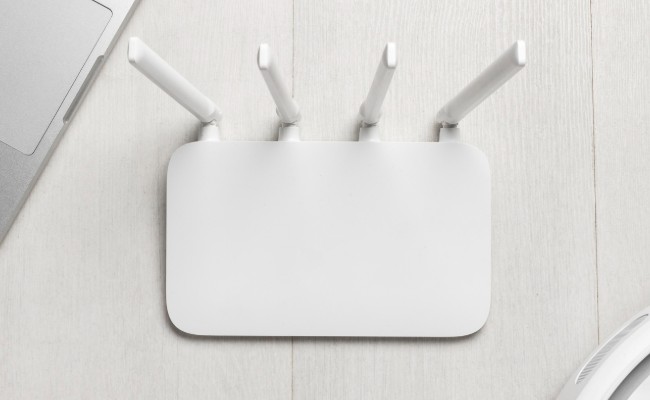
It is always a good practice to update your router's firmware because it adds up to the performance and security and, most importantly, is an excellent way of unlocking new features of your router. It may sound so complicated to learn how to update router firmware, but as has been made clear here, it is very easy to understand.
Whether you want to know how to update Netgear router firmware, Asus router firmware, or even Xfinity router firmware, this article will provide you with steps to guide you on how to do it effectively. Keep reading to learn how to update firmware on a router and handle those updates on any of your devices.
Occasionally, you may need to update your router firmware to accommodate your WiFi security cameras. Take a look at the new Reolink Duo 3 WiFi. This 16MP dual-lens security camera operates on dual-band WiFi 6 and supports remote access.
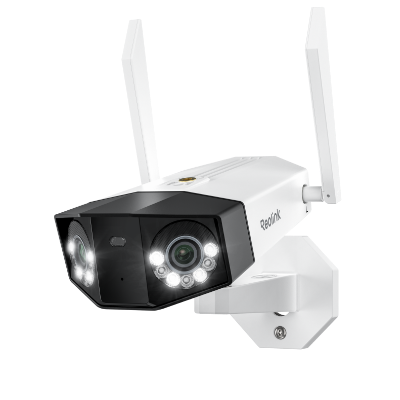
Groundbreaking 16MP Dual-Lens WiFi Camera
16MP UHD, Dual-Lens, Motion Track, 180° Wide Viewing Angle, Plug-In WiFi, Color Night Vision.
How Do I Know If My Router Needs a Firmware Update?
Routers require occasional firmware updates to remain functional and considered state-of-the-art like any hardware. It is crucial to identify occasions when you need to update router firmware because there are various reasons for doing the same.
- Security Vulnerabilities: Security issues are the most critical inducement to a firmware upgrade. Developers bring out a new update to address a vulnerability that could potentially put your network at risk of hackers.
- Unstable Performance: The second reason is that the performance stays low for some time before it shoots up, or vice versa. If your router connection drops often or slows down suddenly, updating the firmware can always help fix such problems.
- New Functionalities and Features: Firmware updates are needed if they do not support the latest features smoothly. The day-to-day updates can improve performance.
- After Buying a New Router: Most new routers have outdated firmware, and they need to be updated for better connection and access to New features.
- Router Compatibility Issues: If your router cannot connect smoothly with your devices, then there is a need to update the firmware.
How to Update Router Firmware?
Knowing how to update router firmware is crucial for Internet users nowadays. Generally, this is done by connecting to the router's web-based user interface, finding the firmware update feature, and initiating the update.
Every activity is logical if divided into actions, thus minimizing the chances of encountering many problems. Now, let us highlight some actions that will help you follow the steps to update the routerfirmware.
1. Find the Router IP Address
You must first find your router's IP address to update the router firmware. This IP address is the address used to configure your router settings. It can be found on the sticker attached to the router, but if you don't have the sticker, you can locate the default IP address on your computer.
In Windows, this is realized on the command line where you type "ipconfig." For Mac users, switch to the System Preferences and Network; the details are under your current connection. Once you have the IP address, you can proceed to the next step, which is as follows:
2. Log Into Your Router
Once you have the IP address, launch a web browser and type the router's IP address in the address bar. These instructions will lead you to your router's login page. Type the administrator username and the administrator password.
These are usually held on a sticker on the router, but if you have changed them before, use the new details. Successfully updating router firmware involves accessing specific settings, which is done by logging into the router.
3. Find Firmware Settings
After login, scroll to the firmware or system settings page. The place for this procedure may differ from the router's brand; nevertheless, the label may comprise words like "Firmware Update," "Router Upgrade," etc.
When you come to this section, you can perform a check for updates and start the update process. Getting acquainted with your router is always beneficial so you are well-prepared for things like an Asus router or Netgear router firmware update.
4. Check Available Updates
Be sure to find the option to check for updates in the firmware settings section. Depending on your kind of router, it will either look for updates on its own or have a button to look for updates.
This step helps you know the updates that may be available if you have to apply them. The updating of your firmware is essential in keeping your Network secure and free from prone to attacks.
5. Download and Install
The update must be carefully selected, and the newest firmware version must be obtained from the router's panel or the manufacturer's website. Continue as per screen directions to input the firmware filename and start the installation procedure.
Do not interrupt this update because it can lead to router problems with your router. Completing this step enhances the performance of the router and its security as it will see to it that it's running the current version of the firmware.
How to Update Firmware on Router via the Manufacturer's Website?
Maintaining a stable and secure network connection is essential to keep your router updated. However, we have developed a step-by-step guide to make the process hassle-free.
- If the automatic update option is unavailable or working correctly, router firmware updates may be done manually by surfing the manufacturer's website.
- This way, you can obtain the actual firmware of your router. First, find out your router model and version; this information most often can be read on the device.
- Finally, go to the support tab on the manufacturer's web page.
- Please search for the firmware download link on the site and find the updated router firmware compatible with its model.
- After registration, you can download the particular file to your computer.
How to Conduct Netgear Router Firmware Update?
Updating firmware is an easy task, but it also has complications. It can have security patches or bug fixes, too. With our side, it will help you get Netgear router firmware updates without any hassle.
- Start by signing in with the router using the IP address and password.
- Go to firmware update and discover if there is any update available for your device. If there is firmware, it can be flashed right from the router's web interface.
- Apart from that, you can visit the Netgear official site of Netgear
- Now search for your router model number, and then download the newest firmware update version
- The last step is to transfer the file through the router's settings to finish the update. It supplements your Netgear router with security and optimizes its functionality consistently.
How to Update Xfinity Router Firmware?
It's your responsibility to ensure that the Xfinity router firmware is not outdated so that you have smooth access to its latest features. Most of the Xfinity routers update automatically, but you should stay up-to-date. Keep reading our step-by-step guide.
- To change the Xfinity router, it is necessary to gain access to the credentials needed to access the router's administrative console.
- You can also use the default username and password or change the name and password you modified recently.
- The next step will be more straightforward – find the firmware update option in the settings.
- If it is not done automatically, please go to the Xfinity support website and search for the firmware update file of your model type.
- Move the file to the router's interface to start the update process.
- It stabilizes your device with the latest features of the Xfinity network when an update of Xfinity router firmware is done.
How to Update Asus Router Firmware?
Keeping Asus router firmware updated for better performance and enhanced security. For better guidance, you can visit the website. However, we have developed a step-by-step guide for you; let's look.
- Log into your router's admin interface using the IP address to perform an Asus router firmware update.
- Navigate to the firmware or system update section.
- If an update is available, download it directly or visit Asus' official website to obtain the latest firmware for your router model.
- Upload the firmware file and follow the on-screen instructions to complete the update. Regular updates improve your Asus router's performance and security.
FAQs
Should you update the firmware on a router?
Yes, updating router firmware is essential for maintaining network security and performance. It ensures your router has the latest features and fixes any known vulnerabilities.
What happens if you don't update router firmware?
If you neglect to update your router firmware, you risk exposing your Network to security threats and experiencing performance issues. Another drawback is missing out on new features and compatibility improvements.
How do I access my router firmware?
To access your router firmware, log into your router's admin interface using its IP address. Navigate to the firmware settings section to check for and apply updates.
Conclusion
Updating your router firmware is vital for ensuring a secure and efficient network. Whether you're learning to update router firmware, perform an Asus router firmware update, or manage a Xfinity router firmwareupdate, following these steps ensures a smooth process. Regular updates improve performance and protect your Network from potential threats. Please share your thoughts and experiences with firmware updates if you found this guide helpful.
Search
Subscribe for the Latest Updates
Security insights & offers right into your inbox