
How To Turn On Google Assistant? Simple Guide to Voice Activation

By using Google Assistant, you can manage and control devices hands-free. It assists you in your daily tasks and makes your life easier, but you have to turn it on to enjoy its features.
In this article, we will discuss how to turn on Google Assistant. We will take you through the step-by-step process of turning it on on different devices.
How To Turn On Google Assistant On Your Devices?
Here are the easy guides on how to turn on Google Assistant and Hey Google in a few simple steps.
Turn On "Hey, Google“
- Go to Google App and tap on the profile icon at the top right corner of the screen. Tap on the Settings option.
- Now select the Google Assistant > Voice Match.
- This will show the Hey Google option.
- Tap the toggle switch to enable the Hey Google feature.
Turn On Google Assistant
- Open the Google App on your device.
- Tap the profile icon from the top right corner and select the Settings option.
- Now tap the option of Google Assistant, scroll down the screen, and select the General option.
- The Google Assistant option will be on the screen. Tap the toggle switch to turn it ON.
How To Set Up Google Assistant On Your Devices?
Setting up Google Assistant is a short process. Here are the steps to set up Google Assistant on Android and Apple devices separately.
Set Up Google Assistant On Android Phone & Tablet
- Go to the Google app. Tap the profile icon and select Settings.
- Go to Google Assistant and tap the General option.
- Tap the toggle switch in front of the Google Assistant option to turn it ON.
Set Up Google Assistant On iPhone & iPad
- Open the App Store and search for the Google Assistant app.
- Download and install the application on your iPhone or iPad.
- Now, open the application and log in through your Google account.
- Open the app and tap the Hey Google and Voice Match. Follow the suggested prompts and turn ON the voice activation.
- You can also add the Siri shortcut for easy access, but this step is optional.
How To Teach Google Assistant to Recognize Your Voice?
Google Assistant is an outstanding AI-driven tool that generally features good results, but its efficiency can be enhanced if it recognizes any specific or unique voice.
Access Google Assistant With Your Voice On Android
- Open Google app > Profile icon > Settings > Google Assistant.
- Go to the Hey Google and Voice Match option and turn the Hey Google ON.
- Tap on Voice Model. Select Set up Voice Match if you are setting up the voice for the first time. Otherwise, select the Retain Voice Model.
- Now follow the instructions and say OK Google or Hey Google multiple times to train the tool.
Access Google Assistant With Your Voice On iOS
- Download and install the Google app from the App Store.
- Log in to the app through your Google account and go to the profile icon.
- Open Settings, tap the Voice Match option, and turn the Hey Google ON.
- Now Google Assistant will ask you to loudly speak specific phrases to train the tool.
- Say OK Google or Hey Google multiple times until the tool starts responding accordingly.
Applications Of Google Assistant
Here are some key applications that make mobile-based routine tasks easier, effortless, and time-saving.
Smart Home Control
Google Assistant can manage smart home devices like thermostats, security cameras, and lights. You can control everything and just have to say “Hey Google, turn the lights ON” or “Hey Google, set the thermostat at 50 degrees”. Google Assistant will do these tasks immediately.
Answering Queries
You can also use Google Assistant to get the answers to various questions rather than typing them and searching on Google. You can say “Hey Google, how is the weather right now?” or “Hey Google, when will the ICC World Cup start?” Google Assistant will search and retrieve the answer from the internet.
Entertainment
Google Assistant can also entertain you by playing your desired playlists and podcasts with just a hands-free command. It can even tell you different jokes if you want to be in a mood during different tasks.
Hands-Free Assistance
Google Assistant allows users to access mobile activities without touching the device. You can simply say, “Hey Google, call Dad,” or “Hey Google, remind me to do homework at 6:00 pm.”
Navigation and Travel
Google Assistant is also an excellent navigation and travel guide. You can just ask “Hey Google, how long will it take to reach the market?” It will estimate the time accordingly in no time.
Monitor Smart Home Security Devices
You can also use Google Assistant to control and monitor smart home security devices. For example, compatible cameras allow you to view live footage on smart displays or TVs using simple voice commands like “Hey Google, show the backyard.” A smart floodlight camera such as the Reolink TrackFlex Floodlight WiFi integrates smoothly with Google Assistant, offering 4K dual-lens monitoring, 360° pan-tilt coverage, and bright floodlights for enhanced outdoor security.
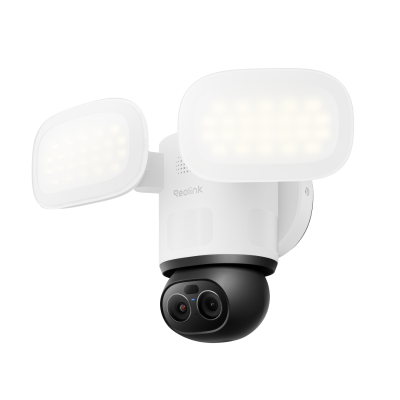
Smart 4K 360° Coverage Wi-Fi Floodlight Security Camera
Local AI Video Search, 4K 8MP Ultra HD, 360° Coverage View, 6X Hybrid Zoom, Dual-Color Floodlight.
FAQs
1. Where Are Google Assistant Settings?
Open the Google app, go to the profile icon, select Settings, and tap Google Assistant. All options related to its settings will appear on the screen.
2. How Do I Activate Google Voice?
On Android devices, open Google App> Profile icon > Settings > Google Assistant > General. The option to turn on the Google Assistant will appear on the screen. For iPhones or iPads, download and install the Google App from the App Store. Log on to the app through your Google account and go to Hey Google and Voice Match option to turn the Google Assistant ON.
Conclusion
Google Assistant is available to make your life easier through smart controls. Whether it's playing your favorite playlist, helping you stay organized, or cracking jokes, Google Assistant can do it in the best possible way. Just say, “Hey, Google” and enjoy the AI-driven assistance without moving or touching your devices. Follow the steps and have a happy chat with your assistant anytime for free.
Search
Subscribe for the Latest Updates
Security insights & offers right into your inbox