
How to Change Your Wi-Fi Name: A Step-by-Step Guide
Your Wi-Fi name or SSID makes your Wi-Fi distinguishable, and that's how you find it in dozens of other Wi-Fi networks. You can change it and name it as you like.
In this article, we will explain how to change Wi-Fi name in the step-by-step process. We will share the steps for different devices and discuss how to change the password for enhanced security.
How to Find Wi-Fi Router IP Address?
You will need your router's IP address in order to access its settings and alter your Wi-Fi name. Because the IP address serves as a gateway to the router's configuration page, where all network customizations take place, this step is crucial.
You can easily find it on your mobile or computer. However, the steps differ a bit. Here a few ways to find the IP address on different devices.
On Windows:
- Open the Command Prompt and type ipconfig.
- Look for the "Default Gateway" under your Wi-Fi connection. This is your router's IP address.
On Mac:
- Go to System Preferences > Network.
- Select your Wi-Fi connection and click "Advanced."
- Under the TCP/IP tab, you'll find the router's IP address.
On Mobile:
- Go to your Wi-Fi settings and tap on your connected network.
- Look for the "Gateway" or "Router" IP address.
How to Change Wi-Fi Name on the Web?
Once you have your router's IP address, follow these steps to learn how to change your Wi-Fi network name:
- Open a web browser and enter your router's IP address in the address bar.
- Log in using your router's username and password (usually found on the router or in the manual).
- Navigate to the "Wireless" or "Wi-Fi Settings" section. Locate the "SSID" (Service Set Identifier) field. This is your Wi-Fi name.
- Enter your new Wi-Fi name and save the changes. Reconnect your devices to the new Wi-Fi network.
How to Change Wi-Fi Name on Computer?
On Mac:
- Open System Preferences > Network.
- Select your Wi-Fi connection and click "Advanced."
- Under the Wi-Fi tab, you can view and change your network name.
On Windows:
- Open the Command Prompt and type netsh wlan show profiles.
- To change the Wi-Fi name, you'll need to access your router's settings via the web interface (as described above).
How to Change Wi-Fi Name in Mobile?
Changing your Wi-Fi name on a mobile device requires accessing your router's settings:
- Open a browser on your phone and enter your router's IP address.
- Log in using your router's credentials.
- Navigate to the Wi-Fi settings and change the SSID (Wi-Fi name).
- Save the changes and reconnect your devices.
How to Change Wi-Fi Network Name via Reset Router?
Resetting your router is a last resort if you are unable to access its settings or have forgotten your login information. If you have inherited a router, have forgotten your login credentials, or are resolving ongoing problems, this method can be helpful.
Here's how to change the Wi-Fi network name:
- Locate the reset button on your router (usually a small pinhole).
- Press and hold the button for 10-15 seconds until the router restarts.
- Log in to the router using the default username and password (found on the router or in the manual).
- Change the Wi-Fi name and password as needed.
Note: Resetting your router will erase all custom settings, so use this method only if necessary.
How to Change Wi-Fi Password?
Changing your Wi-Fi password is just as important as changing the name. Here's how to change Wifi name and password:
- Access your router's settings via the web interface.
- Navigate to the "Wireless" or "Security" section.
- Locate the "Password" or "Passphrase" field.
- Enter a strong, unique password and save the changes.
- Reconnect your devices using the new password.
Bonus: Strong Wi-Fi Signal Security Camera System
For seamless connectivity, an effective Wi-Fi signal is necessary, particularly for security cameras. Two powerful Wi-Fi signal security camera systems that guarantee reliable performance are as follows:
Home Hub with Argus PT Ultra
Home Hub with Argus PT Ultra is a dual-band Wi-Fi security camera system. It ensures fast and stable Wi-Fi connectivity so that you can enjoy lag-free live previews from any location. It encompasses 4K resolution, real-time alerts, and smart home integration.
The camera's pan-tilt feature offers a 360° view and is thus suited for expansive areas. It also offers dual night vision for clear and colored videos at night. The Home Hub offers 1 year of local storage with anti-theft algorithms.
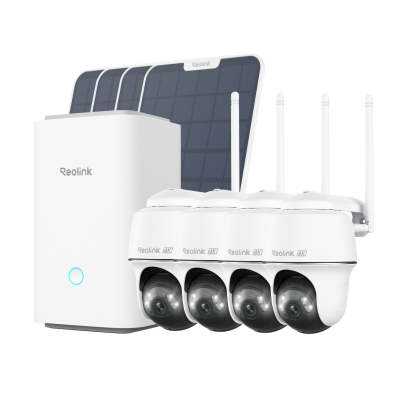
Wireless Security System With 4K PT Standalone Battery/Solar Wi-Fi Cameras
4K Color Footage Day & Night, 1 Year of Local Storage, Exclusive Anti-Theft Algorithms, 360° All-Around Coverage, Expandable System Up to 8 Reolink Cams.
Home Hub with Argus Eco Ultra
The Argus Eco Ultra Home Hub is a wireless Wi-Fi security system that comes with two solar-powered cameras, two solar panels, and a Home Hub. It offers seamless Wi-Fi connectivity and can be expanded up to eight security cameras without compromising on speed and performance.
The cameras offer 4K videos for exceptional details. At night, it uses spotlights to record clear and colorful videos. The Home Hub comes with a 64GB microSD card, which is more than enough. It offers a smooth live preview and also works as a reliable alarm center.
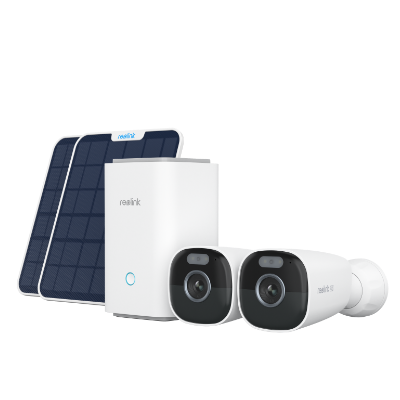
Wireless Security System with 4K Wi-Fi Solar/Battery Standalone Camera Without Monthly Fees
4K Color Footage Day & Night, 1 Year of Local Storage, Exclusive Anti-Theft Algorithms, 360° All-Around Coverage, Expandable System Up to 8 Reolink Cams.
FAQs
Should I rename my Wi-Fi network?
Yes, renaming your Wi-Fi network can improve security and make it easier to identify. Avoid using personal information in the name.
If I only change the username of my wireless network, will I need to reconnect all devices on the network?
Yes, changing the Wi-Fi name (SSID) will require you to reconnect all devices using the new name.
Conclusion
Changing your Wi-Fi name and password makes network management easier and improves security. We have shared the step-by-step process for different devices. You can follow them and easily change the Wi-Fi name as you like. Try to change the Wi-Fi name and password often to ensure the network's security.
Search
Subscribe for the Latest Updates
Security insights & offers right into your inbox