
How to Change Google Assistant Voice?
The voice of Google Assistant can be changed. You can select the voice, accent, and language you like. There is a wide range of voices already available, and you only need to change it.
In this article, we will explain how to change Google Assistant voice. We will take you through the step-by-step process of changing voices on different devices.
Can You Get Different Google Assistant Voices?
Yes, you can change the Google Assistant voice to suit your needs. Male and female voice options with varying languages and accents are currently being offered by Google. These features are aimed at personalizing your interactions with Google Assistant, making things much better and more to your needs.
Google provides a range of voices, including:
- Male and female voices with natural-sounding tones.
- Different accents such as American, British, Australian, and more.
- Several languages to serve users from around the world.
The user experience will be enjoyable because these voices are made to seem engaging and natural.
How to Change Google Assistant Voice Using the Google Home App?
Here are the steps on how to change the voice on Google Assistant via the Google Home App on Androids and iPhones.
For Android devices
Android Phone or Tablet
- Open the Google app and tap your profile icon in the top right corner.
- Go to Settings > Google Assistant > Assistant Voice.
- You’ll see a list of available voices. Tap on your preferred voice to select it.
For iPhone & iPad
The procedure for changing Google Home voice on iOS devices is simple and easy. Here's how you can do it.
- Open the Google Assistant app on your device.
- Tap your profile icon in the top right corner.
- Go to Settings > Assistant Voice.
- Select your preferred voice from the available options.
How to Change Voice on Google Assistant Using Voice Commands?
- Say “Hey Google, change your voice.”
- Google Assistant will respond with available voice options.
- Say “Hey Google, switch to Voice 2” (or another number/color).
- The Assistant confirms the change automatically.
- Test it by asking “Hey Google, what’s the weather?”
Note: With a child account, changing Google Assistant’s voice is usually not supported or parent-restricted.
How to Choose the Google Assistant Voice?
Selecting the right Google Assistant voice is easy, simple, and customizable.
How to Choose Google Assistant on Mobile Devices
- Say, "Hey Google, open Assistant Settings"
- Tap Assistant voice & sounds.
- Select your preferred voice.
How to Choose Google Assistant on Speaker or Smart Display
- Open the Google app on your phone.
- Tap on the device you want to customize.
- Go to Settings > Assistant Voice.
- Choose your preferred voice from the list.
Bonus: Security Cameras & Systems Compatible with Google Voice Assistant
If you're seeking to upgrade your smart home setup, look into these security camera systems that are compatible with Google Assistant:
Reolink Argus 4 Pro
The Argus 4 Pro is a 4K UHD Wi-Fi 6 security camera. This device covers a 180° field of view and eliminate blind spots to ensure complete coverage. They are equipped with ColorX night vision for true-color footage day and night.
The cameras's uninterrupted solar power keeps it functional all the time. You can connect the camera to the Reolink Home Hub and enjoy encrypted local storage without any monthly fees. This makes it one of the most cost-effective and suitable solutions for home security.
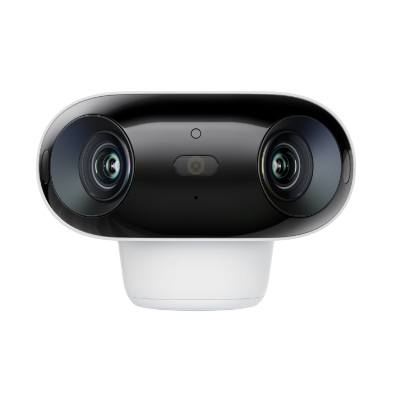
4k 180° Wire-free Color Night Vision Camera
4K UHD 180° Blindspot-free View; Color Vision Day and Night; 30% More Battery Life; Dual-band Wi-Fi 6; Smart detection.
Reolink Home Hub with Argus PT Ultra
The Home Hub with Argus PT Ultra is a wireless security system. It comprises two Argus PT Ultra security cameras, two solar panels, and a Home Hub. The security cameras record 4K videos for optimal clarity and details. They cover 360 degrees through the pan and tilt motion. At night, they use color or black-and-white night vision to record clear videos.
The Home hub offers 1-year local storage, which is designed to apply a proprietary anti-theft algorithm for enhanced privacy and data security. It gives you a regular security summary and also works as an alarm center.
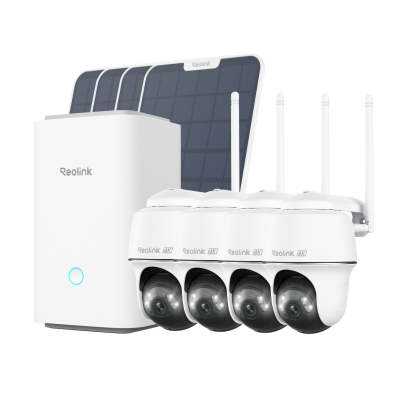
Wireless Security System With 4K PT Standalone Battery/Solar Wi-Fi Cameras
4K Color Footage Day & Night, 1 Year of Local Storage, Exclusive Anti-Theft Algorithms, 360° All-Around Coverage, Expandable System Up to 8 Reolink Cams.
FAQs
How do I change my Google Home accent?
You can change your Google Home accent by opening the Google Home app → Settings → Google Assistant → Assistant voice, then selecting a different voice or accent.
Can Google Assistant recognize more than one voice?
Yes, Google Assistant is perfect for households since it can recognize and react to numerous voices. It is also possible to set Voice Match which enables Google Assistant to recognize users.
Conclusion
Changing the Google Assistant voice settings is a simple way to personalize your experience. You may select the voice that best fits your needs and preferences. There are many voices available, and you can easily select the voice you want. Follow the simple steps we have shared and change the voice of Google Assistant in no time.
Search
Subscribe for the Latest Updates
Security insights & offers right into your inbox