
Alexa Not Working? How to Fix It?
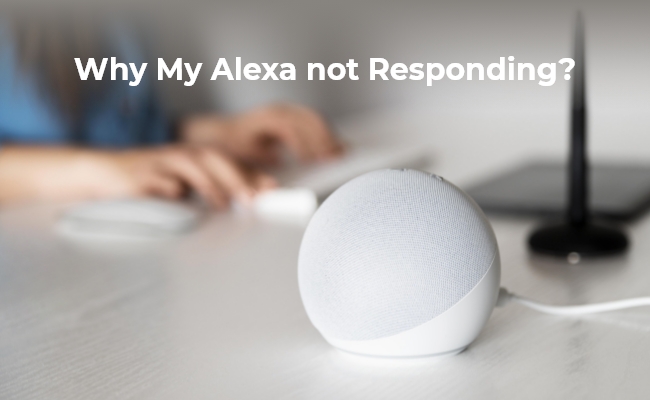
Alexa is a cloud-based voice service virtual assistant by Amazon. It is based on speech synthesizer technology, which makes it a perfect hands-free assistant for controlling smart home devices, setting reminders, playing music, and even calling or messaging someone. It provides amazing convenience, but sometimes you may face the Alexa not responding issue.
So, in this guide, we will discover why Alexa is not responding and how to make it work normally again. Stick with us till the end, and you will learn solutions to multiple situations regarding "Why is my alexa not working".
Why Is My Alexa Not Responding?
- Network issues (most common): Alexa needs a stable internet connection—restart your router or device.
- Weak or no Wi-Fi: Poor signal can prevent Alexa from responding.
- Microphone off or faulty: Alexa can’t hear commands if the mic is disabled or malfunctioning.
- Too much noise or distance: Background noise or being too far away affects voice detection.
- Wake word not recognized: Accents or pronunciation may cause issues.
- Muted or low volume: The device may seem unresponsive if you can’t hear replies.
- Outdated software: Bugs or old firmware can cause performance problems—update or restart.
How to Fix Alexa Not Responding (All Situations)
If your Alexa is not responding, lighting up, or not playing music, the issue is usually related to connectivity, voice recognition, or device settings. Try these fixes:
Basic Fixes (Most Common Issues)
- Restart your Alexa device: Unplug it for 30 seconds, then reconnect
- Check Wi-Fi connection: Ensure Alexa and your phone are on the same network
- Make sure the microphone is on: Look for a red light and unmute if needed
- Update Alexa software: Install the latest updates to fix bugs
Fix Voice Recognition Issues
- Move closer and reduce background noise
- Repeat your command clearly
- Try changing the wake word in the Alexa app
Fix Device or System Issues
- Wait until Alexa is ready (blue ring stops spinning)
- Restart or reconfigure music services in the Alexa app
- Check if your request is valid (some commands may not be supported)
Advanced Fix (Last Resort)
- Factory reset your Echo device via the Alexa app if nothing else works
How to Fix Alexa Calling not Working?
Alexa offers a great hands-free calling experience, but sometimes, this feature stops working. If that ever happens to you, then you can try the following 3 fixes.
Make sure that your smartphone has the latest version of the Alexa app
Open the application marketplace of your device and search for the Alexa app. If it has any updates available, then it means your device has an older version, so you must update it and try again.
Check Alexa history to ensure that the device heard and understood you correctly
Go to the Alexa app and see voice history to ensure that it correctly heard your command. It is because sometimes it does not recognize your contact's name due to a different accent. Hence, the calling feature fails.
Check your contact information and ensure that it is correct
Sometimes, everything is perfect, but your newly saved contact has some issues in it, which may result in a calling failure. So, check your contact to ensure that there are no issues with it. You may double-check by manually dialing from your phone.
How to Maximize Security Camera Functionality When Alexa Is Not Responding?
When a security camera encounters integration issues with Alexa, it's crucial to utilize its other features to uphold effective home surveillance. Opting for a security camera compatible with various smart home platforms like Google Assistant or HomeKit is the most effective approach.
One such camera is the new Reolink Argus 4 Pro. This battery-powered security camera works seamless with Google Assistant. If your Alexa is not responding, you can consider connecting the device to your Home Assistant. The Argus 4 Pro is a high-end surveillance device integrated with Wi-Fi 6 and ColorX technology. It provides full-color night vision without relying on visible spotlights. the elimination of traditional IR lights extends its battery life, rendering it a solid choice for smart home solution seekers.
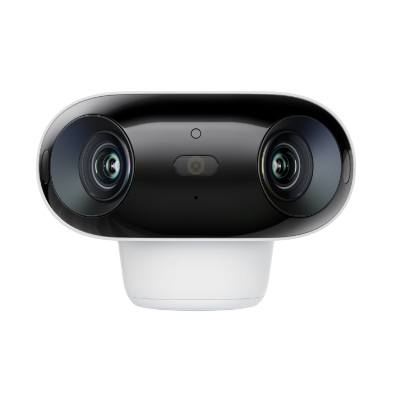
4k 180° Wire-free Color Night Vision Camera
4K UHD 180° Blindspot-free View; Color Vision Day and Night; 30% More Battery Life; Dual-band Wi-Fi 6; Smart detection.
The Reolink Argus PT Ultra is another excellent option, compatible with Alexa for voice control.It features a 4K resolution for crisp video quality and supports pan-tilt functionality, allowing you to remotely adjust its viewing angle. This camera is powered by a rechargeable battery, offering flexible placement without the need for constant power sources.
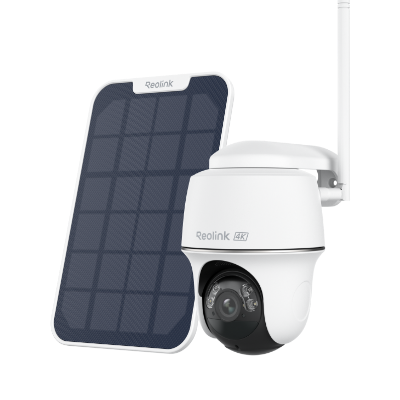
4k 100% Wire-Free PT Camera
4K 8MP Ultra HD; 5GHz/2.4GHz WiFi; Rechargeable Battery & Solar Powered; 355° Pan & 140° Tilt; IP65 Certified Weatherproof; Clear Night Vision; 2-Way Audio; 122° Wide Viewing Angle.
FAQs
Why is my Alexa suddenly not responding?
Alexa usually stops responding due to Wi-Fi issues, a muted microphone, or software glitches. Check that your device is connected to the internet, the mic isn’t turned off (red light), and there’s no background noise interfering. A quick restart often fixes the problem.
How do I reset unresponsive Alexa?
To reset Alexa, unplug the device for 30 seconds and plug it back in. If it still doesn’t work, open the Alexa app, go to Devices → select your Echo → Settings → Factory Reset, and follow the instructions. This restores the device to default settings.
Why have all my Alexas stopped working?
If all your Alexa devices stopped working, it’s likely due to a network outage, Amazon server issue, or Wi-Fi problem. Check your internet connection, restart your router, and ensure all devices are on the same network. If the issue persists, it may be a temporary service outage.
Conclusion
Alexa is one of those small additions to a home that can make your life extremely easy. Once you get used to the experience of hands-free control of multiple daily-usage features along with smart home devices, there will be no going back. If you ever face an issue with Alexa not responding to your commands, or Alexa not working, you can use one of the solutions from this guide to resolve your issue.
Search
Subscribe for the Latest Updates
Security insights & offers right into your inbox