Your cart is empty.


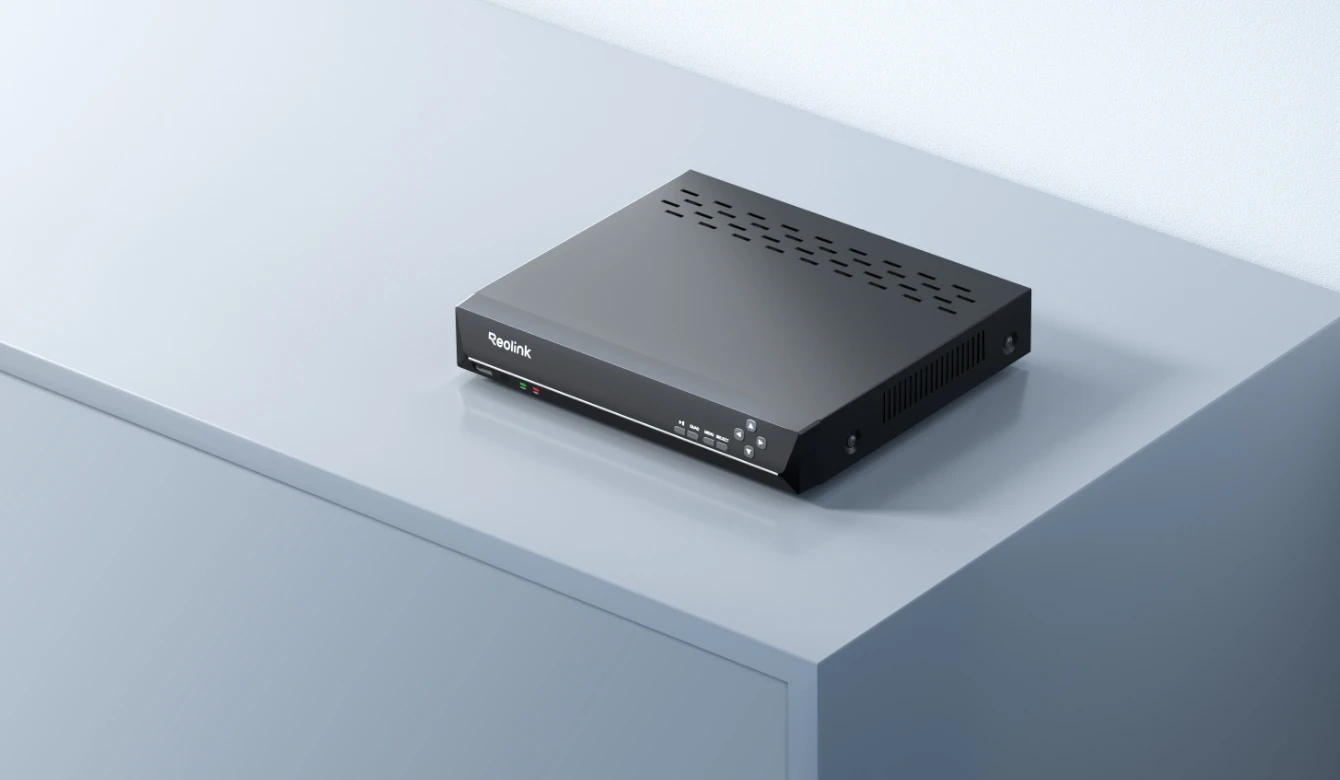


12-Channel* PoE NVR for 24/7 Continuous Recording
Record HD Footage Up to 16MP
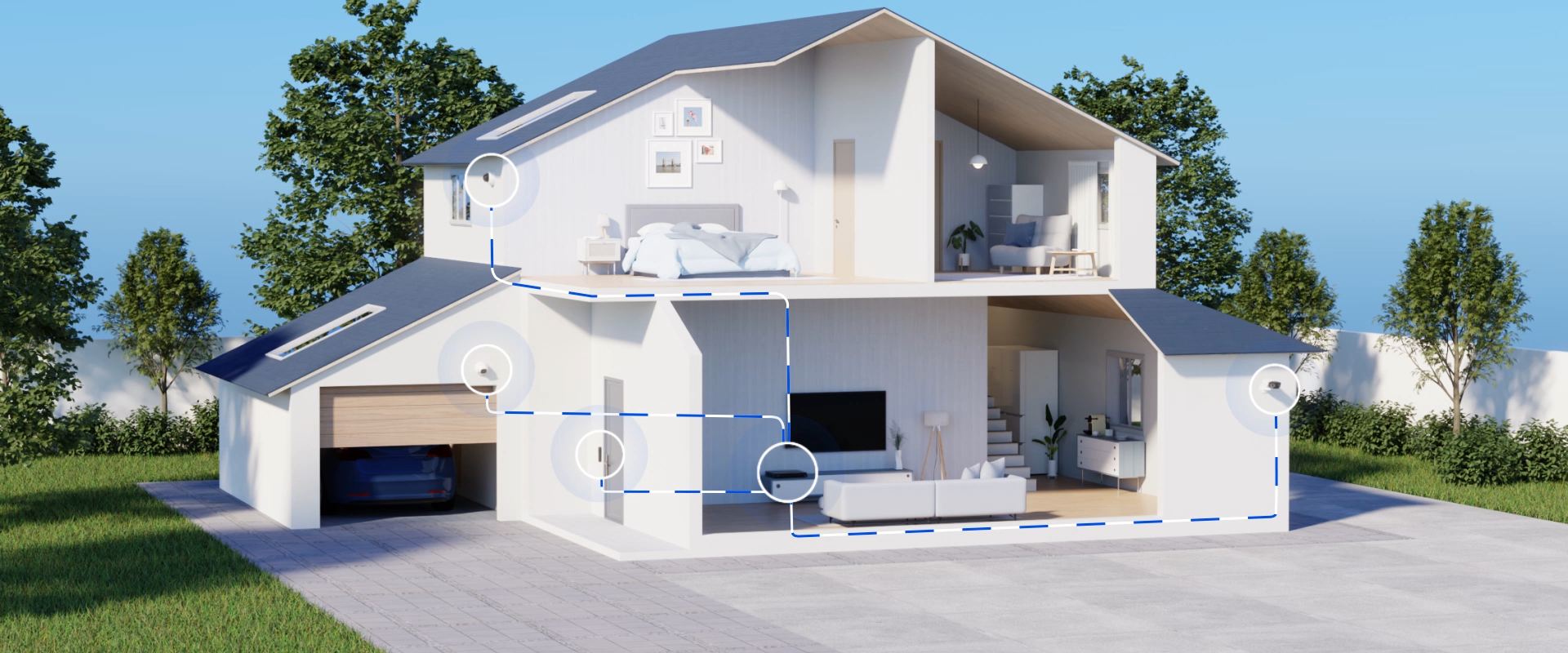
Power and Connect Cameras with One PoE Cable
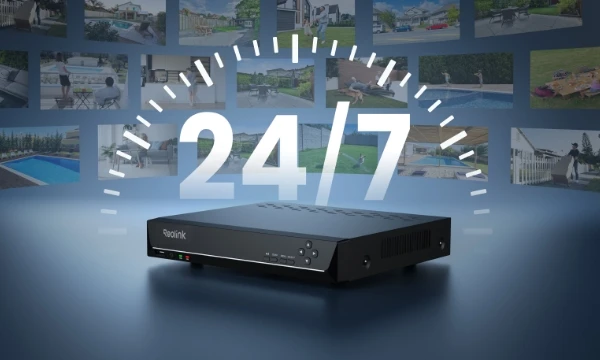
24-Hour Continuous Recording
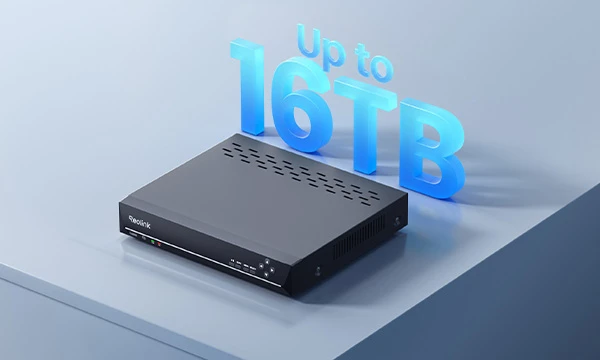
Store 24/7 Footage Locally with Up to 16TB Storage
The PoE NVR Reolink RLN8-410 brings all your security cameras together in one system. Easily monitor live feeds, manage recordings, and play back footage from a single interface. Whether for home or business security, it simplifies multi-camera management and helps you keep an eye on your entire property.
*The RLN8-410 (hardware version N7MB01) supports up to 12 cameras: 8 PoE or plug-in Wi-Fi cameras plus 4 battery-powered Wi-Fi cameras, or 12 battery-powered Wi-Fi cameras.
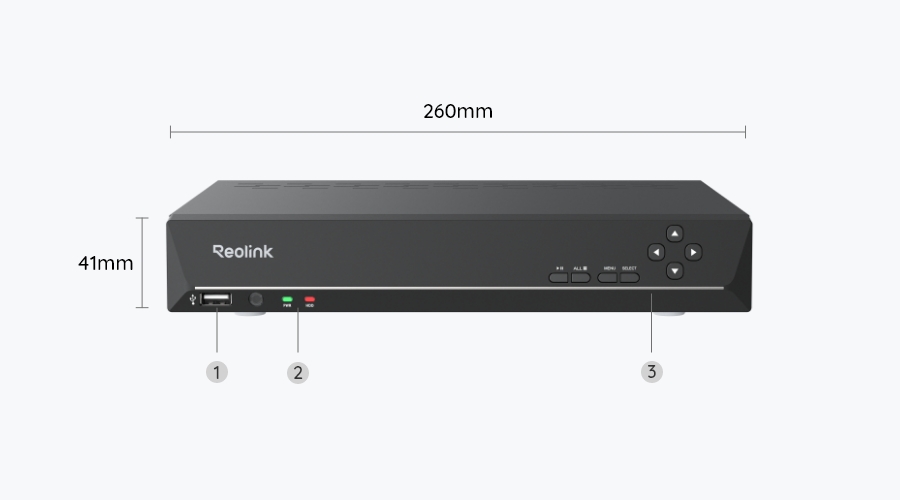
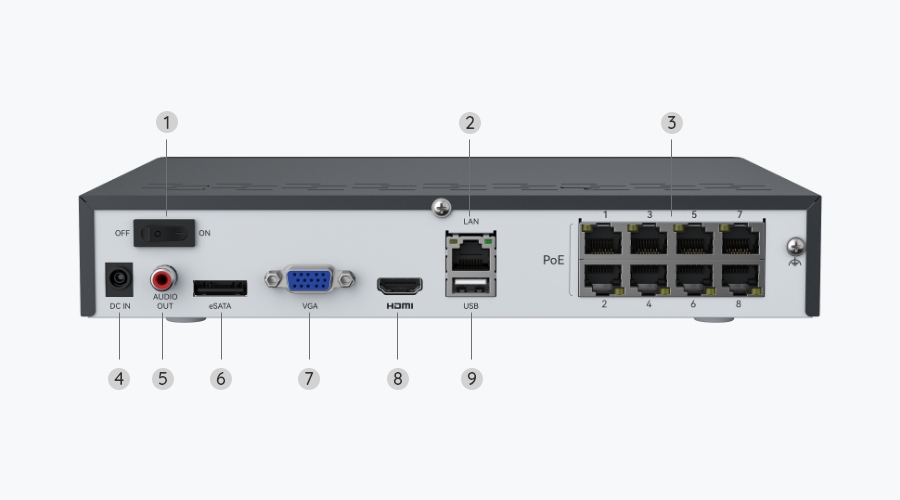
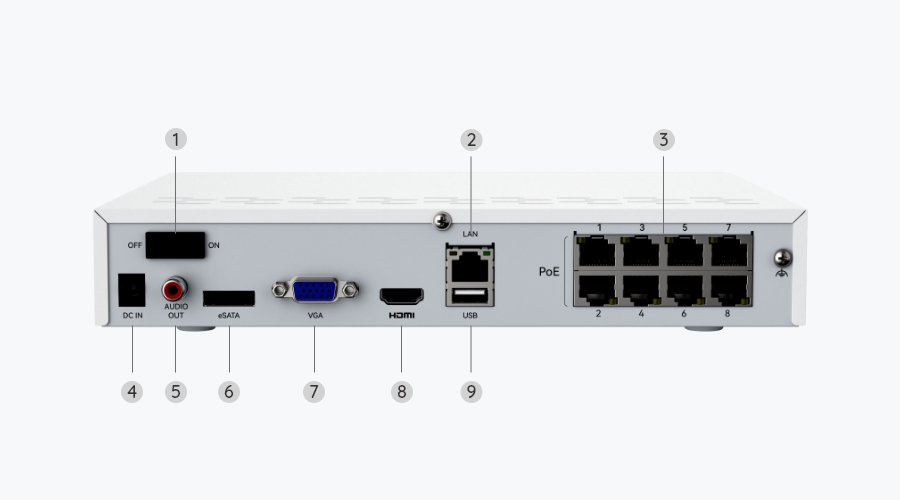
8 PoE Ports
Expandable to 12 Channels
Up to 16MP
Ultra-High Definition
Up to 16TB
Storage Capacity
The RLN8-410 continuously records compatible cameras to local HDD storage, keeping your data safe and accessible anytime.
Capture every moment with 24/7 continuous recording, even when no motion is detected. Store footage locally without monthly subscription fees, and easily play back recordings to review missed events or find important details.
With expandable storage up to 16TB (8TB SATA + 8TB eSATA), the NVR can retain more footage from multiple security cameras before older recordings are overwritten, making it easier to review past events.
The RLN8-410 NVR supports video recording at up to 16MP resolution from compatible security cameras, capturing finer details of people, vehicles, and other objects. Whether using color night vision or black-and-white infrared footage, you can review recorded video to identify important details, even in low-light conditions.
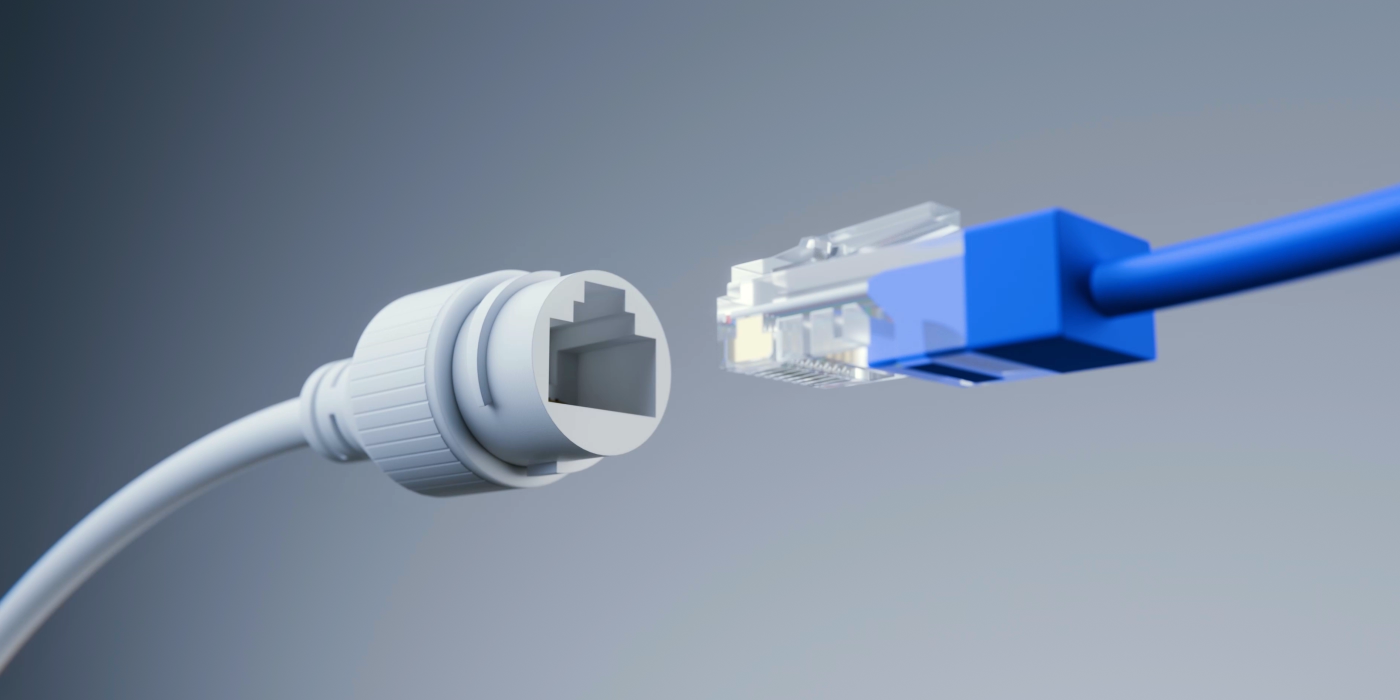
Thanks to PoE technology, the RLN8-410 NVR delivers power and data to each compatible camera through a single Ethernet cable, eliminating the need for separate power adapters or nearby outlets. This simplifies installation and provides stable video transmission without relying on Wi-Fi, making it ideal for installing multiple cameras in areas with limited power outlets or weak Wi-Fi signals.
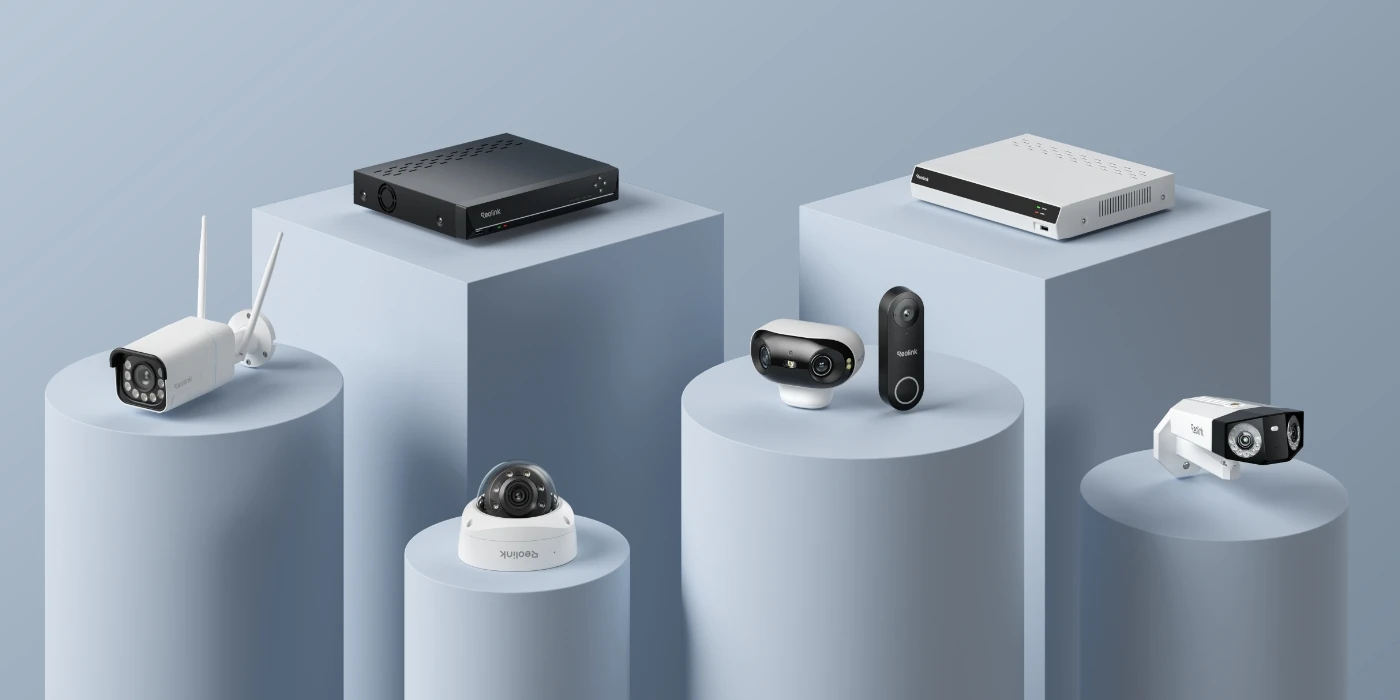
The RLN8-410 supports a wide range of Reolink security cameras, including PoE, plug-in Wi-Fi, and battery-powered Wi-Fi models. With support for up to 12 cameras, you can combine different camera types in one system to suit different installation needs, without being limited to a single connection type.
*To connect with battery Wi-Fi cameras, make sure the NVR hardware version is N7MB01, the cameras are current models on sale, and your Reolink app is updated to the latest version.
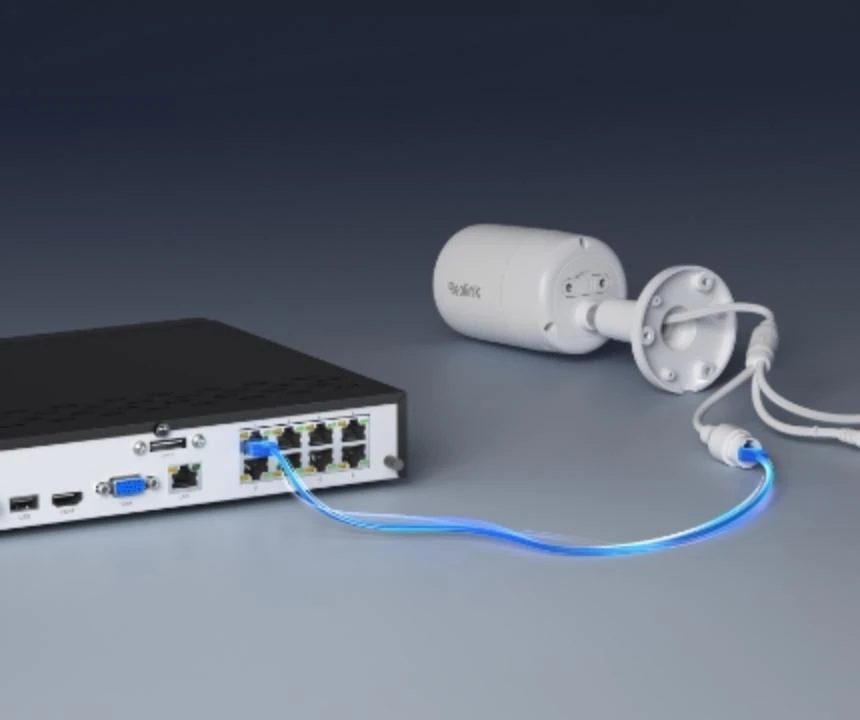
Equipped with Power over Ethernet technology, this Reolink NVR can connect to Reolink cameras in minutes, providing plug & play convenience.
Connect the NVR to your router and a monitor/TV, then to a power outlet and turn it on.
Connect your camera to any PoE port on the NVR with an Ethernet cable.
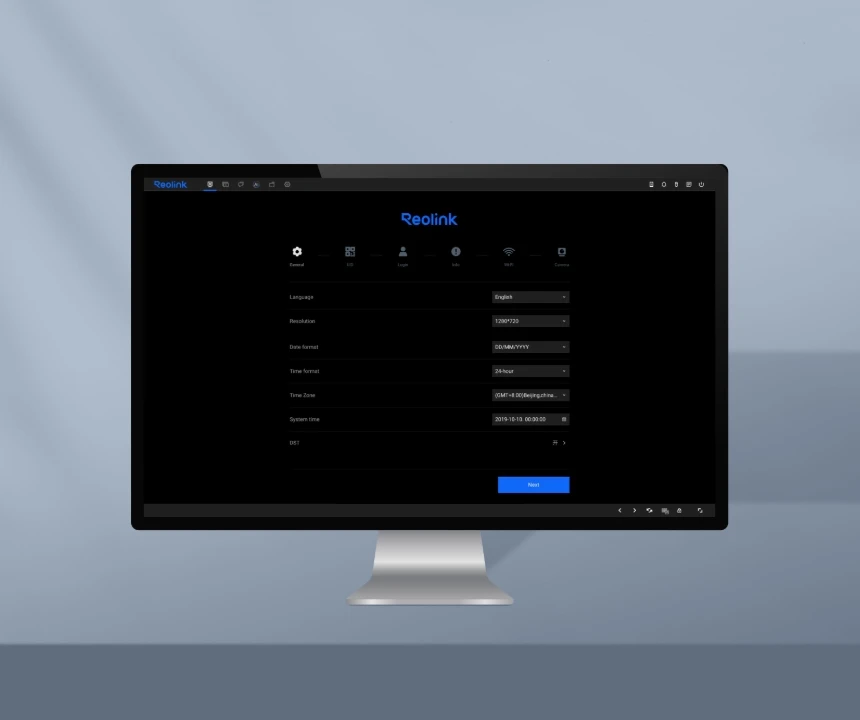
When you power on the NVR for the first time, follow the instructions to complete the basic configuration.
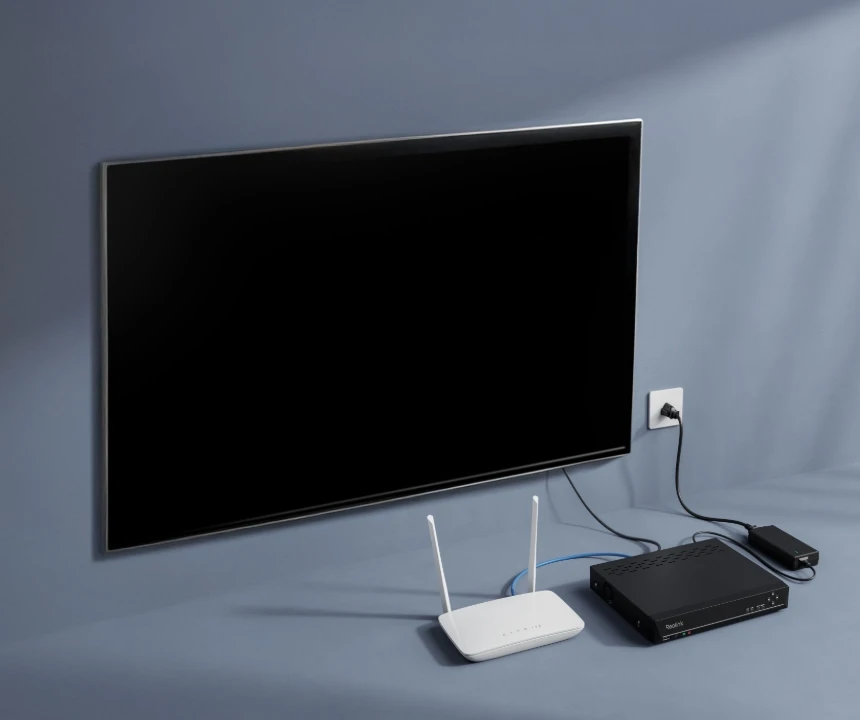
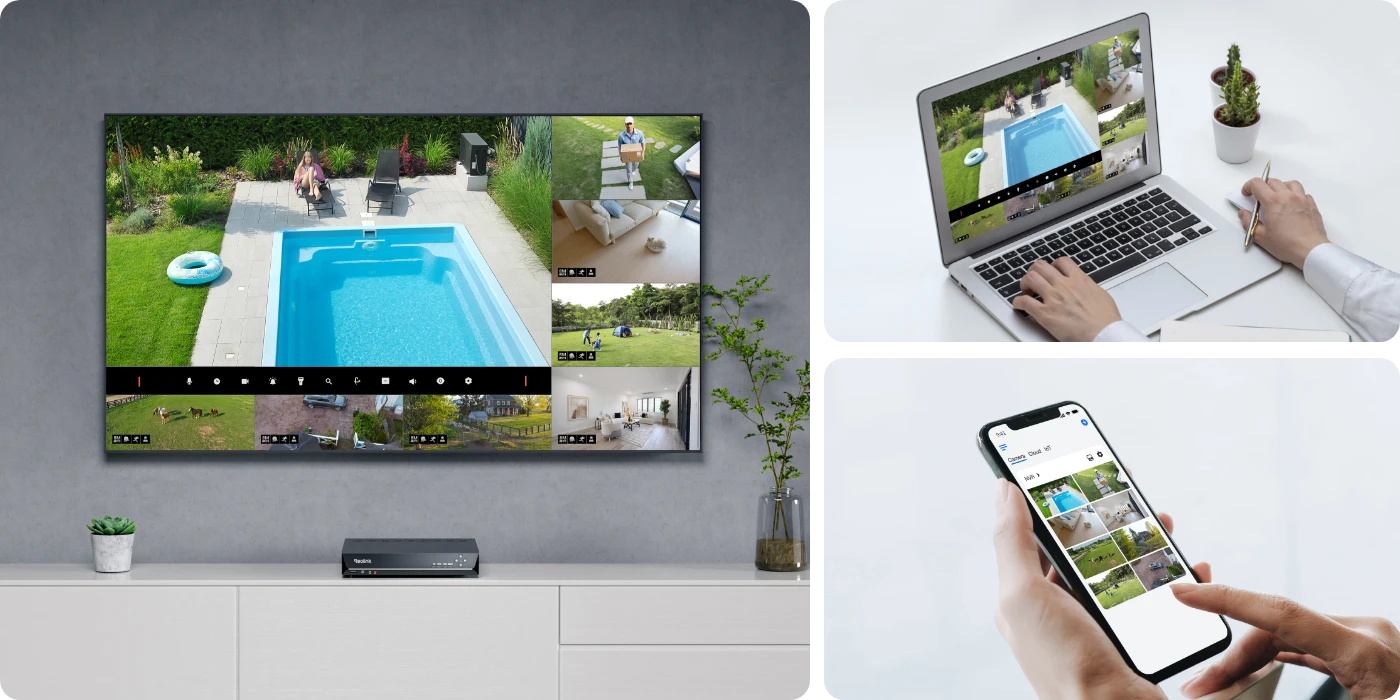
The PoE NVR supports both local and remote live viewing. For local monitoring, connect the NVR to a monitor or TV to view multiple camera feeds without an internet connection. For remote access, use the Reolink App or Client to check live footage from your phone or computer, even when you're away from the property.
The RLN8-410 is a Reolink 8-channel network video recorder (NVR). It connects to up to 12 Reolink cameras, records video 24/7, and stores footage for playback and remote viewing through an app or monitor.
The Reolink RLN8-410 is compatible with most Reolink PoE cameras and non-battery WiFi cameras. However, supported models may vary depending on the hardware version. For detailed compatibility information, please refer to the Reolink NVR compatibility page on our support site.
For a hardware reset, keep the NVR powered on and locate the reset button or pinhole on the back of the device. Press and hold it for about 10 to 15 seconds until you hear a beep or the system begins to reboot. This will restore the device to factory settings.
If you still have access to the system, you can perform a software reset by going to the main menu, selecting System, then Maintenance (or Default), and choosing Restore Factory Settings. Confirm the action to complete the reset.
Please note that a factory reset will erase all existing settings, including passwords, network configuration, and camera setups.
The RLN16-410 comes with 16 ports and a pre-installed 4TB HDD, while the RLN8-410 features 8 ports and a pre-installed 2TB HDD.
The Reolink RLN8-410 is ideal for multi-camera security setups that require different camera types. You can use PoE cameras for continuous monitoring of driveways, entrances, and storefronts, while adding compatible battery-powered Wi-Fi cameras in areas where running cables is difficult. With support for up to 12 cameras, 16MP resolution, 24/7 local recording on compatible cameras, and expandable storage up to 16TB, it brings different monitoring needs into one system without mandatory monthly subscription fees.
Home Security: Connect cameras to monitor front doors, driveways, garages, and backyards, with 24/7 recording from compatible cameras to review incidents or missed events.
Small Retail Stores: Monitor entrances, checkout counters, and stockrooms simultaneously, with local video recordings available for reviewing theft, disputes, or other incidents.
Offices and Warehouses: Use multiple cameras to cover entry points, hallways, storage areas, and loading zones, with centralized live viewing and video playback.
Properties with Limited Wiring Access: Combine PoE cameras in areas with Ethernet cabling and compatible Wi-Fi or battery-powered cameras where running cables or installing power outlets is difficult.
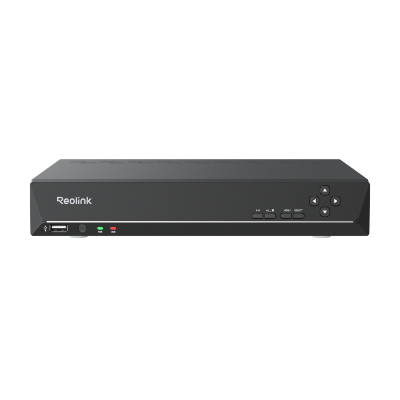 RLN8-410 ×1
 NVR Power Adapter ×1
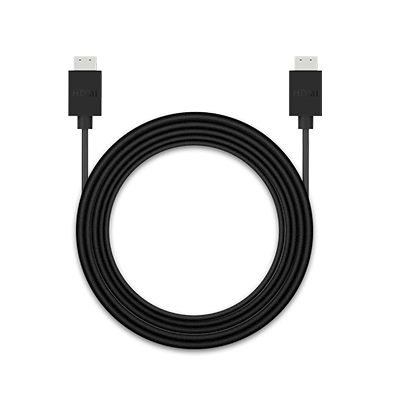 HDMI Cable ×1
 USB Mouse ×1
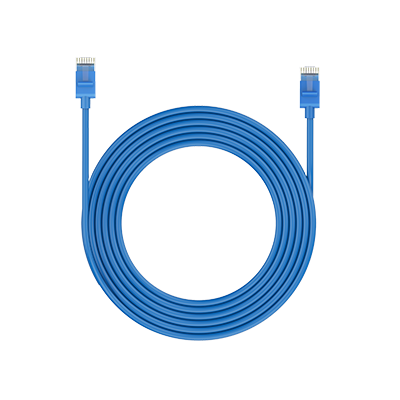 1m Network Cable ×1



Be Prepared, Be Ahead
Never miss Reolink hot deals, news, and updates tailored for you.
Be Prepared, Be Ahead
Never miss Reolink hot deals, news, and updates tailored for you.

Google, Google Play, Google Assistant and related marks and logos are trademarks of Google LLC. Amazon, Alexa and all related logos are trademarks of Amazon.com, Inc. or its affiliates. Mac and Safari are trademarks of Apple Inc. App Store is a service mark of Apple Inc., registered in the U.S. and other countries. Firefox and the Firefox logo are trademarks of the Mozilla Foundation in the U.S. and other countries. Other product and company names mentioned herein may be trademarks of their respective companies.